In most cases, we recommend that you call API operations on the server side to manage stream relay tasks. For more information, see Stream relay. You can also use client SDKs to manage stream relay tasks. This topic describes how to configure settings so that you can use client SDKs to manage stream relay tasks.
Enable stream relay
After you enable the stream relay feature, audio and video streams are relayed to the origin server of ApsaraVideo Live. You can configure features such as transcoding, recording, and snapshot capture based on streaming domains. You can also pull live streams to watch.
Log on to the ApsaraVideo Live console.
In the left-side navigation pane, choose Live + > ApsaraVideo Real-time Communication > Applications. On the Applications page, find the application that you want to manage and click Manage in the Actions column.
Click Stream Relay.
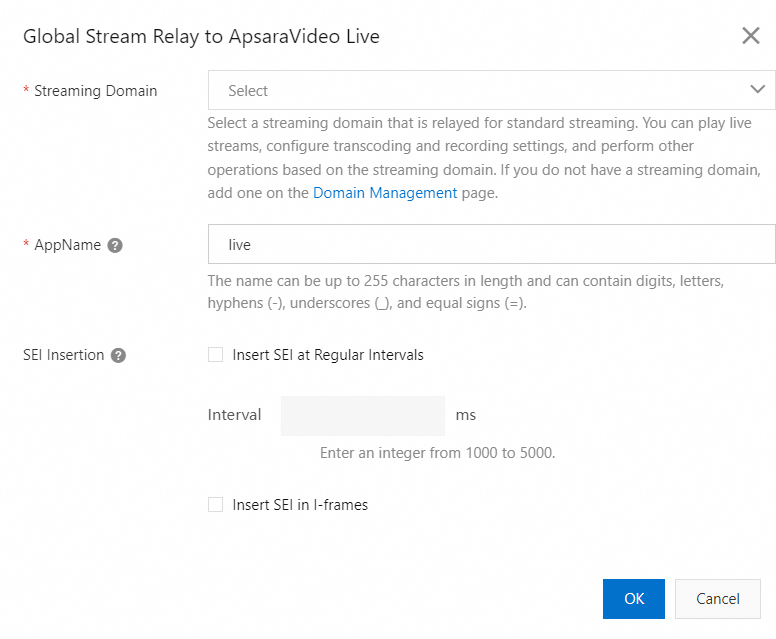
Turn on Stream Relay and configure the parameters. The following table describes the parameters.
Parameter
Configuration
Description
Streaming Domain
Example: play.example.com
The streaming domain that is relayed for standard streaming. You can play live streams, configure transcoding and recording settings, and perform other operations based on the streaming domain. If you do not have a streaming domain, add one on the Domain Management page of the ApsaraVideo Live console. For more information, see Add a domain name.
NoteDo not enable Real-Time Streaming (RTS) 2.0 for the streaming domain. Otherwise, stream relay fails.
AppName
Default value: live. You can specify a custom name.
The application name in the streaming URL after stream relay. If you need to configure templates such as transcoding, recording, and snapshot templates for the relayed stream, you must specify an application name that is the same as the application name specified in the templates. Otherwise, the templates do not take effect.
SEI Insertion
Insert SEI at Regular Intervals: This option lets you insert supplemental enhancement information (SEI) at a specified interval from 1,000 to 5,000 ms.
Insert SEI in I-frames: This option lets you insert SEI in I-frames of a video stream.
SEI: You can use SEI to insert basic user information such as the UID and mixed-stream layout parameters into streams. This way, in co-streaming scenarios, when the layout for stream mixing and relay changes, the app that viewers use to watch streams can parse the layout information from SEI in real time. This helps facilitate the adjustment of interaction styles. For more information, see SEI format.
Obtain MPUTaskId
import md5 from 'md5';

const genMPUTaskId = (appid?: string, channel?: string, userId?: string) => {
  if (!appid || !channel || !userId) return '';

  const SDK_PLAY_DOMAIN = 'live.aliyun.com';
  const prefix = 'rtmp://';

  const stream = `${appid}_${channel}_${userId}_camera`;
  const url = `${prefix}${SDK_PLAY_DOMAIN}/live/${stream}`;

  return `AL-${md5(url)}`;
};
Update a stream relay task
If you set the mixed parameter to true, the mode is switched from the single-stream relay mode to the mixed-stream relay mode. If you set the parameter to false, the mode is switched from the mixed-stream relay mode to the single-stream relay mode.