This topic describes how to configure user-based single sign-on (SSO) for Tencent Cloud in the Identity as a Service (IDaaS) console. User-based SSO allows the members of your enterprise to access Tencent Cloud resources as Cloud Access Management (CAM) users.
Procedure
Step 1: Add an application in the IDaaS console
Log on to the IDaaS console.
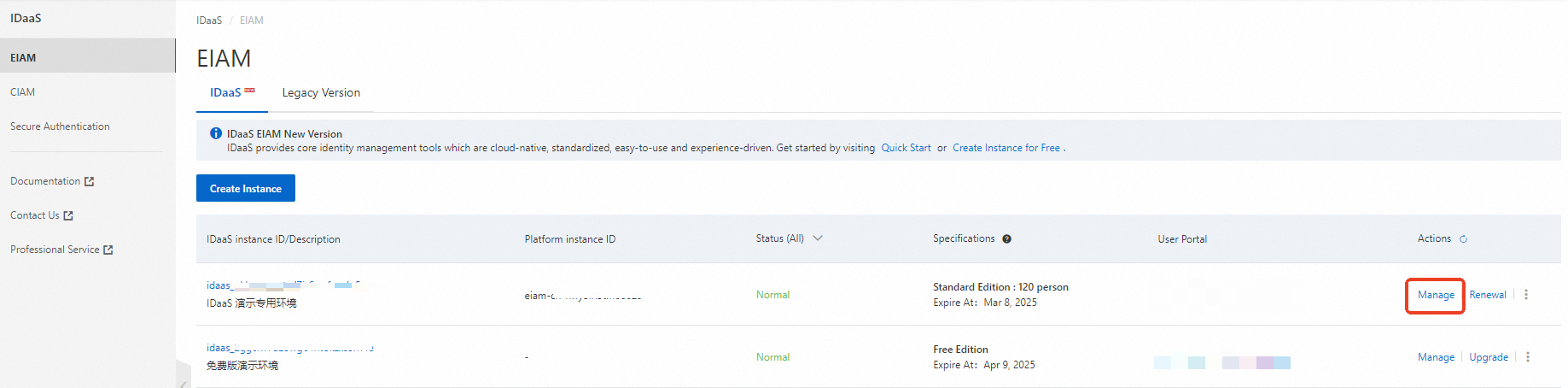
On the EIAM page, find an instance and click Manage in the Actions column.
In the left-side navigation pane, click Applications. On the Applications page, click Add Application to go to the Marketplace tab. Then, search for Tencent Cloud User-based SSO and click Add Application.
Confirm the application name and click Add. The application is added.
Step 2: Configure SSO for the application
After you add the application, you are automatically redirected to the SSO tab. You can configure SSO on this tab.
Enter the ID of your Tencent Cloud account. You can move the pointer over the profile picture on the homepage of the Tencent Cloud console or go to the account center to obtain the ID.
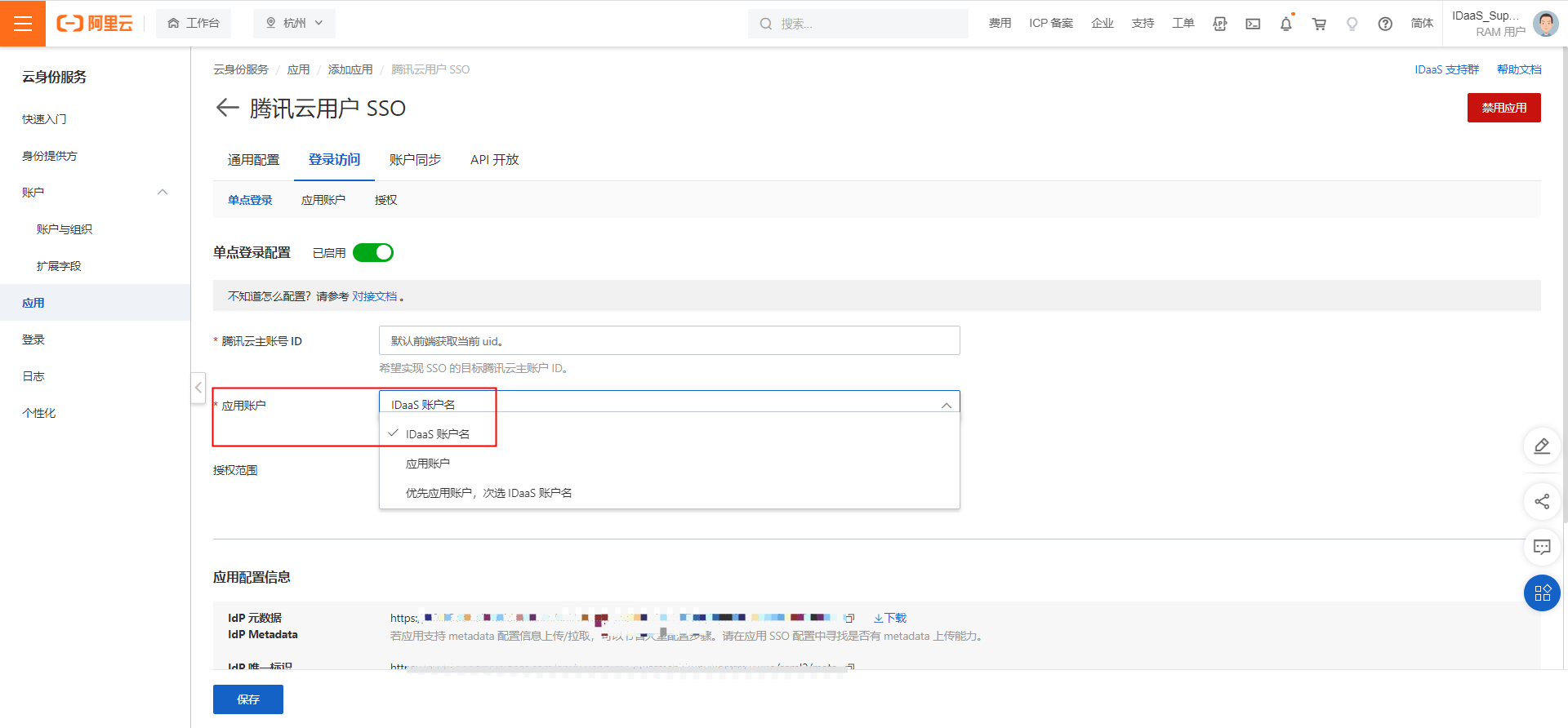
Select an attribute from the Application Username drop-down list. This attribute is used as the primary key for SSO to Tencent Cloud. You must set this attribute to the prefix of Tencent Cloud CAM users.
If the name of your IDaaS account is the same as the username of the CAM user, select IDaaS Username from the Application Username drop-down list.
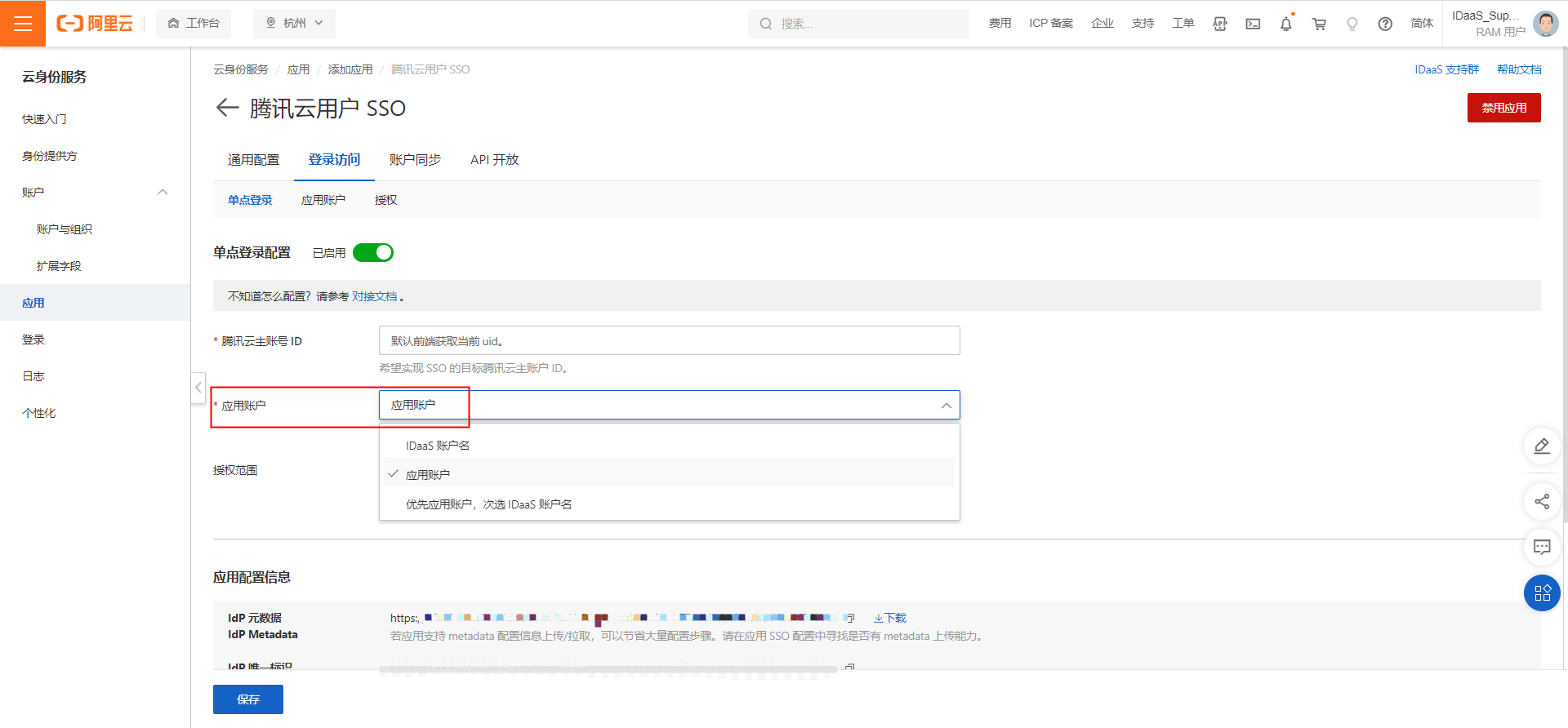
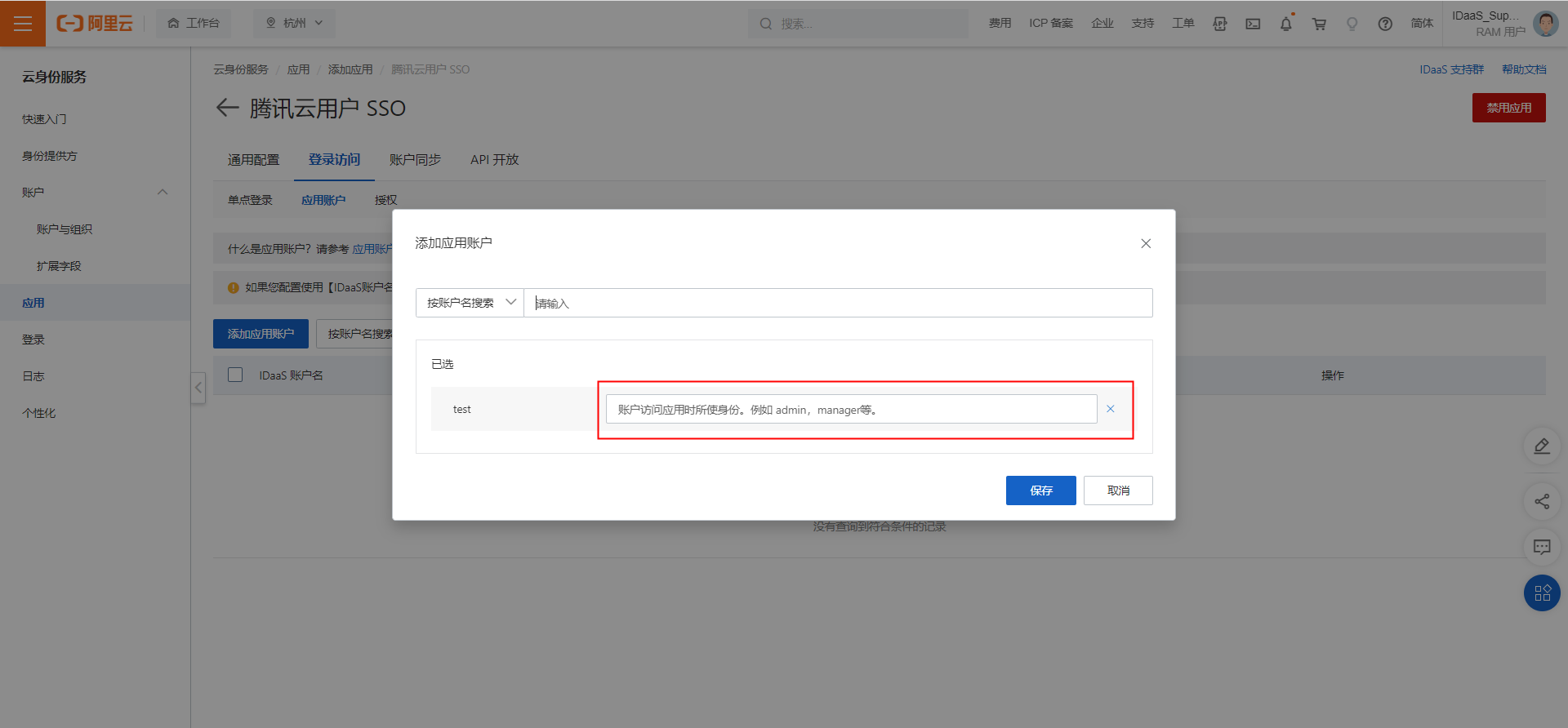
If the name of the IDaaS account is different from the username of the CAM user, select Application Username from the Application Username drop-down list. Click the Application User tab, click Add Application User, and then search for the IDaaS account for SSO. Then, enter the username of the CAM user and click Save.
For testing purposes, we recommend that you set the Authorize parameter to All Users to skip the step of granting permissions to IDaaS accounts.
In the Application Settings section, download the identity provider (IdP) metadata file to your computer. This file is used to establish the trust relationship between Tencent Cloud and IDaaS.
Step 3: Configure user-based SSO for Tencent Cloud
Log on to the Tencent Cloud CAM console.
In the left-side navigation pane, choose Identity Provider > User SSO.
On the User SSO page, view the status of User SSO and other configurations.
Turn on User SSO, upload the IdP metadata file that you downloaded in the IDaaS console in Step 2, and then click Save.
Step 4: Grant permissions to CAM users in the Tencent Cloud CAM console
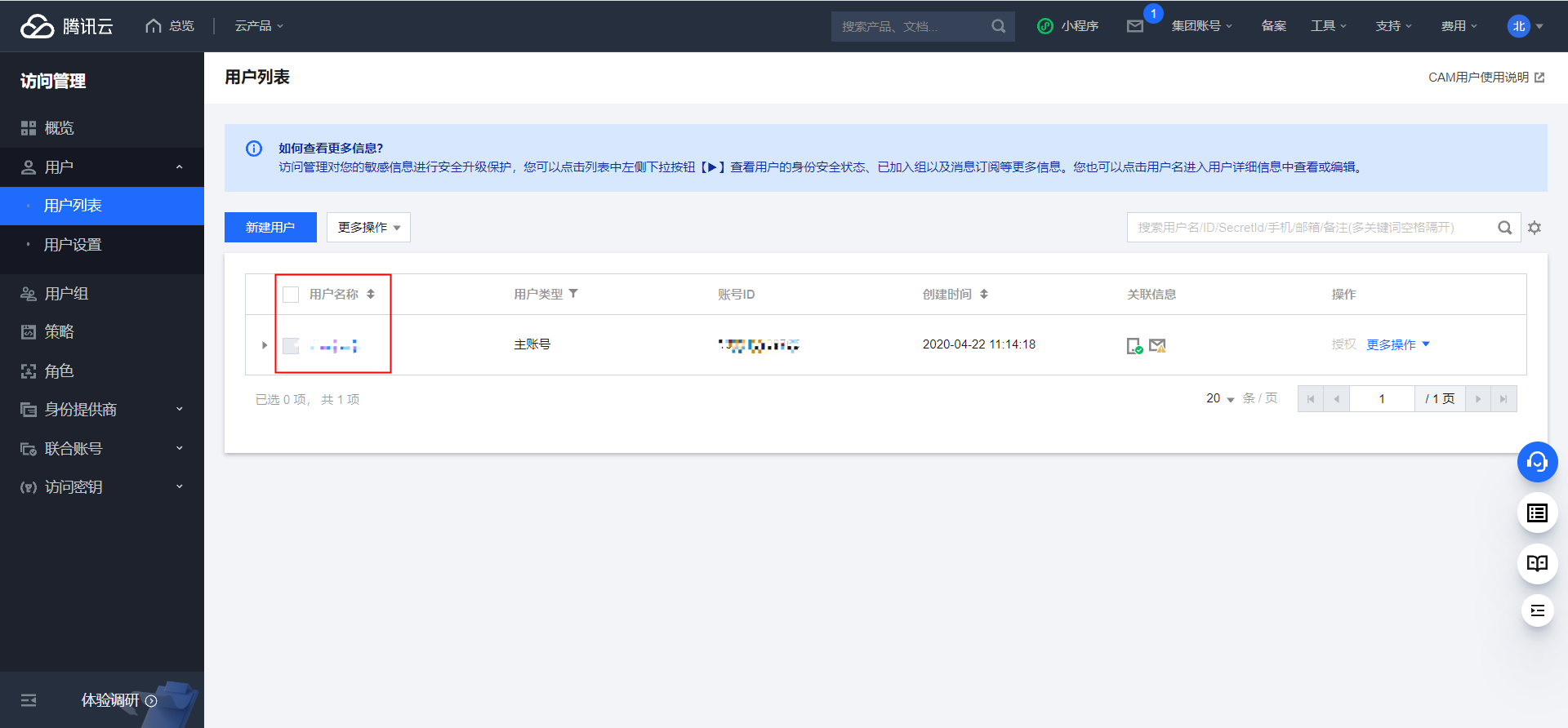
If you have existing Tencent Cloud CAM users and want to grant permissions to the CAM users, perform the following operations: In the left-side navigation pane in the Tencent Cloud CAM console, choose user > User List. On the User List page, find the CAM user that you want to manage and click Authorization in the operate column to authorize the CAM user to access Tencent Cloud resources. For more information, see Synchronize accounts - IDaaS event callback. If you only want to test SSO, skip this step.
Step 5: Test SSO
After you perform the preceding steps, you can test user-based SSO. You can initiate user-based SSO by using the following methods.
IdP-initiated SSO: Log on to the IDaaS application portal by using an IDaaS account that is authorized to initiate user-based SSO for Tencent Cloud. Click the Tencent Cloud User-based SSO icon on the page to initiate SSO.
Service provider (SP)-initiated SSO: In an anonymous browser, open the Tencent Cloud logon page and click CAM User in the lower part of the page. On the page that appears, click User-based SSO. If you logged on to the IDaaS application portal, you can directly access Tencent Cloud. Otherwise, you are redirected to the IDaaS application portal for logon. After you log on to the IDaaS application portal, you can access Tencent Cloud resources.