Configure user-based single sign-on (SSO) between IDaaS and Baidu AI Cloud so enterprise members can access Baidu AI Cloud resources as IAM users without maintaining separate credentials.
This setup enables centralized management of identity permissions, enhancing both access security and operational efficiency. The user-based SSO for Baidu AI Cloud corresponds to IAM User Federation in Baidu AI Cloud.
Prerequisites
Before you begin, make sure you have:
An IDaaS instance with at least one EIAM instance provisioned
A Baidu AI Cloud account with administrator access to the IAM console
The Baidu AI Cloud account ID (find it in User Center after logging on to the Baidu AI Cloud console)
Username matching requirement: The IDaaS account username must exactly match the Baidu AI Cloud IAM username. Decide on your username convention before creating users — a mismatch causes SSO to fail, and you will need to configure a username mapping to fix it.
Step 1: Add the application in IDaaS
Log on to the IDaaS console.
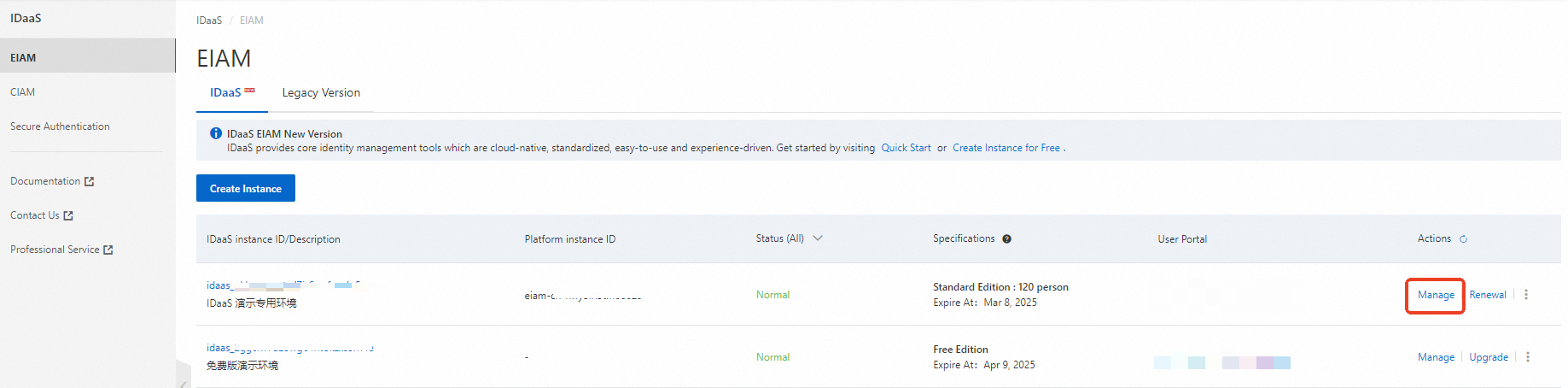
On the EIAM page, find the required instance and click Manage in the Actions column.
In the left-side navigation pane, click Applications. On the Applications page, click Add Application to open the Marketplace tab. Search for Baidu AI Cloud User-based SSO and click Add Application.
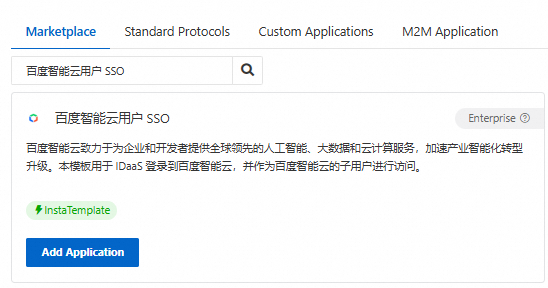
Confirm the application name and click Add.
Step 2: Configure SSO in IDaaS
On the SSO tab, enter the ID of your Baidu AI Cloud account.
Note: The Application Username parameter defaults to IDaaS Username. Make sure that the username of your IDaaS account is the same as the username in the application. Otherwise, SSO fails. To control which IDaaS accounts can access this application, configure the Authorize parameter. For details, see the "Application account" and "Authorization scope" sections in the Configure SSO topic.
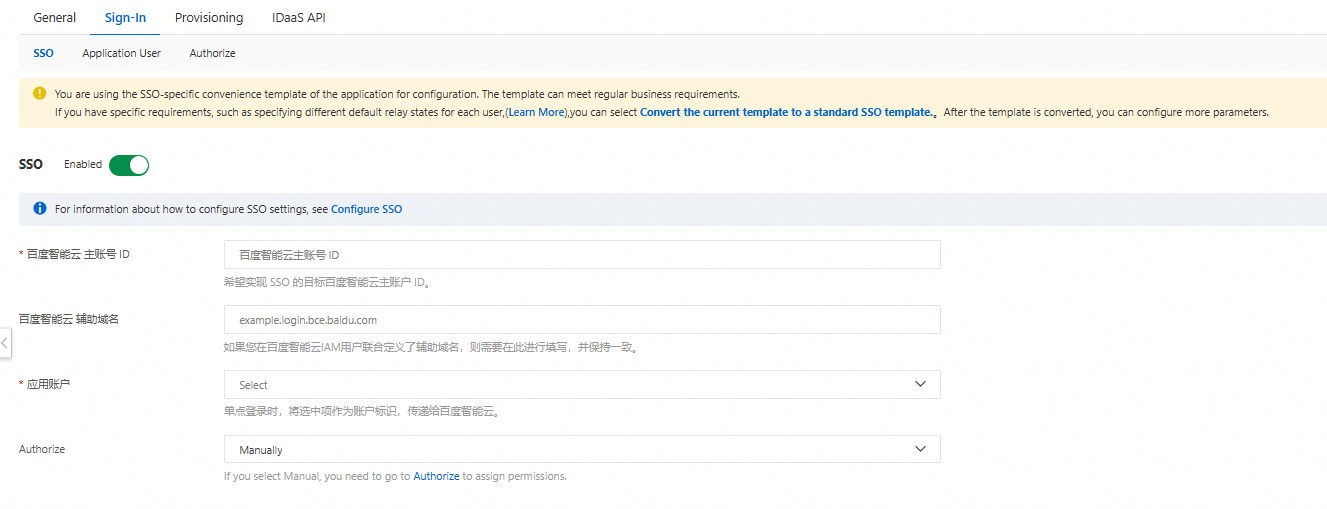
Keep the default values for the remaining parameters and click Save.
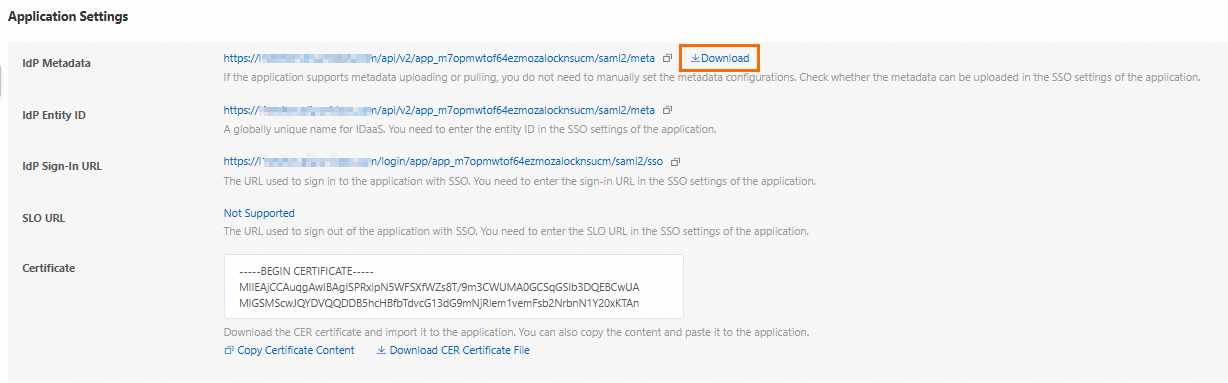
In the Application Settings section of the SSO tab, review the SSO parameters and download the IdP metadata file to your computer.
Step 3: Configure Baidu AI Cloud
Log on to the Baidu AI Cloud console, hover over the profile picture in the upper-right corner, and click IAM.

In the left-side navigation pane, choose Identity Provider > IAM User Federation.
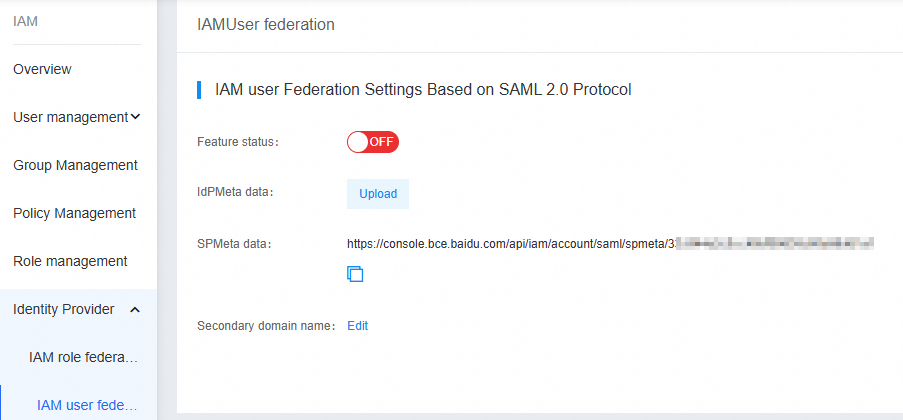
Turn on Feature status and upload the IdP metadata file you downloaded in Step 2.
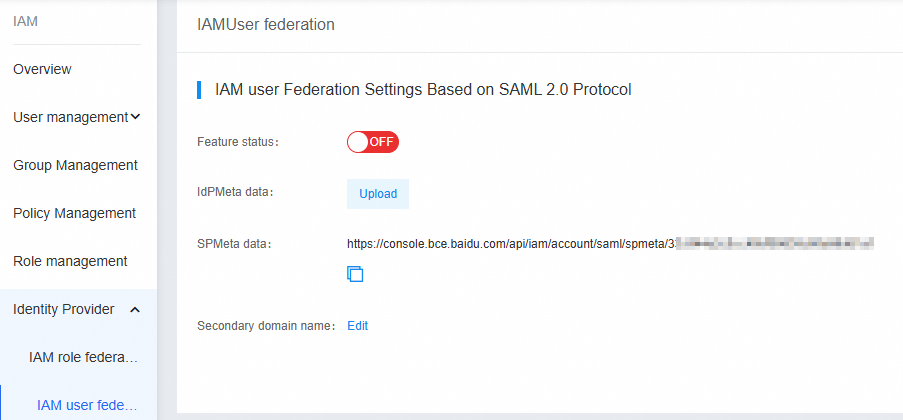
Note: If you have enabled the auxiliary domain name feature on IAM User Federation in Baidu AI Cloud, copy the auxiliary domain name from Baidu AI Cloud and paste it into IDaaS before saving.
Step 4: Create an IAM user in Baidu AI Cloud
Skip this step if you already have Baidu AI Cloud IAM users whose usernames match your IDaaS account usernames.
Otherwise, in the left-side navigation pane of the Baidu AI Cloud console, choose User management > IAM user and click Create IAM user. In the dialog box, enter the username, set How to access cloud resource to Access console with username and password, and configure the New password and Confirm password fields.
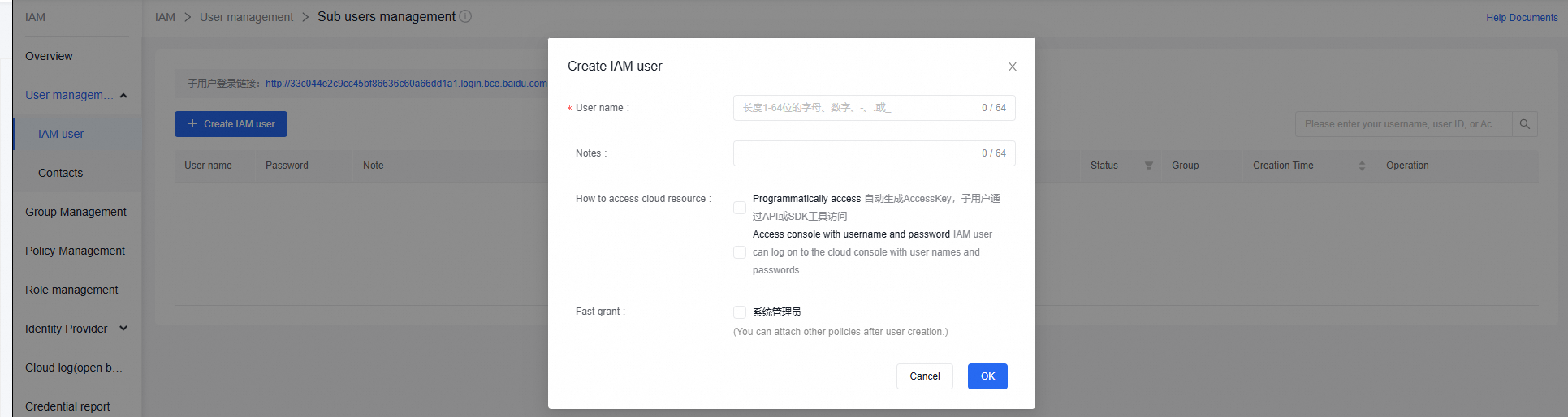
The IAM username must match the IDaaS account username. If they differ, create a username mapping between the two accounts.
Step 5: Test SSO
IdP-initiated SSO
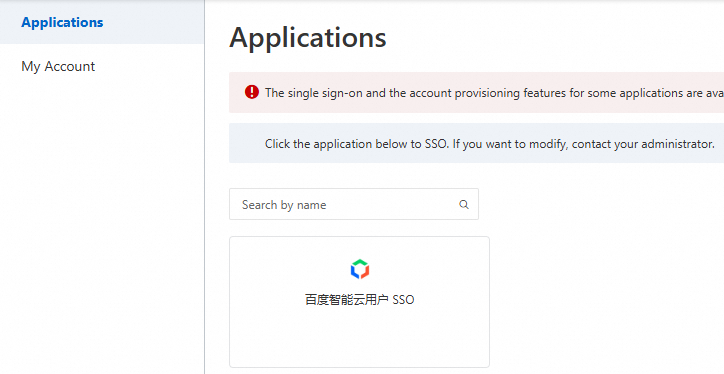
Log on to the IDaaS application portal using an IDaaS account that is authorized to access the Baidu AI Cloud application. Click the Baidu AI Cloud User-based SSO icon to initiate SSO.
SP-initiated SSO
Open the Baidu AI Cloud IAM user logon page in a private browsing window. To find the URL, go to IAM > User management > IAM user > Sub users management.

Click Login with Organization Account. Baidu AI Cloud redirects you to IDaaS for authentication.
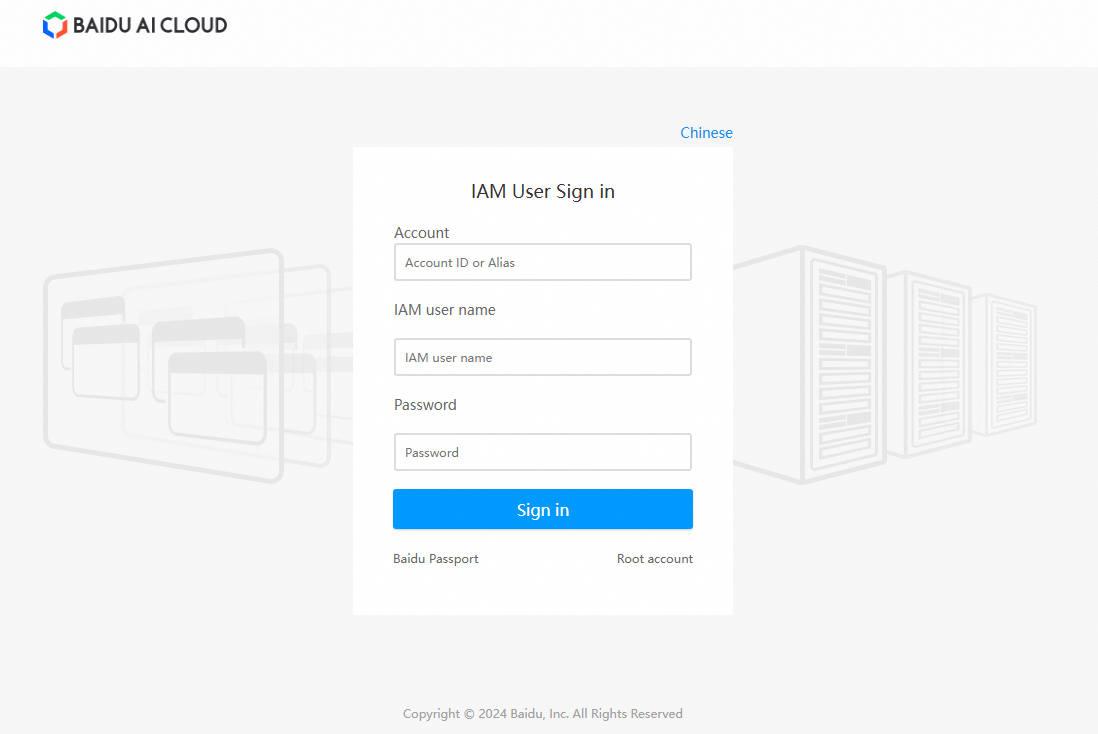
Log on to IDaaS if prompted. After authentication, IDaaS redirects you back to Baidu AI Cloud.