This topic describes how to configure role-based single sign-on (SSO) for Baidu AI Cloud in IDaaS. This process uses the Identity and Access Management (IAM) role federation feature in Baidu AI Cloud. With role-based SSO, you do not need to create a Baidu AI Cloud sub-user for each member of your organization.
Step 1: Create an application
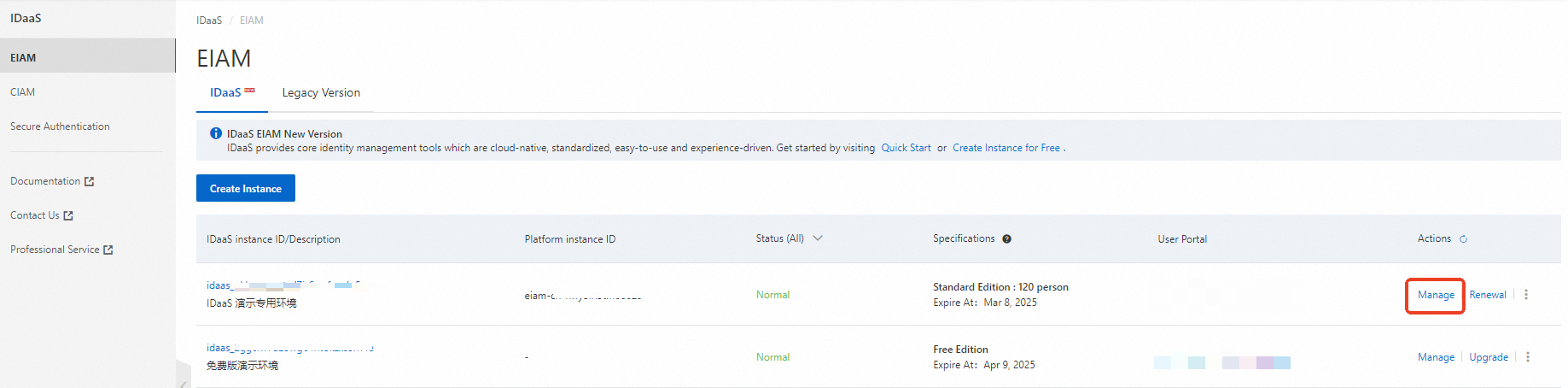
Log on to the IDaaS console.
Select an IDaaS instance and click Access Console.
Go to , and search for Baidu AI Cloud Role-based SSO. Click Add Application.
Confirm the application name to add the application.
Step 2: Configure SSO in IDaaS
On the single sign-on configuration page, enter your Baidu AI Cloud main account ID.
To find your main account ID, log on to the Baidu AI Cloud console with your main account and go to the User Center.
The identity provider name must match the name configured for IAM role federation in Baidu AI Cloud. For example: AliyunIDaaSRole.
Keep the default settings for the other options and click Save. This completes the SSO configuration in IDaaS.
Application account: The IDaaS account name is the default application logon identifier. For Single Sign-On (SSO) to be successful, the application username must match the IDaaS account name. For more information about flexible configuration, see . Authorization scope: To specify which IDaaS accounts can access the application, see .
The Application Configuration Information section at the bottom of the page contains the parameters needed to configure SSO for Baidu AI Cloud. Download the identity provider (IdP) metadata and save it to your computer. You will use this file later.
Step 3: Configure Baidu AI Cloud
Log on to Baidu AI Cloud with your main account. Click your profile picture in the upper-right corner, and then select Multi-user Access Control from the menu, as shown in the following figure:
In the navigation pane on the left, choose .
Click Add Identity Provider. In the dialog box that appears, enter AliyunIDaaSRole as the name. This name must match the name configured in IDaaS. Select and upload the IdP metadata file that you downloaded in Step 2.
Click OK. The Identity Provider that you added appears in the list.
Step 4: Create a role in Baidu AI Cloud
Create a Baidu AI Cloud role. If you have an existing role that you want to use, you can skip this step. Choose .
Enter a role name, such as DemoSSORole. Set Carrier Type to External Account. For the carrier entity, select the identity provider that you created (AliyunIDaaSRole). You can grant permissions to this role.
Step 5: Associate a user with a role in IDaaS
Return to the IDaaS console.
Go to Applications. In the application list, find the Baidu AI Cloud Role-based SSO application that you created in Step 1 and click Manage. On the Single Sign-On page, go to the Application Account tab and click Add Application Account. A dialog box appears.
Search for and select a user. Set the account name to the role name that you created in Step 4, DemoSSORole, and then click Save. The new application account appears in the application account list.
Step 6: Test SSO
You can now test Baidu AI Cloud role-based SSO.
IdP-initiated SSO
Log on to the IDaaS portal as the user that you associated with the DemoSSORole role in the previous step. Click Baidu AI Cloud User SSO.
You are logged on to Baidu AI Cloud as the DemoSSORole role, as shown in the following figure: