Configure role-based single sign-on (SSO) to let your organization's users access the Alibaba Cloud console through IDaaS without creating a Resource Access Management (RAM) user for each member.
Prerequisites
Before you begin, make sure you have:
An Alibaba Cloud account with permission to manage RAM and IDaaS
An IDaaS instance
Two naming constraints apply across the steps below. Keep them in mind before you start:
The IdP Name you set in IDaaS (step 2) must be identical to the identity provider name you create in RAM (step 3). A mismatch breaks the trust relationship.
The application account name you set in IDaaS (step 2) must be identical to the RAM role name you create in RAM (step 4). A mismatch prevents SSO from matching the user to a role.
Step 1: Create an application in IDaaS
Log on to the IDaaS console.
Select an IDaaS instance and click Console in the Action column.
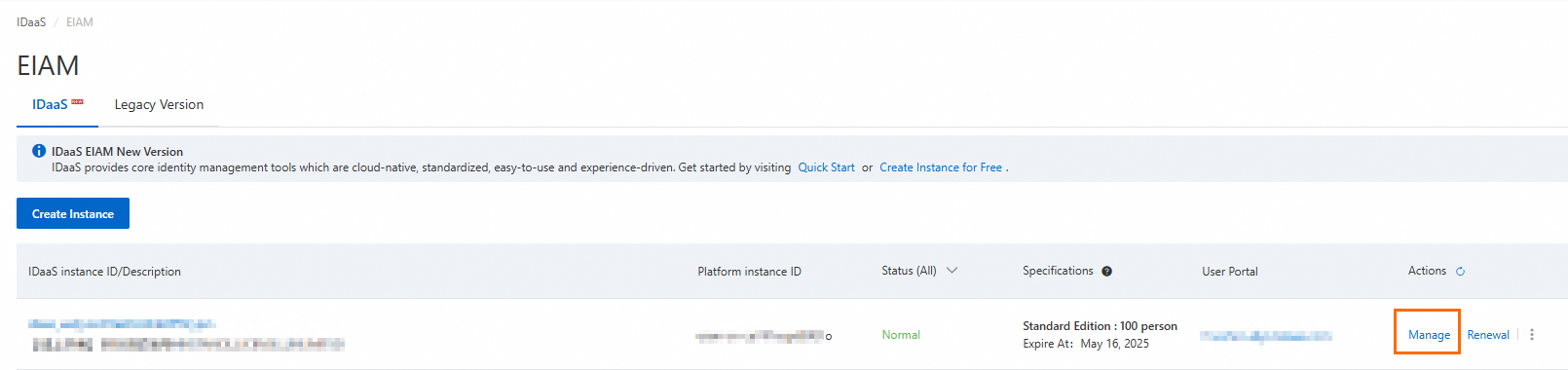
Go to Applications > Add Application > Marketplace, search for Alibaba Cloud Role - based SSO (International Site), and click Add Application.
Confirm the application name and click Add.
Step 2: Configure application SSO in IDaaS
After you add the application, you are automatically redirected to the SSO configuration page.
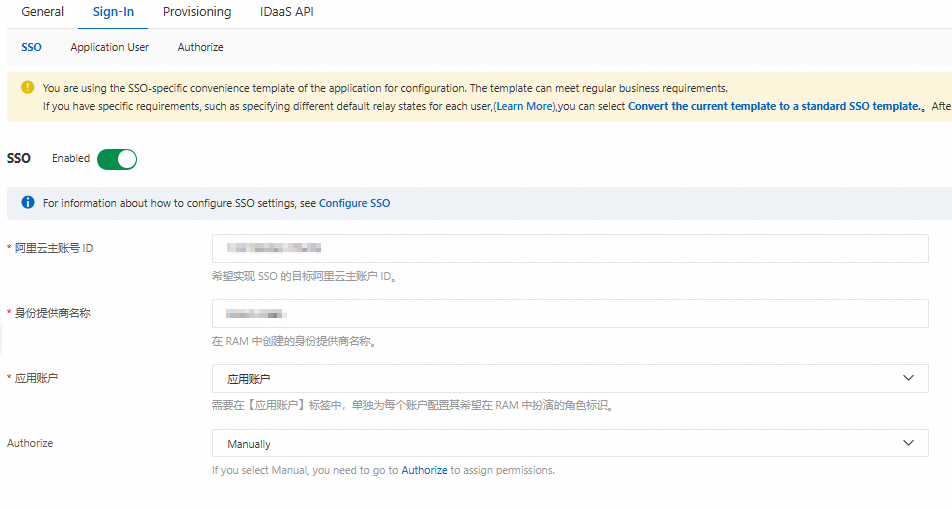
Fill in the SSO settings:
Alibaba Cloud Account ID: Find this on the console home page by clicking your profile picture or navigating to Account Center.

IdP Name: Use only letters, digits, and the special characters
.-_. The name cannot start or end with a special character.Application Username: This value is used as the primary key during SSO to match a RAM role.
Authorize: For testing, select All Users to skip the permission assignment step.
In the Application Settings section, click Download to save the IdP metadata file. This file establishes the trust relationship between Alibaba Cloud and IDaaS.

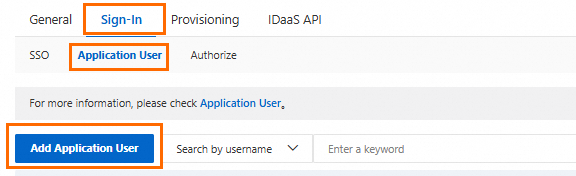
Go to Sign-In > Application User and click Add Application User.
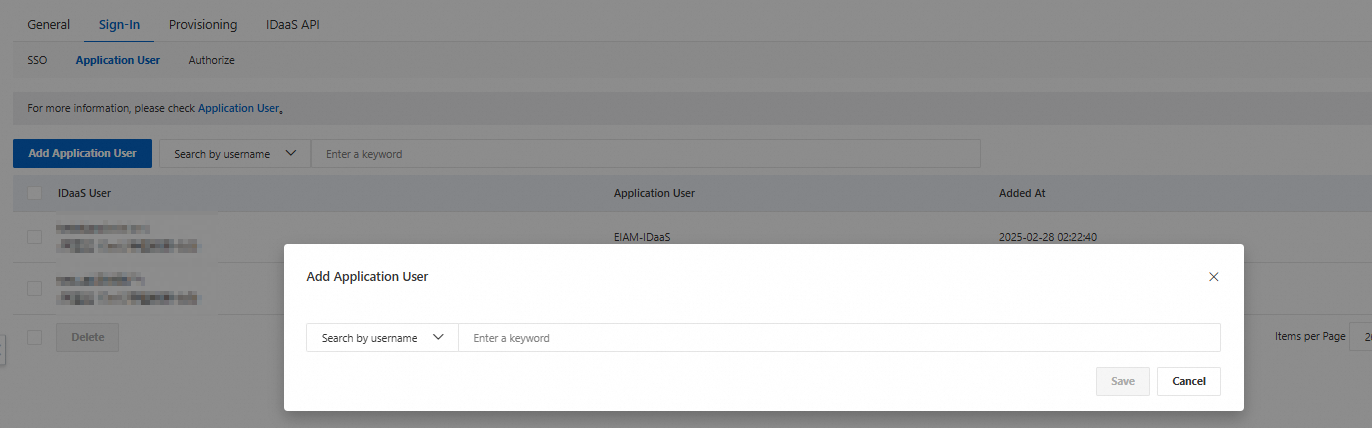
Select the accounts that will use role-based SSO and create application accounts for them.
Each application account name must exactly match the RAM role name you will create in step 4. If one IDaaS account needs access to multiple RAM roles, create a separate application account for each role.
Step 3: Create an identity provider in RAM
Log on to the RAM console.
In the left navigation pane, choose Integrations > SSO.
On the Role-based SSO tab, click the SAML tab, and then click Create IdP.

Enter the identity provider name. This must exactly match the IdP Name you specified in step 2. Upload the IdP metadata file you downloaded in step 2, and then click Create IdP.
Step 4: Create a RAM role for the identity provider
Log on to the RAM console.
In the left navigation pane, choose Identities > Roles.
On the Roles page, click Create Role.
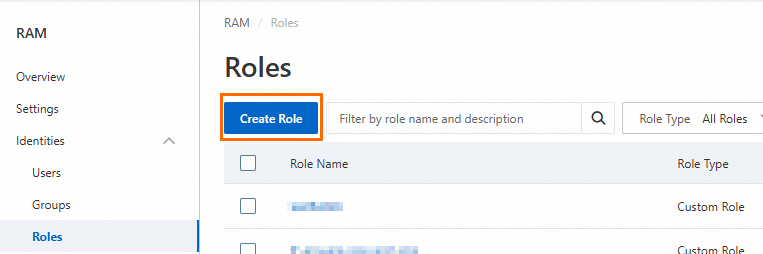
On the Create Role page, click Switch To Policy Editor in the upper-right corner.

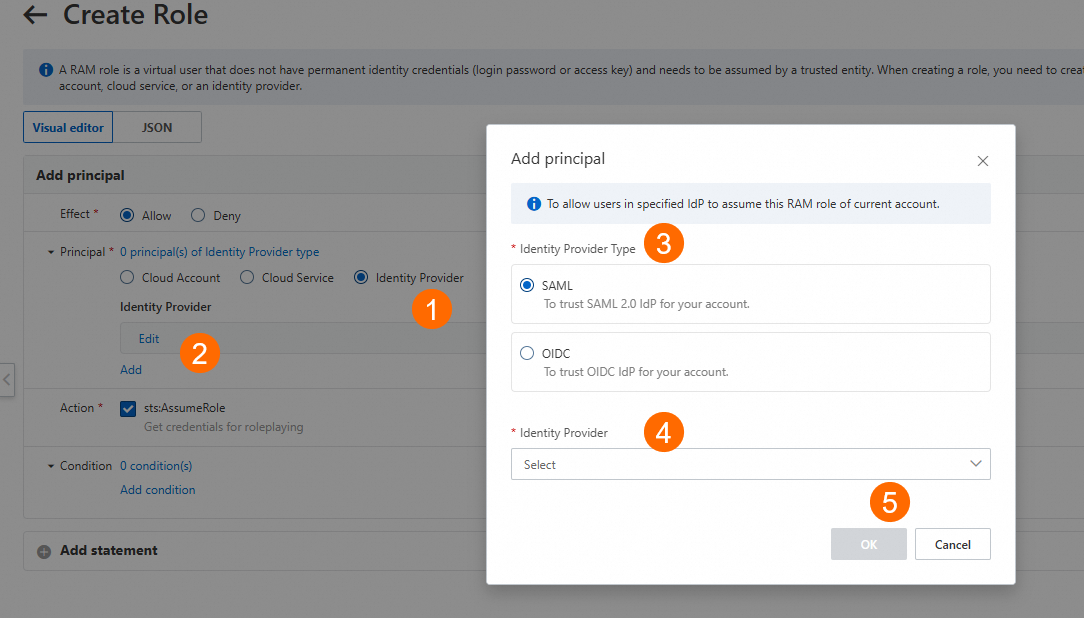
Select Identity Provider and click Edit. For Identity Provider Type, select the identity provider you created in step 3, and then click OK.
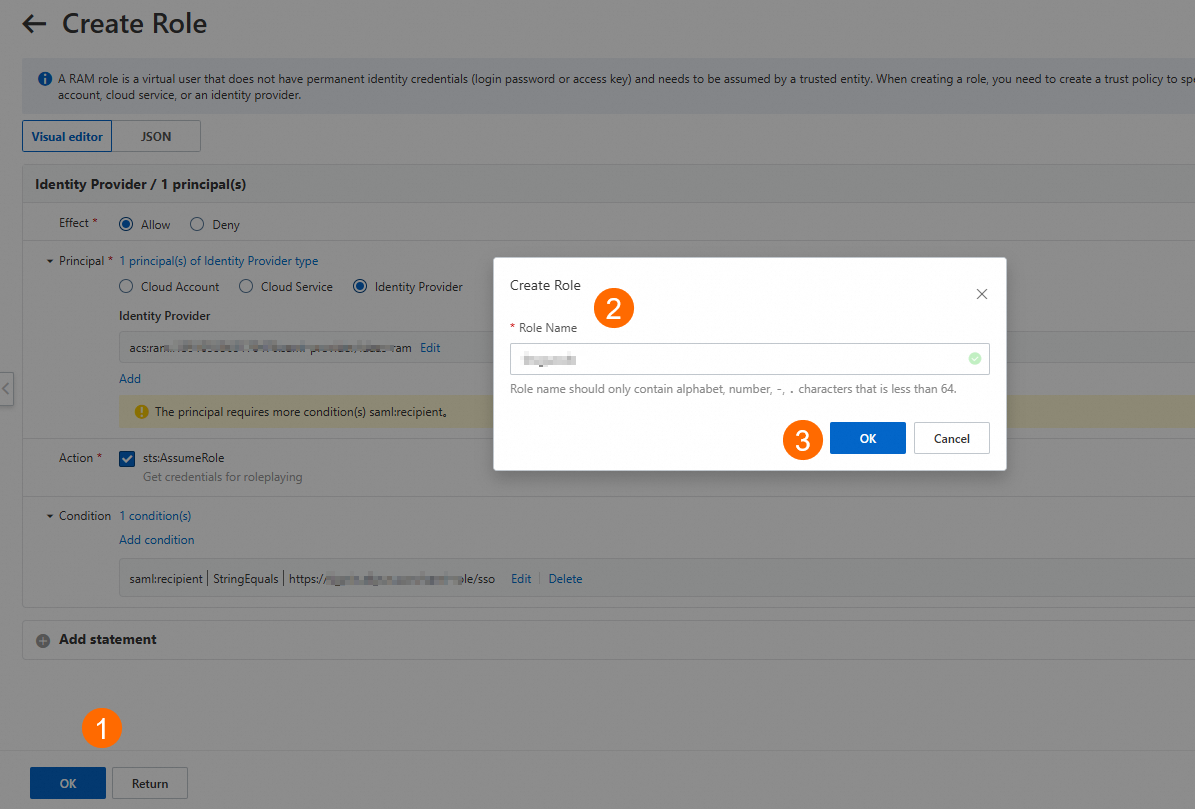
In the Create Role dialog box, enter a Role Name and click OK.
The role name must exactly match the application account name you set in step 2. SSO fails if the names differ.
(Optional) Attach permission policies to the role. All IDaaS accounts that sign in using this role inherit the same permissions.
Step 5: Verify SSO
Log on to the IDaaS application portal using an IDaaS account that has access to the Alibaba Cloud Role - based SSO (International Site) application. Click the Alibaba Cloud - CloudSSO icon to start the SSO flow.
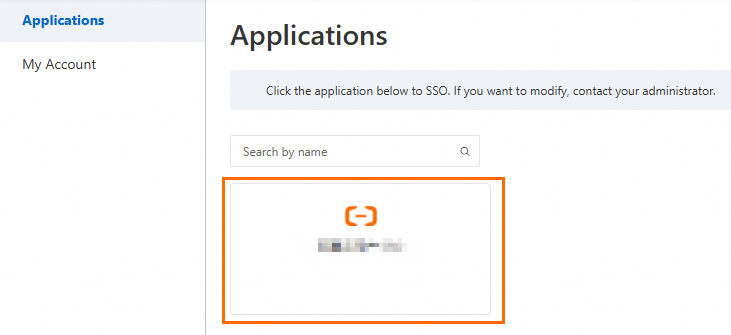
If the account has multiple application accounts mapped to different RAM roles, select the one to use and click OK.
Select the appropriate application account and click OK to log on to Alibaba Cloud using the selected role.