Register an AI Agent identity in IDaaS EIAM and configure authentication methods, including Client Secret, public-private key credentials, and federation trust sources (PCA, OIDC, PKCS#7), to achieve zero-static-key cross-platform secure authentication.
Background
When deploying AI Agents across multiple cloud environments, you need a secure authentication mechanism that eliminates static keys embedded in code. This guide shows how to register an Agent identity in IDaaS EIAM and configure authentication methods so your Agents can securely call downstream resources from any runtime environment — including Alibaba Cloud ECS, ACK, Function Compute, AWS, Azure, GCP, and on-premises data centers — without long-lived credentials.
Core value
-
Unified identity management: Each Agent receives a globally unique Agent ID, making identity identifiable, traceable, and auditable.
-
Zero static keys: With federation trust sources, no long-lived static credentials need to be embedded in Agent code.
-
Cross-platform compatibility: Supports cloud providers including Alibaba Cloud, AWS, Azure, and GCP, as well as on-premises data centers.
-
Dynamic credential management: Agents obtain only short-lived, scoped temporary credentials at runtime, with controlled distribution throughout the lifecycle.
Architecture
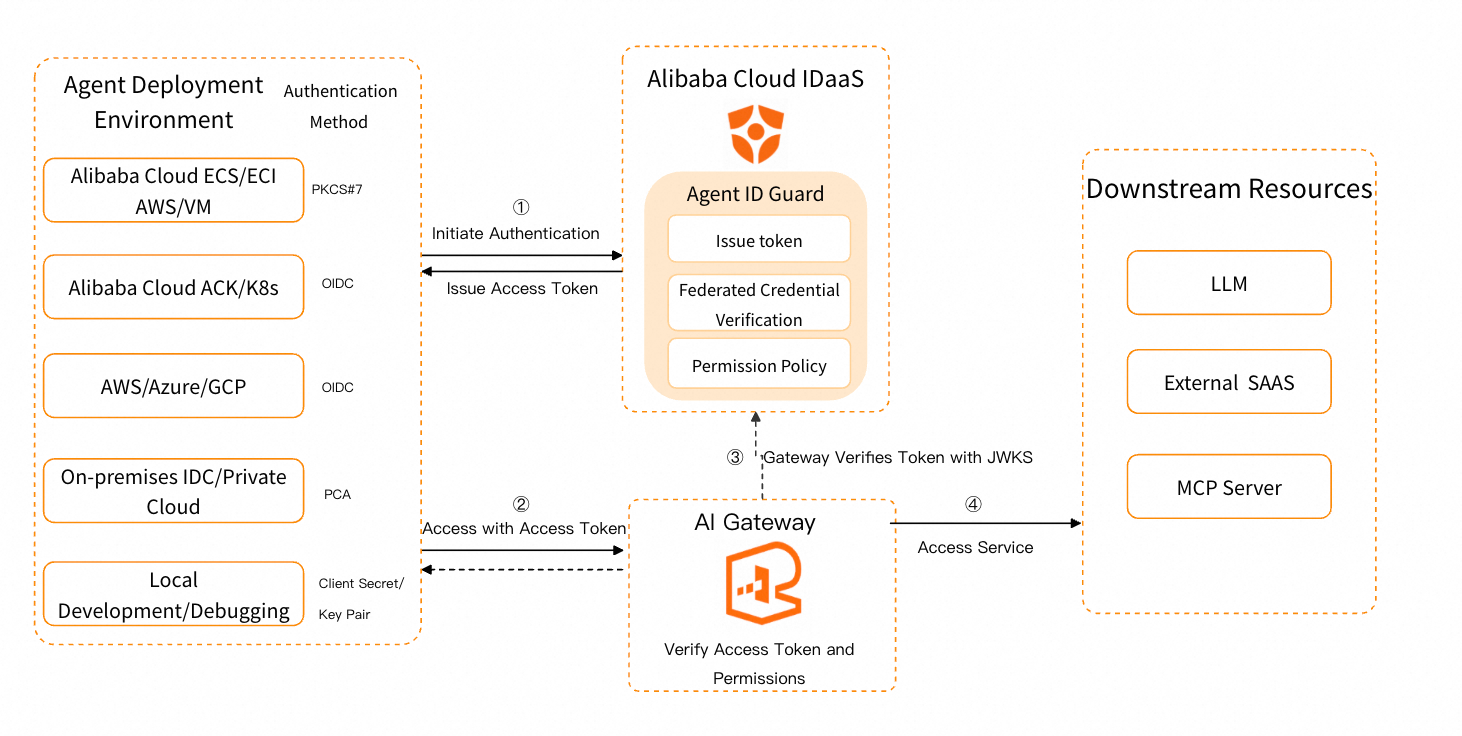
Agent ID Guard supports three authentication approaches: static credentials (Client Secret), asymmetric key credentials (public-private key), and federation trust sources (Private Certificate Authority (PCA), OIDC, PKCS#7), to meet different scenario requirements. This section uses a downstream service connecting to an AI gateway as an example. The core flow is as follows:
This section covers the Agent deployment authentication scenario and does not involve inbound access.
-
Agent initiates authentication: The Agent sends an authentication request to the IDaaS token endpoint, using a Client Secret, public-private key, or federation trust source.
-
IDaaS issues a token: After verifying the Agent identity, IDaaS issues a time-limited JWT Access Token.
-
Agent calls the service with the token: The Agent uses the Access Token to call the AI gateway or enterprise service.
-
Gateway verifies the signature and forwards: The gateway retrieves the IDaaS public key through the JWKS URL, verifies the Access Token locally, and calls the downstream service.
You can obtain the JWKS URL from the OIDC discovery endpoint in the Agent general settings.
Configuration guide
This guide demonstrates the complete process of registering an Agent identity, configuring authentication, and integrating for development, using Client Secret Credential as an example.
Prerequisites
Before you begin, ensure that you have:
-
Activated an Alibaba Cloud IDaaS EIAM Enterprise Edition or trial instance.
-
Administrator permissions for the EIAM instance.
Agent ID Guard is available with the EIAM Enterprise Edition. For pricing details, refer to the IDaaS pricing page.
Register an Agent identity
-
Log on to the IDaaS EIAM console.
-
Click Agent Identity Security > Register Agent Identity.
-
In the configuration panel, complete the following basic Agent settings:
-
Modify the Agent Name.
-
Edit the Owner.
-
Add an authentication method under Authentication Type. For details, see the "Configure authentication" section below.
-
-
Click OK to save.
After successful registration, the new Agent record appears in the Agent ID Guard list.
Configure a Client Secret credential
-
Log on to the IDaaS EIAM console.
-
Click Agent Identity Security to navigate to the Agent ID Guard page.
-
Select the target Agent to open its details page. On the details page, click the Agent module in the flowchart at the bottom of the page.
-
In the dialog box that appears, go to the General tab. In the Authentication Management section, select the Client Secret Credential tab and click Add client_secret.
After successful creation, the system generates a corresponding client_secret value. Save it securely.
Verify the Client Secret configuration
To verify the configuration, use the generated client_id and client_secret to request a token from the token endpoint. A successful JWT response confirms the configuration is correct:
curl -X POST "https://test.aliyunidaas.com/api/v2/iauths_system/oauth2/token" \
  -d "grant_type=client_credentials" \
  -d "client_id=app_test" \
  -d "client_secret=CSBppDAeLzvAY1HQhpRnjxxx" \
  -d "scope=urn:cloud:idaas:pam|.all"
A successful response returns an access_token field with a JWT token.
Development integration
Here is how to authenticate with a Client Secret in Java locally.
After configuring the authentication method, select Client Secret Credential on the Agent general settings page and click Generate SDK Configuration to obtain the following JSON configuration:
{
  "idaasInstanceId": "idaas_test",
  "clientId": "app_test",
  "issuer": "https://test.aliyunidaas.com/api/v2/iauths_system/oauth2",
  "tokenEndpoint": "https://test.aliyunidaas.com/api/v2/iauths_system/oauth2/token",
  "scope": "urn:cloud:idaas:pam|.all",
  "developerApiEndpoint": "eiam-developerapi.${region_id}.aliyuncs.com",
  "authnConfiguration": {
    "identityType": "CLIENT",
    "authnMethod": "CLIENT_SECRET_POST",
    "clientSecretEnvVarName": "IDAAS_CLIENT_SECRET"
  }
}
Save the configuration file to the default local path:
~/.cloud_idaas/client-config.jsonCopy the client_secret value and configure the environment variable:
export IDAAS_CLIENT_SECRET=CSBppDAeLzvAY1HQhpRnjxxxPrepare the Java authentication Core SDK. This code example demonstrates Agent identity authentication:
import com.cloud_idaas.core.factory.IDaaSCredentialProviderFactory;
import com.cloud_idaas.core.provider.IDaaSCredentialProvider;

public class sample {

  public static void main(String[] args) {
    // Initialize IDaaS configuration from the configuration file.
    IDaaSCredentialProviderFactory.init();

    // Use the no-argument constructor to obtain the IDaaS credentialProvider and get an Access Token for the scope specified in the configuration file.
    IDaaSCredentialProvider credentialProvider = IDaaSCredentialProviderFactory.getIDaaSCredentialProvider();
    String accessToken = credentialProvider.getBearerToken();

    // Use the parameterized constructor to obtain the IDaaS credentialProvider and get an Access Token for a custom scope.
    // String scope = "api.example.com|read:file";
    // IDaaSCredentialProvider anotherCredentialProvider = IDaaSCredentialProviderFactory.getIDaaSCredentialProvider(scope);
    // String accessToken = anotherCredentialProvider.getBearerToken();

    System.out.println("Access Token: " + accessToken);
  }
}
After obtaining the Agent authentication token, you can call services as the Agent.
For SDK support in other languages, see SDK overview.
For a complete Agent integration demo, refer to idaas-java-agent-id-demo.
Other authentication methods
Authentication method selection guide
This section covered the Client Secret Credential configuration. Agent ID Guard also supports additional authentication methods. Select the method that best fits your use case:
|
Authentication method |
Description |
Security level |
Complexity |
Recommended scenario |
|
Client Secret |
The most basic authentication method. The Agent uses |
Low |
Low |
Development testing, trusted internal environments |
|
Public-private key credential |
Uses an RSA/EC private key-signed JWT as the client credential. No key transmission over the network is required. |
Medium |
Medium |
Production environments with higher security requirements |
|
PCA federation trust source |
Uses an enterprise-built PCA signing capability to sign a JWT Token and exchanges it for an Access Token from IDaaS. |
High |
High |
IoT/device interconnection, highly regulated industries |
|
OIDC federation trust source |
Obtains an OIDC Token from a container or cloud service environment and exchanges it for an Access Token from IDaaS. |
High |
Medium |
Kubernetes/containerized, CI/CD pipelines |
|
PKCS#7 federation trust source |
Obtains a PKCS#7 signature from a cloud server metadata signature endpoint and exchanges it for an Access Token from IDaaS. |
High |
Medium |
Cloud server (ECS/EC2) deployment |
Configure other authentication methods
Public-private key credential configuration
-
Log on to the IDaaS EIAM console.
-
Click Agent Identity Security to navigate to the Agent ID Guard page.
-
Select the target Agent to open its details page. On the details page, click the Agent module in the flowchart at the bottom of the page.
-
In the dialog box that appears, go to the General tab. In the Authentication Management section, select the Certificates Credential tab and click Manually Add.
-
Upload the Public Key, then click OK to add the public-private key credential.
PCA federation trust source configuration
Step 1: Create a PCA federation trust source
-
In the EIAM admin console, navigate to Sign-In > Authentication Configuration > Federated Credential Provider Management.
-
Click Add Federated Credential Provider, select the PCA type, and click Next.
-
Enter a Federated Credential Provider and Enter the root certificate.
-
Click Confirm to complete the trust source creation.
Step 2: Assign the PCA federation trust source to an Agent
-
Log on to the IDaaS EIAM console.
-
Click Agent Identity Security to navigate to the Agent ID Guard page.
-
Select the target Agent to open its details page. On the details page, click the Agent module in the flowchart at the bottom of the page.
-
In the dialog box that appears, go to the General tab. In the Authentication Management section, select the PCA Federated Credential Provider tab, and click Add Federated Credential Provider.
-
Select the PCA federation trust source created in Step 1, enter the Federated Credential Provider, and configure the Certificate Verification Mode and Client Certificate Common Name.
-
Click Confirm to complete the PCA federation trust source configuration.
OIDC federation trust source configuration
Step 1: Create an OIDC federation trust source
-
In the EIAM admin console, navigate to Sign-In > Authentication Configuration > Federated Credential Provider Management.
-
Click Add Federated Credential Provider, select the OIDC type, and click Next.
-
Enter a Federated Credential Provider, and configure the Issuer and ResourceServer Identifier.
-
Click Confirm to complete the trust source creation.
Step 2: Assign the OIDC federation trust source to an Agent
-
Log on to the IDaaS EIAM console.
-
Click Agent Identity Security to navigate to the Agent ID Guard page.
-
Select the target Agent to open its details page. On the details page, click the Agent module in the flowchart at the bottom of the page.
-
In the dialog box that appears, go to the General tab. In the Authentication Management section, select the OIDC Federation Trust Source tab and click Add Federated Credential Provider.
-
Select the OIDC federation trust source created in Step 1, enter the Federated Credential Provider, and configure the Verification and Mode Condition.
-
Click Confirm to complete the OIDC federation trust source configuration.
Supported environments
|
Runtime environment |
How to obtain the OIDC Token |
|
Kubernetes (Alibaba Cloud ACK, Google GKE, Microsoft AKS) |
Mount a projected volume and read the Service Account Token. |
|
GitHub Actions |
Obtain the OIDC Token through |
|
Azure VM |
Obtain from the Azure Managed Identity endpoint. |
|
Google VM |
Obtain an Identity Token from the Metadata Server. |
PKCS#7 federation trust source configuration
Step 1: Create a PKCS#7 federation trust source
-
In the EIAM admin console, navigate to Sign-In > Authentication Configuration > Federated Credential Provider Management.
-
Click Add Federated Credential Provider, select the PKCS#7 type, and click Next.
-
Enter a Federated Credential Provider, select a Trust Source, and configure the Fill in Verification Certificate and Account ID.
-
Click Confirm to complete the trust source creation.
Step 2: Assign the PKCS#7 federation trust source to an Agent
-
Log on to the IDaaS EIAM console.
-
Click Agent Identity Security to navigate to the Agent ID Guard page.
-
Select the target Agent to open its details page. On the details page, click the Agent module in the flowchart at the bottom of the page.
-
In the dialog box that appears, go to the General tab. In the Authentication Management section, select the PKCS#7 Federation Trust Source tab and click Add Federated Credential Provider.
-
Select the PKCS#7 federation trust source created in Step 1 and enter the Cloud Server Instance ID.
-
Click Confirm to complete the PKCS#7 federation trust source configuration.
Supported environments
|
Runtime environment |
How to obtain the PKCS#7 signature |
|
Alibaba Cloud ECS/ECI |
|
|
AWS EC2 |
|