This topic describes how to integrate IDaaS EIAM with Tencent Cloud Access Management (CAM) to enable automatic group-based role-based single sign-on (SSO). This solution eliminates the need to configure application accounts. An administrator can add users to a specific group, and the users can then log on to the Tencent Cloud console by mapping to a role through the SAML protocol.
Prerequisites
You have activated IDaaS EIAM and created an instance.
You have access to the Tencent Cloud CAM console and the IDaaS EIAM portal.
You have a Tencent Cloud account with administrator permissions.
You have obtained your Tencent Cloud account ID. You can find it in the Account Center on the Tencent Cloud home page.
Configuration flow
1. Basic configuration
In IDaaS, create a SAML application.
Log on to the IDaaS console. Select the IDaaS instance and click Manage in the Actions column.
Go to and add a SAML 2.0 application.
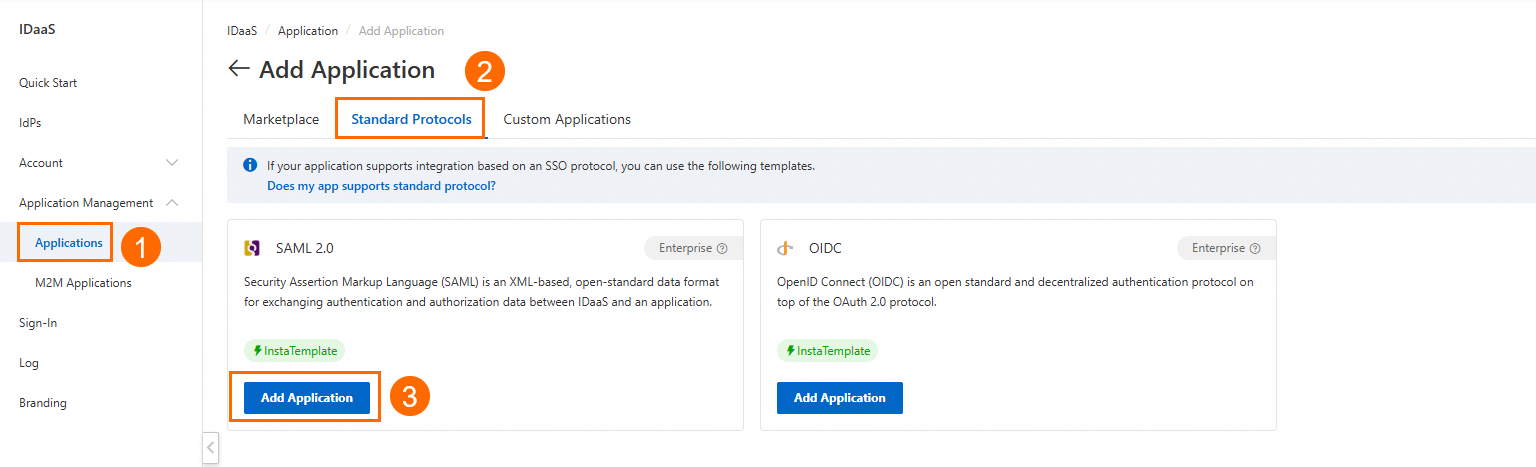
Enter an application name and click Add.
Obtain the Tencent Cloud SAML metadata.
Download and save the Tencent Cloud federated metadata XML document, or copy this link:
http://cloud.tencent.com/saml.xml.On the SAML 2.0 application configuration page, paste the Tencent Cloud federated metadata URL into the Enter the URL of the metadata field. Click Parse to complete the configuration.
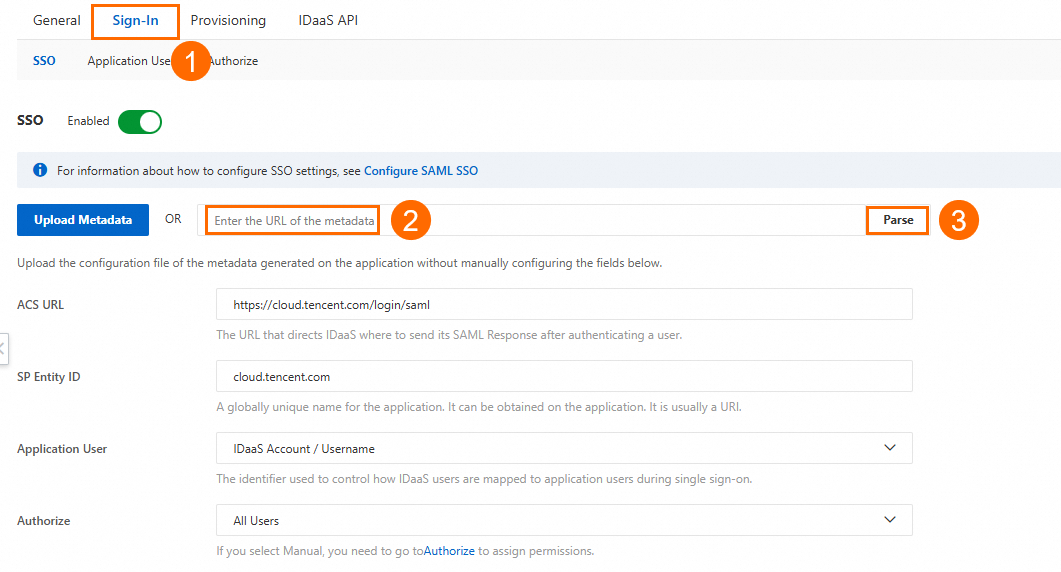
Download the IdP Metadata file. You will upload this file to the identity provider page in Tencent Cloud CAM.

2. Role configuration
In Tencent Cloud, create a SAML identity provider.
Log on to the Tencent Cloud CAM console and go to .
Click Create Identity Provider, select SAML as the provider type, and enter an Identity Provider Name, such as idaas-saml-standard.
Upload the IdP Metadata file that you downloaded from IDaaS. Click Next to create the provider.
Create a role.
In the CAM console, go to and select Identity Provider.
Set Identity Provider Type to SAML. Select the identity provider that you created in the previous step,
idaas-saml-standard. Select Allow Current Role To Access Console.Select a role policy and configure role tags as needed. Then, click Next.
Enter a role name, such as role1, and click Complete.
3. User group configuration
In IDaaS, create a user. Log on to the IDaaS console and go to . Create a user, such as emp001.

In IDaaS, Create Group. Go to .
Enter a Group Name, such as group01. Enter an External ID, such as role1.
ImportantThe External ID must be the same as the role name that you created in Tencent Cloud CAM.

Add the user you created (emp001) to the group you created (group01).
Grant application authorization.
On the SAML 2.0 application details page in IDaaS, go to .
Grant the SAML application authorization to the group (group01).
4. Advanced SAML configuration
On the SAML 2.0 application details page, click Show Advanced Settings and add the following Attribute Statements:
Attribute Statements 1: Role mapping
Key:
https://cloud.tencent.com/SAML/Attributes/RoleValue:
SamlArray(ArrayMap(user.groups, StringReplace("qcs::cam::uin/{AccountID}:roleName/{RoleName},qcs::cam::uin/{AccountID}:saml-provider/{ProviderName} ", "$roleName", __item.groupExternalId)))NoteReplace
{AccountID}with your Tencent Cloud account ID.Replace
{RoleName}with the name of the role you created for the identity provider in Tencent Cloud.Replace
{ProviderName}with the name of the SAML identity provider you created in Tencent Cloud.
Attribute Statements 2: Session name
Key:
https://cloud.tencent.com/SAML/Attributes/RoleSessionNameValue:
user.username
5. Verify the configuration
Log on to the IDaaS EIAM portal. Use the user you created (emp001) to access the SAML 2.0 application.

The system automatically redirects you to the role selection page in the Tencent Cloud console. Select the role (role1) to complete the logon.
The IDaaS user group management feature lets you configure SSO permissions in batches and provides the following benefits:
Centralized permission management: Control role mappings at the group level. Add an execution account to a predefined user group, such as group01, to inherit the group's SAML application access permissions. You do not need to configure each account individually.
Rapid extensibility: When adding new users, simply add them to the corresponding business group. They automatically inherit all SAML authorization policies within the group. This significantly improves efficiency for large-scale user management.
Reduced configuration complexity: Avoid creating repetitive authorization policies for individual accounts. Group-level configuration simplifies the operational flow and reduces the risk of human configuration errors.
Guaranteed permission consistency: Ensure all members in a group follow the same SAML assertion rules, including role mappings and session properties such as RoleSessionName. This guarantees a uniform standard for permission execution.