This topic describes how to integrate IDaaS applications with the DingTalk workbench to enable single sign-on (password-free logon) for applications from the DingTalk workbench.
Scenario description
IDaaS supports standard authentication protocols, such as Security Assertion Markup Language (SAML) and OpenID Connect (OIDC), and lets you quickly implement single sign-on for hundreds of applications. This document describes how to integrate IDaaS applications that are configured for single sign-on with the DingTalk workbench to enable password-free logon for applications from DingTalk.
Procedure
Step 1: Create a DingTalk identity provider
Before you configure the application, you must create a DingTalk identity provider to link IDaaS accounts with DingTalk user data. You can:
Synchronize data from DingTalk to IDaaS: Bind DingTalk - Inbound
Synchronize data from IDaaS to DingTalk: Bind DingTalk - Outbound
We recommend that you set logon by scanning a DingTalk QR code as the default logon method. This way, when a user clicks an application in the DingTalk workbench, password-free logon is performed automatically. Otherwise, to use password-free logon from the DingTalk workbench, the user must manually switch to the DingTalk logon method on the IDaaS logon page or already be logged on to IDaaS.
Step 2: Create an IDaaS application
Create an IDaaS application and configure single sign-on. This topic uses Alibaba Cloud user-based SSO as an example.
For more information, see Alibaba Cloud user-based SSO.
Step 3: Grant permissions on the IDaaS application
Grant permissions to the accounts that require access to the application. On the SSO tab, you can make the application accessible to all members. Alternatively, you can grant permissions based on accounts or organizations on the Authorize tab. Only accounts with permissions can access the application.
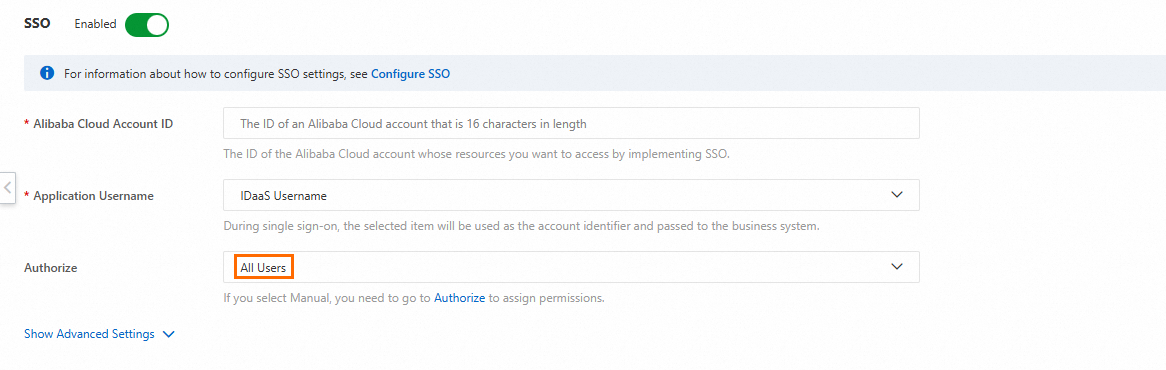
If you are integrating a SAML application (such as Alibaba Cloud RAM), you can set the Application Username on the SSO tab. When a user performs single sign-on, IDaaS passes the user's IDaaS account name or application account name to the application. The application uses this parameter to find the corresponding account and complete the logon process, which enables single sign-on. Therefore, if accounts already exist in the application, you must ensure that they can be mapped to IDaaS accounts. If not, you must create accounts for the users in the application in advance.
For more information, see General instructions for single sign-on.
Step 4: Concatenate the application URL
Construct the application logon URL. The format is: https://{IDaaS user portal URL}/login/go/{IDaaS application ID}
The IDaaS user portal URL can be found on the IDaaS instance list page or within an instance.
The IDaaS application ID can be found in the Application module within the IDaaS instance.
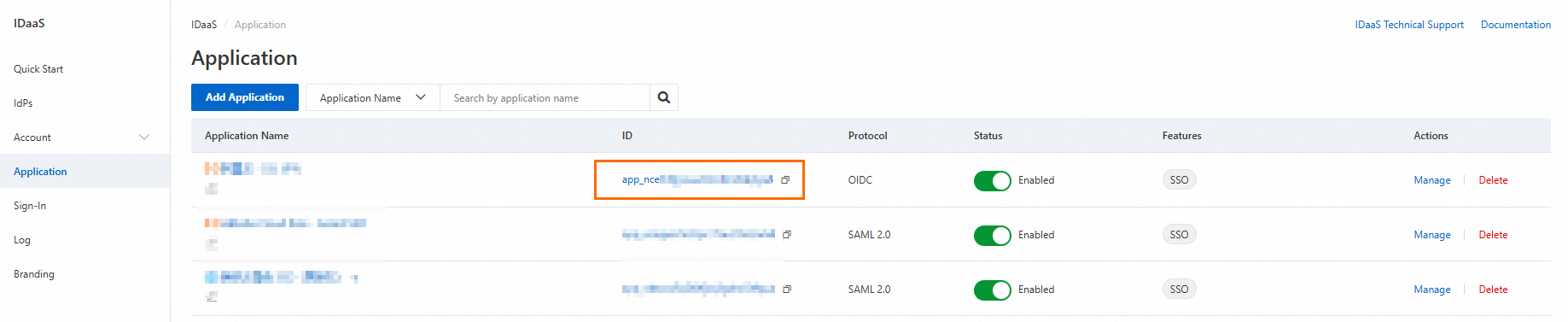
The constructed application URL is similar to the following example:
https://bm6sxxxx.aliyunidaas.com/login/go/app_mmhsgpkmsxxxxxxxxxxxxxxxx
Step 5: Create a DingTalk application
Go to the DingTalk Open Platform and create an In-house Enterprise Application in the Application Development section.
Fill in the basic information, such as the application name.
Enter the application URL that you constructed in Step 4 into the Development & Management section of the DingTalk application. The PC URL is optional. If you provide a URL, the application can be opened from the workbench in the DingTalk PC client.
Step 6: Grant permissions on the DingTalk application
After you finish testing, publish the DingTalk application.
After the application is published, you can set the permission scope of the application. You can grant permissions to all employees, some employees, or only administrators. In the Some Employees option, you can grant permissions to users, organizations, or roles.
After the authorization is complete, administrators can make the application visible to some or all employees in DingTalk. Employees can also add the application to their own workbenches. When a user clicks the application icon in the workbench, password-free logon is performed.
This process works because IDaaS uses the user's DingTalk information to identify the corresponding IDaaS account. IDaaS then uses this account to find the corresponding account in the target application, which enables password-free logon.