HTTPDNS provides a client-side diagnostic tool that helps developers troubleshoot end-user network issues. Configure business domain names to generate diagnostic QR codes, which end users scan to run network diagnostics and send the report back for analysis.
Usage flow
Step 1: Configure business domain names
-
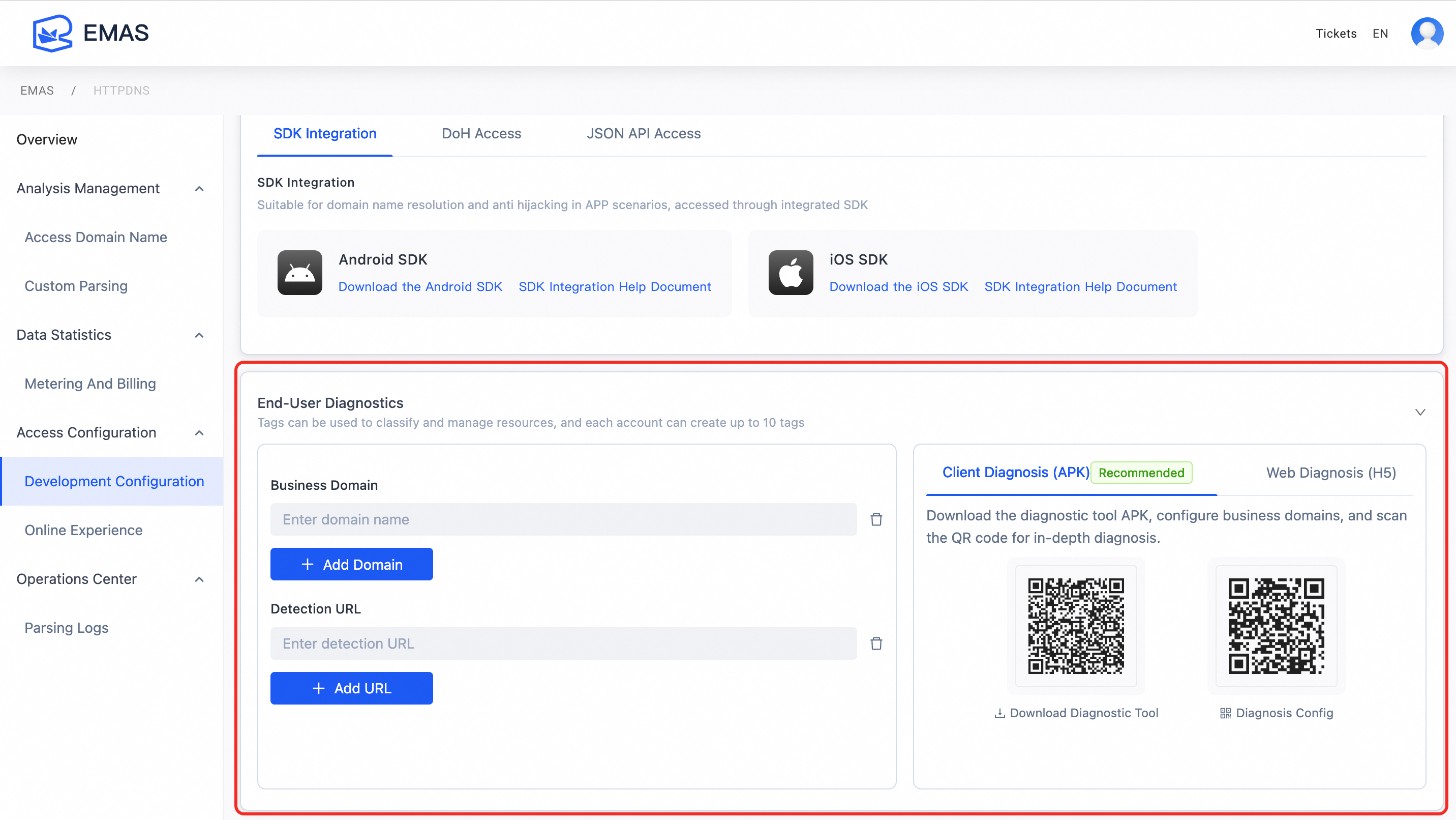
Log on to the HTTPDNS console. Go to Access Configuration > Development Configuration.
-
In the configuration pane on the left side of the End User Diagnosis area:
-
Business Domain Name: Enter the business domain name for diagnosis. Click "+ Add Domain Name".
-
Probe URL: Enter the complete URL address to probe. Click "+ Add URL".
-
-
After you complete the configuration, the "Diagnostic Configuration" QR code on the right automatically updates.
Step 2: Get the QR codes
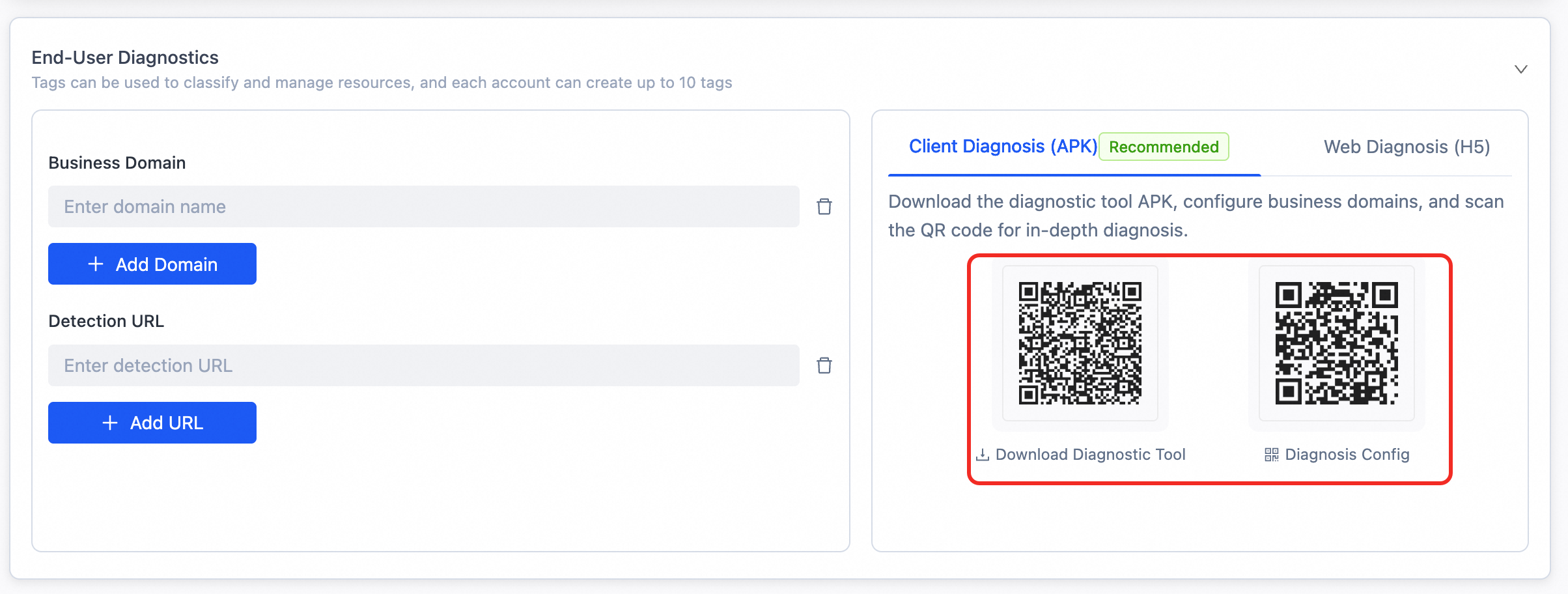
After you complete the configuration, two QR codes appear on the right:
|
QR Code |
Purpose |
|
Download diagnostic tool |
Scan the code to download the network diagnostic APK. |
|
Diagnostic configuration |
Contains your configured business domain names and probe URLs. |
Step 3: Send to end users
Send these two QR codes to end users who need network troubleshooting, for example, as screenshots.
Step 4: End user operations
After receiving the QR codes, end users complete these steps:
-
Download and Install: Scan the "Download Diagnostic Tool" QR code with a mobile phone. Then, download and install the APK.
-
Scan for Diagnosis: Open the diagnostic tool app. Scan the "Diagnostic Configuration" QR code.
-
Start Diagnosis: The app automatically loads the configured business domain names. Click to start the network diagnosis.
-
Copy Report: After the diagnosis is complete, copy the diagnostic report content.
-
Customer feedback: Send the diagnostic report to you.
Step 5: Analyze the Diagnostic Report
After you receive the diagnostic report from the end user, check the following:
-
Whether DNS resolution is normal.
-
Network connectivity status.
-
Access status of each business domain name.
-
Specific network error messages.
Diagnosis methods
|
Method |
Description |
|
Client Diagnosis (Android) |
Recommended. Provides comprehensive features and supports in-depth diagnosis. Currently supports Android only. iOS and HarmonyOS are not supported. |
|
Web Diagnosis (H5) |
Lightweight alternative that does not require app installation. Cannot diagnose business domain names. |
FAQ
Q: Can I reuse the QR codes?
A: Yes, you can. The QR codes remain valid as long as the configuration is unchanged.
Q: Do I need to resend the QR codes after modifying the configuration?
A: Yes, you do. After you modify the business domain names or probe URLs, the "Diagnostic Configuration" QR code updates. You must resend it to end users.
Q: Do end users need to log on?
A: No, they do not. The diagnostic tool does not require a log on.