This topic describes how to create, rename, delete, and quickly search for folders in HoloWeb.
Prerequisites
You have logged on to the instance.
Public dataset queries
The folder query feature supports public dataset queries. Currently, the TPC-H 10 GB, TPC-H 100 GB, and TPC-H 1 TB public datasets are supported. You can open the corresponding SQL scripts to create tables, import data, and run the 22 TPC-H queries.
When you use Serverless Computing to import data, you can directly use additional serverless resources. This avoids consuming resources from your Hologres instance and eliminates the need to reserve extra compute resources for your instance. As a result, instance stability improves and out-of-memory (OOM) errors decrease. You pay only for the serverless tasks you run.
For more information about Serverless Computing, see Serverless Computing.
Access method
Log on to the Hologres management console.
In the top navigation bar, select a region.
Click Go to HoloWeb to open the HoloWeb developer page.
-
In the top navigation bar of the HoloWeb development page, you can click SQL Editor.
Create a folder
After you access the SQL Editor using the access method, complete the following steps.
-
In the SQL Editor, you can click the icon in the upper-left corner.

You can also right-click My SQL Queries and then click Create Folder. HoloWeb also lets you create subfolders inside existing folders.
-
In the Create Folder dialog box, you can specify the Folder Name and Directory.
If the target location already exists, you can select it from the drop-down list.
-
You can click OK. The new folder appears under the specified location in the left navigation pane.
Rename a folder
After you access the SQL Editor using the access method, complete the following steps.
-
In the SQL Editor, you can click My SQL Queries on the left to view all folders.
-
You can right-click the target folder and then click Rename Folder.
-
In the Rename Folder dialog box, you can enter a new name for the folder.
-
You can click OK to save the change.
Delete a folder
After you access the SQL Editor using the access method, complete the following steps.
-
In the SQL Editor, you can click My SQL Queries on the left to view all folders.
-
You can right-click the target folder and then click Delete Folder.
NoteBefore deleting a parent folder, you must delete all its subfolders and SQL queries first.
-
You can click OK to delete the folder.
Quickly search for a folder
If you have many folders under My SQL Queries and need to quickly locate a specific folder, complete the following steps after you access the SQL Editor using the access method.
-
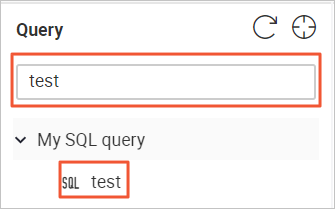
In the search box on the left side of the SQL Editor, you can enter the folder name.
-
Matching folder names appear in the My SQL Queries list. You can click a folder name to view its details.