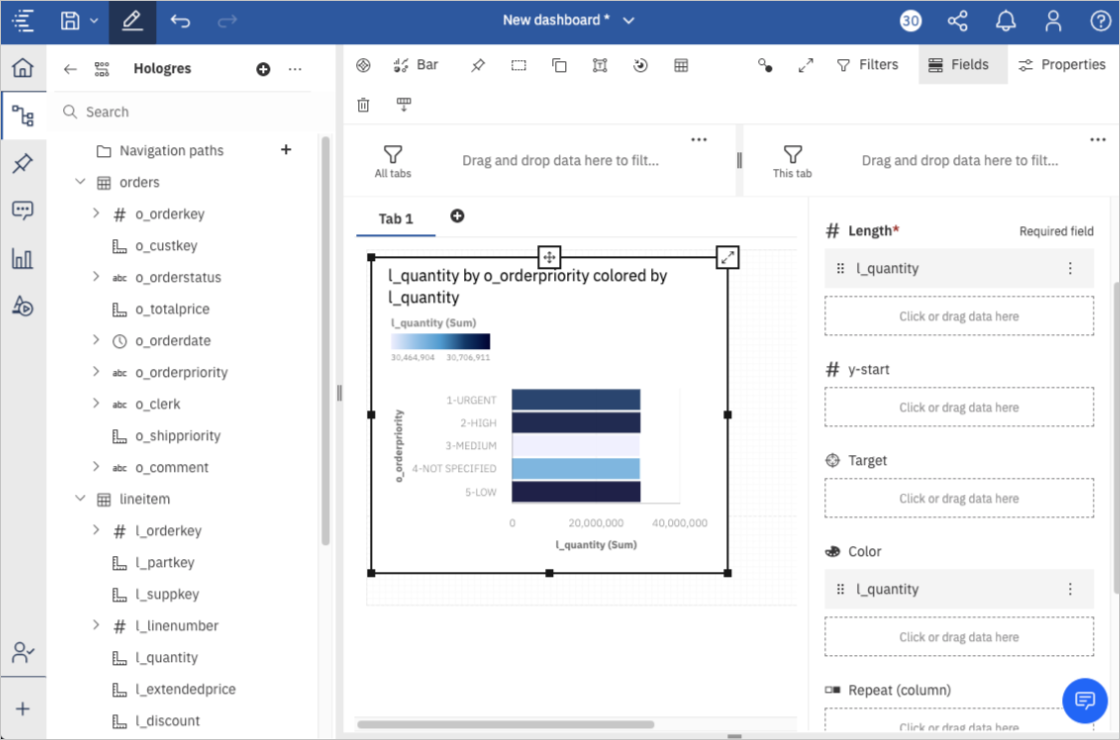
IBM Cognos Analytics provides tools to connect to data, prepare it for analysis, and create visualizations to help you make data-driven decisions. This topic describes how to connect IBM Cognos Analytics to a Hologres instance and perform visual analysis.
Procedure
-
Install IBM Cognos Analytics.
Install IBM Cognos Analytics. For more information, see the official IBM Cognos Analytics documentation.
-
Connect to Hologres.
-
Log on to IBM Cognos Analytics, click the Manage icon (
 ) in the lower-left corner, and create a data source connection.
 -
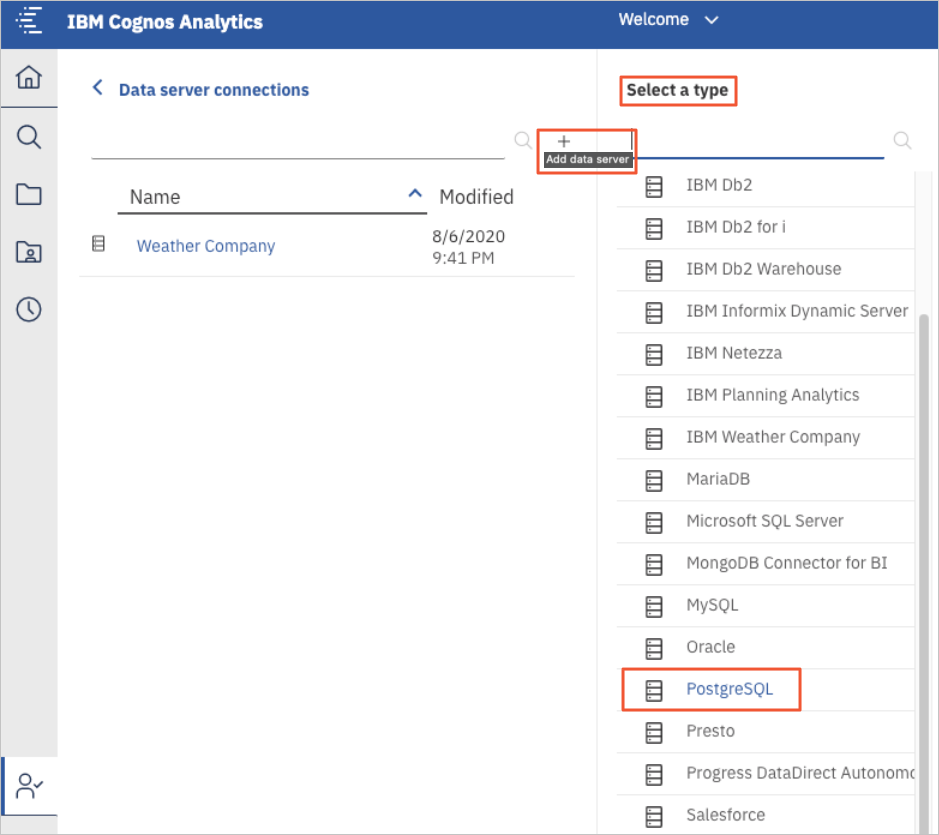
At the top of the page, click the plus icon (+) to create a new data source connection. For the data source type, select PostgreSQL.
-
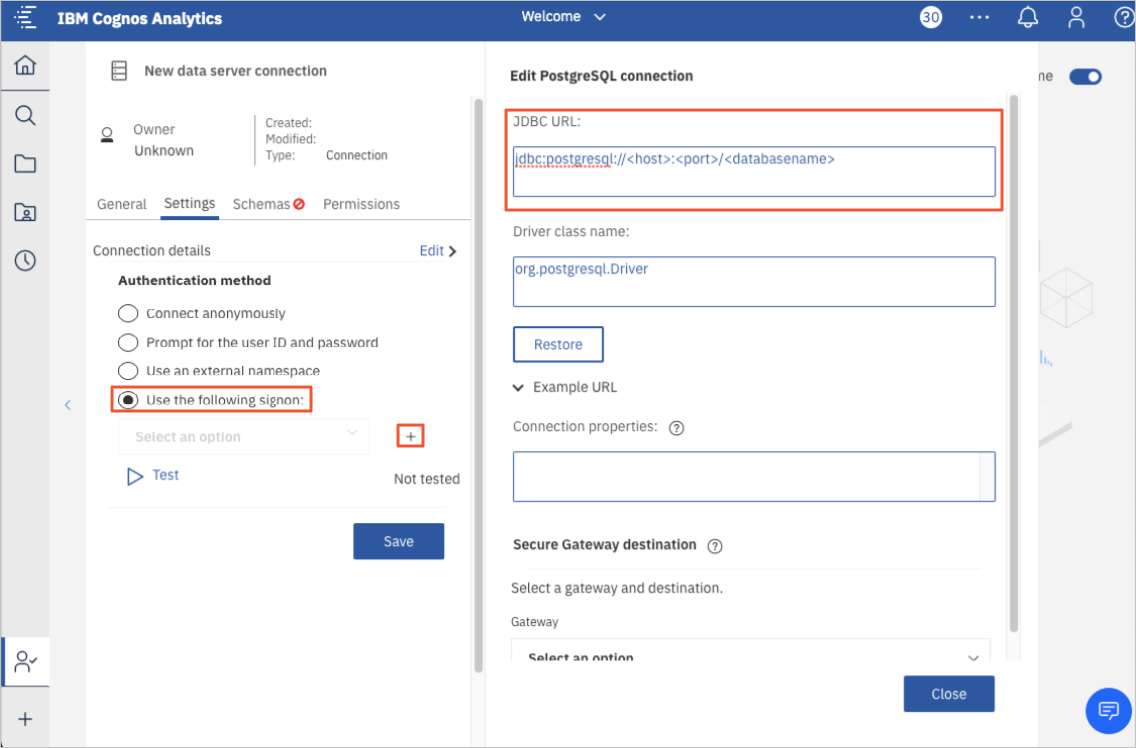
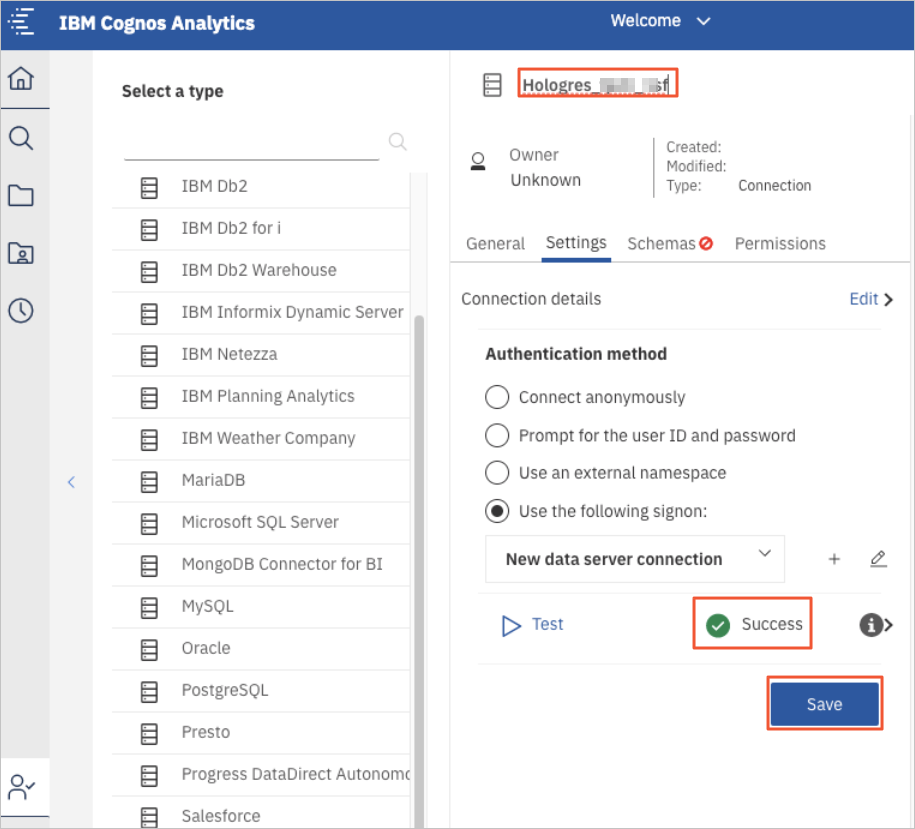
After you select PostgreSQL as the data source type, configure the JDBC URL and authentication method parameters.
Parameter
Description
JDBC URL
The JDBC URL. Use the following format:
jdbc:postgresql://<host>:<port>/<databasename>. The parameters are as follows:-
host: The public endpoint of the Hologres instance. Obtain the endpoint from the Network Information section of the instance details page on the Hologres console.
-
port: The port number of the Hologres instance. Obtain the port number from the Network Information section of the instance details page on the Hologres console.
-
databasename: The name of the database that you created in Hologres.
Driver class name
Keep the default value for this parameter.
Authentication method
For the authentication method, select Use the following signon.
-
-
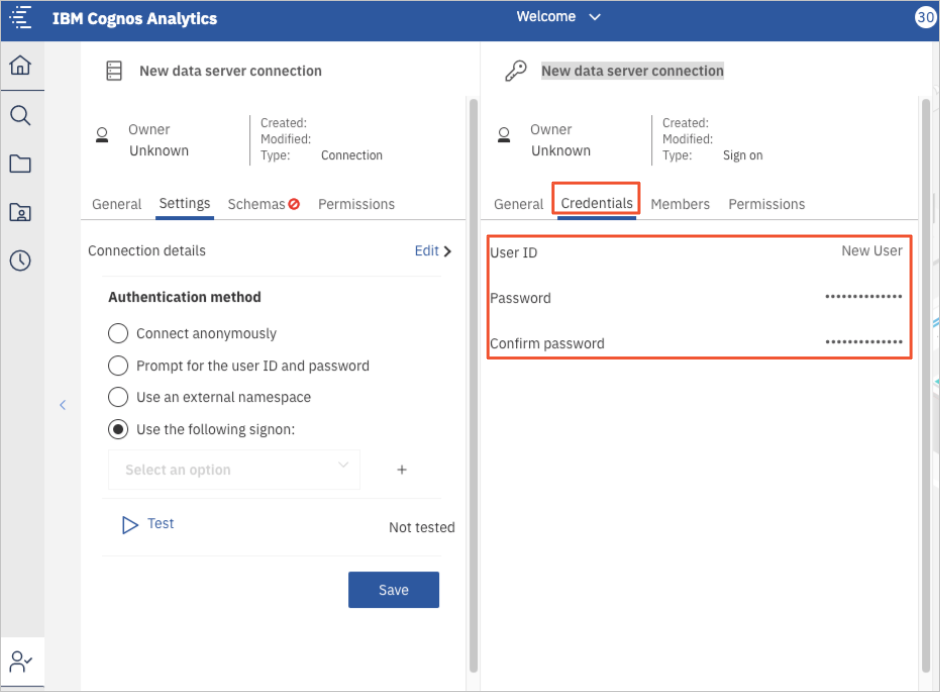
Under authentication method, click the plus icon (+) to add authentication credentials. Enter the User ID and Password.
Parameter
Description
User ID
The AccessKey ID of your Alibaba Cloud account. For instructions on how to obtain it, see Create an AccessKey.
Password
The AccessKey Secret of your Alibaba Cloud account. For instructions on how to obtain it, see Create an AccessKey.
-
After you configure the parameters, click Test in the lower-left corner. A Success message indicates that the test was successful. Enter a name for the connection at the top of the page and click Save.
-
After the data source connection is saved, click the Schemas tab and select the schema to load. To the right of the target schema name, click the More icon and select Load metadata or Load options.
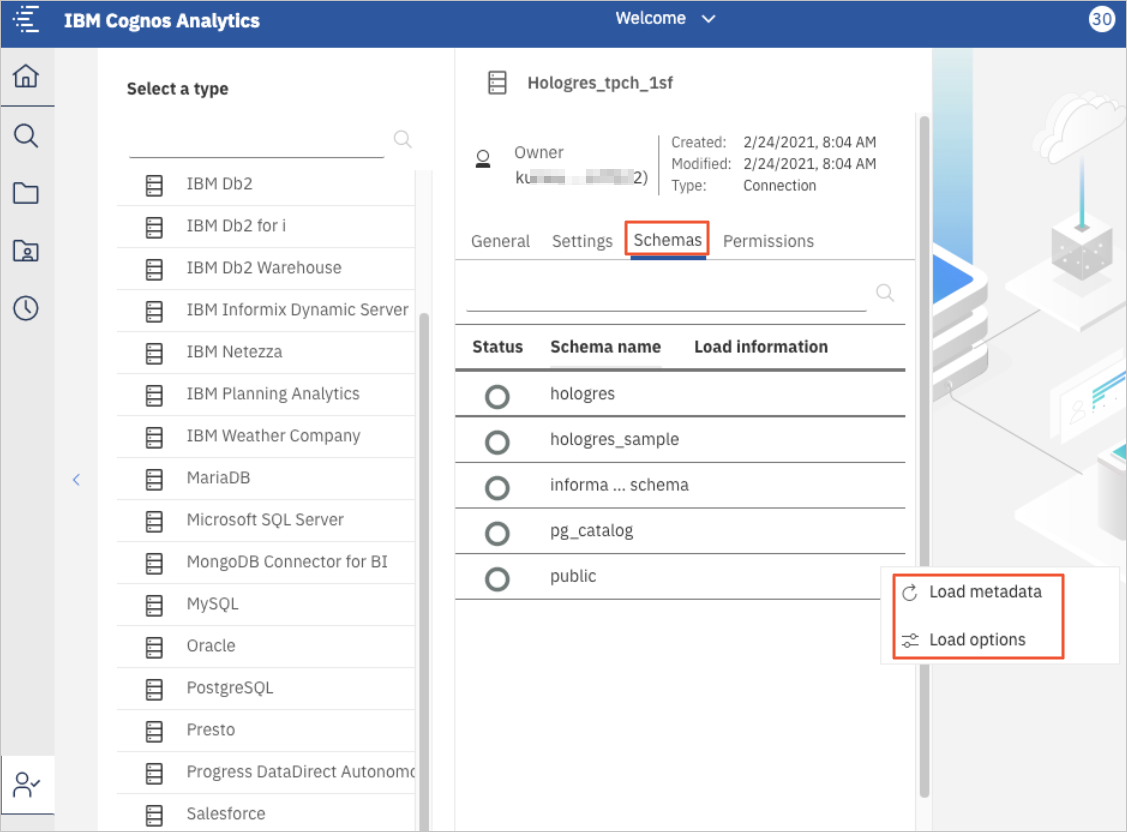 Load metadata loads metadata for all tables in the schema, while Load options lets you configure detailed data settings. In this topic, we use Load metadata as an example.
 -
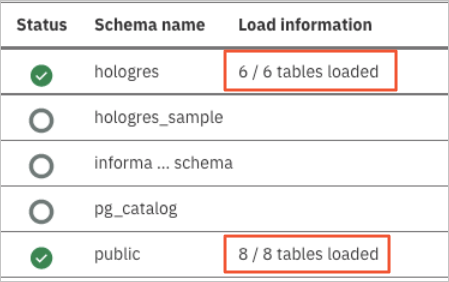
After the schema information loads, a success message appears, as shown in the following figure. You are now connected to Hologres and can begin performing visual analysis.
-
-
Create a data module.
After creating the data source connection, you can build a data module for data analysis.
-
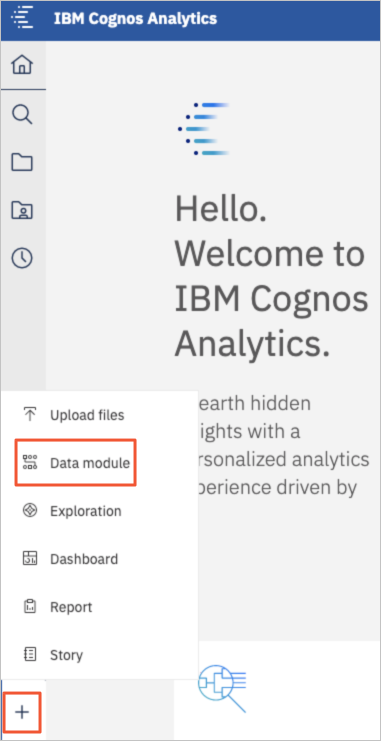
Log on to IBM Cognos Analytics, click the plus icon (+) in the lower-left corner, and select data module from the list.
-
On the Select sources page, click the
 icon on the left. On the Data servers tab, click the data source connection that you created.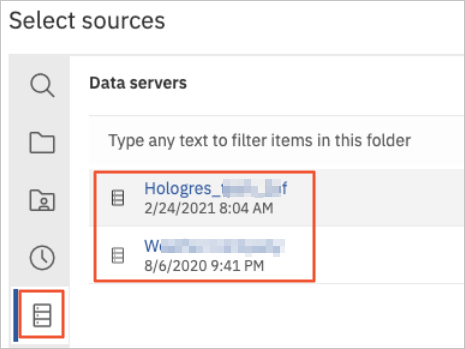
-
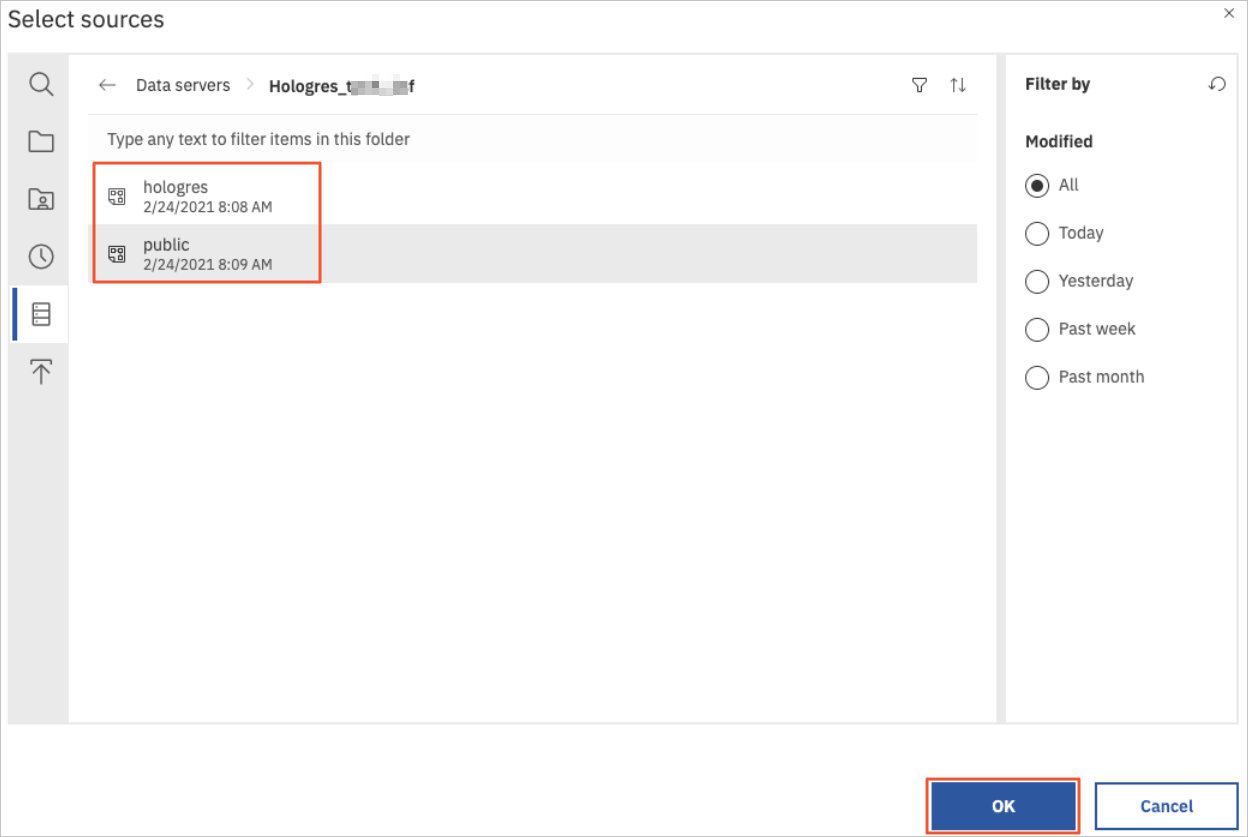
On the details page of the data source connection, schemas with loaded metadata appear. Select your target schema and click OK at the bottom of the page.
-
On the Add tables page, select Select tables and then click Next at the bottom of the page.
-
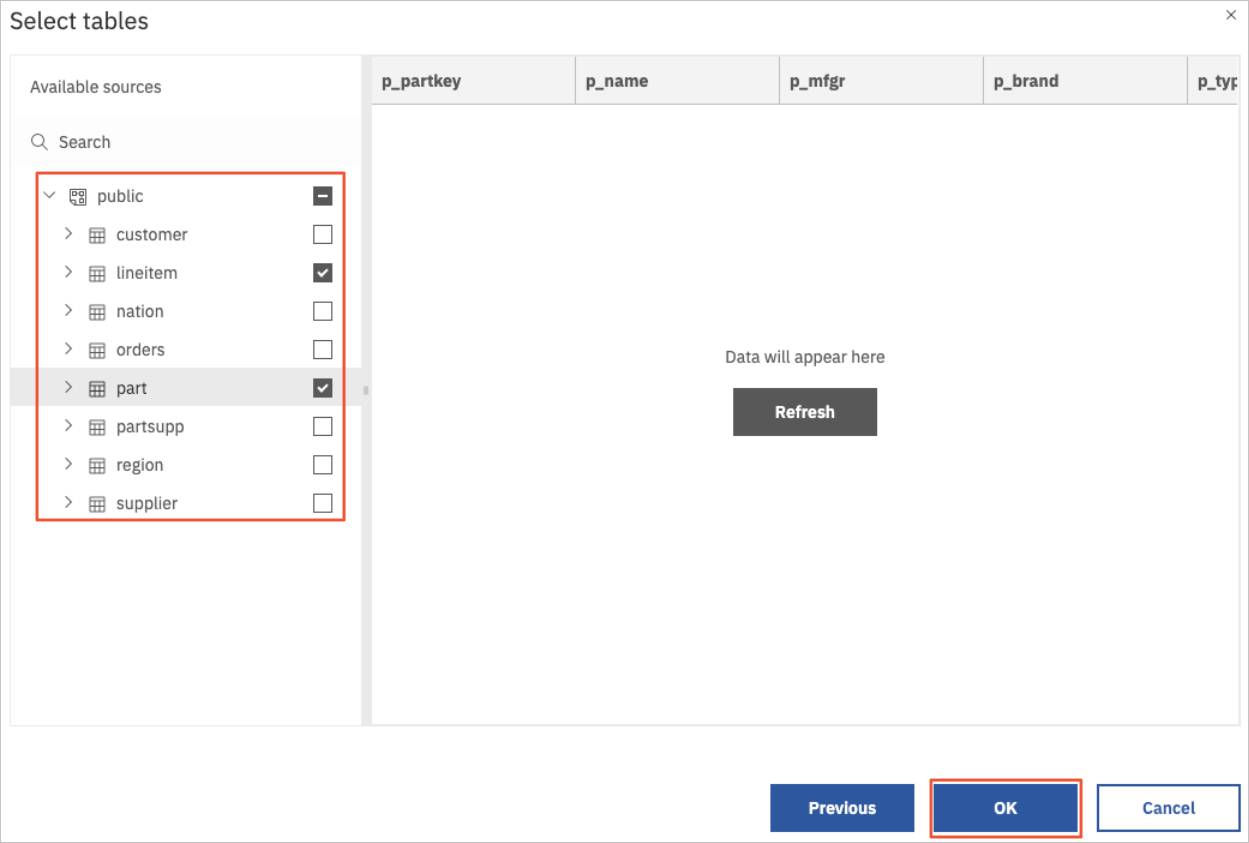
On the Select tables page, select the target table and click OK.
-
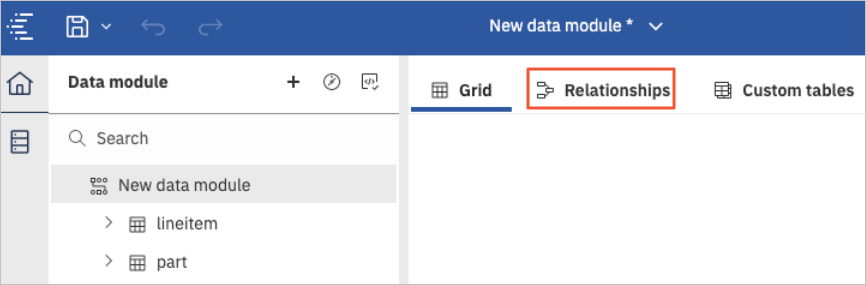
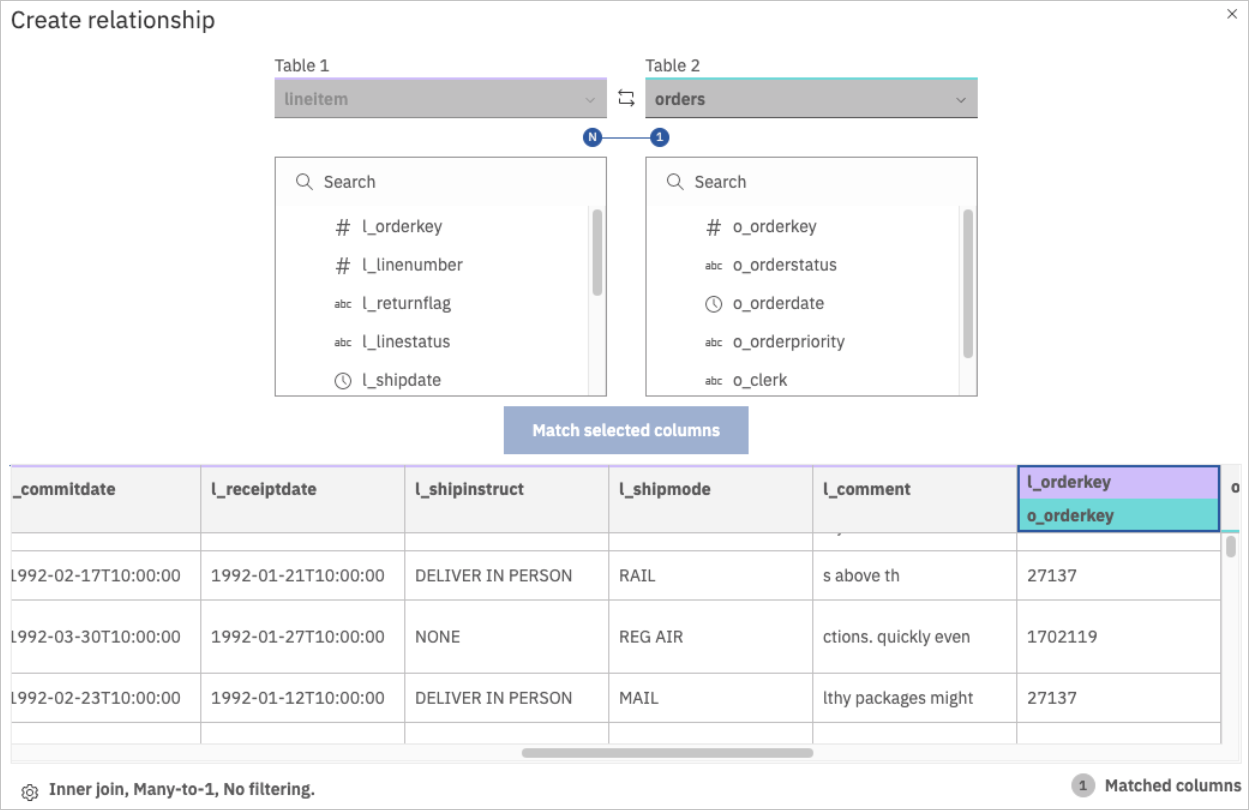
On the modeling page, click Relationships to define a table relationship.
-
On the Create relationship page, after you define the table relationship, click Save.
-
-
After creating the model, you can use it for visual analysis. For more information about IBM Cognos Analytics, see the official IBM Cognos Analytics documentation.