Hologres supports IP whitelists in HoloWeb to help you manage access and ensure security. This topic describes how to configure an IP whitelist for your Hologres instance.
Whitelist changes apply to new connections only. Existing connections remain active until released. To disconnect existing sessions, see Release a connection.
IP whitelists are configured on the primary instance. You cannot configure an IP whitelist on a read-only secondary instance. The IP whitelist of the read-only secondary instance must be the same as that of the primary instance.
Prerequisites
Version: Hologres V0.10.14 or later (excluding V2.0.4 through V2.0.5). Check your version on the instance details page in the Hologres console, or run
select hg_version(). If your version is earlier than V0.10.14, join the Hologres DingTalk group to request an upgrade. For more information, see How do I get more online support?.Permissions: Only instance administrators (superusers) can add, edit, or delete IP whitelists.
Primary instance only: You cannot configure an IP whitelist on a read-only secondary instance. Configure it on the primary instance.
Add an IP whitelist
After you add an IP whitelist, only the specified IP addresses can connect to the instance. Make sure your own IP address is included before saving.
Log on to the Hologres console. In the top menu bar, select a region.
In the left-side navigation pane, click Go to HoloWeb.
On the Security Center page, select IP Address Whitelist in the left-side navigation pane.
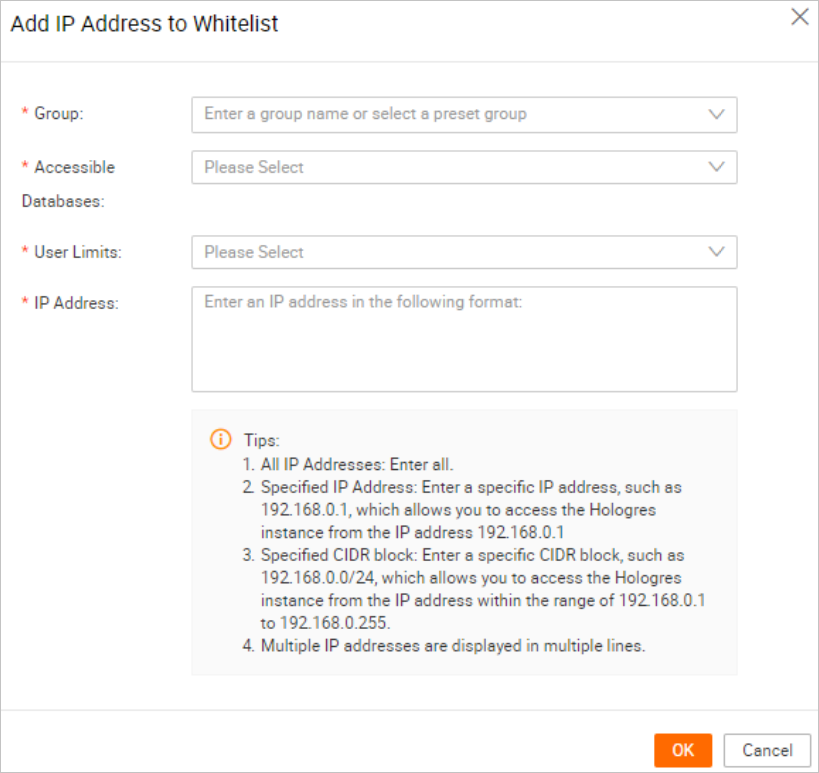
In the upper-right corner, click Add IP Address to Whitelist and configure the following parameters.
Parameter
Description
Group
A custom group name. After you set the Logon Method to Passwordless logon for current user, you must also add the DataWorks data integration resource group to the IP whitelist. Otherwise, the feature is unavailable. Select the corresponding group name from the Group drop-down list.
Accessible Databases
The database to restrict. Select a specific database, or select
ALLto apply the whitelist to all user-created databases (excluding system databases) in the instance.Users Allowed
The user to restrict. Select a specific user, or select
ALLto apply the whitelist to all users in the instance.IP Address
The IP addresses to allow. Supported formats:
ALL(all addresses), single IP (192.168.0.1), CIDR block (192.168.0.0/24, which covers 192.168.0.1 through 192.168.0.255), or multiple IPs (one per line).Click OK. After the whitelist is configured, only requests from the specified IP addresses are allowed.
Edit an IP whitelist
When you edit a whitelist, you can change only the IP addresses. To change the database or user restrictions, create a new IP whitelist.
Only instance administrators (superusers) can edit IP whitelists.
On the Security Center page, select IP Address Whitelist in the left-side navigation pane.
Find the target IP whitelist and click Edit in the right-side column.
On the Edit IP Address in Whitelist page, modify the IP addresses. For supported formats, see Add an IP whitelist.
Click OK.
Delete an IP whitelist
If you delete all IP whitelists, the instance returns to its default state: accessible from all networks.
Only instance administrators (superusers) can delete IP whitelists.
On the Security Center page, select IP Address Whitelist in the left-side navigation pane.
Find the target IP whitelist and click Delete in the right-side column.
Click OK.
Considerations for integrated services
HoloWeb
When you configure a data connection in HoloWeb, set the Logon Method to Passwordless logon for current user to configure an IP whitelist for the current connection. For instructions, see Connect to a Hologres instance.

HoloWeb features such as connecting to instances, the SQL editor, and user management are restricted by the IP whitelist of the Postgres database. To use these features, add the required IP addresses to the Postgres database whitelist.
DataStudio
After you set a whitelist, DataStudio cannot access the instance unless you add its corresponding group to the IP whitelist. After you set the Logon Method to Passwordless logon for current user, you must also add the DataWorks data integration resource group. Select the corresponding group name from the Group drop-down list.
Flink
If Flink is connected to the Hologres instance network but cannot access your Hologres instance, obtain the IP address and CIDR block of your Flink project and add them to the database whitelist. For more information, see How do I configure a whitelist?.
Best practices
Add your own IP first. Before restricting access, verify that your IP address or CIDR block is in the whitelist to avoid locking yourself out.
Use CIDR blocks for ranges. Use CIDR notation (for example,
10.0.0.0/8) instead of individual IP addresses for easier management.Add service IPs before enabling. If your instance connects to DataStudio, Flink, or other Alibaba Cloud services, add their IP addresses first.
Review whitelists regularly. Remove IP addresses that are no longer needed and verify that active addresses remain valid.
Use database and user restrictions. Hologres supports per-database and per-user IP restrictions for finer control than instance-level whitelists alone.
FAQ
An error occurs when I configure a whitelist
Symptom: The following error is reported when configuring a whitelist for an instance:
ERROR: commit ddl phase1 failed: DDLWrite is not allowed on replicaCause: IP whitelists cannot be configured on read-only secondary instances.
Solution: Configure the IP whitelist on the primary instance. The primary instance and its secondary instances share the same whitelist configuration.
Existing connections are not blocked after I update the whitelist
Symptom: After you modify or add an IP whitelist, connections from removed IP addresses remain active.
Cause: Whitelist changes take effect only for new connections. Existing connections are not automatically disconnected.
Solution: Release existing connections to enforce the updated whitelist immediately. See Release a connection.