This topic describes how to use a foreign table to query encrypted MaxCompute data.
Choose a method
Hologres supports two methods for querying encrypted MaxCompute data. Choose based on your instance version:
| Hologres version | Method | Encryption supported | Configuration required |
|---|---|---|---|
| V3.2 and later | Common Table (recommended) | Default key and KMS key | Simplified — Hologres handles decryption transparently |
| Prior to V3.2 | Legacy foreign table | KMS key only | RAM role + query engine switch |
Common Table method (V3.2 and later)
Starting from V3.2, Hologres can query MaxCompute data encrypted with either the default key or a Key Management Service (KMS) key through Common Tables, with simplified configuration.
To use this method, enable Common Table routing at the scope that suits your use case:
-
Session level — Takes effect for the current session only. Run this statement together with your query or DML statement.
SET hg_experimental_external_catalog_routing = 'odps:common_table,dlf:hqe'; -
Database level — Takes effect for all connections to the specified database.
ALTER DATABASE <database name> SET hg_experimental_external_catalog_routing = 'odps:common_table,dlf:hqe'; -
Instance level — Takes effect for all databases in the instance.
ALTER ROLE ALL SET hg_experimental_external_catalog_routing = 'odps:common_table,dlf:hqe';
For more information, see Common Table.
Legacy method (prior to V3.2)
This method applies to Hologres instances running versions prior to V3.2. It supports KMS-encrypted MaxCompute data only — data encrypted using the default DataWorks key is not supported.
Limitations
-
Minimum version: Hologres V1.1. If your instance runs an earlier version, upgrade it first. See Upgrade an instance.
-
Backend configuration: Required for instances running versions earlier than V1.3.31. Not required for V1.3.31 and later. Upgrade to V1.3.31 or later to skip this step.
-
Supported encryption: KMS-encrypted data using key materials generated by KMS or imported key materials. The DataWorks default key is not supported.
-
KMS key caching: By default, Hologres caches KMS key information for 24 hours when decrypting data.
-
Query engine: Hologres Query Engine (HQE) cannot access encrypted MaxCompute data. You must switch to Seahawks Query Engine (SQE) at the database level.
Prerequisites
Before you begin, make sure you have:
-
A Hologres instance running V1.1 or later
-
Sufficient RAM permissions to create policies and roles
Configure access to encrypted data
The legacy method requires four steps: create a RAM policy, create a RAM role, switch the query engine, and then query data.
Step 1: Create a custom policy
-
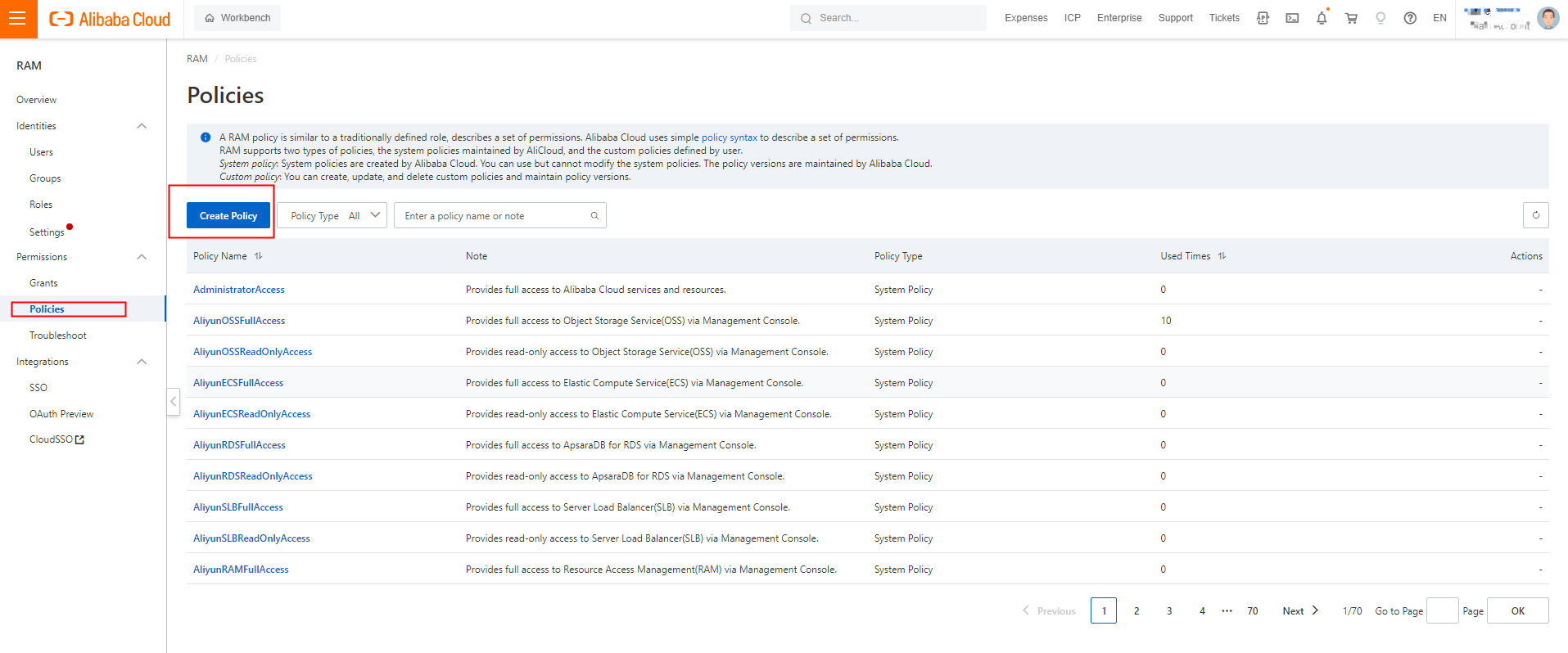
Log on to the RAM console. In the left-side navigation pane, choose Permissions > Policies. On the Policies page, click Create Policy.
-
On the Create Policy page, click JSON. In the code editor, enter the following policy, then set Name to
AliyunHologresEncryptionDefaultRolePolicy.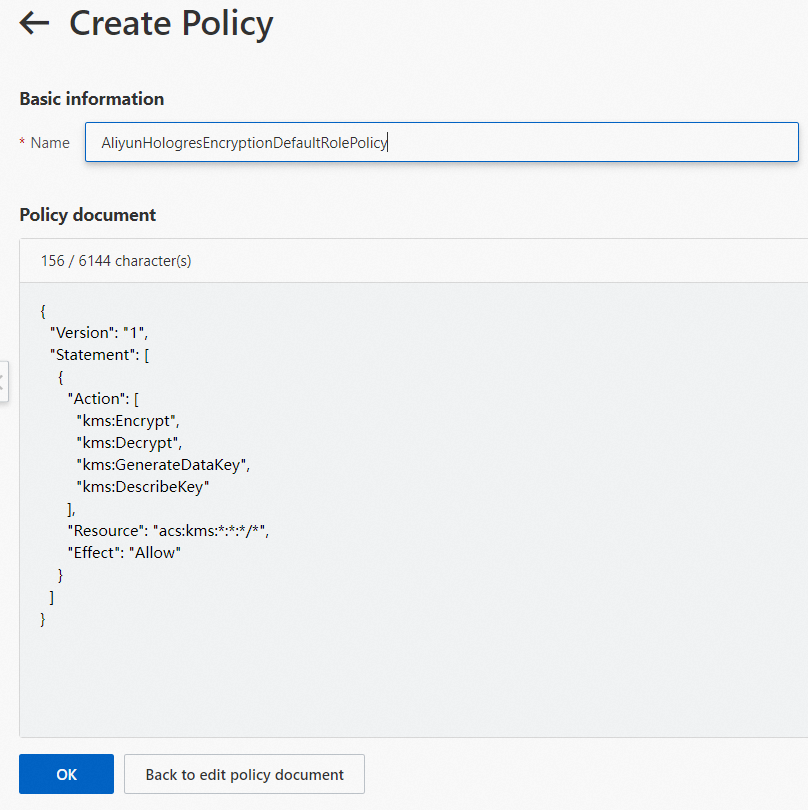
This policy grants Hologres the KMS permissions it needs to obtain and decrypt data keys when querying encrypted MaxCompute data.
{ "Version": "1", "Statement": [ { "Action": [ "kms:Encrypt", "kms:Decrypt", "kms:GenerateDataKey", "kms:DescribeKey" ], "Resource": "acs:kms:*:*:*/*", "Effect": "Allow" } ] } -
Click OK. The custom policy is created.
Step 2: Create a RAM role and grant permissions
Hologres needs a RAM role to call KMS APIs on your behalf. Create the role and attach the policy created in step 1.
-
Log on to the RAM console. In the left navigation pane, choose Identities > Roles.
-
On the Roles page, click Create Role. Set Principal Type to Cloud Service and Principal Name to Hologres.
-
Click OK. In the dialog, enter
AliyunHologresEncryptionDefaultRolein the Role Name field, then click OK.
-
On the role details page, click Grant Permission.
-
In the Grant Permission panel, set Resource Scope to Account. For Policy, select
AliyunHologresEncryptionDefaultRolePolicy.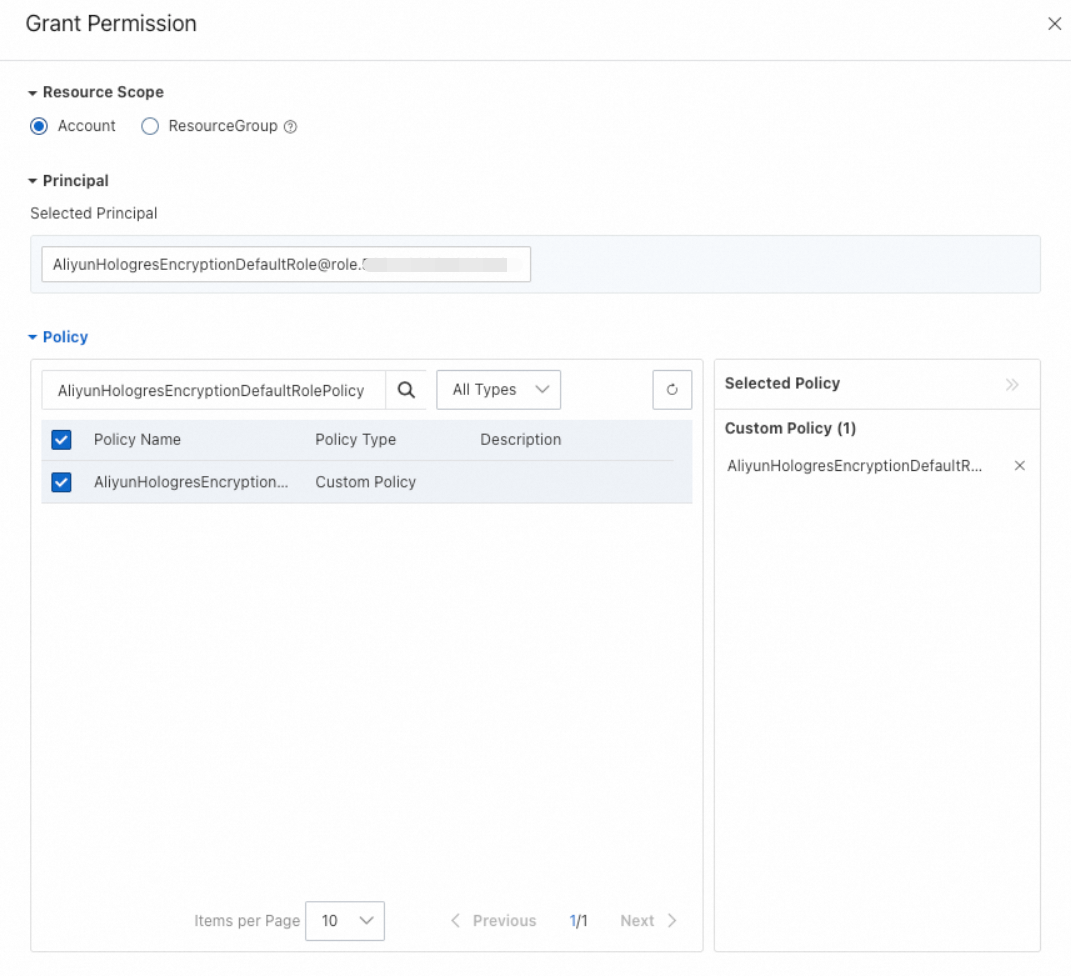
-
Click OK. On the role details page, click the Trust Policy tab to verify the trust policy.
Step 3: Switch the query engine to SQE
HQE cannot access encrypted MaxCompute data. Run the following statement to switch the database's foreign table query engine to SQE:
ALTER DATABASE <dbname> SET hg_experimental_enable_access_odps_orc_via_holo = false;The change takes effect after you create a new connection. To verify the configuration, run:
SHOW hg_experimental_enable_access_odps_orc_via_holo;If the output is false, the configuration is active.
Step 4: Query encrypted data
After completing the previous steps, query encrypted MaxCompute data the same way you query regular MaxCompute data. See Accelerate queries on MaxCompute data using foreign tables.
Troubleshooting
Error when querying data:
ERROR: status { code: SERVER_INTERNAL_ERROR message: "hos_exception: IO error: Failed to execute pangu open normal file pangu://xxx:xxx/product/odps/xxx/data/xxxx/xxx/xxx, errorcode: 9, errorcode_description: invalid argument, err_msg: PanguParameterInvalidExceptionThis error occurs when HQE attempts to access encrypted MaxCompute data. Switch the database's query engine to SQE:
ALTER DATABASE <DB_Name> SET hg_experimental_enable_access_odps_orc_via_holo = false;Reconnect to apply the change, then verify it took effect:
SHOW hg_experimental_enable_access_odps_orc_via_holo;If the output is false, re-run your query.