bin/solr (alisolr) is a command-line tool for managing Search service indexes on ApsaraDB for HBase. Use it to create and list collections, and manage configuration sets in ZooKeeper (ZK).
Prerequisites
Before you begin, ensure that you have:
-
An ApsaraDB for HBase instance with the Search service enabled
-
Network access to the instance (internal network or Internet)
Download and configure the HBase Shell
Download and decompress the package
curl -O https://hbaseuepublic.oss-cn-beijing.aliyuncs.com/alisolr-7.3.8-bin.tar.gz
tar -zxvf alisolr-7.3.8-bin.tar.gz
This creates the alisolr-7.3.8-bin directory.
Configure the ZooKeeper connection
Edit alisolr-7.3.8-bin/conf/solr.in.sh. Find the SOLR_ZK_HOST line, remove the leading #, and set it to your instance's ZooKeeper address:
SOLR_ZK_HOST="ld-xxxx-proxy-zk.hbaseue.9b78df04-b.rds.aliyuncs.com:2181/solr"To find your ZooKeeper address, go to your Search instance details page and click Database Connection to view the Client Address.
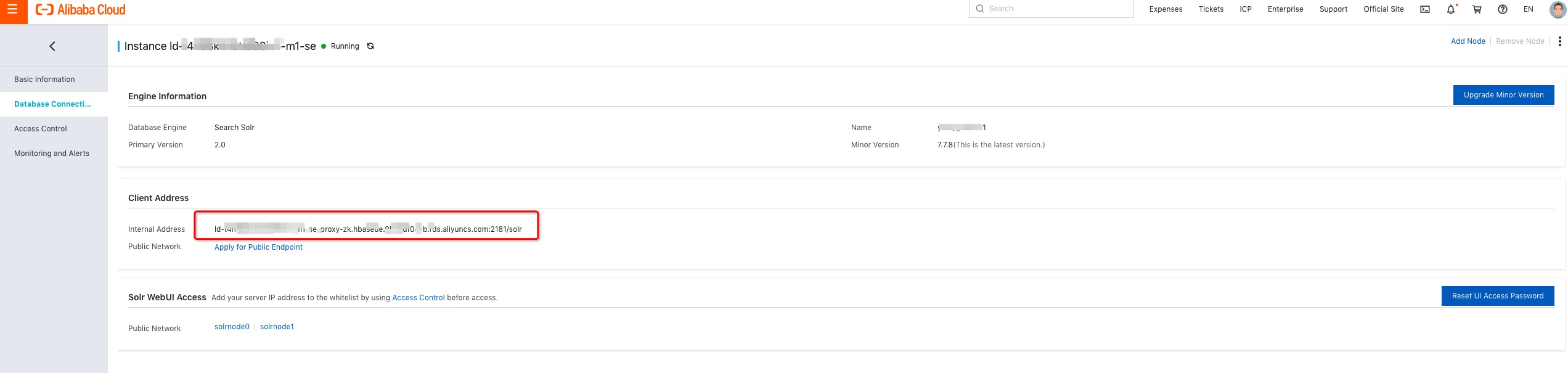
The address shown on the details page is an internal network address. To access the Search service over the Internet, click Enable Internet Access on the details page, then set SOLR_ZK_HOST to the public IP address provided.
Manage collections and configuration sets
All commands run from the alisolr-7.3.8-bin/bin directory. Start the shell:
./solrCreate a collection
./solr create_collection -c <collection-name> -n <config-set-name> -shards <shard-count>| Parameter | Required | Description | Example |
|---|---|---|---|
-c |
Required | Name of the collection to create | testIndex |
-n |
Required | Name of the configuration set to use | _indexer_default |
-shards |
Required | Number of shards | 2 |
Example: Create a collection named testIndex with 2 shards, using the default configuration set:
./solr create_collection -c testIndex -n _indexer_default -shards 2List collections
./solr list_collectionsManage configuration sets
Before creating a collection with a custom configuration, upload a configuration set to ZooKeeper.
The Search service provides a default configuration set (_indexer_default) that you can download, modify, and upload as your own.
Download a configuration set
./solr zk downconfig -d . -n _indexer_default| Parameter | Required | Description | Example |
|---|---|---|---|
-d |
Required | Local directory to save the configuration set | . (current directory) |
-n |
Required | Name of the configuration set in ZooKeeper | _indexer_default |
After running this command, a conf subfolder is created in the current directory containing the _indexer_default configuration set files.
Upload a configuration set
After modifying the files in the conf folder, upload them as a custom configuration set:
./solr zk upconfig -d conf -n myConf| Parameter | Required | Description | Example |
|---|---|---|---|
-d |
Required | Local directory containing the configuration set | conf |
-n |
Required | Name to assign the configuration set in ZooKeeper | myConf |
List configuration sets
./solr zk ls /configsCreate a collection using a custom configuration set
After uploading a custom configuration set, create a collection that uses it:
./solr create_collection -c myIndex -n myConf -shards 2