During development, debugging, or production operations, you often need to query data in HBase. In addition to using HBase Shell to write Get and Scan requests, Lindorm Insight provides a simple SQL query entry. You can use SQL syntax to query data in ApsaraDB for HBase Performance-enhanced Edition wide tables.
Prerequisites
Before you begin, ensure that you have:
Logged on to Lindorm Insight for your cluster. For more information, see Log on to Lindorm Insight
Limitations
-
To ensure data security, each query can return a maximum of 100 rows.
-
The
ROWfield corresponds to the Lindorm row key. BothROWandqualifierare of thevarbinarytype. If aqualifierdoes not belong to a column family, you must specify a column family. -
ROWandCOLare SQL reserved fields. You must enclose them in backticks () when you use them in queries. You must also enclose aqualifierin backticks when you specify a column family for it.
HBase-compatible query
The Data Query (Compatible with HBase) page lets you query a specified table and add data to it.
Query existing data
You can query existing data in SQL tables and HBase tables.
-
In the left-side navigation pane, choose .
-
Set the filter conditions, including namespace and Table.
-
Optional: Specify a column family, row key, start key, end key, and limit.
-
Click Query. The existing data in the target table is displayed.
Add HBase data
You can add data only to HBase tables. This feature does not support SQL tables.
-
Click Add.
-
In the Add table data dialog box, enter the following parameters:
Parameter
Description
Rowkey
The row key of the HBase table.
Column Name
The column name to add. You must specify a column family in the format
<column family name:column name>, for example,f:name.Timestamp
Only Unix timestamps are supported.
Value
The data value. For a list of supported data types, see Basic data types.
-
Click Determine to add a row.
Edit existing data
You can edit existing data in SQL tables and HBase tables.
-
In the Operation column of the target row, click Edit.

-
In the Edit Table Data dialog box, modify the timestamp and data value.
-
Click Determine to save your changes.
SQL executor
-
In the left-side navigation pane, choose .
-
From the namespace drop-down list, select a namespace. The tables in the namespace appear on the right.
-
Optional: Get a hexadecimal string. For instructions, see Get a hexadecimal string.
-
Enter an SQL statement in the editor.
-
Click Execution.
NoteYou can also run the statement with a keyboard shortcut. On Windows, press CTRL+ENTER. On macOS, press COMMAND+RETURN.
Get hex strings
When you query a specific row in an HBase table or perform a conditional query on a varbinary field, you must use a hexadecimal string as the value. For example, to query for a row with the row key r1, the WHERE clause in your SQL statement must be WHERE ROW='7321', where 7321 is the hexadecimal string for r1. The Data Query page in the cluster management system provides a conversion tool to generate these hexadecimal strings.
-
In the left-side navigation pane, choose .
-
From the namespace drop-down list, select a namespace. The tables in the namespace appear on the right.
-
Get the converted hexadecimal string.
-
Method 1: Click Execution to view the structure of the target table. Enter the target string in the Binary to hex string conversion text box. The conversion result appears at the top of the editor.
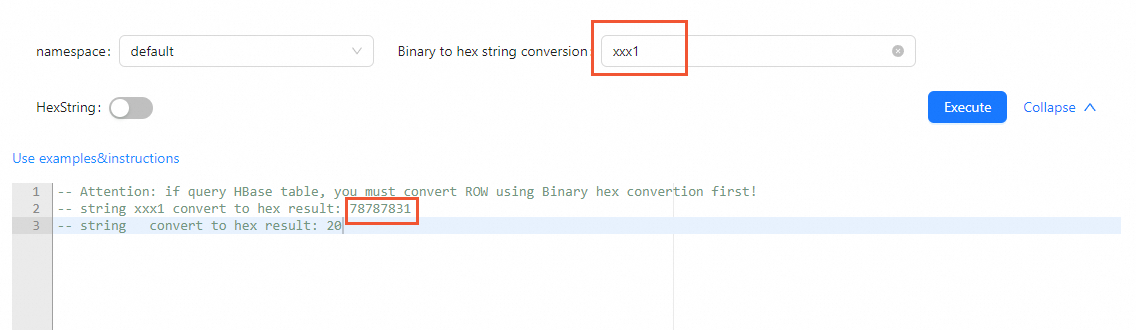
-
Method 2: Turn on the HexString switch and click Execution. The execution results show the values converted to hexadecimal strings.
-
-
Write an SQL statement in the editor and replace the original value with the converted hexadecimal string.
For example, if the original query statement is
SELECT * FROM task WHERE ROW = "xxxx1";, the updated statement isSELECT * FROM task WHERE ROW = "7878787831";.
-
Click Execution.