The Overview page in the cluster management system lists all tables in a Lindorm cluster. Use it to query table details, manage column families, configure traffic throttling rules, and delete tables.
Prerequisites
Before you begin, ensure that you have:
Logged on to Lindorm Insight for your cluster. For more information, see Log on to Lindorm Insight
Query table details
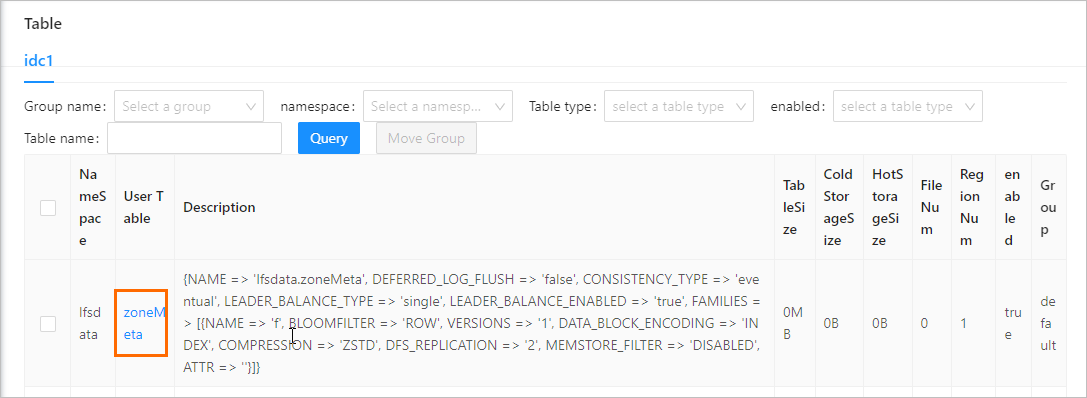
On the Overview page, filter tables by group, namespace, or table name, then click Query.
Optional: Click the
 icon in the upper-right corner of the Current Table section to choose which columns to display.
Click the name of a table to view its details.
Optional: In the Current Table section, edit or delete a column family.
Edit a column family: Click Edit in the Actions column for the column family. In the Edit Column Family dialog box, update the maximum version, TTL, or data encryption type, then click OK.
Delete a column family: Click Delete in the Actions column for the column family. In the Delete Column Family dialog box, click OK.
WarningDeleted column families cannot be restored. Back up your data before deleting a column family.
Move a table to a group
Do not move a table to a group that has no RegionServers. Tables moved to such groups become inaccessible.
On the Overview page, click Move To Group in the Actions column for the target table.
In the Create Form dialog box, select the destination group from the Destination Group drop-down list.
Click OK.
Manage traffic throttling rules
On the Overview page, choose More > Throttle Traffic in the Actions column for the target table.
ImportantIf the options in the Actions column differ from what is shown in the preceding figure, submit a ticket.
In the Table Throttling Management dialog box, select an operation type and enter a traffic threshold.
Operation type Description READ Throttles read operations WRITE Throttles write operations MIX Throttles both read and write operations DDL Throttles DDL operations on the table The traffic threshold must be an integer. Unit: Capacity Unit (CU).
NoteCUs measure read and write throughput. The CUs of an operation indicate the capacity units consumed by the operation.
After you create the rule, it appears in the Current Throttling Rule section of the dialog box. The quota parameter shows the active thresholds — for example, a read quota of 20,000 CUs and a write quota of 10,000 CUs.
Click OK.
Optional: To delete the current throttling rule, click Delete in the Table Throttling Management dialog box.
Delete a table
Deleted tables cannot be restored. Back up your data before proceeding.
On the Overview page, choose More > Delete in the Actions column for the target table.
ImportantIf the options in the Actions column differ from what is shown in the preceding figure, submit a ticket.
In the Delete Table dialog box, click OK.