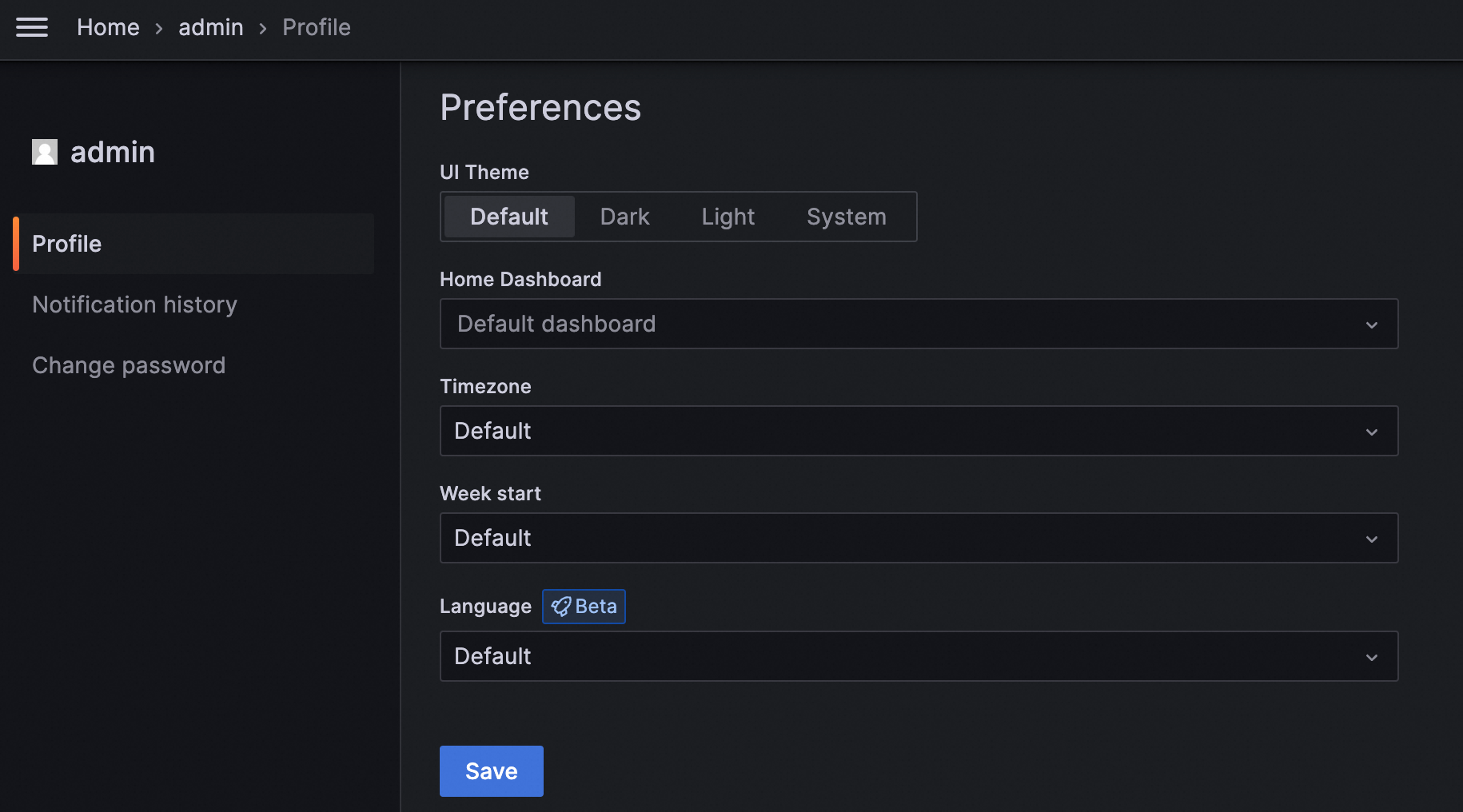
This topic describes how to manage language settings in a workspace. You can apply the settings to either a single user or to all users, with single-user settings taking precedence.
Limits
This feature is supported only in Grafana V10.0.x. For information about how to update Grafana, see View or modify workspace information.
Apply to all users
Method 1: Use the Managed Service for Grafana console
Log on to the Managed Service for Grafana console. In the left-side navigation pane, click Workspace Management.
On the Workspace Management page, click the ID of the workspace that you want to manage.
In the left-side navigation pane, select Parameter Settings.
On the Parameter Settings page, turn the Default Language of Managed Service for Grafana switch on or off. In the dialog box that appears, click OK.
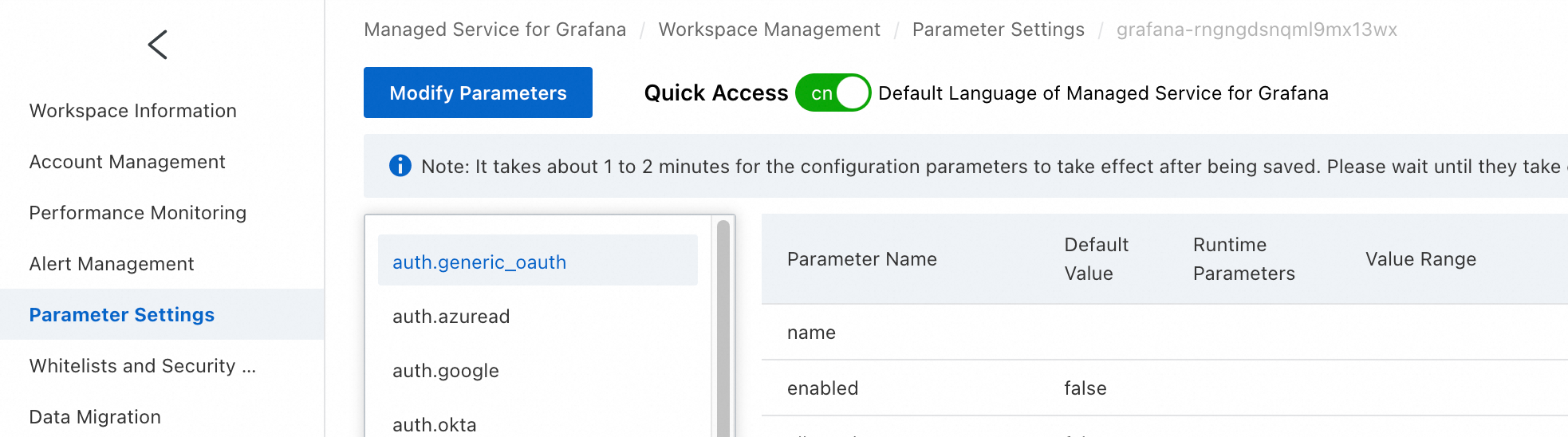
Method 2: Use the Grafana console
Log on to the Managed Service for Grafana console. In the left-side navigation pane, click Workspace Management.
On the Workspace Management page, find the workspace that you want to manage and click the URL in the URL column to go to Grafana.
NoteYou can log on to Grafana with the administrator account of Grafana and the password that you configured when you created the workspace. You can also click Sign in with Alibaba Cloud to log on to Grafana with the current Alibaba Cloud account.
In the Grafana workspace, click the
 icon in the upper-left corner, and choose Administration > Default preferences. On the page that appears, set the language and click Save.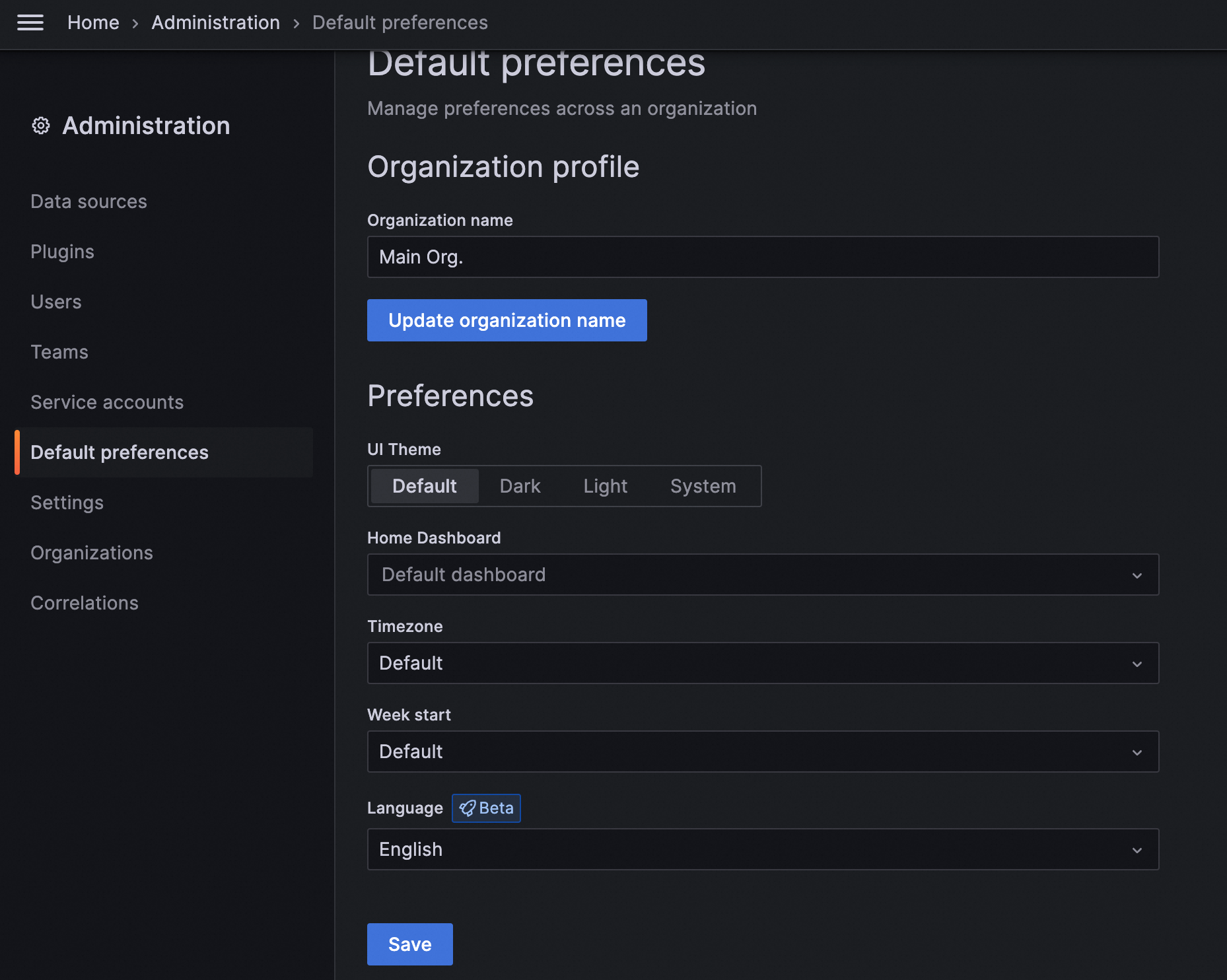
Apply to a single user
Log on to the Managed Service for Grafana console. In the left-side navigation pane, click Workspace Management.
On the Workspace Management page, find the workspace that you want to manage and click the URL in the URL column to go to Grafana.
NoteYou can log on to Grafana with the administrator account of Grafana and the password that you configured when you created the workspace. You can also click Sign in with Alibaba Cloud to log on to Grafana with the current Alibaba Cloud account.
In the Grafana workspace, click
 in the upper-right corner, then click Profile.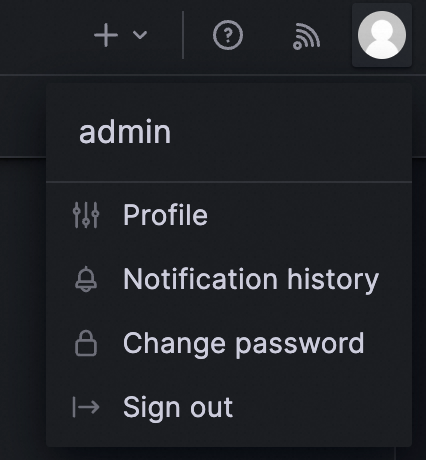
On the Profile page, set the language and click Save.