This topic explains how to add and use a Zabbix data source in Grafana using the Zabbix plugin.
Prerequisites
A Zabbix server is running and collecting data.
You have created a Grafana workspace. For more information, see Create a Grafana workspace.
Your Grafana workspace is version 9.0.x or later.
Procedure
-
Log on to the Managed Service for Grafana console. In the left-side navigation pane, click Workspace Management.
-
On the Workspace Management page, find the workspace that you want to manage and click the URL in the URL column to go to Grafana.
NoteYou can log on to Grafana with the administrator account of Grafana and the password that you configured when you created the workspace. You can also click Sign in with Alibaba Cloud to log on to Grafana with the current Alibaba Cloud account.
Install and enable the Zabbix plugin
Grafana 9.0.x
In the left navigation pane, click the
 icon and then click Plugins.
On the Plugins page, search for and click Zabbix.
On the Zabbix plugin page, click Install.
After the installation is complete, click Enable.
Grafana 10.0.x
In the upper-left corner of the Grafana homepage, click the
 icon.
icon.In the left navigation pane, choose Manage > Plugins.
On the Zabbix plugin page, click Install.
After the installation is complete, click Enable.
The plugin is disabled by default after installation and must be enabled to function.
Add a Zabbix data source
Grafana 9.0.x
In the left navigation pane, click the
 icon. On the Data Sources tab, click Add data source.
On the Add data source page, search for and click Zabbix.
On the Settings page, configure the following parameters.
Parameter
Description
Example value
Name
A custom name for the data source.
Zabbix
URL
The Zabbix API URL, typically ending in 'api_jsonrpc.php'.
https://[Zabbix Server IP]/api_jsonrpc.phpUsername
The Zabbix account username.
Default: Admin
Password
The Zabbix account password.
Default: zabbix
Click Save & test.
Grafana 10.0.x
In the upper-left corner of the Grafana homepage, click the
icon.In the left navigation pane, click Query.
On the Query page, click Add new data source.
On the Add data source page, search for and click Zabbix.
On the Settings page, configure the following parameters.
You can configure the remaining parameters as follows:
Network Type: select Public Network.
Access: select Server (default).
Turn on the Trends toggle. Set After to
7d, Range to4d, and Cache TTL to1h.
Parameter
Description
Example value
Name
A custom name for the data source.
Zabbix
URL
The Zabbix API URL, typically ending in 'api_jsonrpc.php'.
https://[Zabbix Server IP]/api_jsonrpc.phpUsername
The Zabbix account username.
Default: Admin
Password
The Zabbix account password.
Default: zabbix
Click Save & test.
Create a dashboard with the data source
Grafana 9.0.x
In the left navigation pane, click the
 icon.
icon.On the Dashboards page, on the Browse tab, click New dashboard.
On the New dashboard page, click Add a new panel.
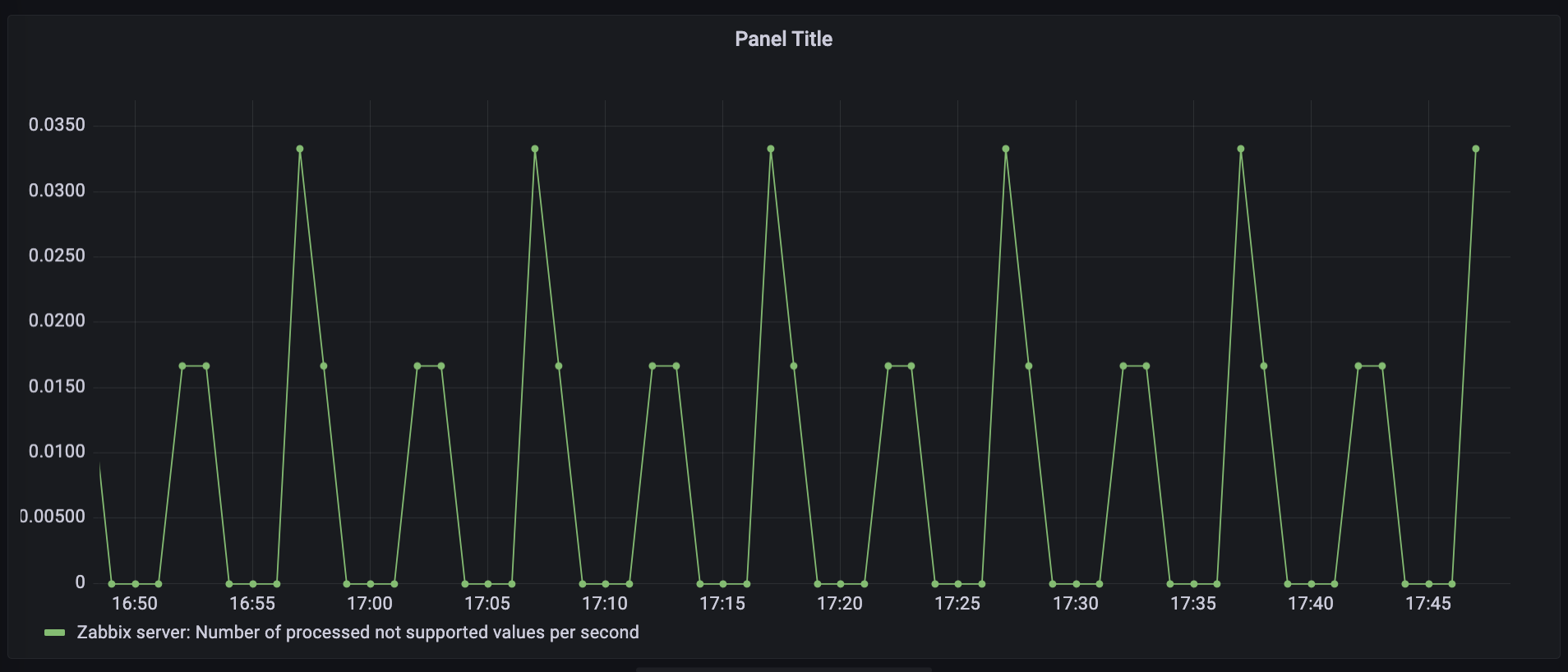
On the Edit Panel page, on the Query tab, select the Zabbix data source added in the Grafana 9.0.x version step, and then in the collapsible panel A section, configure the following parameters:
Query Mode: select Metrics.
Group: select Zabbix servers.
Host: select Zabbix server.
Application: select Zabbix server.
Item: select Number of processed not supported items per second.
In the right-side pane, specify the name, type, and graph styles of the chart.
After you finish the configuration, click Apply in the upper-right corner.
In the upper-right corner, click the
 icon. Then, specify the name of the dashboard and the directory in which the dashboard resides.
 Click Save.
Grafana 10.0.x
In the upper-left corner of the Grafana homepage, click the
icon.In the left navigation pane, click Dashboards.
On the Dashboards page, click New in the upper-right corner, and then click Create Dashboard.
On the New dashboard page, click + Add visualization.
On the Select data source page, select the Zabbix data source that you added in the Grafana 10.0.x version step.
On the Edit Panel page, in the A section on the Query tab, configure the following parameters:
Query Mode: select Metrics.
Group: select Zabbix servers.
Host: select Zabbix server.
Application: select Zabbix server.
Item: select Number of processed not supported values.
In the right-side pane, specify the name, type, and graph styles of the chart.
Click Apply.
In the upper-right corner, click the
icon. Then, specify the name of the dashboard and the directory in which the dashboard resides. Click Save.