Request-level metrics provide insight into each function invocation and its execution status. Use these metrics to quickly identify and locate issues or analyze application bottlenecks. Enable request-level metrics to better manage and optimize your function applications.
What are request-level metrics
Request-level metrics summarize the execution status of each function request. After you enable request-level metrics, the system collects performance, exception, and tracing metrics for every function execution. The system then delivers these metrics to the Logstore specified in your log configuration.
Performance metrics: Memory usage, function running time, initialization time, and cold start information.
Exception metrics: Execution failure status and error details.
Tracing metrics: Execution duration of key system links, whether integrated tracing is sampled, and the path, status code, and client IP address for HTTP functions.
After you enable request-level metrics, Function Compute delivers the execution metrics for each request to your Logstore in the following format.
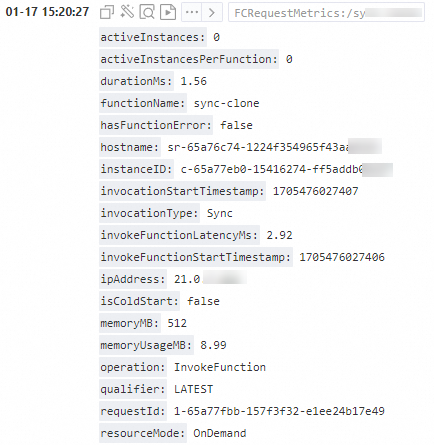
Scenarios
View function execution details, performance metrics, and error messages based on request metrics.
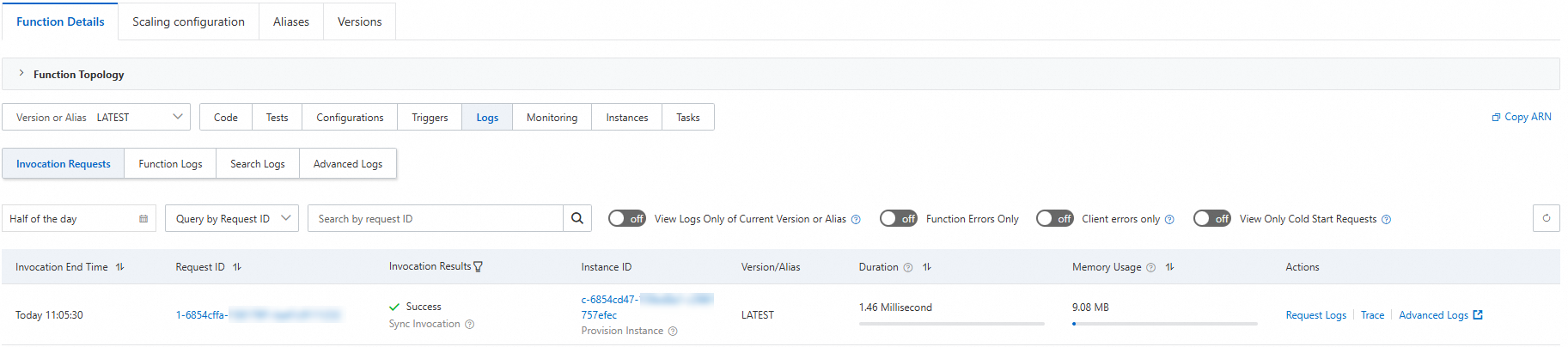
The console provides a request list derived from request-level metrics. On this page, you can view details for each request, including execution status, the corresponding instance ID, execution duration, memory usage, and request logs. The following figure shows an example.
 Note
NoteYou can view the request list even if request-level metrics are not enabled. However, the list may be inaccurate in the following scenarios.
If the same request ID appears multiple times, you cannot locate the log for a specific request. This often occurs during retries for asynchronous invocations.
In custom runtimes and custom image runtimes, if
FC Invoke Start RequestId: xxxandFC Invoke End RequestId: xxxare printed, a single invocation may appear twice in the request list.
Perform custom searches and create custom dashboards based on request metrics.
Request metrics are delivered to your Logstore in
key:valueformat. You can create custom dashboards based on your business needs. For more information, see Create a dashboard.
Notes
Scope
Request-level metric logs are a function configuration item. After you enable this feature, it applies to the current function. A log is recorded for each function execution.
Fees
When logs are delivered to Simple Log Service, storage fees apply. For more information about Simple Log Service pricing, see Pricing.
Enable request-level metrics
Enable request-level metrics in the console
Prerequisites
Function Compute
Simple Log Service (SLS)
Procedure
Log on to the Function Compute console. In the navigation pane on the left, choose .
In the top navigation bar, select a region. On the Function page, click the target function.
On the function details page, click the Configuration tab.
Locate Advanced Settings, click Modify on its right, find the Log section in the Advanced Configuration panel, enable instance-level metrics, and then click Deploy.
The following table describes the main configuration items. You can keep the default values for other configuration items.
Configuration Item
Description
Example
Log Feature
Specifies whether to store logs of function invocations in Simple Log Service SLS. For more information about the log feature, see Configure the log feature.
Enable
Log Project
Select a configured project.
aliyun-fc-hangzhou-2238f0df-a742-524f-9f90-976ba*******
Logstore
Select a configured Logstore.
function-log
Log Segmentation Rule
Specifies whether to enable the log segmentation rule. If you enable this feature, Function Compute chunks logs based on the rule and writes the log segments to Simple Log Service one by one.
Enable
Request-level Metrics
Specifies whether to view request-level metrics. If you enable this feature, metrics for each function invocation are collected and delivered to the Logstore that you select in the log configuration.
Enable
Instance-level Metrics
Specifies whether to enable instance-level metrics. If you enable this feature, the metric data of function instances is delivered to the Logstore that you select in the log configuration.
Enable
Enable request-level metrics using Serverless Devs
Prerequisites
Procedure
Create a code folder. The folder structure is as follows.
.
├── code
│   └── index.js
└── s.yaml
The following code provides an example of the s.yaml file.
In the example, the `enableRequestMetrics` field configures the request-level metrics feature. Before enabling request-level metrics, you must enable the log feature and set `logstore` and `project` to an existing Logstore and project in your account.
edition: 3.0.0
name: hello-world-app
access: "default"
vars: # Global variables
  region: "cn-hangzhou"

resources:
  hello_world:
    component: fc3 # Component name
    props:
      region: ${vars.region}
      functionName: "start-nodejs-****"
      description: 'hello world by serverless devs'
      runtime: "nodejs16"
      code: ./code
      handler: index.handler
      memorySize: 128
      timeout: 30
      logConfig: # Modify logstore and project based on your actual configurations. You can also set logConfig to auto to automatically create a project and a Logstore.
        enableInstanceMetrics: true
        enableRequestMetrics:  true  # The switch for request-level metrics. If you enable this feature, the system collects metrics for each function execution.
        logBeginRule: DefaultRegex
        logstore: 'your-logstore'
        project: 'your-project'
Run the following command to deploy the application.
sudo s deploy -yAfter the command runs successfully, you can log on to the Function Compute console to verify that the request-level metrics feature is enabled for the deployed function.
Log query
Log format
The topic of request-level metric logs is in the following format: FCRequestMetrics:/functionName. You can use the query condition __topic__: "FCRequestMetrics:/functionName" in Simple Log Service to filter all request-level metric logs. For more information, see Quick start for query and analysis.
Metric fields
Request-level metrics record the following information.
Metric Name | Description | Example | Recorded for Each Invocation? |
functionName | The function name. | my-function | Yes |
versionId | The version name. | 12 | Yes |
qualifier | The service alias. The default value is LATEST. | prod | Yes |
requestId | The request ID. | db72ce53-ccbe-4216-af55-642622e01494 | Yes |
operation | Action name. | InvokeFunction | Yes |
invocationType | The invocation type. Valid values: Sync: synchronous call Async: asynchronous invocation | Sync | Yes |
memoryMB | The memory limit of the function. | 512 | Yes |
memoryUsageMB | The memory consumed by the function execution. | 410 | Yes |
durationMs | The request execution duration. | 20.20 | Yes |
isColdStart | Indicates whether the invocation is a cold start. Note If the Function Compute system does not have an existing instance to process a request, Function Compute creates a new instance, downloads the code, and starts the execution environment. A cold start occurs when a request arrives and Function Compute has no running instance to process it. The system must then create an instance, download code, and start the runtime. A request that undergoes this full process is a cold start request. To reduce cold starts, Function Compute creates instances in advance. If a request is processed by a pre-created instance during the creation process, it is not considered a cold start. | false | Yes |
instanceEvent | The instance event. Currently, only ColdStart is recorded for cold start requests. | ColdStart | No |
hasFunctionError | Indicates whether a function error occurred during execution. | false | Yes |
errorType | There are three types of function errors:
| FunctionUnhandledError | No. This metric is recorded only when a function error occurs, which means |
invokeFunctionLatencyMs | The function execution duration. | 99.00 | Yes. This metric is recorded for each invocation. |
traceContext | The trace context information. | 371d3ff242fcee9:371d3ff242fcee9:0:1 | No. This metric is recorded only when Tracing Analysis is configured. |
isSampled | Indicates whether the request was sampled by Tracing Analysis. | true | No. This metric is recorded only when Tracing Analysis is configured. |
resourceMode | The type of instance that processes the request. Valid values:
| OnDemand | Yes |
instanceID | The instance ID. | c-65603d8c-37e1bf7123054a77**** | Yes |
hostname | The instance host. | c-65603d8c-37e1bf7123054a77**** | Yes |
ipAddress | The IP address of the instance. Note: This is the internal IP address of the instance used to distinguish instances. It is not a public IP address. | 21.0.XX.XX | Yes |
activeInstances | The number of active instances. | 1 | Yes |
activeInstancesPerFunction | The number of active instances for the current function. | 1 | Yes |
scheduleLatencyMs | The scheduling duration. The scheduling latency is relatively long for cold starts. | 10.07 | Yes |
coldStartStartTimestamp | The timestamp when the cold start began. | 1700806029167 | No. This metric is recorded only for cold starts. |
coldStartLatencyMs | The cold start duration. | 487.65 | No. This metric is recorded only for cold starts. |
prepareCodeStartTimestamp | The timestamp when code download began. This is a 13-digit timestamp, accurate to the millisecond. | 1700806029167 | No. This metric is recorded only for cold starts. |
prepareCodeLatencyMs | The code download duration. | 0.18 | No. This metric is recorded only for cold starts. |
runtimeInitializationStartTimestamp | The timestamp when runtime initialization began. | 1700806029168 | No. This metric is recorded only for cold starts. |
runtimeInitializationMs | The duration of runtime initialization. | 487.37 | No. This metric is recorded only for cold starts. |
asyncAttemptStartTimestamp | By default, an asynchronous invocation is retried three times upon failure This parameter is the start timestamp of the ${retryCount} retry attempt. | 1700806028084 | No. This metric is recorded only for asynchronous invocations. |
asyncAttemptLatencyMs | By default, an asynchronous invocation is retried three times upon failure This parameter is the duration of the ${retryCount} retry attempt. | 1688.74 | No. This metric is recorded only for asynchronous invocations. |
asyncMode | The asynchronous invocation mode. Valid values:
| Stateful | No. This metric is recorded only for asynchronous invocations. |
retryCount | The number of retries. | 0 | No. This metric is recorded only for asynchronous invocations. |
Retrieve logs
Indexes are required to query logs. The Function Compute console automatically configures indexes for you. After configuring indexes, you can use SQL statements in the corresponding Logstore in the Simple Log Service console to retrieve and filter requests. You can specify a topic to limit the search scope to request-level metric logs.
For example, to query the list of requests with an execution duration longer than 1 s, use the following SQL statement.
__topic__: "FCRequestMetrics:/f1" AND qualifier: q1 and operation: InvokeFunction and durationMs>1000For more information about complex query syntax, see Quick start for query and analysis.
Create a custom dashboard
If you want to create a graph with t as the x-coordinate and the metric value as the y-coordinate, you can use the following SQL statement.
__topic__: "FCRequestMetrics:/f1" AND qualifier: q1 and operation: InvokeFunction | select __time__ - __time__ % 60 as t, count(*) as invocations, avg(durationMs) as avgDurationMs group by t order by t For more information about how to create a custom dashboard, see Create a dashboard.