In Function Compute, you can configure JSON Web Token (JWT) authentication for an HTTP trigger. This configuration ensures that only clients with a valid JWT can access your function, which enhances the security of your HTTP service and helps prevent unauthorized access and malicious attacks.
Background information
Overview
Function Compute allows you to enable JWT authentication for an HTTP trigger. JWT, defined in RFC 7519, is a token-based method for authenticating requests. User state information is stored in a token provided by the client, which means the function (server) does not need to store this information. This makes it a serverless-friendly authentication method. Function Compute uses the public JSON Web Key Set (JWKS) that you configure for an HTTP trigger to perform JWT authentication on HTTP requests. Based on the trigger's configuration, Function Compute can pass claims as parameters to the function. This allows your function to focus on business logic instead of authenticating requests. To learn more about the JWT token authentication process and fundamentals, see JWT-based token authentication and Introduction to JWT.
How JWT authentication works
The preceding figure shows the sequence of the JWT authentication workflow for an HTTP trigger in Function Compute that uses an asymmetric encryption algorithm. The steps are as follows:
-
The client sends an authentication request to a custom authorization service. This request typically includes the end user's username and password.
-
The custom authorization service validates the credentials in the request, such as the username and password. After successful validation, it uses a private key to generate a standard token.
-
The custom authorization service sends a response that contains the token back to the client. The client must cache this
tokenlocally. -
The client sends a business request that includes the token to the HTTP trigger.
-
The HTTP trigger uses the configured public key to verify the token in the request.
-
After the token is verified, the trigger passes the request to the protected function.
-
The protected function processes the business request and returns a response.
-
The HTTP trigger forwards the business response to the client.
Prerequisites
Create a function and an HTTP trigger. For more information, see Create a function and Create a trigger.
Limits
-
You can use any method to generate and distribute JWTs. Function Compute authenticates JWTs using the public JWKS configured for the trigger.
-
Function Compute supports a JSON Web Key (JWK) without a
kid(key ID). -
The trigger can read a token from a request
header, aQueryparameter (for GET requests), a form parameter (for POST requests), or acookie. -
You can forward
claimsto the function as aheader, a form parameter (for POST requests), or acookie. -
Function Compute allows you to configure a JWKS for an HTTP trigger. The system searches the JWKS for a public JWK with a
kidthat matches the one in thetoken. It then uses this public key to verify thetoken's signature. A JWKS for a trigger can have at most one JWK where thekidis missing or is an empty string.Function Compute JWT supports the following algorithms.
Signature algorithm
Alg value
RSASSA-PKCS1-V1_5
RS256, RS384, RS512
RSASSA-PSS
PS256, PS384, PS512
Elliptic Curve (ECDSA)
ES256, ES384, ES512
HMAC
HS256, HS384, HS512
EdDSA
EdDSA
Important-
The HMAC signature algorithm uses symmetric encryption and is less secure. We recommend that you use a more secure asymmetric encryption algorithm.
-
When you use an asymmetric encryption algorithm, for security, your JWT should contain only public key information. We recommend that you do not include private key information.
-
We recommend that you use HTTPS to protect sensitive information such as the
tokenin requests to prevent token leakage.
-
Procedure
Step 1: Configure JWT authentication
Log on to the Function Compute console. In the left-side navigation pane, click Functions.
In the top navigation bar, select a region. On the Functions page, click the function that you want to manage.
-
On the function details page, click the Trigger tab. Find the HTTP trigger and click Modify in the Actions column.
-
In the Edit Trigger panel, configure the following parameters and then click OK.
-
For Authentication Method, select JWT Authentication.
-
Configure JWKS.
To configure JWT authentication for an HTTP trigger, you must provide a valid JWKS. You can generate your own JWKS or use an online tool by searching for JSON Web Key Generator, such as mkjwk.org. If you have a key in PEM format, you can use a tool like jwx to convert it to JWKS format.
This topic uses mkjwk.org to generate a JWKS as an example. As shown in the following figure, set Key Use to Signature, Algorithm to RS256, and Show X.509 to Yes, and then click Generate. You must use the Private Key (① in the figure) in your code to issue the JWT token, so store it securely. You can copy the content of the Public Key (② in the figure) and paste it into the keys array of the JWKS configuration in the console.
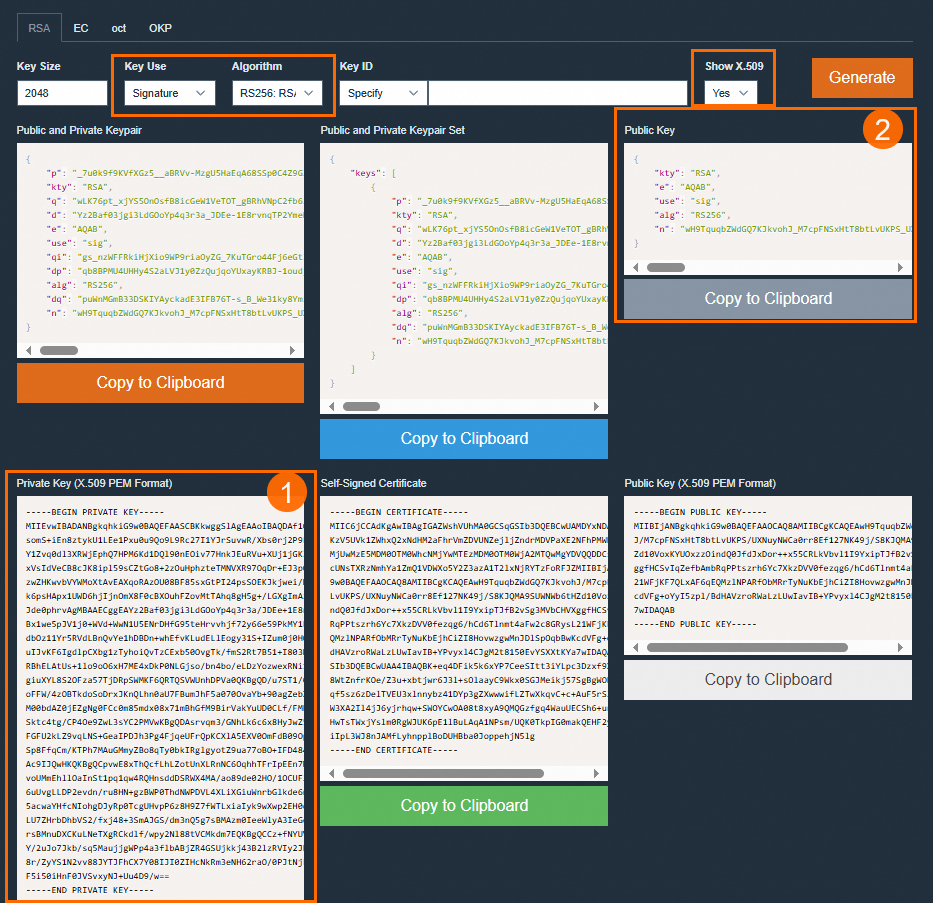

The following code provides an example of a JWKS configuration.
{ "keys": [ { "alg": "RS256", "e": "AQAB", "kty": "RSA", "n": "u1LWgoomekdOMfB1lEe96OHehd4XRNCbZRm96RqwOYTTc28Sc_U5wKV2umDzolfoI682ct2BNnRRahYgZPhbOCzHYM6i8sRXjz9Ghx3QHw9zrYACtArwQxrTFiejbfzDPGdPrMQg7T8wjtLtkSyDmCzeXpbIdwmxuLyt_ahLfHelr94kEksMDa42V4Fi5bMW4cCLjlEKzBEHGmFdT8UbLPCvpgsM84JK63e5ifdeI9NdadbC8ZMiR--dFCujT7AgRRyMzxgdn2l-nZJ2ZaYzbLUtAW5_U2kfRVkDNa8d1g__2V5zjU6nfLJ1S2MoXMgRgDPeHpEehZVu2kNaSFvDUQ", "use": "sig" } ] } -
In the JWT Token Configuration section, specify the location of the
Tokenand the name of theToken.The
Tokenlocation supports Header, Cookie, query parameters (GET), and form parameters (POST). If theTokenlocation is set to Header, you must also specify the Parameter Name and Remove Prefix. Function Compute removes the prefix specified in Remove Prefix when it obtains the token.
-
In the JWT Claim Conversion section, specify the parameter passing location, the original parameter name, and the new parameter name for the function.
You can map claims to a Header, Cookie, or Form parameter (POST).

-
Set the request matching mode.
-
Match All: All HTTP requests require JWT authentication.
-
Whitelist Mode: HTTP requests for paths specified in the Whitelist of Request Paths do not require JWT authentication. All other requests require JWT authentication.
-
Blacklist Mode: HTTP requests for paths specified in the Blacklist of Request Paths require JWT authentication. All other requests do not require JWT authentication.
Whitelist Mode and Blacklist Mode support the following two matching types:
-
Exact match
A request path matches only if it is exactly the same as the configured path. For example, if you set Blacklist of Request Paths to /a, requests to /a require JWT authentication, but requests to /a/ do not.
-
Fuzzy match
You can use a wildcard (*) in a path, but the wildcard (*) must be at the end of the path. For example, if you set Blacklist of Request Paths to /login/*, all requests to paths with the prefix /login/, such as /login/a and /login/b/c/d, require JWT authentication.
-
-
Step 2: Verify the configuration
Use a testing tool, such as Postman, to verify that you can access the HTTP service as expected based on the JWT configuration of the HTTP trigger by providing an endpoint, token, and other information.
-
Use the X.509 PEM-format private key that you generated in Step 1 to issue a JWT token. The following steps show how to generate a token using a local Python script.
-
Install the PyJWT module.
pip install 'PyJWT>=2.0' -
Run the following sample Python script locally to generate a JWT token.
import jwt
import time

private_key = """
-----BEGIN PRIVATE KEY-----
<The X.509 PEM-format private key generated in Step 1>
-----END PRIVATE KEY-----
"""

headers = {
    "alg": "RS256",
    "typ": "JWT"
}

payload = {
    "sub": "1234567890",
    "name": "John Snow",
    "iat": int(time.time()),   # The time when the token was issued.
    "exp": int(time.time()) + 60 * 60,   # Set the token to be valid for 1 hour.
}


encoded = jwt.encode(payload=payload, key=private_key.encode(), headers=headers)
print("Generated token: %s" % encoded)
-
-
Use Postman to verify that the HTTP service is accessible.
-
On the Trigger tab of the function details page, obtain the public endpoint of the HTTP trigger and enter it into the URL field in Postman.
-
In Postman, configure the token parameter in the headers and click Send. The following table provides an example of the token configuration.
Parameter
Value
Description
Key
AuthenticationThe parameter name that you specified in the JWT Token Configuration section.
Value
Bearer eyJhbGciOiJSUzI1NiIsInR5cCI6IkpXVCJ9.eyJuYW1lIjoiSm9uIFNub3ciLCJhZG1pbiI6dHJ1ZSwiZXhwIjo0ODI5NTk3NjQxfQ.eRcobbpjAd3OSMxcWbmbicOTLjO2vuLR9F2QZMK4rz1JqfSRHgwQVqNxcfOIO9ckDMNlF_3jtdfCfvXfka-phJZpHmnaQJxmnOA8zA3R4wF4GUQdz5zkt74cK9jLAXpokwrviz2ROehwxTCwa0naRd_N9eFhvTRnP3u7L0xn3ll4iOf8Q4jS0mVLpjyTa5WiBkN5xi9hkFxd__p98Pah_Yf0hVQ2ldGSyTtAMmdM1Bvzad-kdZ_wW0jcctIla9bLnOo-Enr14EsGvziMh_QTZ3HQtJuToSKZ11xkNgaz7an5de6PuF5ISXQzxigpFVIkG765aEDVtEnFkMO0xyPGLgThe value of the Remove Prefix parameter that you specified in the JWT Token Configuration section, concatenated with the JWT token. The example value assumes that Remove Prefix is set to
Bearer.ImportantThe prefix and space for the JWT parameter in the request header must exactly match the value of Remove Prefix that you specified in the JWT Token Configuration section. Otherwise, the trigger fails to parse the token and returns an
invalid or expired jwterror.
-