Set the minimum number of instances for a function to a value greater than 0 to pre-allocate elastic resources. This helps prevent request latency caused by cold starts during peak hours. You can also configure policies to automatically scale the minimum number of instances based on a schedule or metric thresholds. This ensures high performance and improves instance utilization.
Setting the minimum number of instances to a value greater than 0 helps mitigate cold starts and improve response times for latency-sensitive applications. You are billed for these instances even when they are not in use. When an instance is processing requests, it is billed as an active elastic instance. When it is not processing requests, it is billed as an idle elastic instance. For more information about billing, see Billing overview.
You can configure elastic policies for the minimum number of instances only for a function alias or the LATEST version.
Set the minimum number of instances
Log on to the Function Compute console. In the left-side navigation pane, click Functions.
In the top navigation bar, select a region. On the Functions page, click Create Function.
On the Create Function page, in the Scaling Policy section, set Minimum Instances. Configure the other required parameters and click Create.
Configure elastic policies
On the details page of the target function, click the Scaling Policy tab. In the Elastic strategy section below, click Modify for the target policy.
In the Edit Resilience Policy panel, configure a dynamic elastic policy for the minimum number of instances.
NoteIf you configure multiple elastic policies, the system calculates the Minimum Instances for each policy and uses the maximum value from the Minimum Instances of all currently active policies as the current minimum number of instances. For more information, see How is the current minimum number of instances calculated?.
While an elastic policy is active, the initial Minimum Instances setting is not in effect. If no elastic policy is active during a specific period, the minimum number of instances reverts to the value you initially configured for the Minimum Instances parameter.
Configure a Scheduled Scaling or Water-level Scaling elastic policy
Scheduled scaling
A scheduled scaling policy is suitable for functions with clear periodic patterns or predictable traffic peaks. When the number of concurrent function invocations exceeds the minimum number of instances, the excess requests are automatically handled by on-demand elastic instances. For more information, see Scheduled scaling.

As shown in the figure, this example sets the Time zone to Asia/Shanghai (China Standard Time). The policy is long-term and scales the minimum number of instances up to 50 at 10:00 and scales it down to 5 at 22:00 from Monday to Friday.
Threshold-based scaling
The system periodically collects metrics such as Instance Concurrency Utilization, Memory Utilization, or resource utilization for GPU instances. When the specified conditions are met, the system scales the Minimum Instances. For more information, see Threshold-based scaling.
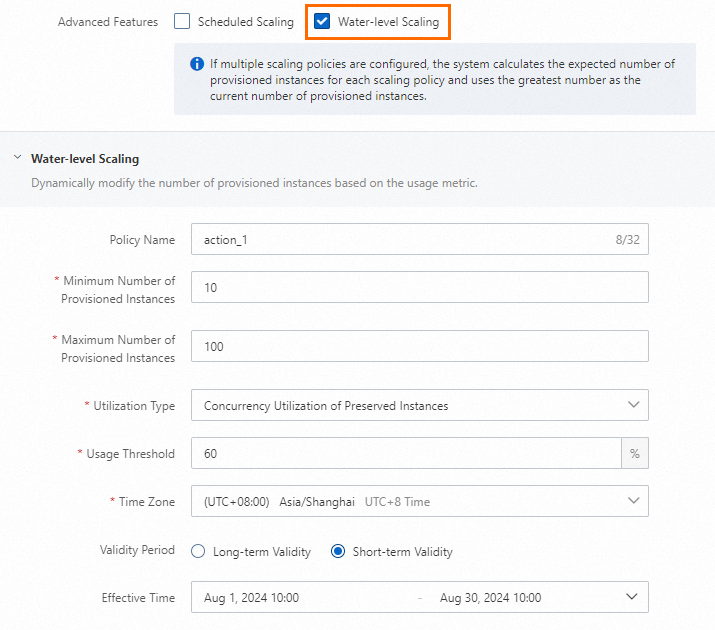
As shown in the figure, this example sets the Time zone to Asia/Shanghai (China Standard Time). The policy is active from 00:00 on July 15, 2025, to 00:00 on July 31, 2025. It tracks the Instance Concurrency Utilization metric with a target value of 60%. The system scales out, up to a maximum of 100 instances, when utilization exceeds 60%. It scales in, down to a minimum of 10 instances, when utilization falls below 60%.
For CPU functions, threshold-based scaling for minimum instances monitors the Instance Concurrency Utilization and Memory Utilization metrics. For GPU functions, these policies also support monitoring Instance Concurrency Utilization and GPU-related resource utilization metrics, as shown in the following figure.
CPU functions
GPU functions


Configure periodic scaling by using a cron expression
If your workload follows a clear, recurring schedule, you can also use a cron expression to periodically scale the minimum number of instances. As shown in the following figure, the Time zone is set to Asia/Shanghai (China Standard Time). The minimum number of instances is scaled out to 10 at 10:00 every Monday and scaled in to 1 at 22:00 every Friday.

Modify or delete an elastic policy for the minimum number of instances
Log on to the Function Compute console. In the left navigation pane, choose . Click the target function, and then go to the Elastic strategy tab. Find the target policy and in the Actions column, click Modify or Delete.
Deleting an elastic policy for the minimum number of instances of an alias releases all pre-allocated instances for that alias. The function then automatically switches to on-demand scaling, which may involve a cold start. For CPU-based services, the average cold start time is typically hundreds of milliseconds, depending on the application's startup speed. For GPU-based services, the average cold start time can be several minutes, depending on the model size and loading speed.
References
To limit the number of instances for a specific function, you can configure function quotas. If the total number of running instances for the function exceeds the configured limit, Function Compute returns a throttling error.