Go is a statically-typed language and does not support online code editing in the Function Compute console. You need to compile programs on on-premises machines and package programs as .zip files. This topic describes how to package the Function Compute SDK for Go library with your code and upload it to Function Compute.
Prerequisites
Go is installed. Function Compute supports Go 1.x. We recommend that you use Go 1.8 or later.
Compile and package files on Linux or macOS
Download Function Compute SDK for Go.
go get github.com/aliyun/fc-runtime-go-sdk/fcPrepare the
main.gocode file and run the following command in the file directory to compile the file:GOOS=linux go build main.goNoteThe
main.gofile is used as an example. Replace it with your actual file name.After the compilation, a binary file with the same name as the file is generated in the directory.
Add
GOOS=linuxto ensure that the compiled executable file is compatible with the Go runtime of Function Compute. Pay special attention to this when you compile your files in a non-Linux environment.Note:
For Linux, we recommend that you add
CGO_ENABLED=0to use pure static compilation. This way, the executable files do not require external dependencies such as the libc library. This prevents incompatibility between the compilation environment and the dependencies of the Go runtime. Example:GOOS=linux CGO_ENABLED=0 go build main.goIf your machine uses a computer with macOS and M1 chips or another ARM architecture, add
GOARCH=amd64to allow cross-platform compilation. Example:GOOS=linux GOARCH=amd64 go build main.go
Package the binary file that is generated in the preceding step.
zip fc-golang-demo.zip main
Compile and package files on Windows
Prepare the
main.gocode file and run the following command in the file directory to compile the file.Press Win+R to open the Run dialog box.
Enter cmd, press the Enter key, and then run the following command in the command prompt window:
set GOOS=linux set GOARCH=amd64 go build -o main main.goNoteThe
main.gofile is used as an example. Replace it with your actual file name.After the compilation, a binary file with the same name as the file is generated in the directory.
Use the build-fc-zip tool to package the binary file that is generated in the preceding step.
Run the go install command to download the build-fc-zip tool.
set GOOS=windows
set GOARCH=amd64
go install github.com/aliyun/fc-runtime-go-sdk/cmd/build-fc-zip@latest
When you use the go install command to download the build-fc-zip tool, the tool is usually installed in the %USERPROFILE%\go\bin directory.
Run the following command in the directory where the code resides to package the code:
%USERPROFILE%\go\bin\build-fc-zip.exe -output main.zip main
Create a function and configure a handler
Create an event function and set Runtime to Go 1.
Upload the code package and configure a handler for the function. For more information, see Create an event function.

Go is a compiled language. You need to upload the executable binary file as a ZIP package after the file is compiled on an on-premises machine. When you configure the Handler parameter for a Go Function Compute function in the Function Compute console, set the Handler parameter to
[File name]. "File name" indicates the name of the compiled binary file. When the function is invoked, Function Compute executes the binary file.If the compiled binary file is stored in the root directory of the ZIP package, as shown in the following figure, set the Handler parameter of the Function Compute function to
main.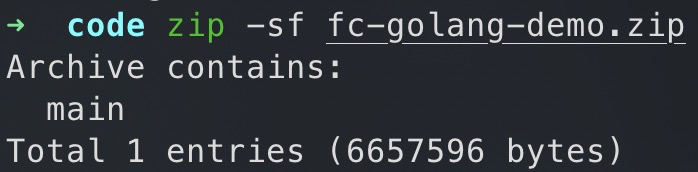
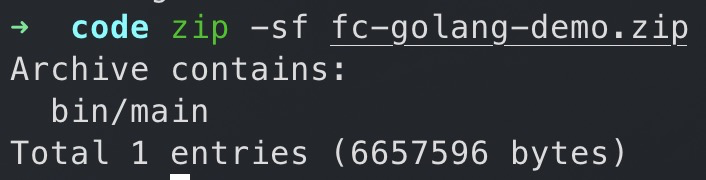
If the compiled binary file is not stored in the root directory of the ZIP package, but stored in the bin/ directory, as shown in the following figure, set the Handler parameter to
bin/main.