Yuque is a cloud-based knowledge management platform developed by Alibaba Group. This guide shows you how to connect Yuque to EventBridge using an HTTP event source, so that document events from Yuque — such as publishing or updating articles — are captured in your event bus for centralized processing.
How it works
The integration routes Yuque webhook events to EventBridge through an HTTP event source. First, you create an HTTP event source in EventBridge and get a publicly accessible URL. Then, you register that URL as a webhook in Yuque and select the events to monitor. When a matching event occurs in Yuque, it sends an HTTP POST request to the URL, and EventBridge receives and routes the event to your event bus.
Prerequisites
Before you begin, make sure you have:
Activated EventBridge and granted the required permissions to a RAM user. See Activate EventBridge and grant permissions to a RAM user.
A custom event bus to receive Yuque events. See Create a custom event bus.
A Yuque account with access to a knowledge repository. Register a Yuque account if you don't have one.
Step 1: Create an event source in EventBridge
Create a custom event source of the HTTP/HTTPS Events type in the EventBridge console. For full configuration details, see Create a custom event source of the HTTP/HTTPS Events type.
Set the following parameters:
| Parameter | Value |
|---|---|
| Request type | HTTP & HTTPS |
| Request method | POST |
| Security configuration | Optional |
After the event source is created, find it in the event source list and click Details to view its configuration. Copy the Internet request URL — you will use it as the webhook URL in Step 2.

Step 2: Configure a webhook in Yuque
You need the Internet request URL from Step 1 to complete this step.
Log on to the Yuque console and click the name of your knowledge repository.
In the upper-right corner, click the
 icon and select Settings.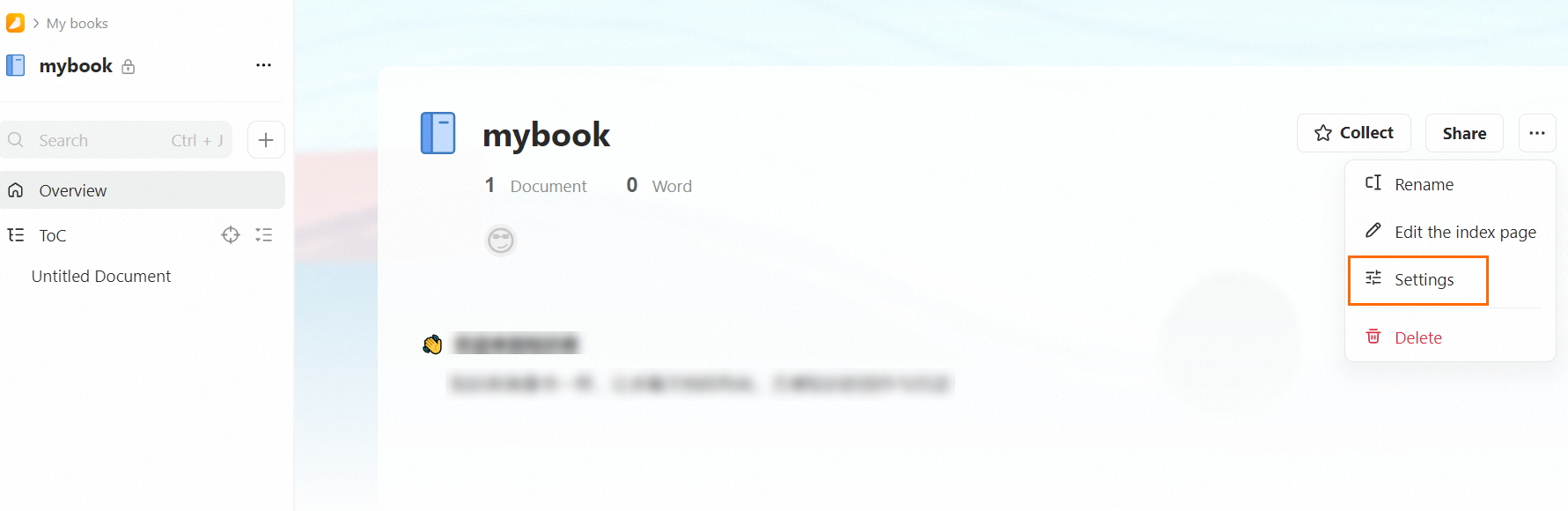
In the left-side navigation pane, click Notifications. Configure the following parameters and click Add.
Parameter Value Push to Others Robot name Enter a name to identify this webhook Webhook URL Paste the Internet request URL from Step 1 Push when the following events occur in book Select one or more operations as the condition to trigger an event. For example, if you select publishDocument, an event is pushed when you publish a document in Yuque. 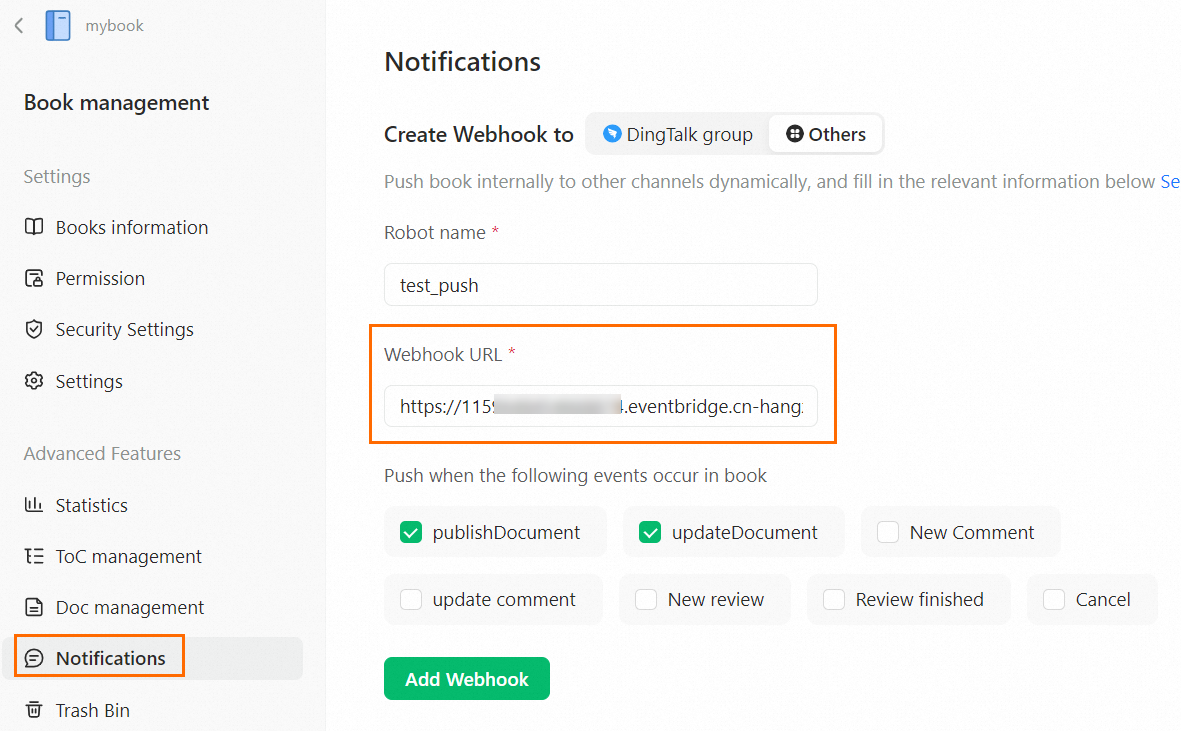
Step 3: Trigger a test event
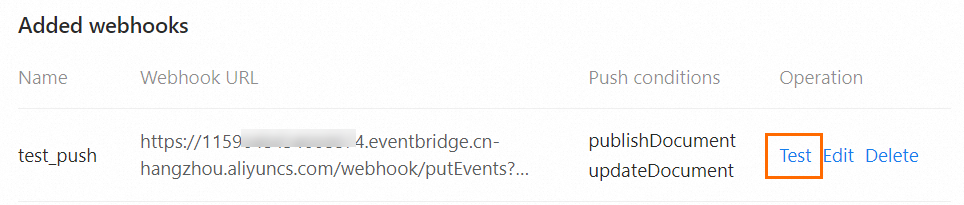
In the Message Hook List section of the Add Web Hook page, find the webhook you added in Step 2. Click Test in the Operation column to send a test event to EventBridge.
Step 4: Verify the result
Log on to the EventBridge console.
In the top navigation bar, select the region where you created the event source.
In the left-side navigation pane, click Event Buses.
Click Event Tracking to view and verify the obtained event information.