In Function Compute, state is not shared between execution instances. You can use a database to persist structured data to enable state sharing. You can use Function Compute to access cloud databases to perform operations such as querying and inserting data. This topic uses Python 3 as an example to describe how to access ApsaraDB RDS for SQL Server within the same VPC or across different VPCs and regions.
Prerequisites
The sample
index.pycode in this topic queries all data from a database table namedusers. You can change the table name as needed, but you must ensure the table exists and contains at least one row of data.
Procedure
Step 1: Configure the database whitelist
Access from the same VPC
Ensure that your database instance and the function that accesses it are in the same region.
Create the database instance in an availability zone that Function Compute supports. For more information, see Supported availability zones.
If your database instance is in an availability zone that Function Compute does not support, you can create a vSwitch in your VPC that is in the same availability zone as your function. Then, specify this vSwitch ID in the function's VPC configuration. Because vSwitches within the same VPC can communicate over the private network, Function Compute can use this vSwitch to access resources in other availability zones within the VPC. For detailed steps, see What do I do if I encounter the "vSwitch is in unsupported zone" error?.
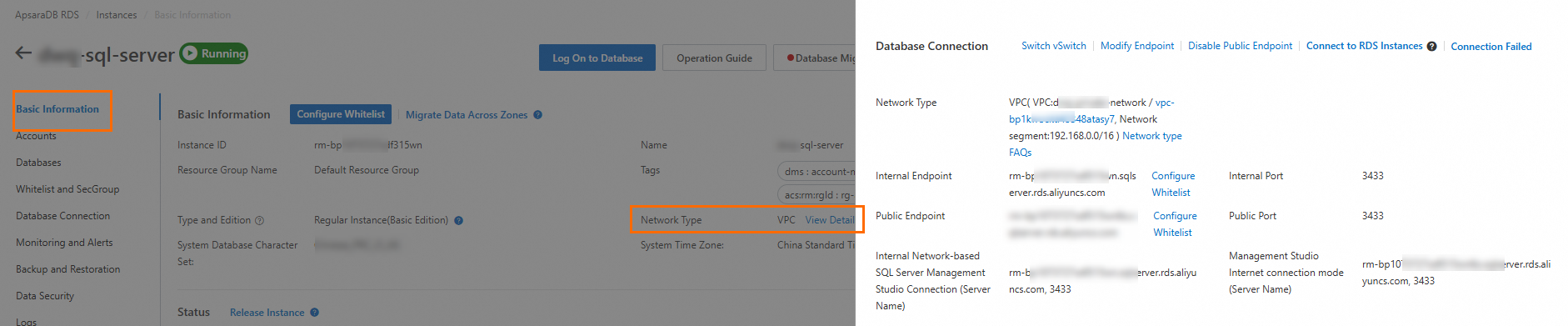
Log on to the RDS console. In the top navigation bar, select a region. Click the ID of the target instance, click Basic Information, and then click View Connection Details next to VPC to view the VPC information of the SQL Server instance.
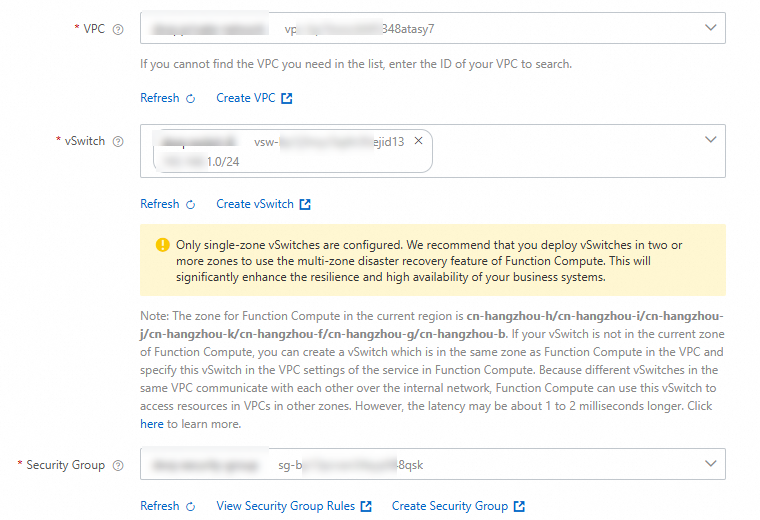
Log on to the Function Compute console and create a Python web function. On the function details page, select the Configuration tab. Find Advanced Settings and click Modify. In the Advanced Settings panel, find the Network section, enable VPC access for the function, and configure the target VPC resources.
NoteEnsure that the function and the database instance are in the same VPC.
On the function details page, select the Configuration tab. In the Network section, find the CIDR block of the vSwitch configured for the function.
Add the vSwitch CIDR block that you obtained in the previous step to the database whitelist.
ImportantWe recommend using an IP address whitelist to grant the function access to the database. Do not use a security group. Otherwise, the function may occasionally fail to connect to the database, which can impact your business.
Log on to the RDS console. In the top navigation bar, select the region, and then click the ID of the target instance.
On the instance details page, in the left-side navigation pane, choose Whitelist and Security Group. On the Whitelist Settings tab, find the target whitelist template and click Modify in the Actions column.
In the Modify Whitelist Group panel, enter the CIDR block of the vSwitch in the IPs in Whitelist Group text box, and then click OK.
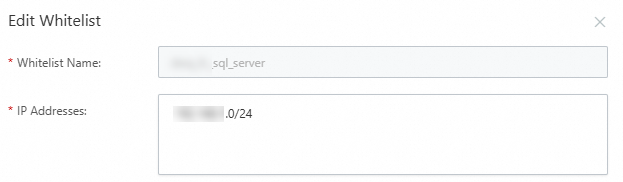
After you complete these steps, the function can access the SQL Server database using its internal endpoint.
Access from a different VPC or region
VPCs and regions are logically isolated. Normally, you cannot access a database from a different VPC or region. If you need to do so, you can configure a fixed public IP for the function. When you enable this feature, the system creates a public NAT gateway in the VPC associated with your function. This allows the function to access the database through a public IP address.
Log on to the RDS console. In the top navigation bar, select a region. Click the ID of the target instance, click Basic Information, and then click View Connection Details next to VPC to view the VPC information of the SQL Server instance.
Log on to the Function Compute console and create a Python web function. On the function details page, select the Configuration tab. Find Advanced Settings and click Modify. In the Advanced Settings panel, find the Network section. Turn on the Static Public IP Address switch, and turn off the Allow Default NIC to Access Internet switch. This action activates the fixed public IP. Then, click Deploy.
NoteTurning off the Allow Default NIC to Access Internet switch activates the No. Function Compute disables the default elastic network interface (ENI) and forces traffic to access the internet through the ENI associated with the VPC.
On the function details page, select the Configuration tab. In the Network section, obtain the Elastic IP Address assigned to the function.
Add the fixed public IP address that you obtained in the previous step to the database whitelist.
ImportantWe recommend using an IP address whitelist to grant the function access to the database. Do not use a security group. Otherwise, the function may occasionally fail to connect to the database, which can impact your business.
Log on to the RDS console. In the top navigation bar, select the region, and then click the ID of the target instance.
In the left-side navigation pane, choose Whitelist and Security Group. On the Whitelist Settings tab, find the target whitelist template and click Modify in the Actions column.
In the Modify Whitelist Group panel, enter the fixed public IP address in the IPs in Whitelist Group text box, and then click OK.
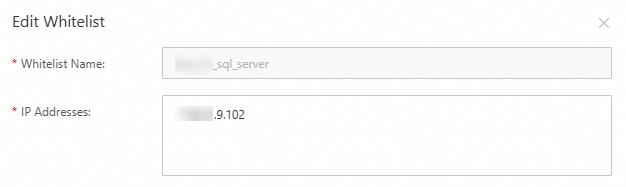
After you complete these steps, the function can access the SQL Server database using its public endpoint.
Step 2: Access the SQL Server database
Log on to the Function Compute console. In the function list, find the target function. On the function details page, click the Code tab. In the code editor, write the following sample code and adapt it for your database table.
from flask import Flask, jsonify
import os
import pymssql  # The pymssql library must be installed.
from datetime import datetime


app = Flask(__name__)

# A global variable to store the singleton database connection.
_mssql_connection = None

# Create a database connection (singleton pattern).
def getConnection():
    global _mssql_connection
    try:
        # If the connection exists and is active, return it.
        if _mssql_connection is not None:
            try:
                # Test if the connection is valid with a simple command.
                with _mssql_connection.cursor() as cursor:
                    cursor.execute("SELECT 1")  # A simple query to test the connection status.
                    result = cursor.fetchone()
                    if result and result[0] == 1:
                        return _mssql_connection
            except pymssql.OperationalError:
                # If the connection is broken, reset it.
                _mssql_connection = None

        # If the connection does not exist or is broken, create a new one.
        _mssql_connection = pymssql.connect(
            host=os.environ['MSSQL_SERVER'],
            port=int(os.environ['MSSQL_PORT']),
            user=os.environ['MSSQL_USER'],
            password=os.environ['MSSQL_PASSWORD'],
            database=os.environ['MSSQL_DATABASE'],
            charset='utf8'
        )
        return _mssql_connection
    except Exception as e:
        print(f"ERROR: Unexpected error: Could not connect to SQL Server instance: {e}")
        raise


@app.route('/', defaults={'path': ''})
@app.route('/<path:path>', methods=['GET', 'POST', 'PUT', 'DELETE'])
def hello_world(path):
    conn = getConnection()
    try:
        with conn.cursor() as cursor:
            # Query all records from the users table. You can change the table name as needed.
            cursor.execute("SELECT * FROM users")
            result = cursor.fetchall()

            columns = [desc[0] for desc in cursor.description]  # Get the list of column names.

            # Convert the query result to a list of dictionaries.
            users = []
            for row in result:
                user = {}
                for idx, column_name in enumerate(columns):
                    value = row[idx]
                    if isinstance(value, datetime):  # Handle datetime fields.
                        user[column_name] = value.strftime('%Y-%m-%d %H:%M:%S')
                    else:
                        user[column_name] = value
                users.append(user)

            if users:
                # Return a JSON response with all users.
                return jsonify(users), 200
            else:
                # If no users are found, return a 404 error.
                return jsonify({'error': 'No users found'}), 404
    finally:
        # No need to close the connection because a singleton pattern is used.
        pass


if __name__ == '__main__':
    app.run(host='0.0.0.0', port=9000)
Install the required dependency for the function:
pip3 install -t . pymssql. Click Deploy to apply the changes. For detailed steps, see Install dependencies by using the Web IDE terminal in the console.On the Function Details tab, find Advanced Settings and click Modify to its right. In the Advanced Settings panel, find the Environment Variables section, configure the following environment variables, and then click Deploy.
Parameter
Value
Description
MSSQL_SERVER
rm-bp*****wn.sqlserver.rds.aliyuncs.com
The endpoint of the database instance. For the Access from the same VPC scenario, use the database's internal endpoint. For the Access from a different VPC or region scenario, use its public endpoint.
Navigate to the instance list, select the appropriate region, and click the target instance ID. In the left-side navigation pane, click Database Connection. On the Database Connection page, view the endpoint information.
MSSQL_PORT
1433
The database port number.
MSSQL_USER
*****
The username for the database account.
MSSQL_PASSWORD
*****
The password for the database account.
MSSQL_DATABASE
*****
The database name.
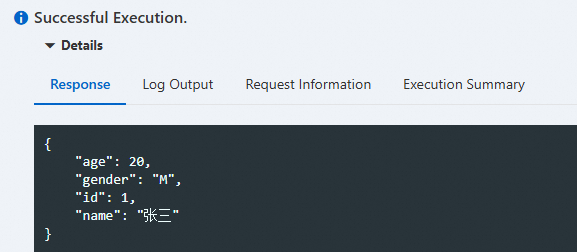
On the function details page, select the Code tab and click Test Function. After the function is executed, view the returned result.
More information
For more examples of accessing an ApsaraDB RDS for SQL Server database, see Function Compute Python access to SQL Server database.
For more information about viewing vSwitch details in Function Compute or configuring an ApsaraDB RDS for SQL Server whitelist for a vSwitch CIDR block, see Configure network settings and Configure a whitelist for an ApsaraDB RDS for SQL Server instance.
If a database connection fails, refer to Common causes of database connection failures to troubleshoot the issue.
To use the Serverless Devs command-line tool to create a function and access an ApsaraDB RDS for SQL Server database, follow these steps.