Use cases for Strategy Lab: Strategy Lab provides features such as strategy simulation and variable recommendation. You can use these features to enhance your policy performance.
1) Strategy simulation: Strategy simulation replays historical events against your latest policies. Use this feature to assess how your updated policies would have handled past incidents, such as missed risks or false positives.
To create a simulation task, select a time window of events and the policies you want to simulate. The system then queues the simulation task and starts the computation. The time required for a simulation task depends on the event volume, with larger datasets taking more time. Typically, a task with no more than 10,000 event records is completed within one hour. If the simulated policies use paid variables, you may incur charges based on usage. The system provides a maximum usage estimate based on the number of events. The actual usage is often lower than the estimate due to the logic in the decision trees.
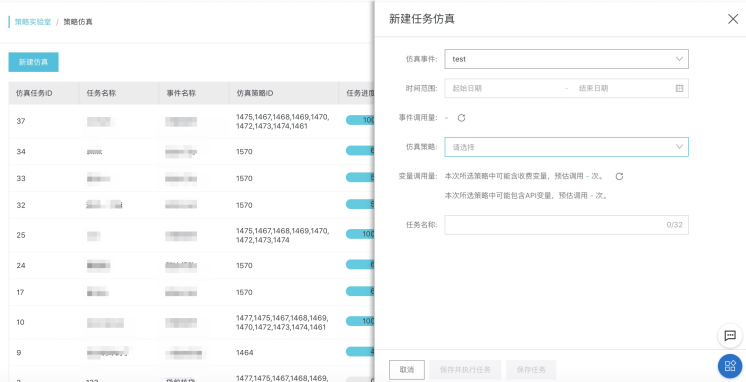
After the simulation is complete, the system writes the result logs to your Log Service (SLS) project. In addition to the built-in comparison reports, you can use SLS for custom log analysis.
2) Variable recommendation: Variable recommendation automatically performs sample learning, model training, variable selection, and intelligent policy generation based on any risk sample and selected risk scenario. It provides recommendations for risk control policies that are comparable to custom models, are explainable, and can be easily maintained, without requiring investment in model development.
My Samples: You can upload sample datasets on this page. Sample files are stored in your account's Object Storage Service (OSS) resources, which may incur OSS fees. For more information, see OSS pricing. The quality of your samples directly affects the performance of model training and recommendations. Use a sample size of more than 2,000 records. A good starting point for the ratio of risky to non-risky samples is 1:2, but you can also adjust the sample composition based on your actual business risk rate.
In the Create Sample dialog box, configure the following parameters: Risk scenario (for example, fake account prevention), Encrypted sample (select whether to encrypt the sample; you can click Click to view encrypted file instructions for details), Sample upload (click Upload File to upload a file, or download a sample template for the corresponding risk scenario), Risk tag value, Name (up to 32 characters), and Notes (up to 64 characters).
After creating the sample, create a recommendation task. Select the relevant risk variables, choose the performance metrics you want to track, and set a task name. The system then starts computing the recommendation task. This process can take minutes to hours, depending on the number of samples and variables.
In the New Recommendation Task pop-up window, the available options for Performance metric include accuracy, recall, risk differentiation, pass rate, and risk rate. The window also includes the Estimated variable consumption field, which displays the estimated number of calls for the selected paid variables.
While the task is running, you can view its details to check interim results. You can view the Information Value (IV) of variables and review the details and performance metrics of the system-recommended policies. If a policy meets your expectations, select Add to candidate policies. You can add multiple policies.
The recommendation task details page contains a Task summary section and two main steps. Step 1, Calculation completed, indicates that the system has finished batch calculations on your sample and selected variables to find the optimal variable combinations and thresholds. Step 2, Policy performance filtering, presents a table of recommended policies. This table includes columns for No., Policy condition, Hits, Misses, Accuracy, Recall, Risk differentiation, and Operations. From the Operations column, you can add a policy to your candidate policies.
You can deploy a selected candidate policy to a specific event. If any input parameters required by the variables in the policy are missing from the original event, the system automatically adds them. When you pass parameters through the API, make sure to provide values for these added parameters. For operational safety, system-created policies default to the draft state, with a default tag output of test. You can modify these settings on the policy details page to suit your business needs.
In the candidate policy list, select the target policy and click Create to event. In the dialog box that appears, select the target Event name, confirm the automatically added input parameters, and then click OK to complete the deployment.
3) Risk tagging: For risk scenarios involving large, clustered groups of entities, the Risk Tagging feature uses graph computing and algorithms to map community relationships. You can use risk tags from customer feedback to analyze these communities, which helps determine the risk concentration within a group. This information can then be used in policy models to improve risk detection accuracy. On the Risk Tagging page, you can view a list of tagged samples. The list includes columns for Sample type, Sample, and Tag, and supports Batch edit tags and Batch delete operations. Click the Risk Tagging button. In the dialog box that appears, select a Sample type, choose a tag (options include marketing fraud, spam registration, malicious orders, account theft, spam messages, violations, gambling and fraud, illegal fundraising, and others), and set the Import method (supports text input or file import; you can download sample TXT or Excel files). After you enter the sample information, click OK to apply the tags. The system then uses these tags to analyze community risk. This process provides a community risk concentration variable that you can use to configure risk control policies.