A draft version is generated after you deploy the draft. You can compare differences between two versions or roll back to a previous version.
Background information
This topic describes how to manage deployment versions from the following aspects:
Compare draft versions
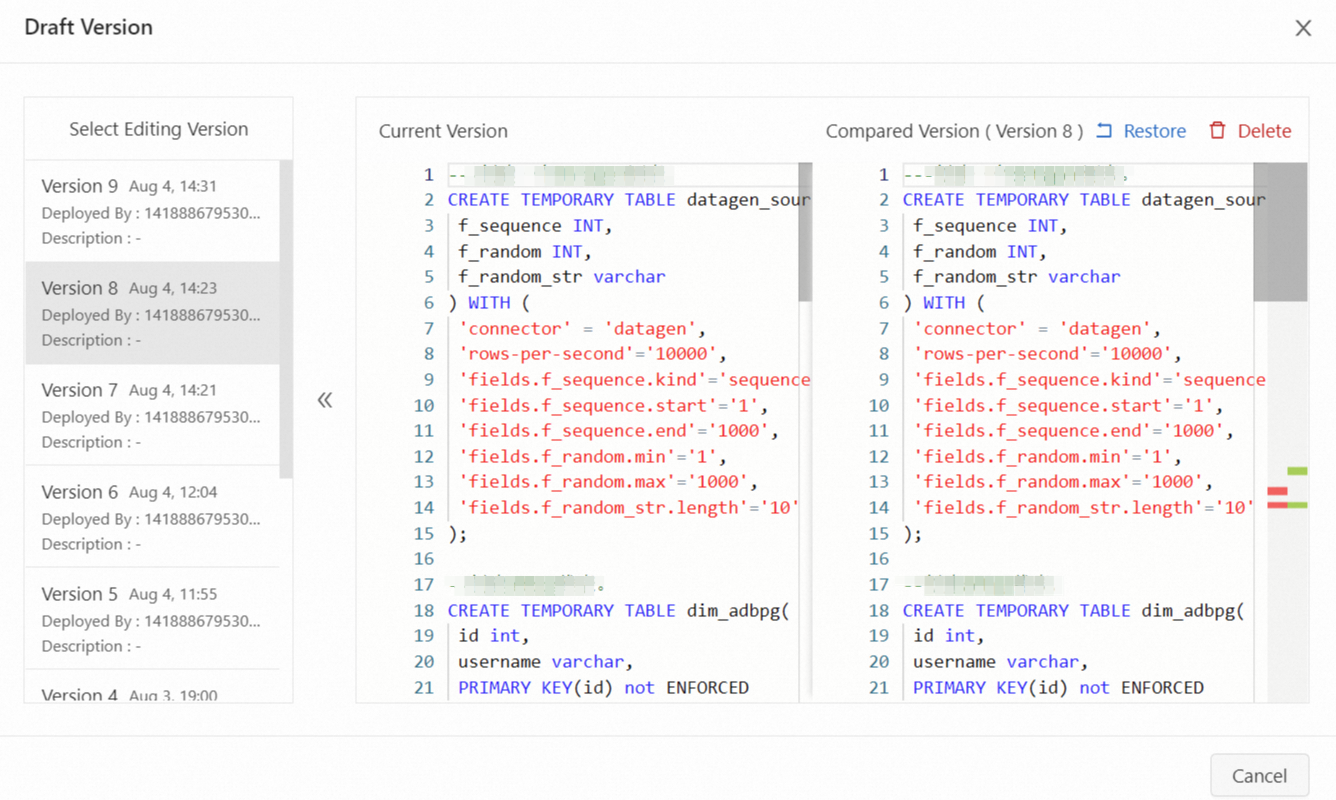
Only SQL code and deployment configurations can be compared. The differences are highlighted based on the comparison results.
Log on to the Realtime Compute for Apache Flink console.
Find the target workspace and click Console in the Actions column.
In the left-side navigation pane, click .
Double-click the name of the target draft.
On the right side of the SQL editor, click the Versions tab.
In the Draft Versions panel, find the draft version that you want to edit and click Diff in the Actions column.
In the Select Editing Version pane on the left side of the Draft Version dialog box, select the version that you want to compare with the version that you are editing.
Roll back a draft version
You can roll back a deployed draft to a historical version.
Log on to the Realtime Compute for Apache Flink console.
Find the target workspace and click Console in the Actions column.
In the left-side navigation pane, click .
Double-click the name of the target draft.
On the right side of the SQL editor, click the Versions tab.
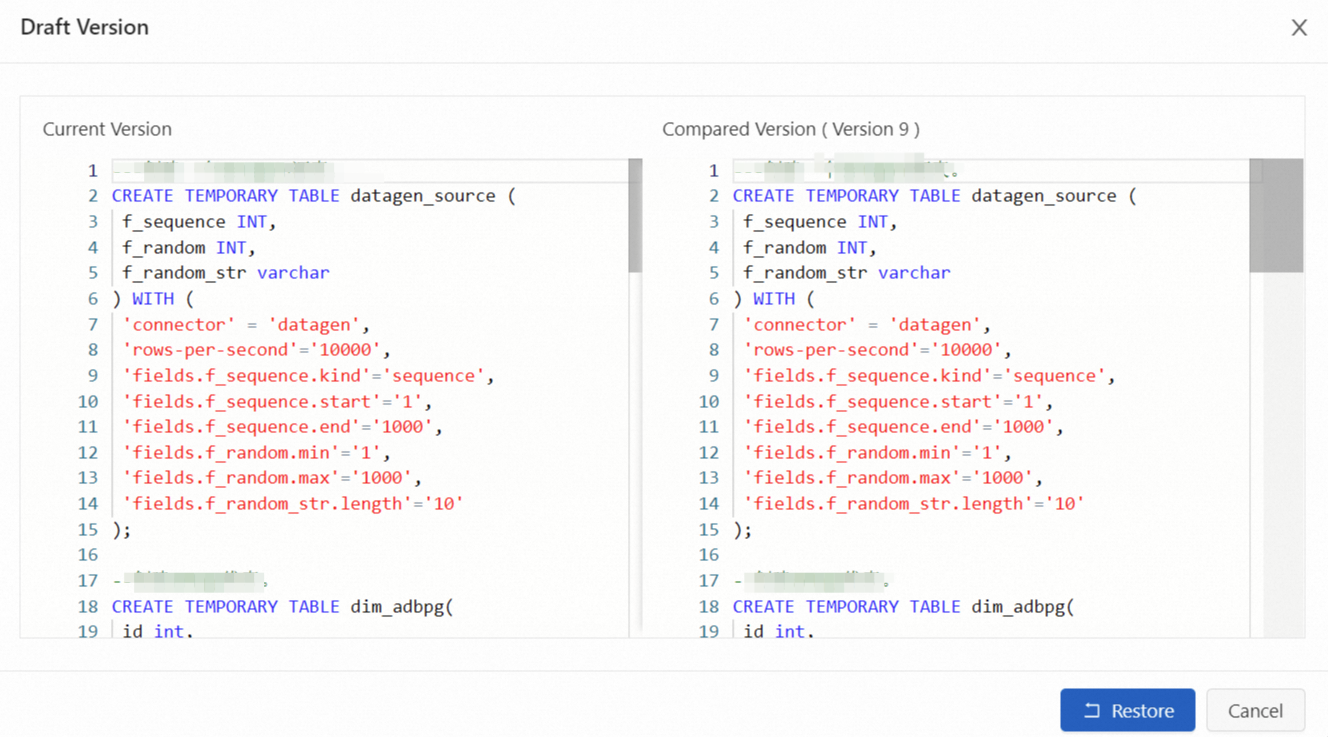
In the Draft Versions panel, find the version to which you want to roll back the current deployment information and choose in the Actions column.
In the Draft Version dialog box, click Restore.
Lock a draft version
The system supports a maximum of 50 deployment versions. If the number of deployment versions exceeds 50, the system automatically deletes the earliest version. You can lock a specific version to ensure that the version is not automatically deleted.
Log on to the Realtime Compute for Apache Flink console.
Find the target workspace and click Console in the Actions column.
In the left-side navigation pane, click .
Double-click the name of the target draft.
On the right side of the SQL editor, click the Versions tab.
In the Draft Versions panel of the SQL Editor page, find the version that you want to lock and choose in the Actions column.
After the version is locked, a message that indicates the version is locked appears in the upper part of the page, and the
 icon is displayed next to the version. Note
If you want to delete a locked version, you must first unlock the version. To unlock the version, choose in the Actions column.
Delete a draft version
You can delete draft versions no longer needed.
Log on to the Realtime Compute for Apache Flink console.
Find the target workspace and click Console in the Actions column.
In the left-side navigation pane, click .
Double-click the name of the target draft.
On the right side of the SQL editor, click the Versions tab.
In the Draft Versions, find the version that you want to delete and choose in the Actions column.
In the Draft Version dialog box, click Delete.