After you configure a Kafka JSON Catalog, your Realtime Compute for Apache Flink jobs can directly access JSON topics in a Kafka cluster without defining a schema. This topic explains how to create, view, and delete Kafka JSON Catalogs.
Background
A Kafka JSON catalog infers the schema of a topic by automatically parsing JSON-formatted messages. This lets you access specific fields from messages in Flink SQL without declaring a schema for the Kafka table. A Kafka JSON catalog has the following features:
-
Table names in the catalog match Kafka topic names. This eliminates manual table registration with DDL statements, improving development efficiency and accuracy.
-
You can use tables from a Kafka JSON catalog directly as source tables in Flink SQL jobs.
-
You can use a Kafka JSON catalog with the CREATE TABLE AS (CTAS) statement to synchronize data during a schema change.
This topic shows you how to manage Kafka JSON catalogs:
Limitations
-
A Kafka JSON catalog only supports topics with messages in JSON format.
-
Only Flink computing engine VVR 6.0.2 or later supports configuring Kafka JSON catalogs.
NoteTo use Kafka JSON catalogs on VVR 4.x, upgrade your jobs to VVR 6.0.2 or later.
-
You cannot use DDL statements to modify an existing Kafka JSON catalog.
-
You can only query data tables. You cannot create, modify, or delete databases or tables.
NoteIn CREATE DATABASE AS SELECT (CDAS) or CREATE TABLE AS SELECT (CTAS) scenarios using a Kafka JSON catalog, topics can be created automatically.
-
A Kafka JSON catalog cannot read from or write to Kafka clusters with SSL or SASL authentication.
-
You can use tables from a Kafka JSON catalog directly as source tables in Flink SQL jobs, but not as sink tables or lookup dimension tables.
-
Because ApsaraMQ for Kafka currently does not support deleting a Group by using the same interface as open-source Kafka, you must specify aliyun.kafka.instanceId, aliyun.kafka.accessKeyId, aliyun.kafka.accessKeySecret, aliyun.kafka.endpoint, and aliyun.kafka.regionId when you create a Kafka JSON catalog to enable automatic deletion of the Group ID. For more information, see Comparison with open-source Kafka.
Usage notes
The Kafka JSON Catalog infers a table's schema by parsing sample data. When a topic contains inconsistent data formats, the catalog keeps all columns by default and returns the widest schema. Changes to the data format in the topic can alter the inferred schema, which may cause job failures on restart.
For example, when restarting a Flink SQL job that reads from a Kafka JSON Catalog table from a savepoint, the catalog might infer a new schema that differs from the previous one. The job's execution plan is based on the old schema, which can cause runtime errors such as mismatched filter conditions or incorrect field access. To prevent these issues, use the CREATE TEMPORARY TABLE statement in your Flink SQL job to define a Kafka table with a fixed schema.
Create a Kafka JSON catalog
-
On the Scripts page, enter the statement to create a Kafka JSON catalog in the SQL editor.
-
For a self-managed Kafka cluster or an EMR on ECS Kafka cluster
CREATE CATALOG <YourCatalogName> WITH( 'type'='kafka', 'properties.bootstrap.servers'='<brokers>', 'format'='json', 'default-database'='<dbName>', 'key.fields-prefix'='<keyPrefix>', 'value.fields-prefix'='<valuePrefix>', 'timestamp-format.standard'='<timestampFormat>', 'infer-schema.flatten-nested-columns.enable'='<flattenNestedColumns>', 'infer-schema.primitive-as-string'='<primitiveAsString>', 'infer-schema.parse-key-error.field-name'='<parseKeyErrorFieldName>', 'infer-schema.compacted-topic-as-upsert-table'='true', 'max.fetch.records'='100' ); -
CREATE CATALOG <YourCatalogName> WITH(
 'type'='kafka',
 'properties.bootstrap.servers'='<brokers>',
 'format'='json',
 'default-database'='<dbName>',
 'key.fields-prefix'='<keyPrefix>',
 'value.fields-prefix'='<valuePrefix>',
 'timestamp-format.standard'='<timestampFormat>',
 'infer-schema.flatten-nested-columns.enable'='<flattenNestedColumns>',
 'infer-schema.primitive-as-string'='<primitiveAsString>',
 'infer-schema.parse-key-error.field-name'='<parseKeyErrorFieldName>',
 'infer-schema.compacted-topic-as-upsert-table'='true',
 'max.fetch.records'='100',
 'aliyun.kafka.accessKeyId'='<aliyunAccessKeyId>',
 'aliyun.kafka.accessKeySecret'='<aliyunAccessKeySecret>',
 'aliyun.kafka.instanceId'='<aliyunKafkaInstanceId>',
 'aliyun.kafka.endpoint'='<aliyunKafkaEndpoint>',
 'aliyun.kafka.regionId'='<aliyunKafkaRegionId>'
);
Parameter
Type
Description
Required
Remarks
YourCatalogName
String
The name of the Kafka JSON catalog.
Yes
Specify a custom name.
ImportantReplace the placeholder with your catalog name and remove the angle brackets (<>) to prevent a syntax error.
type
String
The type of the catalog.
Yes
The value must be 'kafka'.
properties.bootstrap.servers
String
The Kafka broker addresses.
Yes
Specify one or more addresses in the
host1:port1,host2:port2,host3:port3format.Separate multiple addresses with commas (,).
format
String
The Kafka message format.
Yes
Currently, only 'json' is supported. Flink parses JSON-formatted messages to infer the schema.
default-database
String
The default database name for the catalog.
No
Catalogs use a three-part identifier to locate tables: catalog_name.db_name.table_name. This parameter sets the db_name. Since Kafka does not have databases, you can use any string to represent the cluster.
key.fields-prefix
String
A custom prefix added to the names of fields parsed from the message key to prevent naming conflicts.
No
The default value is 'key_'. For example, if a field in the key is named 'a', its name in the table schema becomes 'key_a'.
NoteThe value of key.fields-prefix cannot be a prefix of the value of value.fields-prefix. For example, if value.fields-prefix is set to 'test1_value_', you cannot set key.fields-prefix to 'test1_'.
value.fields-prefix
String
A custom prefix added to the names of fields parsed from the message value to prevent naming conflicts.
No
The default value is 'value_'. For example, if a field in the value is named 'b', its name in the table schema becomes 'value_b'.
NoteThe value of value.fields-prefix cannot be a prefix of the value of key.fields-prefix. For example, if key.fields-prefix is set to 'test2_value_', you cannot set value.fields-prefix to 'test2_'.
timestamp-format.standard
String
The format for parsing timestamp fields in JSON messages. Flink first attempts to parse timestamps using this format. If parsing fails, it automatically tries other standard formats.
No
Valid values:
-
SQL (default)
-
ISO-8601
infer-schema.flatten-nested-columns.enable
Boolean
Specifies whether to recursively expand nested columns in the JSON message value.
No
Valid values:
-
true: Recursively expands nested columns.
For expanded columns, Flink uses the access path as the column name. For example, for a column 'col' in
{"nested": {"col": true}}, the expanded column name is 'nested.col'.NoteIf this parameter is set to true, we recommend that you use it with the CREATE TABLE AS (CTAS) statement. Other DML statements do not support automatic expansion of nested columns.
-
false (default): Treats nested types as STRING.
infer-schema.primitive-as-string
Boolean
Specifies whether to infer all primitive types in the JSON message value as STRING.
No
Valid values:
-
true: Infers all primitive types as STRING.
-
false (default): Infers types based on standard rules.
infer-schema.parse-key-error.field-name
String
If a non-empty message key cannot be parsed as JSON, Flink adds a VARBINARY field to the schema to hold the raw key data. The name of this new field is a combination of the key.fields-prefix and this parameter's value.
No
The default value is 'col'. For example, if the message value parses into a field named 'value_name' and the message key is not empty but fails to be parsed, the resulting schema contains two fields: 'key_col' and 'value_name'.
infer-schema.compacted-topic-as-upsert-table
Boolean
Specifies whether to treat the topic as an Upsert Kafka table. This applies only when the topic's cleanup policy is 'compact' and the message key is not empty.
No
The default value is true. This parameter must be set to true when you use CTAS or CDAS statements to synchronize data to an ApsaraMQ for Kafka instance.
NoteThis parameter is supported only in VVR 6.0.2 and later.
max.fetch.records
Int
The maximum number of messages to sample for schema inference.
No
The default value is 100.
aliyun.kafka.accessKeyId
String
The AccessKey ID of your Alibaba Cloud account. For more information, see Create an AccessKey pair.
No
This parameter is required when you use CTAS or CDAS statements to synchronize data to an ApsaraMQ for Kafka instance.
NoteThis parameter is supported only in VVR 6.0.2 and later.
aliyun.kafka.accessKeySecret
String
The AccessKey Secret of your Alibaba Cloud account. For more information, see Create an AccessKey pair.
No
This parameter is required when you use CTAS or CDAS statements to synchronize data to an ApsaraMQ for Kafka instance.
NoteThis parameter is supported only in VVR 6.0.2 and later.
aliyun.kafka.instanceId
String
The instance ID of the ApsaraMQ for Kafka instance. You can view the instance ID on the instance details page in the ApsaraMQ for Kafka console.
No
This parameter is required when you use CTAS or CDAS statements to synchronize data to an ApsaraMQ for Kafka instance.
NoteThis parameter is supported only in VVR 6.0.2 and later.
aliyun.kafka.endpoint
String
The API endpoint for ApsaraMQ for Kafka. For more information, see Endpoints.
No
This parameter is required when you use CTAS or CDAS statements to synchronize data to an ApsaraMQ for Kafka instance.
NoteThis parameter is supported only in VVR 6.0.2 and later.
aliyun.kafka.regionId
String
The Region ID of the instance where the topic resides. For more information, see Endpoints.
No
This parameter is required when you use CTAS or CDAS statements to synchronize data to an ApsaraMQ for Kafka instance.
NoteThis parameter is supported only in VVR 6.0.2 and later.
-
-
Select the CREATE CATALOG statement, and then click Run in the left-side gutter.
CREATE CATALOG KafkaCatalog WITH( 'type'='kafka', 'properties.bootstrap.servers'='<brokers>', 'format'='json', 'default-database'='<dbName>', 'key.fields-prefix'='<keyPrefix>', 'value.fields-prefix'='<valuePrefix>', 'timestamp-format.standard'='<timestampFormat>', 'infer-schema.flatten-nested-columns.enable'='<flattenNestedColumns>', 'infer-schema.primitive-as-string'='<primitiveAsString>', 'infer-schema.parse-key-error.field-name'='<parseKeyErrorFieldName>', 'infer-schema.compacted-topic-as-upsert-table'='true', 'max.fetch.records'='100', 'aliyun.kafka.accessKeyId'='<aliyunAccessKeyId>', 'aliyun.kafka.accessKeySecret'='<aliyunAccessKeySecret>', 'aliyun.kafka.instanceId'='<aliyunKafkaInstanceId>', 'aliyun.kafka.endpoint'='<aliyunKafkaEndpoint>', 'aliyun.kafka.regionId'='<aliyunKafkaRegionId>' ); -
Verify that the catalog appears in the Catalogs area on the left.
Kafka JSON catalog
-
Enter the following command in the Scripts editor.
DESCRIBE `${catalog_name}`.`${db_name}`.`${topic_name}`;Parameter
Description
${catalog_name}
The name of the Kafka JSON catalog.
${db_name}
The name of the Kafka cluster.
${topic_name}
The name of the Kafka topic.
-
Select the DESCRIBE statement, and then click Run in the left-side gutter.
After the statement runs successfully, the results pane displays the field definitions for the Kafka source table. The output includes the business fields
value_from(STRING),value_name(STRING), andvalue_order(BIGINT), and the metadata virtual fieldspartition(INT, primary key),offset(BIGINT, primary key), andtimestamp(TIMESTAMP_LTZ(3)). For these metadata virtual fields, theextrascolumn showsMETADATA VIRTUAL.
Use a Kafka JSON catalog
-
As a source table to read data from a Kafka topic.
INSERT INTO ${other_sink_table} SELECT... FROM `${kafka_catalog}`.`${db_name}`.`${topic_name}`/*+OPTIONS('scan.startup.mode'='earliest-offset')*/;NoteTo specify additional WITH options for a table in the Kafka JSON catalog, use SQL hints. For example, the preceding SQL statement uses a hint to start consuming data from the earliest offset. For more information about other parameters, see ApsaraMQ for Kafka source table parameters and ApsaraMQ for Kafka sink table parameters.
-
As a source table with a CREATE TABLE AS (CTAS) statement to synchronize data from a Kafka topic to a destination table.
-
Synchronize a single table in real time.
CREATE TABLE IF NOT EXISTS `${target_table_name}` WITH(...) AS TABLE `${kafka_catalog}`.`${db_name}`.`${topic_name}` /*+OPTIONS('scan.startup.mode'='earliest-offset')*/; -
Synchronize multiple tables in a single job.
BEGIN STATEMENT SET;
CREATE TABLE IF NOT EXISTS `some_catalog`.`some_database`.`some_table0`
AS TABLE `kafka-catalog`.`kafka`.`topic0`
/*+ OPTIONS('scan.startup.mode'='earliest-offset') */;
CREATE TABLE IF NOT EXISTS `some_catalog`.`some_database`.`some_table1`
AS TABLE `kafka-catalog`.`kafka`.`topic1`
/*+ OPTIONS('scan.startup.mode'='earliest-offset') */;
CREATE TABLE IF NOT EXISTS `some_catalog`.`some_database`.`some_table2`
AS TABLE `kafka-catalog`.`kafka`.`topic2`
/*+ OPTIONS('scan.startup.mode'='earliest-offset') */;
END;
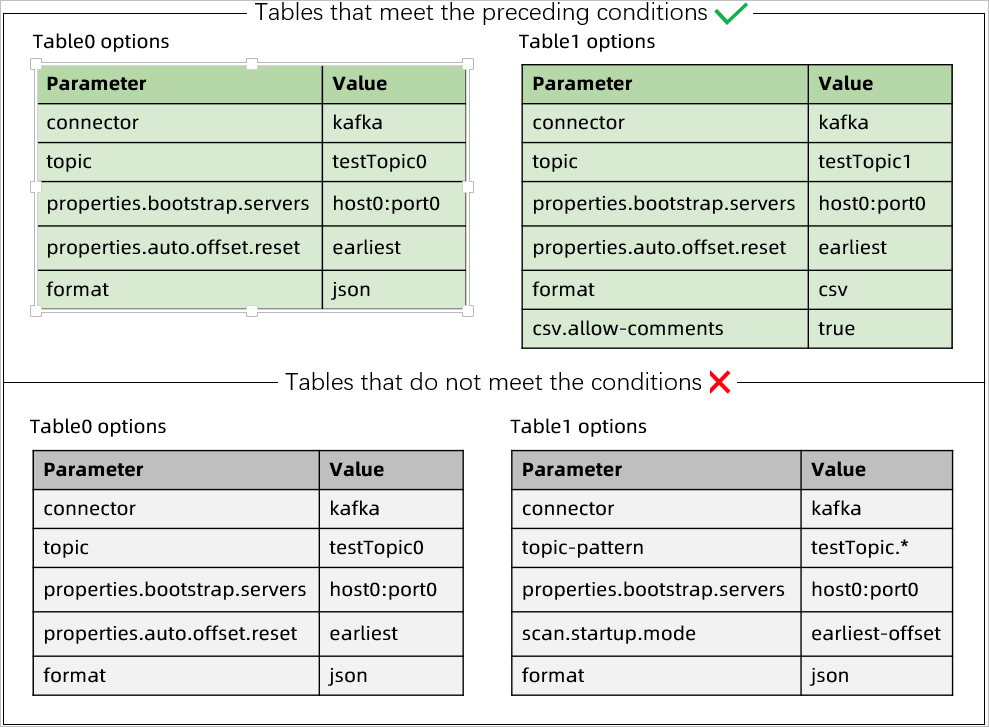
With a Kafka JSON catalog, you can synchronize multiple Kafka tables in the same job. The following conditions apply:
-
None of the Kafka tables are configured with the topic-pattern parameter.
-
The Kafka configuration for each table must be identical, including all properties.* settings such as properties.bootstrap.servers and properties.group.id.
-
The scan.startup.mode setting for each table must be identical and can only be set to group-offsets, latest-offset, or earliest-offset.
For example, in the following figure, the top two tables meet the conditions, while the bottom two tables violate them.
-
-
For end-to-end examples of using a Kafka JSON catalog, see real-time log warehousing.
Delete a Kafka JSON catalog
Deleting a Kafka JSON catalog does not affect running jobs. However, a job using a table from the catalog will fail with a "table not found" error if you deploy or restart it. Proceed with caution.
-
Enter the following command in the SQL editor on the Scripts page.
DROP CATALOG ${catalog_name};Replace ${catalog_name} with the name of your Kafka JSON catalog.
-
Select the DROP CATALOG command, right-click, and select Run.
-
Verify that the catalog is no longer listed in the Catalogs area on the left.
Kafka JSON Catalog tables
To simplify using tables from a Kafka JSON Catalog, the catalog automatically adds default configuration parameters, metadata, and primary key information to the inferred tables.
-
Schema inference for Kafka tables
When inferring the schema for a topic, the Kafka JSON Catalog samples up to max.fetch.records messages. It parses the schema of each message and then merges these individual schemas into a final schema. The parsing rules are the same as the basic rules used when Kafka is a data source for a CREATE TABLE AS (CTAS) statement.
Important-
During schema inference, the Kafka JSON Catalog creates a consumer group to read data from the topic. The catalog prefixes the consumer group name to indicate it was created by the catalog.
-
For ApsaraMQ for Kafka, we recommend using the Kafka JSON Catalog with version 6.0.7 or later. Versions prior to 6.0.7 do not automatically delete the consumer group, which can cause alerts about message backlogs.
-
Inferred physical columns
The Kafka JSON Catalog infers physical columns from the message key and message value.
If the message key is not empty but cannot be parsed, the catalog returns a VARBINARY column. The name of this column is a concatenation of the value of the key.fields-prefix parameter and the value of the infer-schema.parse-key-error.field-name parameter.
After fetching a batch of Kafka messages, the catalog parses each message and merges the resulting physical columns into a unified schema for the topic.
-
If the inferred physical columns contain fields not in the result schema, the catalog automatically adds them to the result schema.
-
-
If the types are the same but the precision is different, the type with the higher precision is used.
-
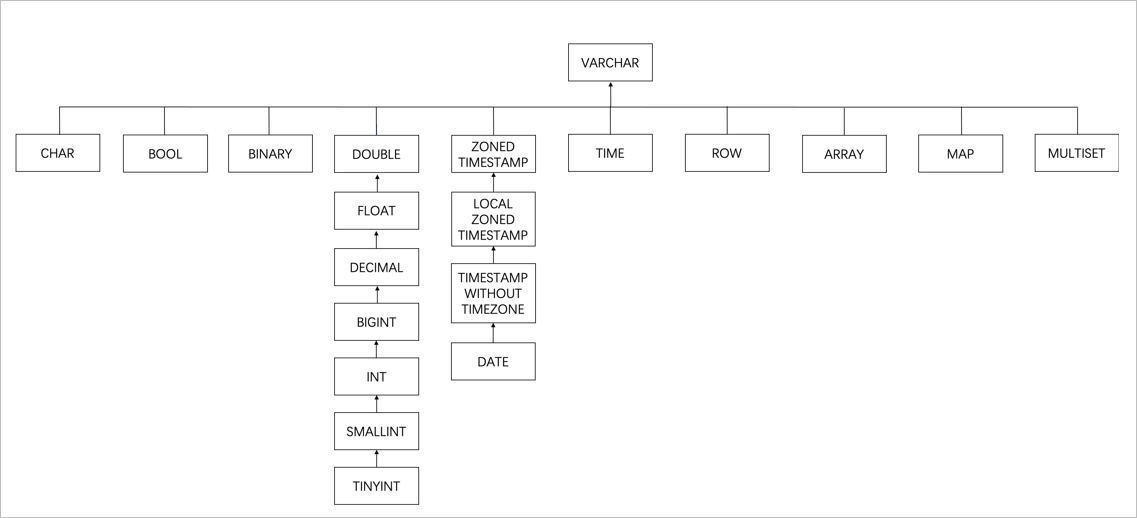
If the types are different, the system finds their lowest common parent in the type tree (shown in the figure below) and uses that as the column's type. However, to preserve precision, when a Decimal and a Float type are merged, the resulting type is Double.
-
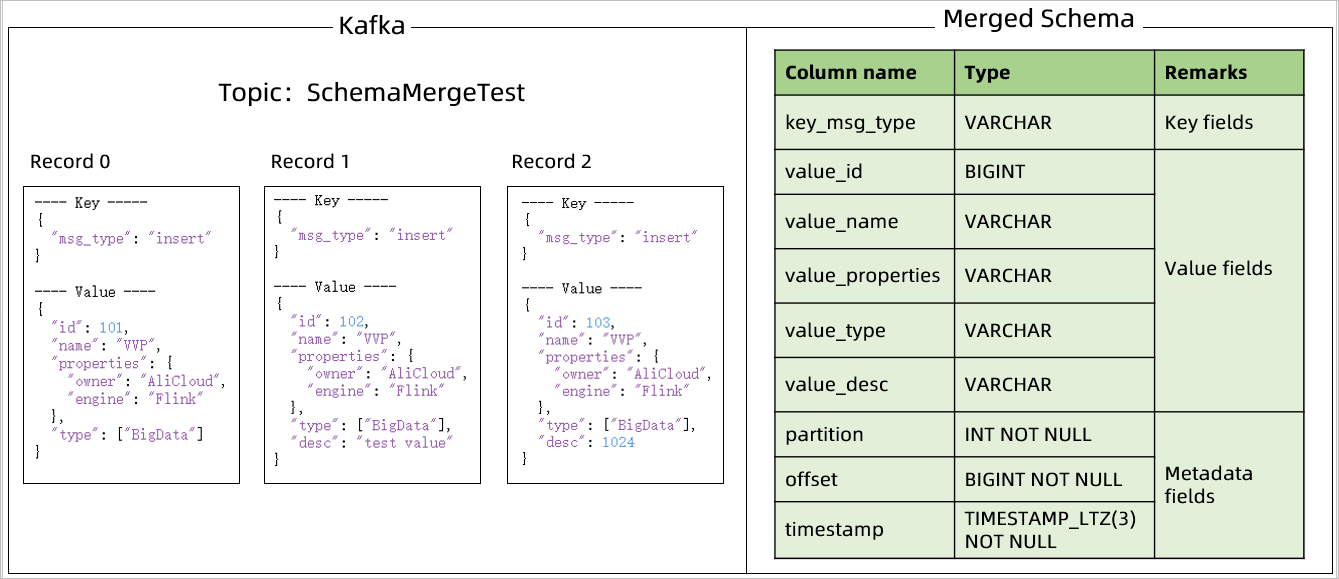
For example, for a Kafka topic that contains the following three messages, the Kafka JSON Catalog infers the schema as shown in the figure below.
-
-
Default metadata columns
By default, the Kafka JSON Catalog adds three metadata columns: partition, offset, and timestamp.
Metadata name
Column name
Type
Description
partition
partition
INT NOT NULL
The partition ID.
offset
offset
BIGINT NOT NULL
The message offset.
timestamp
timestamp
TIMESTAMP_LTZ(3) NOT NULL
The message timestamp.
-
Default primary key constraint
When a table from a Kafka JSON Catalog is used as a source, the metadata columns partition and offset serve as the default primary key to ensure data uniqueness.
NoteIf the schema inferred by the Kafka JSON Catalog does not meet your requirements, you can declare a temporary table with your desired schema using the CREATE TEMPORARY TABLE ... LIKE syntax. For example, if your JSON data contains a
tsfield with the format '2023-01-01 12:00:01', the Kafka JSON Catalog automatically infers thetsfield as a TIMESTAMP type. To use thetsfield as a STRING type, declare the table as follows. Because the default configuration adds thevalue_prefix to fields from the message value, the field name here isvalue_ts.CREATE TEMPORARY TABLE tempTable ( value_name STRING, value_ts STRING ) LIKE `kafkaJsonCatalog`.`kafka`.`testTopic`; -
-
Default table parameters
Parameter
Description
Remarks
connector
The connector type.
The value is
kafkaorupsert-kafka.topic
The name of the corresponding topic.
This is the same as the declared table name.
properties.bootstrap.servers
The Kafka broker addresses.
Same as the catalog's properties.bootstrap.servers setting.
value.format
The format used by the Flink Kafka connector to serialize or deserialize the Kafka message value.
The value is
json.value.fields-prefix
Specifies a custom prefix for all fields from the Kafka message value to avoid naming conflicts with fields from the message key or metadata.
Same as the catalog's
value.fields-prefixsetting.value.json.infer-schema.flatten-nested-columns.enable
Specifies whether to recursively expand nested columns in the JSON of the message value.
Same as the catalog's
infer-schema.flatten-nested-columns.enablesetting.value.json.infer-schema.primitive-as-string
Specifies whether to infer all primitive types in the message value as the STRING type.
Same as the catalog's
infer-schema.primitive-as-stringsetting.value.fields-include
Defines how the message value handles fields from the message key.
The value is
EXCEPT_KEY, which means the message value does not include fields from the message key.This parameter is configured only if the message key is not empty.
key.format
The format used by the Flink Kafka connector to serialize or deserialize the Kafka message key.
The value is
jsonorraw.This parameter is configured only if the message key is not empty.
When the message key is not empty but parsing fails, the value is
raw. If parsing is successful, the value isjson.key.fields-prefix
Specifies a custom prefix for all fields from the Kafka message key to avoid naming conflicts with fields from the message value.
Same as the catalog's
key.fields-prefixsetting.This parameter is configured only if the message key is not empty.
key.fields
The fields that store data parsed from the Kafka message key.
The list of parsed key fields is automatically populated.
This parameter is configured only if the message key is not empty and the table is not an Upsert Kafka table.