Paimon catalogs connect Flink to data lake metadata stored in OSS or DLF. Learn how to create and manage catalogs, databases, and tables.
Before you begin
-
Version requirements
-
VVR 8.0.5 or later: Required to create Paimon catalogs and tables.
-
VVR 11.1 or later: Required to use DLF as metastore.
-
VVR 11.8 or later: Required to use OSS-HDFS as storage for Paimon Filesystem Catalog.
-
-
Storage requirements
Paimon stores data and metadata in OSS. Configure your OSS bucket as follows:
-
Storage class: Use Standard. Storage class.
-
Bucket setup: Create a dedicated bucket in the same region as your Flink workspace. Do not reuse the default system bucket to avoid data conflicts.
-
-
Access permissions
Ensure the AccessKey pair has read and write permissions on your OSS bucket or DLF directory. -
Format compatibility
Paimon catalogs support only Paimon format. Other formats such as Lance and Iceberg are not supported.
-
Console refresh
After creating or deleting a catalog, database, or table, click refresh to update the console.
-
Paimon version mapping
Apache Paimon version
VVR
1.3.1
11.5, 11.6, 11.7, 11.8
1.3
11.4
1.2
11.2, 11.3
1.1
11.1
1.0
8.0.11
Create a catalog
Choose a metastore type based on your scenario:
-
Filesystem catalog: Stores metadata in OSS. Best for simple deployments.
-
DLF catalog: Stores metadata in Data Lake Formation (DLF). Best for enterprise scenarios with unified metadata management.
Create a Filesystem catalog
Option 1: Use the console (Recommended)
-
Go to the Catalogs page.
-
Log on to the Management Portal. Find the target workspace and click Console in the Actions column.
-
In the left navigation pane, click Catalogs.
-
-
Click Create Catalog, select Apache Paimon, and then click Next.
-
Set
metastoretofilesystemand configure other catalog settings.
Option 2: Use SQL
Run the following command in the SQL editor from Development > Scripts:
CREATE CATALOG `my-catalog` WITH (
  'type' = 'paimon',
  'metastore' = 'filesystem',
  'warehouse' = '<warehouse>',
  'fs.oss.endpoint' = '<fs.oss.endpoint>',
  'fs.oss.accessKeyId' = '<fs.oss.accessKeyId>',
  'fs.oss.accessKeySecret' = '<fs.oss.accessKeySecret>'
);
The following table describes the parameters.
-
General parameters
Configuration item
Description
Required
Remarks
my-catalogThe name of the Paimon catalog.
Yes
Enter a custom name.
typeThe type of the catalog.
Yes
Set to
paimon.metastoreThe type of the metastore.
Yes
Valid values:
-
filesystem: Stores metadata in OSS. -
dlf: Stores metadata in DLF.
-
-
OSS parameters
Configuration item
Description
Required
Remarks
warehouse
The data warehouse directory in OSS.
Yes
The format is
oss://<bucket>/<object>, where:-
bucket: the name of your OSS bucket. -
object: the path where your data is stored.
View your bucket and object names in the OSS console.
fs.oss.endpoint
The endpoint of the OSS service.
Yes
-
If Flink and DLF are in the same region, use the VPC endpoint. Otherwise, use the public network endpoint.
-
This parameter is required if the OSS bucket specified for warehouse is not in the same region as the Flink workspace, or if you use an OSS bucket that belongs to another Alibaba Cloud account.
fs.oss.accessKeyId
The AccessKey ID of the Alibaba Cloud account or RAM user that has read and write permissions on OSS.
Yes
fs.oss.accessKeySecret
The AccessKey secret of the Alibaba Cloud account or RAM user that has read and write permissions on OSS.
Yes
-
-
OSS-HDFS (VVR 11.8 or later)
To use OSS-HDFS as storage for Paimon Filesystem Catalog, use the following SQL example:
CREATE CATALOG `my_catalog` WITH (
  'type' = 'paimon',
  'metastore' = 'filesystem',
  'warehouse' = 'dls://<bucket>.<dls-endpoint>/<warehouse-path>',
  'fs.oss.endpoint' = '<dls-endpoint>',
  'fs.oss.accessKeyId' = '<access-key-id>',
  'fs.oss.accessKeySecret' = '<access-key-secret>',
  'fs.dls.client.mode.enabled' = 'false',
  'fs.dls.data.endpoint' = '<oss-data-endpoint>'
);
The following table describes the parameters.
Parameter
Description
Required
Remarks
warehouse
The warehouse directory in OSS-HDFS.
Yes
Format: dls://<bucket>.<dls-endpoint>/<warehouse-path>. The <dls-endpoint> is the same as
fs.oss.endpoint.fs.oss.endpoint
The endpoint of the OSS-HDFS service.
Yes
In the OSS console, go to the target bucket's "Overview > Access Ports" section and check the HDFS Service Endpoint.
fs.oss.accessKeyId
The AccessKey ID of the Alibaba Cloud account or RAM user that has read and write permissions on OSS-HDFS.
Yes
—
fs.oss.accessKeySecret
The AccessKey Secret corresponding to the AccessKey ID.
Yes
—
fs.dls.client.mode.enabled
Specifies whether to enable the DLS Client Mode.
Yes
Set to
false.fs.dls.data.endpoint
The data endpoint used by DLS to access underlying OSS data.
Yes
In the OSS console, go to the target bucket's "Overview > Access Ports" section and check the OSS internal Endpoint. You can also refer to the "Regions and endpoints" documentation.
Create a DLF catalog
DLF
-
Create a catalog in the DLF console in the same region as your Flink workspace. Quickly use DLF.
-
Register the Paimon catalog in the Development Console.
NoteThis operation maps your DLF catalog as metadata only. Creating or deleting this catalog in Realtime Compute for Apache Flink does not affect the underlying data in DLF.
-
Log on to the Realtime Compute console.
In the list of fully managed workspaces, click the name of your workspace to open its console.
You can register the catalog by using the UI or by running SQL commands.
UI
In the navigation pane on the left, click Catalogs.
On the Catalog List page, click Create Catalog.
Select Apache Paimon and click Next.
Set metastore to dlf. For catalog name, select the desired DLF catalog. Click OK to create the catalog.
SQL commands
In the Scripts editor, enter and run the following SQL statement to create the catalog.
CREATE CATALOG `flink_catalog_name`
WITH (
  'type' = 'paimon',
  'metastore' = 'rest',
  'token.provider' = 'dlf',
  'uri' = 'http://cn-hangzhou-vpc.dlf.aliyuncs.com',
  'warehouse' = 'dlf_test'
);
The following table describes the parameters.
Parameter
Description
Required
Example
type
The type of the catalog. This parameter is fixed to
paimon.Yes
paimon
metastore
The type of the metastore. This parameter is fixed to
rest.Yes
rest
token.provider
The token provider. This parameter is fixed to
dlf.Yes
dlf
uri
The URI for accessing the DLF REST Catalog Server. The format is
http://[region-id]-vpc.dlf.aliyuncs.com. For more information about region IDs, see Endpoints.Yes
http://cn-hangzhou-vpc.dlf.aliyuncs.com
warehouse
The name of the underlying DLF catalog to use as the warehouse.
Yes
dlf_test
-
DLF-Legacy
-
Create a catalog in the DLF console in the same region as your Flink workspace. Getting Started.
-
Register the Paimon catalog in the Development Console.
Option 1: Use the console (Recommended)
-
Go to the Catalogs page.
-
Log on to the Management Portal and click Console in the Actions column of the target workspace.
-
Click Catalogs.
-
-
Click Create Catalog. Select Apache Paimon and click Next.
-
Set metastore to DLF and select the V1.0 DLF catalog to associate from the catalog name drop-down list. Then, configure other catalog settings.
Option 2: Use SQL
Run the following command in the SQL editor from Development > Scripts:
CREATE CATALOG `my-catalog` WITH (
  'type' = 'paimon',
  'metastore' = 'dlf',
  'warehouse' = '<warehouse>',
  'dlf.catalog.id' = '<dlf.catalog.id>',
  'dlf.catalog.accessKeyId' = '<dlf.catalog.accessKeyId>',
  'dlf.catalog.accessKeySecret' = '<dlf.catalog.accessKeySecret>',
  'dlf.catalog.endpoint' = '<dlf.catalog.endpoint>',
  'dlf.catalog.region' = '<dlf.catalog.region>',
  'fs.oss.endpoint' = '<fs.oss.endpoint>',
  'fs.oss.accessKeyId' = '<fs.oss.accessKeyId>',
  'fs.oss.accessKeySecret' = '<fs.oss.accessKeySecret>'
);
Parameter descriptions:
-
General
Configuration item
Description
Required
Remarks
my-catalog
The name of the Paimon catalog.
Yes
Enter a custom name.
type
The type of the catalog.
Yes
The value is fixed to
paimon.metastore
The type of the metastore.
Yes
The value is fixed to
dlf. -
OSS
Configuration item
Description
Required
Remarks
warehouse
The data warehouse directory in OSS.
Yes
The format is
oss://<bucket>/<object>, where:-
bucket: the name of your OSS bucket. -
object: the path where your data is stored.
View your bucket and object names in the OSS console.
fs.oss.endpoint
The endpoint of the OSS service.
Yes
-
If Flink and DLF are in the same region, use the VPC endpoint. Otherwise, use the public network endpoint.
-
If you want to store Paimon tables in OSS-HDFS, set the value of the
fs.oss.endpointparameter tocn-<region>.oss-dls.aliyuncs.com, for example,cn-hangzhou.oss-dls.aliyuncs.com.
fs.oss.accessKeyId
The AccessKey ID of the Alibaba Cloud account or RAM user that has read and write permissions on OSS.
Yes
For more information, see Regions and endpoints and Create an AccessKey.
fs.oss.accessKeySecret
The AccessKey secret of the Alibaba Cloud account or RAM user that has read and write permissions on OSS.
Yes
-
-
DLF
Configuration item
Description
Required
Remarks
dlf.catalog.id
The ID of the DLF data catalog.
Yes
View the ID of the data catalog in the Data Lake Formation console.
dlf.catalog.accessKeyId
The AccessKey ID required to access the DLF service.
Yes
For more information, see Create an AccessKey.
dlf.catalog.accessKeySecret
The AccessKey secret required to access the DLF service.
Yes
For more information, see Create an AccessKey.
dlf.catalog.endpoint
The endpoint of the DLF service.
Yes
NoteIf Flink and DLF are in the same region, use the VPC endpoint. Otherwise, use the public network endpoint.
dlf.catalog.region
The region where DLF is located.
Yes
NoteMake sure that the region is the same as the one specified for dlf.catalog.endpoint.
-
Manage databases
Run the following commands in the SQL editor from Development > Scripts.
-
Create a database
A
defaultdatabase is created automatically. To create more databases:-- Replace my-catalog with the name of your Paimon catalog. USE CATALOG `my-catalog`; -- Replace my_db with a custom database name in English. CREATE DATABASE `my_db`; -
Drop a database
ImportantThe
defaultdatabase cannot be deleted from a DLF catalog. However, you can delete it from a Filesystem catalog.-- Replace my-catalog with the name of your Paimon catalog. USE CATALOG `my-catalog`; -- Replace my_db with the name of the database that you want to delete. DROP DATABASE `my_db`; -- Deletes a database only if it contains no tables. DROP DATABASE `my_db` CASCADE; -- Deletes the database and all tables in it.
Manage tables
Create a table
Modify a table schema
Run the following commands in the SQL editor from Development > Scripts.
|
Operation |
Sample code |
|
Add or modify table properties |
Change the value of the |
|
Temporarily modify table properties |
The temporarily modified table properties take effect only for the current SQL job.
|
|
Rename a table |
Change the name of the table from my_table to my_table_new. Important
OSS rename operations are not atomic. If you store Paimon table files in OSS, use OSS-HDFS for atomic file operations. |
|
Add a new column |
|
|
Rename a column |
Rename the c0 column to c1 in |
|
Drop a column |
Drop the |
|
Drop a partition |
Drop the |
|
Modify a column comment |
Change the comment of the |
|
Modify column order |
|
|
Modify a column type |
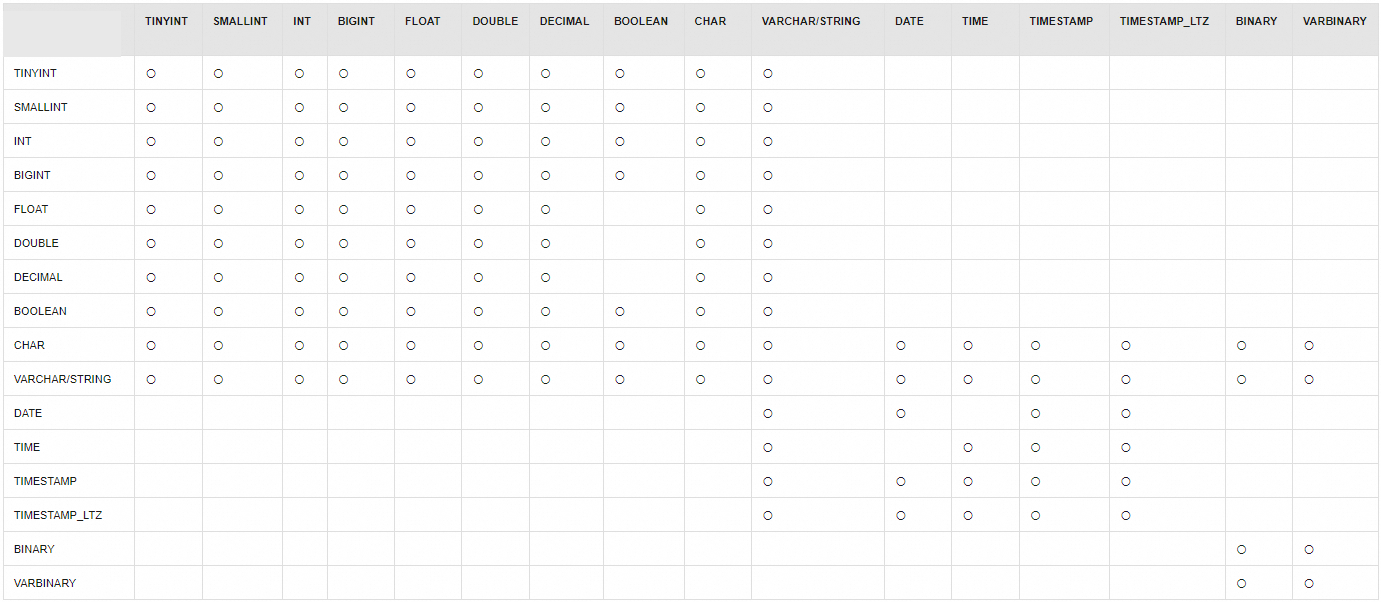
Change the type of Supported column type conversions (〇 = supported, empty = not supported): |
Drop a table
View or drop a catalog
-
In the Management Portal, click Console in the Actions column for the target workspace.
-
On the Catalogs page, view or delete an Apache Paimon catalog.
-
On the Catalog List page, view the catalog name and type. To view the databases and tables in a catalog, click View in the Actions column.
-
On the Catalog List page, click Delete in the Actions column for the catalog to delete.
NoteDeleting a catalog removes only its Flink registration. The underlying data files are unaffected. Re-register the catalog to restore access.
Alternatively, in the SQL editor from Development > Scripts, you can enter
DROP CATALOG <catalog name>;, select the code, and then click Run.
-