Answers to common questions about ZOLOZ eKYC SaaS, including Real ID, Face Capture, ID Recognition, IDN, SDK and API integration, portal access, and troubleshooting.
General
What document types are currently supported by Real ID?
Real ID supported document types are listed in Document types supported and OCR results returned.
What is the difference between Advanced IDN, IDN Lite, and standalone IDN in RealID?
IDN Lite is a legacy risk detection capability in the older version of RealID, no longer available for new purchases. Existing customers can continue to use it. Advanced IDN is an optional capability in the new version of RealID, offering the same capabilities as standalone IDN.
In RealID, IDN Lite and Advanced IDN can be toggled via input parameters, with automatic data entry and risk detection. Standalone IDN requires manual data entry and explicit API calls for risk queries.
All IDN functions are documented in the IDN API Documentation.
Advanced IDN, IDN Lite and standalone IDN API differ in the following aspects:
|
Item |
Advanced IDN in RealID |
IDN Lite in RealID |
Standalone IDN |
|
Scenario |
Only supports the KYC scenario. |
Only supports the KYC scenario. |
Supports both KYC and Verification scenarios. |
|
Risk Detection |
Enable IDN risk query function through input parameters. |
Automatic Query, disable IDN risk query function through input parameters. When an extremely high threshold is set for the |
Requires the client to call the API to query risk based on the data entered in the input parameters. |
|
Initialize API parameters |
Note: You need to purchase IDN before you can enable this function.
Note: This parameter takes effect only when
Note: This parameter takes effect only when |
idnThreshold: Sets the threshold to block transactions for the same merchant when the same face is used with different IDs, or the same ID is used with different faces. If the number of linked transactions across different userIds exceeds the threshold, the system blocks the transaction. Accepts any integer >= 1. Default: 3. |
This does not involve Initialize API parameters. |
|
Search Time Window |
By default, it queries data from the last 30 days. The risk query time window can be adjusted through input parameters, with a maximum query period of 2 years. |
It queries data from the last 30 days. |
By default, it queries data from the last 180 days. The risk query time window can be adjusted through input parameters, with a maximum query period of 2 years. |
|
Supported Data Volume |
By default, the maximum data volume for a single scan is 500,000 entries. You can purchase a higher data volume tier. |
The maximum data volume for a single scan is 500,000 entries. |
By default, the maximum data volume for a single scan is 500,000 entries. You can purchase a higher data volume tier. |
|
Risk Scenarios and Types |
Supports all functions in the KYC scenario, including IDFAKE, DUPLICATE, BATCH_REGISTER, DEEPFAKE. IDFAKE:
DUPLICATE:
BATCH_REGISTER:
DEEPFAKE:
|
Only support some types of risks.
|
Supports all functions in the KYC and Verification scenarios.
|
|
Data Source |
Data collected through RealID, which is automatically stored in the database. |
Data collected through RealID, which is automatically stored in the database. |
Data collected through RealID and other external data, all of which require manual entry into the database by calling the add API. |
|
Database Management |
Not supported |
Not supported |
Supports Add, Delete, Retrieve and other operations in the database. |
Which domain names must be whitelisted for ZOLOZ integration?
ZOLOZ has separate sandbox and production environments with different endpoints for the portal, wireless gateway, base API URI, and Web SDK URL.
Portal, wireless gateway, and base API URI endpoints:
|
Environments |
Base API URIs |
ZOLOZ portal address |
Wireless Gateway Domain Name |
|
Singapore Sandbox |
https://sg-sandbox-api.zoloz.com |
https://sg-sandbox-api.zoloz.com |
|
|
Singapore Production |
https://sg-production-api.zoloz.com |
https://sg-production-zmgs.zoloz.com |
|
|
Hong Kong Production |
https://hk-production-api.zoloz.net |
https://hk-production-zmgs.zoloz.net |
|
|
Indonesia Production |
https://id-production-api.zoloz.com/ |
https://id-production-zmgs.zoloz.com |
Note:
-
If customers use the ZOLOZ SDK for front-end or client development, no network environment configuration is needed.
-
When initiating server-side requests to ZOLOZ, ensure the environment-related configuration parameters are correct.
Web SDK URLs vary by product. In the same environment, different products use different Web SDK URLs.
Supported Web SDK URLs:
|
Environment |
Product |
WEB SDK URL |
|
Singapore Production/Sandbox |
RealId |
https://sg-production-cdn.zoloz.com/page/zoloz-realid-fe/index.html |
|
FaceCapture/Connect |
https://sg-production-cdn.zoloz.com/page/zoloz-face-fe/index.html |
|
|
ID Recognition |
https://sg-production-cdn.zoloz.com/page/zoloz-doc-fe/index.html |
|
|
Hong Kong Production/Sandbox |
RealId |
https://hk-production-cdn.zoloz.net/page/realid-fe/index.html |
|
FaceCapture/Connect |
||
|
ID Recognition |
||
|
Indonesia Production |
RealId |
https://id-production-cdn.zoloz.com/page/realid-fe/index.html |
|
FaceCapture/Connect |
||
|
ID Recognition |
|
Note: Not every customer needs to whitelist ZOLOZ domains. However, if your organization requires all external networks to be authorized via whitelisting before access, you must add the ZOLOZ domains to your whitelist. |
Which types of data can be deleted specifically through privacy deletion?
-
OCR information - document ID, name, etc.
-
Collected identity document and face photo data, including the face image (faceImg), additional images (extraImages), front side of the identity document (frontPageImg), and back side of the identity document (backPageImg).
After deletion, IDN lite cannot reprocess or access any privacy-deleted data.
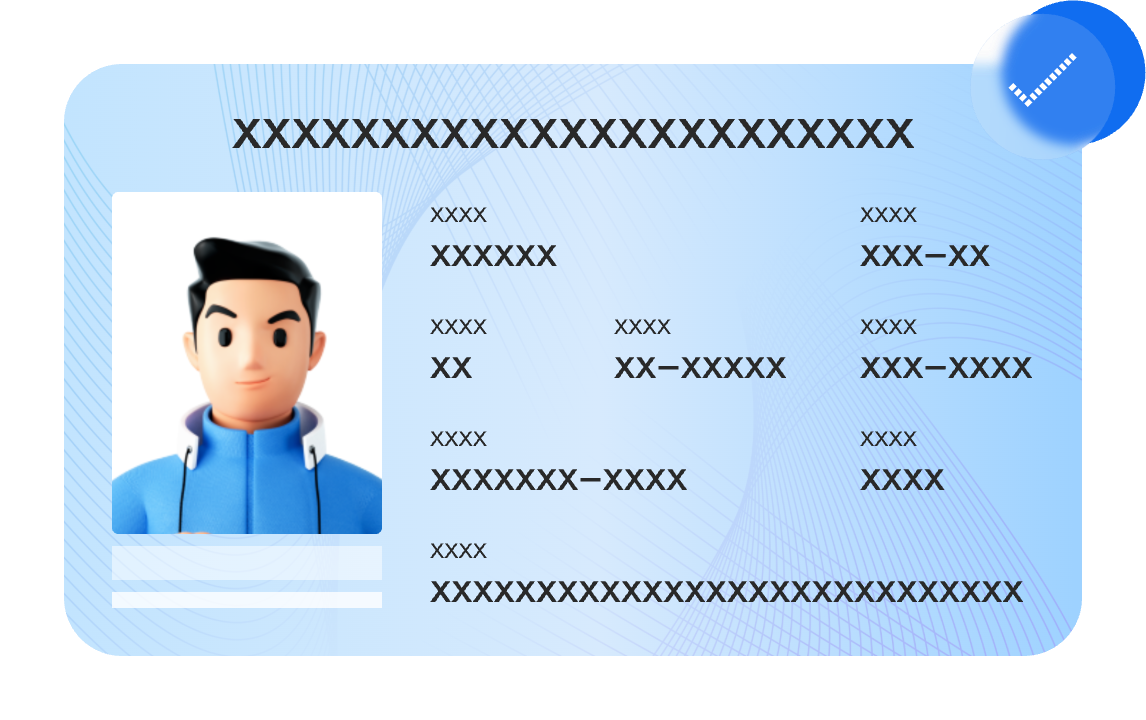
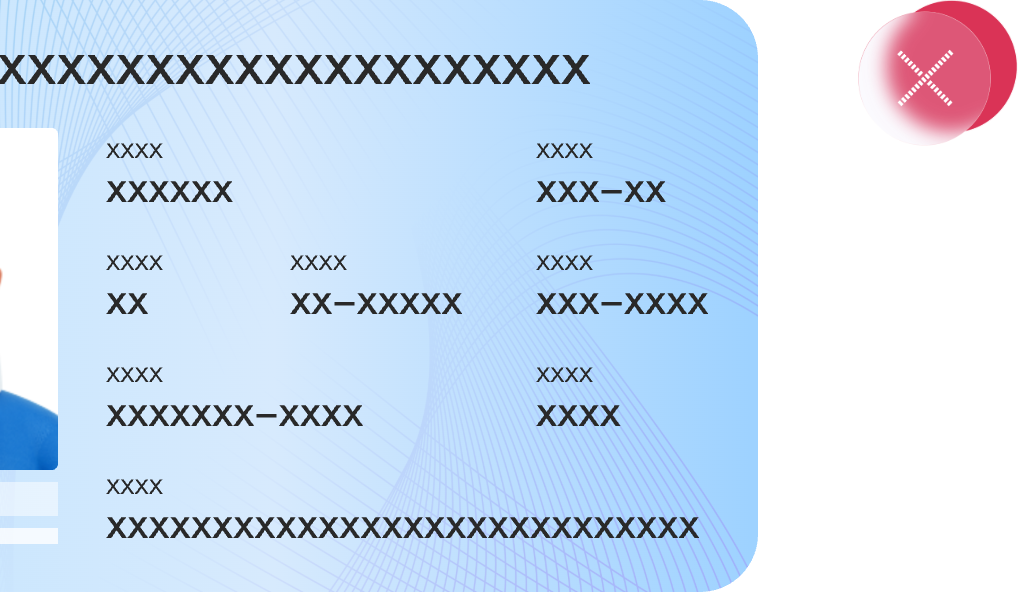
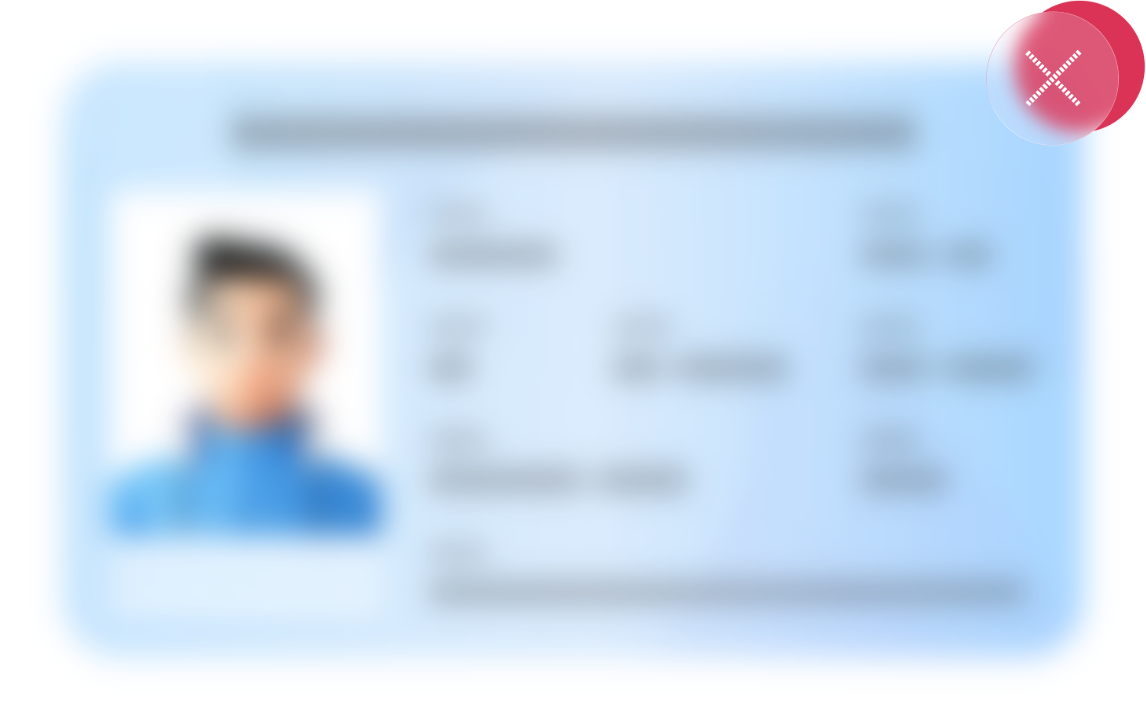
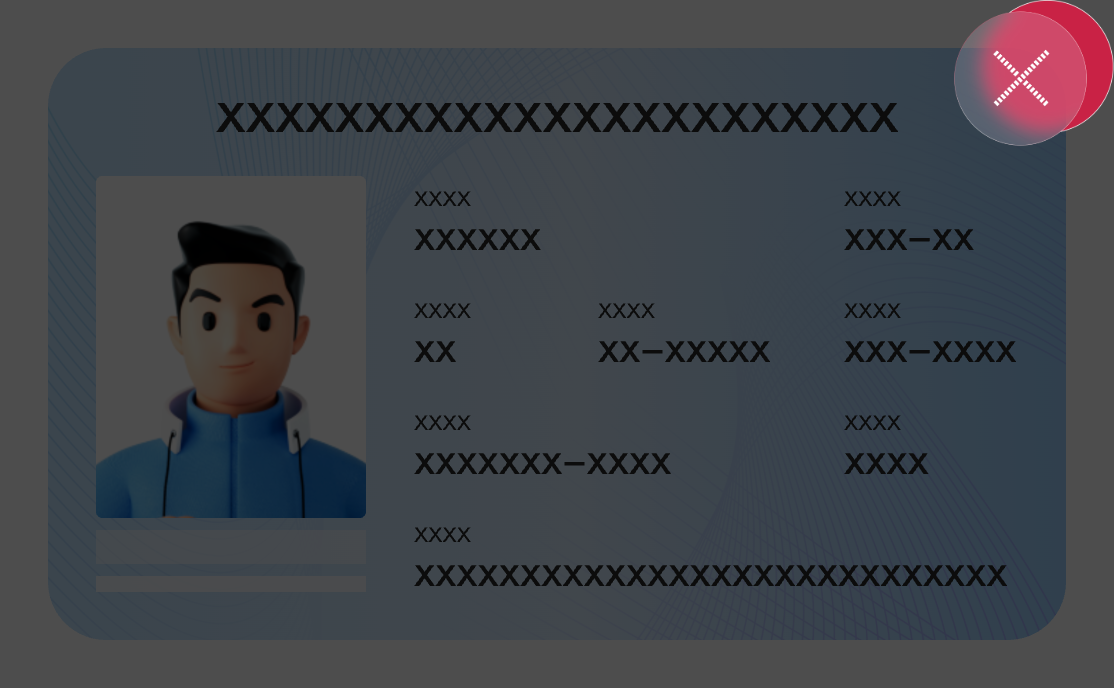
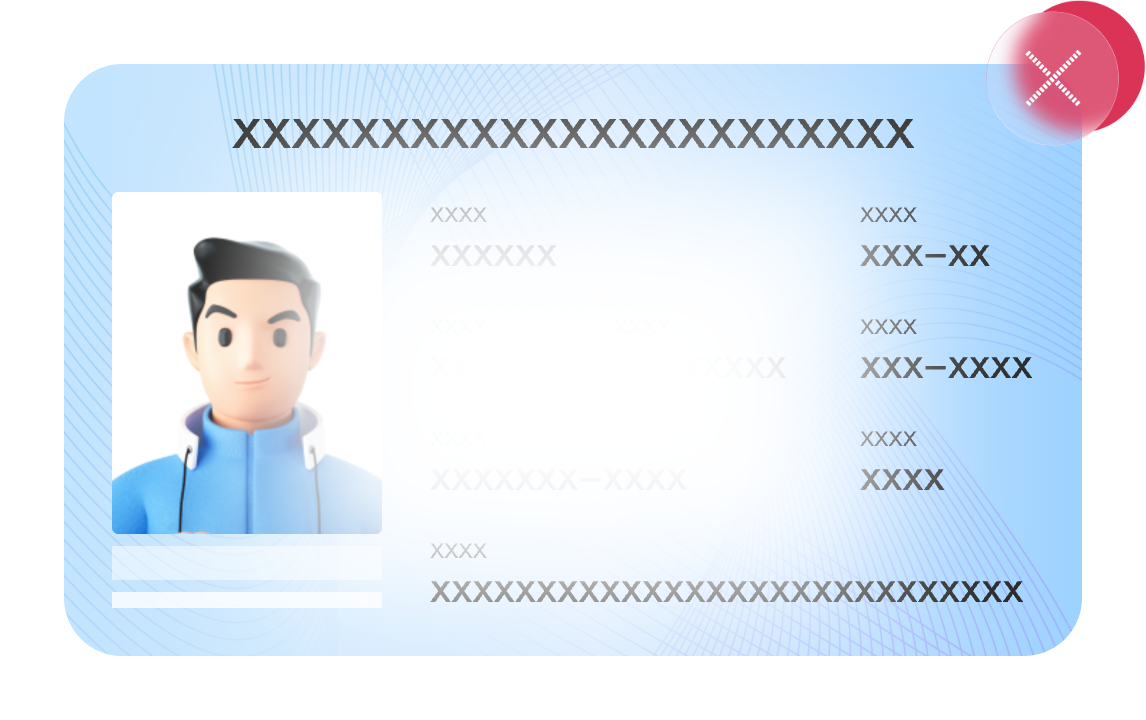
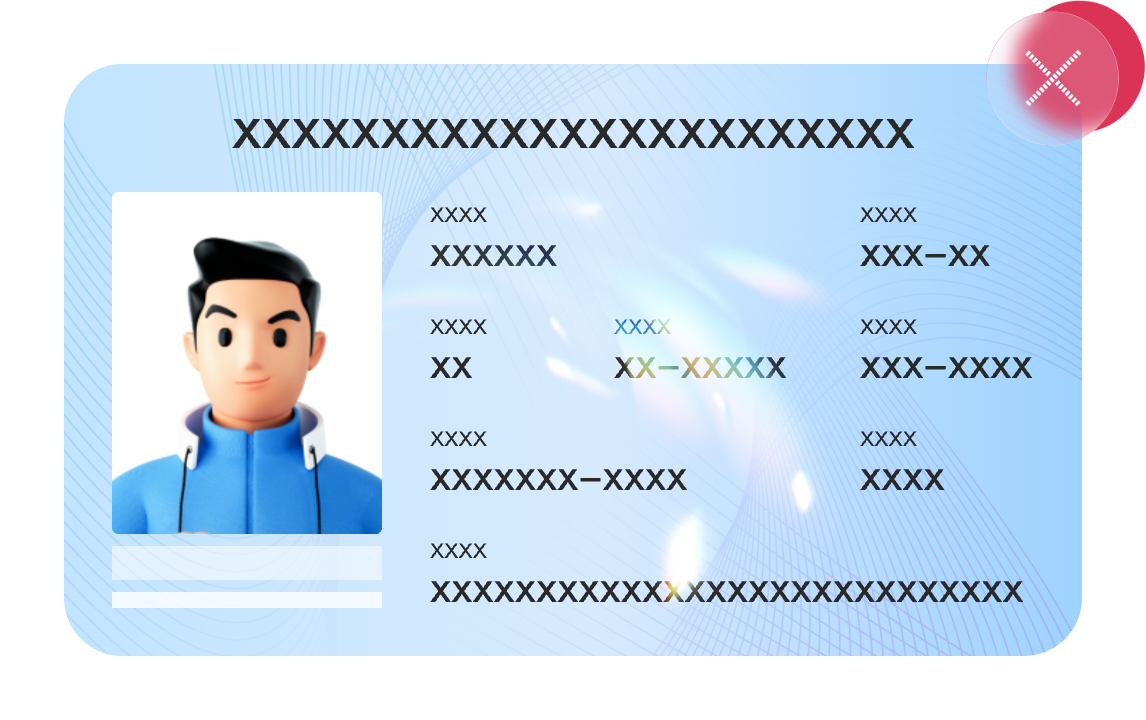
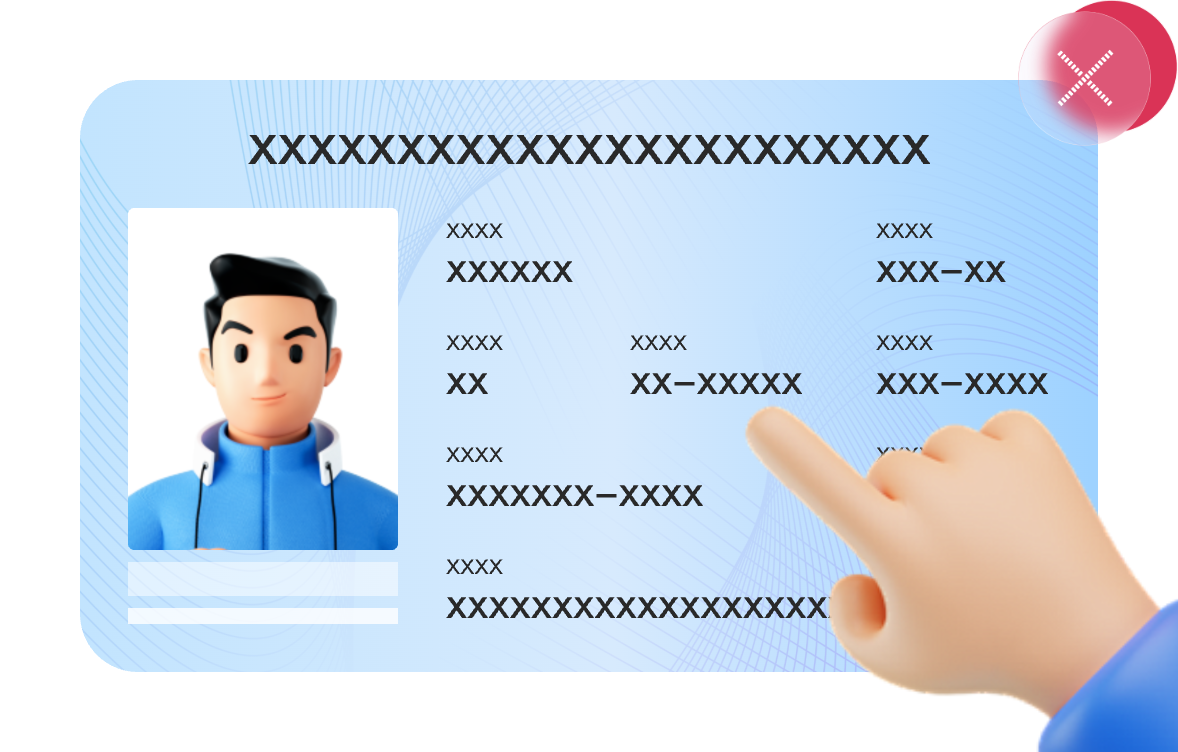
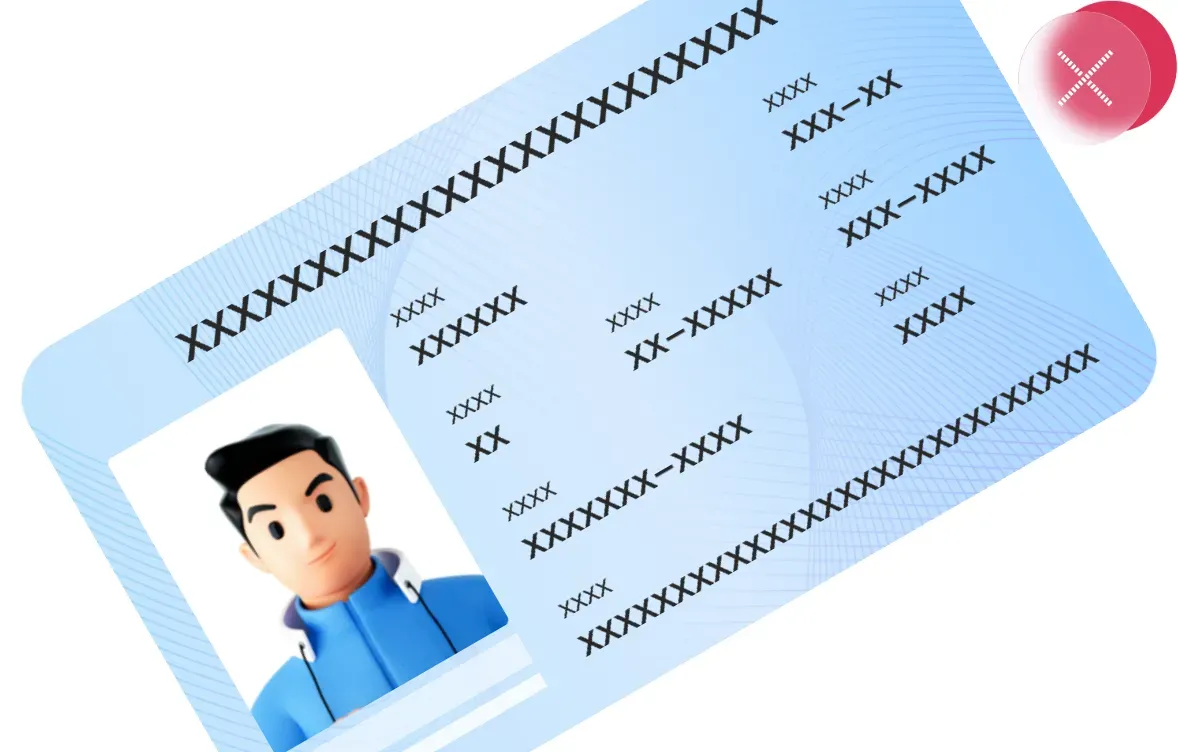
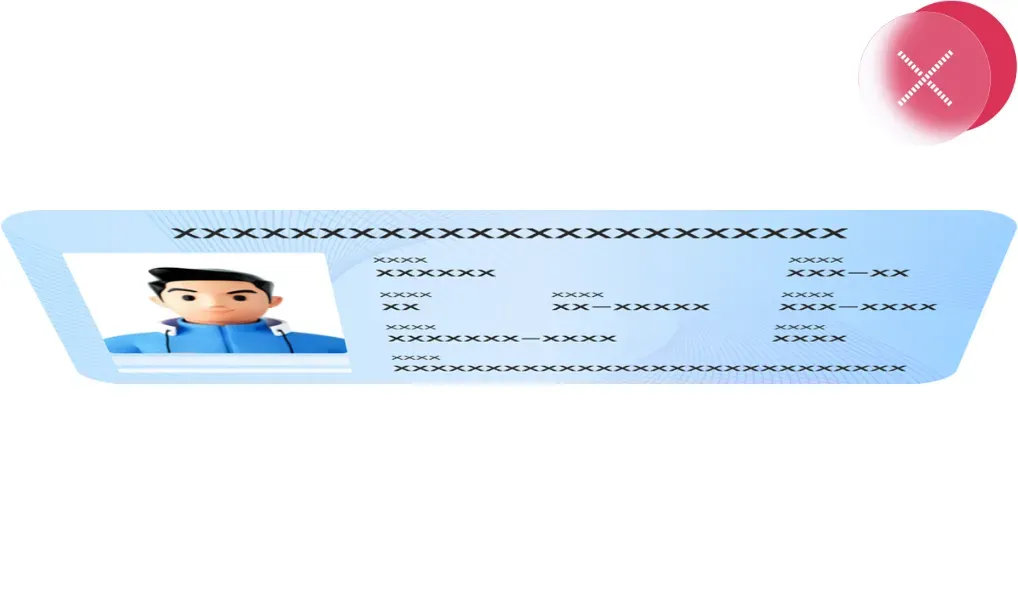
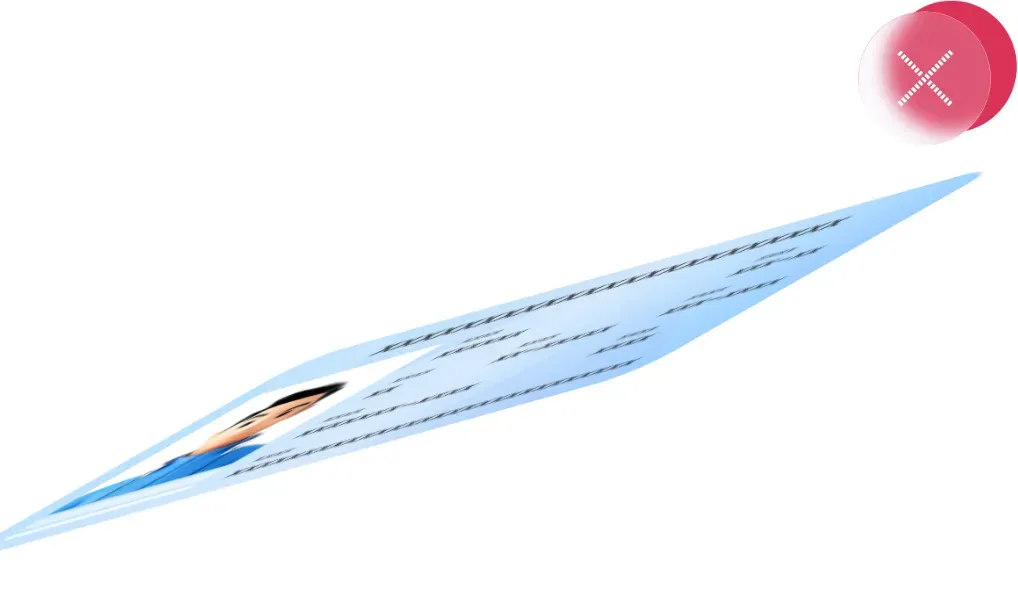
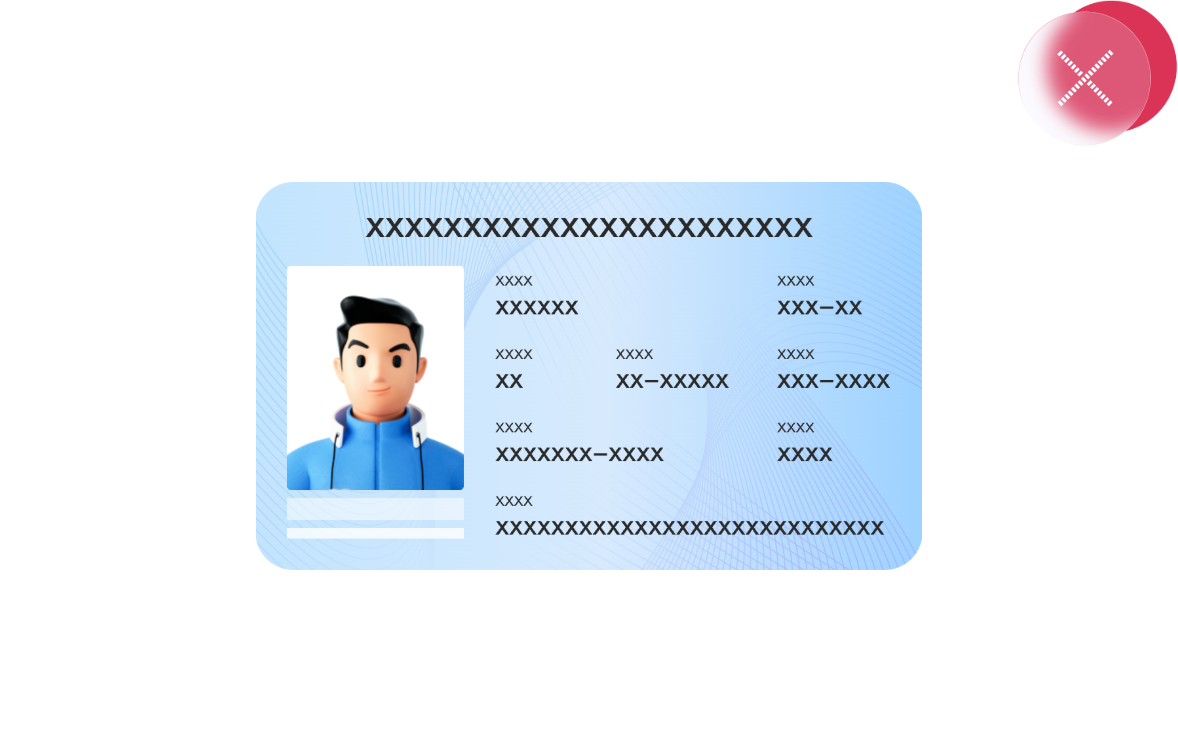
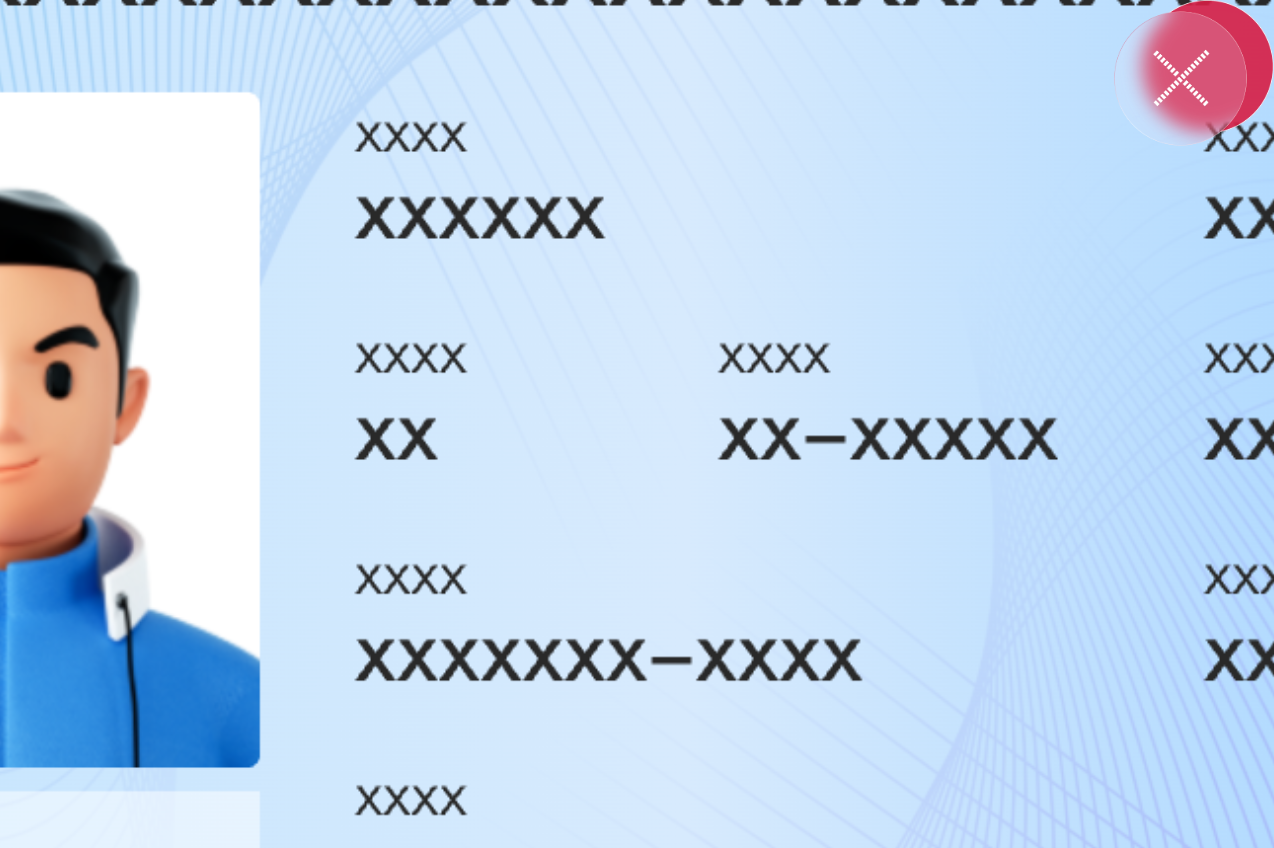
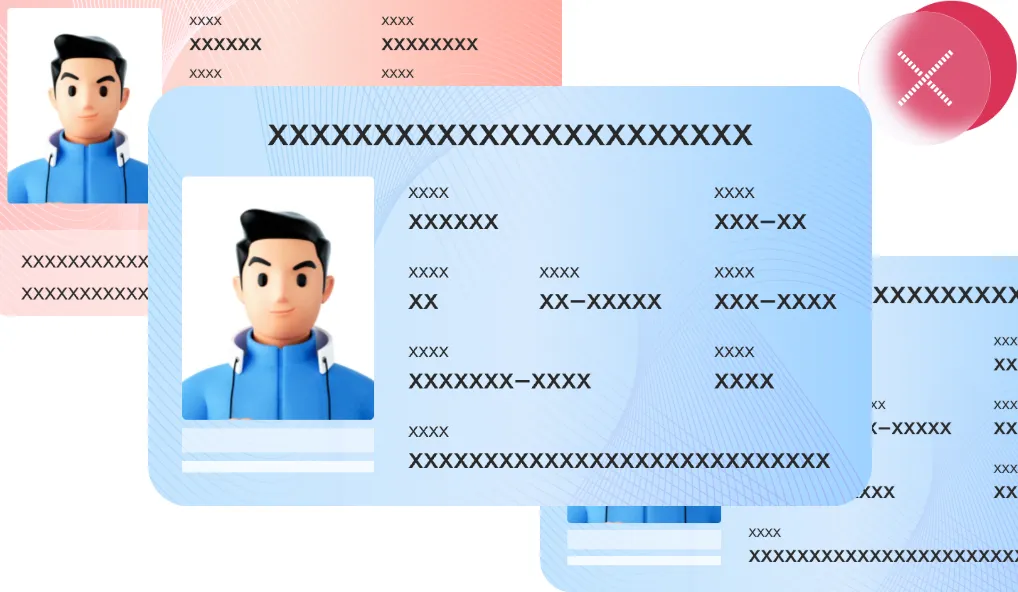
What are the requirements for document image collection?
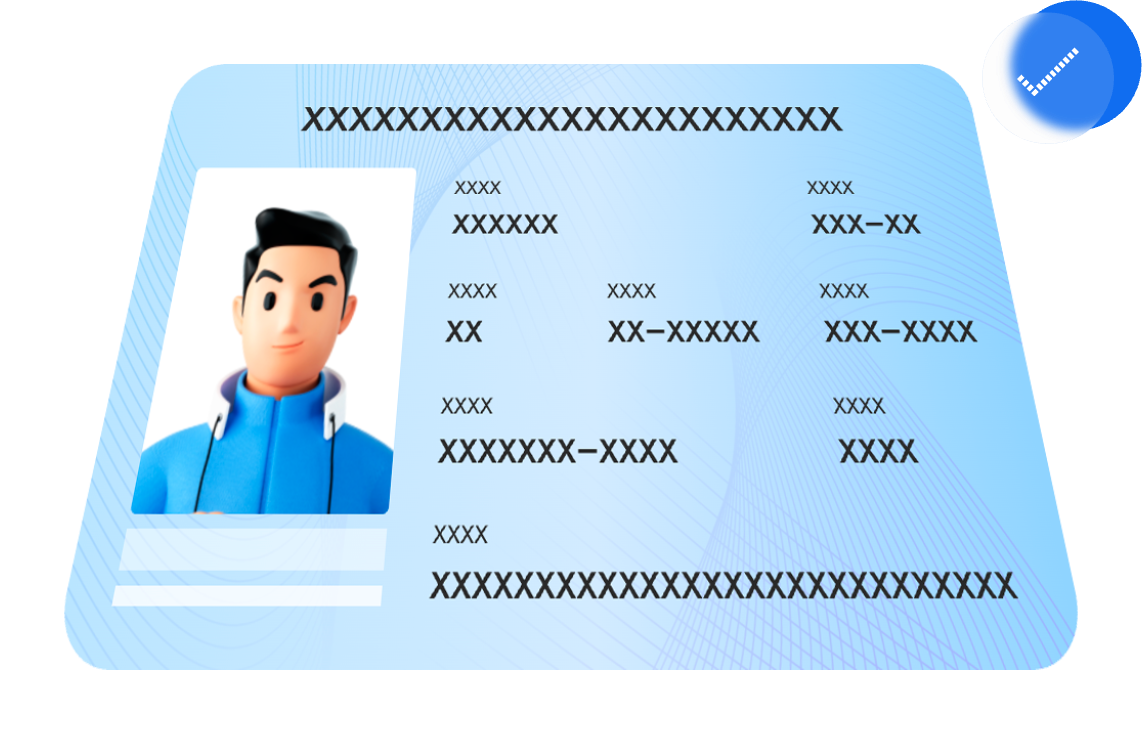
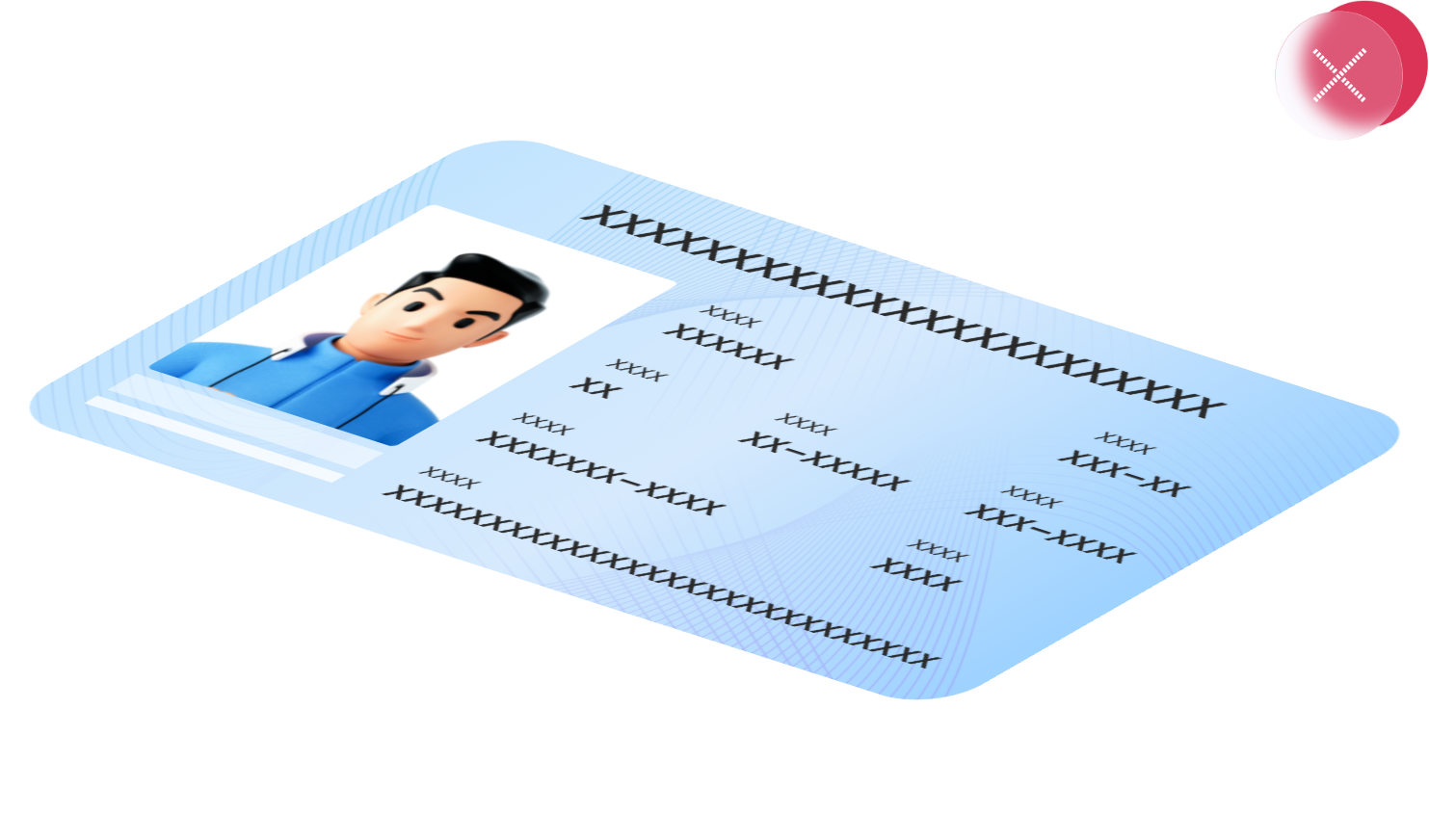
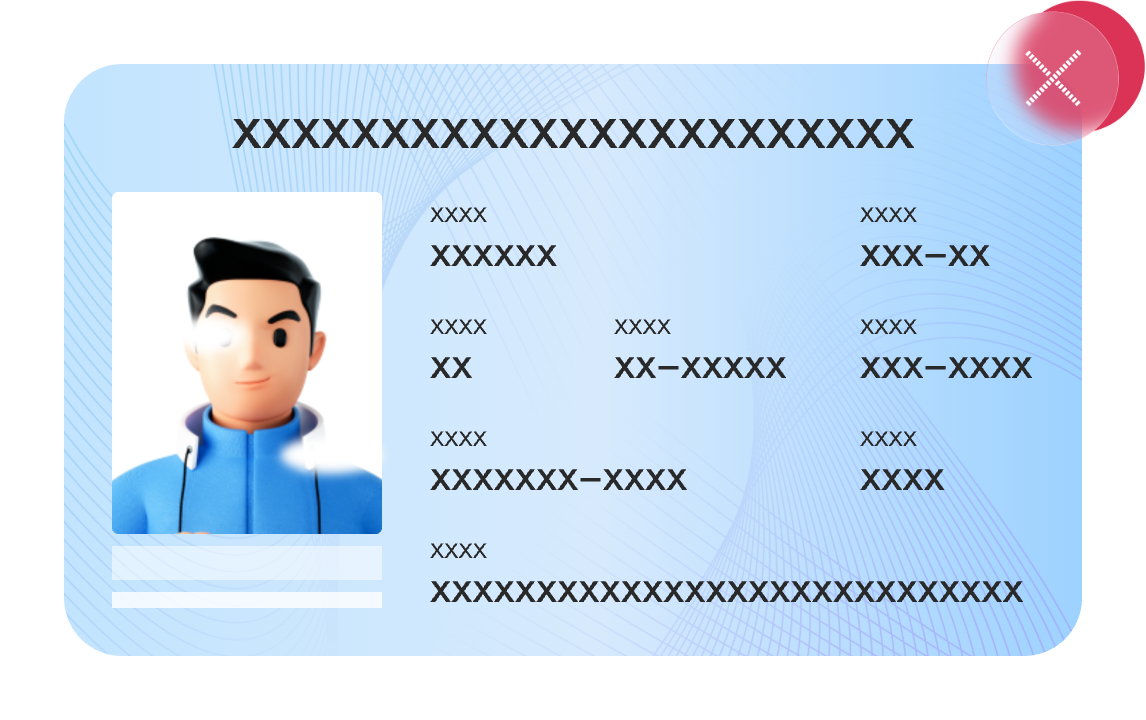
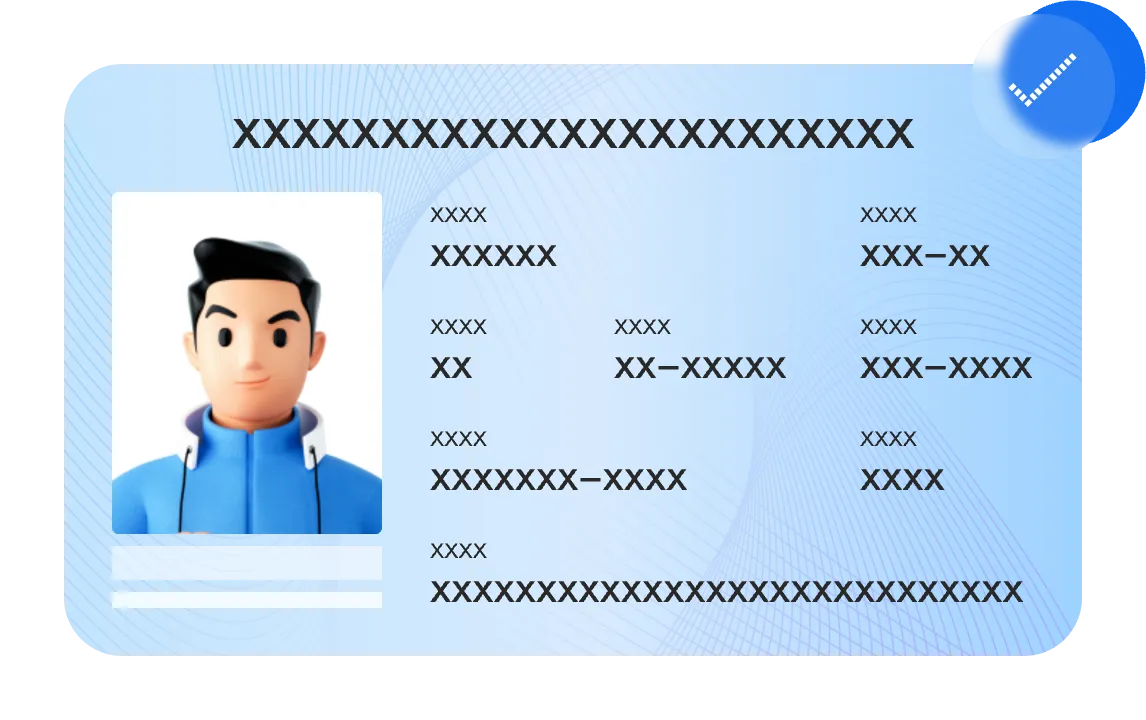
ZOLOZ sets requirements for the size and quality of collected document images. Meeting these requirements improves the success rate of document image collection.
|
Collection Requirements |
Detailed Description |
Correct Example |
Incorrect Example |
|
Complete Document in Frame |
Make sure that all four corners and edges of the document are within the collection frame. |
|
|
|
Clear Document Image |
Make sure the document image is clear and legible with no blurry areas. |
|
|
|
Adequate Lighting |
Make sure adequate lighting in the collection environment to effectively recognize the information on the document. Too bright or too dark environments may affect the verification results. |
|
|
|
Avoid Glare |
Avoid reflections from lights or ambient light, as glare on the document image can interfere with data processing and extraction. |
|
|
|
Avoid Laser Pattern Interference |
Avoid laser pattern interference caused by lighting or ambient light. Laser patterns on document images can disrupt data processing and extraction. |
|
|
|
No Obstructions |
Make sure there are no obstructions on the document, and all information on the document is fully visible. |
|
|
|
Avoid Tilt |
Make sure the document is perfectly flat both horizontally and vertically, with no tilt. |
|
|
|
Moderate Distance |
Align the four edges of the document with the scanning frame. Being too far or too close can affect the collection results. |
|
|
|
Appropriate Tilt Angle (for multi-angle versions only) |
Align the four edges of the document with the tilted scanning frame. The tilt angle should generally not exceed 30 degrees. |
|
|
|
Avoid damaged ID |
Make sure the portrait on your ID is intact. |
|
|
|
Avoid the multiple documents |
Make sure that only one document is scanned at a time to avoid multiple documents appearing in the frame. |
|
|
What do I do if submitted documents are unsupported in ZOLOZ Demo Apps?
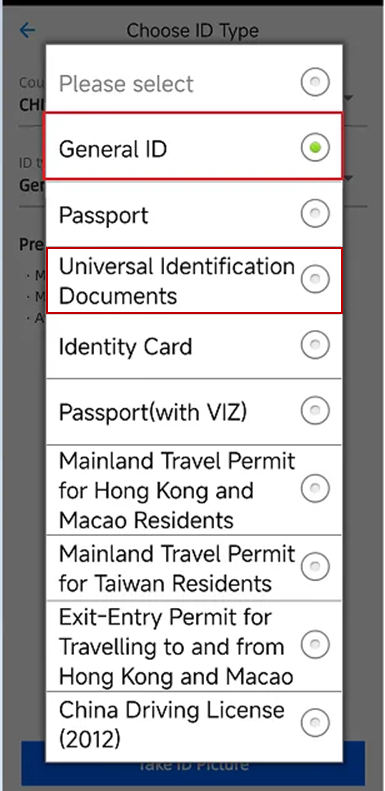
If the ZOLOZ Demo App or H5 Demo rejects your document type, use one of the two general document types for testing:
-
General ID
-
Universal Identification Documents
Note: These general document types provide only basic quality and anti-counterfeiting capabilities. They are suitable for low-security scenarios only and not recommended for production use requiring strong authentication.
Difference: The primary difference between the two general documents is whether OCR fields will be output, as detailed in the table below.
|
Document Type |
OCR Output Fields |
List Display Location on Demo (Example: CHINA) |
|
General ID |
None |
|
|
Universal Identification Documents |
FIRST_NAME LAST_NAME SEX FULL_NAME ISSUING_STATE_CODE ISSUE_STATE DATE_OF_EXPIRY DATE_OF_BIRTH DATE_OF_ISSUE ID_NUMBER DOCUMENT_NUMBER |
When are Deeper result fields not returned?
Deeper result fields are not returned in the following scenarios:
Deeper Product Not Purchased
-
If you have not purchased the Deeper, these result fields will not be provided.
Deeper Mode Not Activated
-
If you have purchased the Deeper but have not activated Deeper mode (i.e., the
deeperModeis set toCLOSED), the related result fields will not be returned.
Failure of Initialize API Call
-
Deeper result fields are not generated or returned if the Initialize API call fails due to invalid input parameters or abnormal behavior patterns such as frequent attack attempts detected by the ZOLOZ system, resulting in risk control interception. The SDK cannot proceed with identity authentication in these situations. Determine call failure and specific causes using
resultStatusandresultCodefrom the checkresult API.
Interruption of RealID Execution Process
-
During the RealID execution process, document verification, facial verification, and risk control verification are performed sequentially. If any step returns a
Failurecode, the entire process terminates, and Deeper fields for remaining steps are not generated or returned. For example, if facial verification fails, only the Deeper results for the document and facial parts are returned, not for the risk control part. -
During the document and facial verification steps, if the client fails to successfully capture and upload a qualified image, the Deeper service won't run, and Deeper result fields for the current step won't be returned. For example, if you fail to cooperate in providing a qualified facial image during facial capture, causing timeout or manual exit, facial step's Deeper fields will not be returned.
How to handle abnormal logouts during identity verification?
If a user is unexpectedly logged out during identity verification due to network issues, device crashes, or other anomalies, handle each scenario as follows:
|
Scenario |
Interrupt callback triggered |
Handling method |
|
Network/Device issues |
Yes |
In this scenario, the ZOLOZ authentication interface will display a popup prompt. The user must click Cancel to trigger the interruptCallbackUrl. Ensure your business callback URL is pre-configured to promptly detect user interruptions and guide users to re-authenticate or proceed with subsequent workflows, thereby improving business conversion rates. |
|
App force-closed or crashed |
No |
Implement a validation mechanism in your business process. If a transaction initiated via the initialize API remains unresolved for over 45 minutes without receiving a callback, proactively call the checkResult API to query the transaction status. If the query indicates a timeout, it may be due to the app crash. Instruct users to re-initiate authentication. Note: Network fluctuations may cause completed transactions to lack callbacks (not classified as app crashes). Always use the checkResult response as the final transaction status reference. |
|
Web page force-closed or crashed |
No |
User can refresh the page within 30 minutes to resume and continue authentication from the interrupted step using the original transactionId. If the user does not refresh the page to resume, the client side will not receive a callback. In this scenario, the handling method is identical to "App force-closed or crashed". Please use the checkResult API to query the transaction status and execute the subsequent workflow. Note: Network fluctuations may cause completed transactions to lack callbacks (not classified as app crashes). Always use the checkResult response as the final transaction status reference. |
eKYC Result interpretation
What are the reasons for receiving a 'Pending' result on Real ID?
Real ID returns 'Pending' when it detects potential risks in a transaction. Possible reasons:
-
A fake ID has been detected
-
The selfie face captured does not match the ID photo
-
A risk check failure has occurred
Note that if your ZOLOZ product has been tailored to your specific needs, other reasons may exist. Please contact ZOLOZ's technical support to find out more.
Is the Real ID 'Pending' result the final response given by Real ID?
Yes, it is. Real ID responds by giving either 'Success', 'Pending' or 'Failure' as the final result.
What can I do to manage the 'Pending' result on my end?
You are encouraged to review the application manually and then decide if the transaction should pass or not. If you encounter any issues during your review, please contact ZOLOZ's technical support.
Why is the return value of Risk Control Result in Real ID empty?
An empty Risk Control Result means the risk control policy was not triggered. Possible causes:
-
Document verification or face verification failed;
-
Initialization failed;
-
User cancelled identity verification.
Why are transactions flagged as 'Pending' instead of 'Failure' when they fail anti-counterfeiting detection?
Anti-counterfeiting detection has a certain false-positive rate — poor lighting or blurred documents can trigger it incorrectly. Marking these transactions as 'Failure' directly could block legitimate users.
Instead, ZOLOZ marks them as 'Pending' for manual review. You can examine the anti-counterfeiting results (e.g., screen recapture anomalies in the document phase) and adjust the transaction status accordingly. Manual review minimizes misjudgment rates and protects your business interests.
ZOLOZ SDK & API Usage
How to Update ZOLOZ SDK?
Follow these guidelines based on your SDK platform:
-
Android SDK Update
-
Open the Gradle Configuration File: Navigate to the app/build.gradle file within your Android project (refer to the Android Integration).
-
Update the Dependency: Find the line that includes the ZOLOZ SDK and update it with the new version number. For example:
implementation 'com.zoloz.android.build:zolozkit:latest-version'Note: Replace "latest-version" with the actual version number. Use the latest SDK version for the best experience and security. Version release notes: Release Notes.
-
Sync the Project: After editing the build.gradle file, you need to sync your project to update the Gradle file.
-
iOS SDK Update
-
Configure the SDK dependency
-
Configure the private spec in Podfile:
-
source "https://github.com/zoloz-pte-ltd/zoloz-demo-ios"-
Add the SDK dependency in Podfile:
#zolozkit changelog https://docs.zoloz.com/zoloz/saas/releasenotes/# #We recommend use our latest version, which includes new features and security improvements. If you need more information about specific version, please check the change logpod 'zolozkit' #core modulespod 'zolozkit/ZolozNfcReader' #nfc reader moduleNote: The code "pod 'zolozkit/ZolozNfcReader'" corresponds to the NFC function, Please contact the ZOLOZ team if you need to activate the NFC function. That one line of codes can be omitted if you don't need NFC function.
-
Update the Pod
-
Run the following command to update the SDK.
-
pod update-
Handle Errors:
-
If you encounter the following error during the update process:
 You can use the following commands to update the local repository's index and then attempt the update again:
-

pod install --repo-updateor
pod repo update-
Update Completed.
-
Web SDK Update
Web SDK updates are automatic and require no manual changes to your codebase.
Why is the Web SDK unable to open the face capture page after sensor access permissions are denied for Face Capture?
Once Face Capture-Deeper is activated, ZOLOZ requests phone sensor permissions. On iOS, if the user denies sensor access, the Web SDK cannot open the face capture page. Clients can restart the WebView based on the returned code or prompt the user to restart the browser to reauthorize. Return codes are documented in ZLZResponse.
How can I customize the identity proofing process so that Real ID scans only the front of an ID card?
Customize which document pages are required for Real ID scanning by setting up optional request parameters in the Real ID initialize API.
The API may not process the parameter correctly if the wrong format is used. Ensure that you put 'pages' as the field name and specify the document page number (i.e. '1', '2'; or both) that you would like for scanning and uploading.
Here are some examples of what your request parameters should look like:
-
To scan only the front of the document: req.put("page", "1")
-
To scan both sides of the document (i.e. front and back): req.put("page", "1,2")
Note that if you would like to use the single-page scanning function for your documents, this has to be supported by the algorithm first.
What serviceLevel parameters are available for Real ID, Face Capture, and ID Recognition?
Use different serviceLevel parameter values to customize service levels for Real ID, Face Capture, and ID Recognition APIs. These parameters are optional.
Available service levels:
|
Field Name |
Product |
Description |
Reference |
|
serviceLevel |
Real ID |
The supported values for serviceLevel can be found in the serviceLevel. |
Real ID API Reference: initialize |
|
Face Capture |
Using 2 random multi-action detection, a high-level liveness check is performed.
Using blink detection, a full liveness check is performed. This service level also provides the ability to capture closed-eye images for the Web SDK. |
Face Capture API Reference: |
|
|
ID Recognition |
|
ID Recognition API Reference: |
Note: Real ID, Face Capture and ID Recognition also supports more flexible configurations via parameters listed in productConfig. If the following parameters are set, they will be prioritized over serviceLevel and operationMode. The original serviceLevel and operationMode will still be maintained and will not be affected if you continue to use them.
Related productConfig parameters for Real ID:
|
Field name |
Data type |
Max length |
Description |
|
docUiType |
String |
20 |
Optional. This parameter refers to methods for taking ID photos. The values are as follows:
Note: This capture method is deprecated and no longer maintained.
|
|
spoofMode |
String |
10 |
Optional. This parameter refers to document anti-spoofing levels, defined as follows:
|
|
livenessMode |
String |
10 |
Optional. Specifies the liveness level for face liveness detection check. The following values are supported:
|
|
antiInjectionMode |
String |
String |
Deprecated field, will no longer be maintained. To ensure API compatibility, this field will be retained. Optional. Specifies the anti-injection level for injection attack detection. Injection attack detection can effectively resist injection attacks using deepfakes i.e. face-swapping pictures or videos. The following values are supported:
Note: Enabling injection attack detection will slightly increase false rejection rate and runtime. Please contact ZOLOZ technical support team before turning on this function. |
|
actionCheckItems |
List<String> |
Optional. User actions to be detected. For better user experience, it is not recommended to use two or more actions. The following values are supported:
Note:
|
|
|
actionRandom |
String |
1 |
Optional. Specifies whether user actions specified in
|
|
actionFrame |
List<String> |
Optional. This parameter refers to capturing other frame pictures, defined as follows:
|
|
|
riskMode |
String |
10 |
Optional. This parameter refers to multi-dimensional risk control cooldown rule verification in RealID. It is used to intercept suspicious transactions. The values are as follows:
|
|
idnThreshold |
Integer |
Deprecated field. Optional. The default threshold is Any integer larger than 0 is supported. |
Real ID API Reference: initialize
Related productConfig parameters for Face Capture:
|
Field name |
Data type |
Max length |
Description |
|
livenessMode |
String |
10 |
Optional. Specifies the liveness level for face liveness detection check. The following values are supported:
|
|
antiInjectionMode |
String |
10 |
Deprecated field, will no longer be maintained. To ensure API compatibility, this field will be retained. Optional. Specifies the anti-injection level for injection attack detection. Injection attack detection can effectively resist injection attacks using deepfakes i.e. face-swapping pictures or videos. The following values are supported:
Note: Enabling injection attack detection will slightly increase false rejection rate and runtime. Please contact ZOLOZ technical support team before turning on this function. |
|
actionCheckItems |
List<String> |
Optional. User actions to be detected. For better user experience, it is not recommended to use two or more actions. The following values are supported:
Note:
|
|
|
actionRandom |
String |
1 |
Optional. Specifies whether user actions specified in
|
|
actionFrame |
List<String> |
Optional. This parameter refers to capturing other frame pictures, defined as follows:
|
Face Capture API Reference: initialize
Related productConfig parameters for ID Recognition:
|
Field name |
Data type |
Max length |
Default Value |
Description |
|
docUiType |
String |
20 |
|
Optional. This parameter refers to methods for taking ID photos. The values are as follows:
Note: This capture method is deprecated and no longer maintained.
Note: The Deeper feature relies on two collection methods: Deep-scan and Auto-scan. When the Deeper feature is enabled, please select the appropriate collection method based on your actual application scenario to ensure optimal detection performance. Use Deep-scan for the Native SDK and Auto-scan for the Web SDK. The detection effect will be greatly impacted if these two modes are not selected. |
|
spoofMode |
String |
10 |
CLOSED |
Optional. This parameter refers to document anti-spoofing levels, defined as follows:
Note: You need to purchase the Spoof product before you can use this feature. |
|
riskMode |
String |
10 |
STANDARD |
Optional. This parameter refers to multi-dimensional risk control cooldown rule verification in ID Recognition. It is used to intercept suspicious transactions. The values are as follows:
|
What types of UI configuration modes does the Web SDK support?
The Web SDK supports two UI modes:
-
Page jump: redirects you to another page
-
HTML <iframe> tags: embed a page within the current page
What are the requirements to use the Web SDK?
Web SDK requirements:
-
Minimum OS versions that are supported: Android 5+, iOS 11+
-
Supported browsers:
-
iOS: Safari. From iOS 14.3 onwards, Chrome, Firefox, Microsoft Edge and WKWebView are all supported.
-
Android: We recommend that you use Chrome 60+ and Firefox 58+. For other browsers in Android, the Web SDK support varies from device to device.
-
The browsers above are currently officially supported. Considering the variety of browsers available on the market, we will review and update them accordingly.
Required permissions: Network and Camera access permissions.
To ensure security, HTTPS deployment is required for "Media capture".
Do I need to change the URL of the corresponding Web SDK to debug in the test environment?
No change is required.
How to resolve camera permission issues?
If your camera is not working, follow these troubleshooting steps.
Basic Troubleshooting
Complete these basic checks before adjusting browser permissions:
|
Check Item |
Instructions |
|
Network Connection |
Ensure the device network connection is stable. |
|
Camera Occupation |
Check and close other applications that are using the camera. |
|
Browser Version |
Make sure the browser is updated to the latest version. |
|
System Version |
Ensure the device operating system is updated to the latest version. |
|
Permission Access |
Make sure the browser or application has obtained camera access permission. |
If the camera still does not work, check browser permission settings below.
Browser Permission Settings (Applicable to Mobile Web SDK only)
Chrome
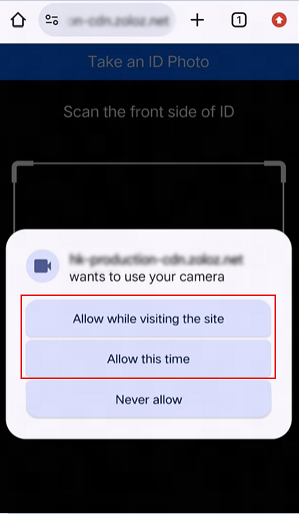
When the browser prompts you to grant camera access, please select "Allow while visiting the site" or "Allow this time".
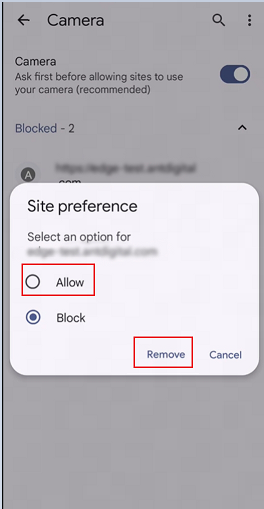
If camera access has been blocked, please follow the steps below to re-enable access.
-
In the browser, navigate to Settings > Site settings > Camera.
-
In the list of denied websites, click Remove to remove the record, or select Allow to re-grant permission.
-
Return to the browser page and refresh to try again.
Firefox
When the browser prompts you to grant camera access, please select "Allow".
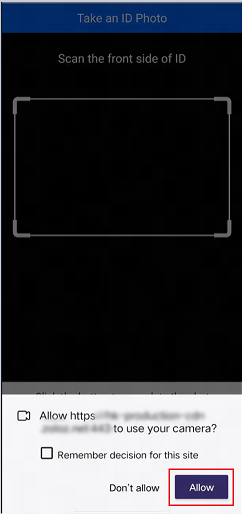
If camera access has been blocked, please follow the steps below to re-enable access.
-
In the browser, navigate to Settings > Site settings > Site permissions > Camera.
-
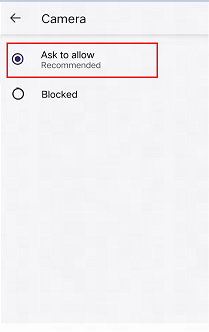
On the Camera page, select Ask to allow.
-
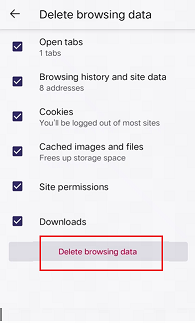
Go to Settings > Delete browsing date, click the Delete browsing date button to clear browser data and reset permissions.
-
Return to the browser page and refresh to try again.
Edge
When the browser prompts you to grant camera access, please select "Allow while visiting the site" or "Allow this time".
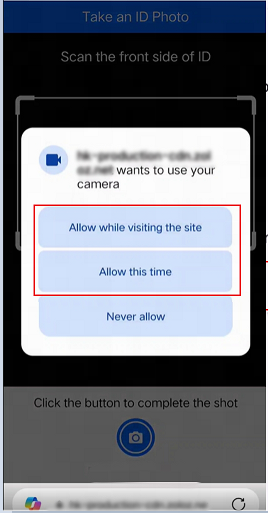
If camera access has been blocked, please follow the steps below to re-enable access.
-
In the browser, navigate to Settings > Site settings > Site permissions > Camera.
-
In the list of denied websites, remove the record or re-grant permission.
-
Option 1: Click Remove to remove the record.
-
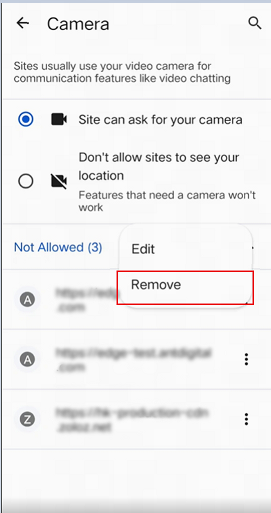
-
Option 2: Click Edit to enter edit mode, select Allow, then click Confirm to re-grant permission.
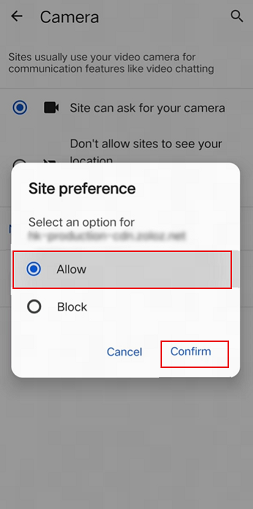
-
Return to the browser page and refresh to try again.
Opera
When the browser prompts you to grant camera access, please select "Allow".
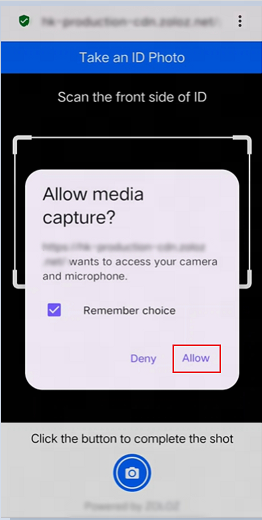
If camera access has been blocked, please follow the steps below to re-enable access.
-
In the browser, navigate to Settings > Privacy & security > Camera.
-
In the list of denied websites, click Reset permissions to reset permissions.
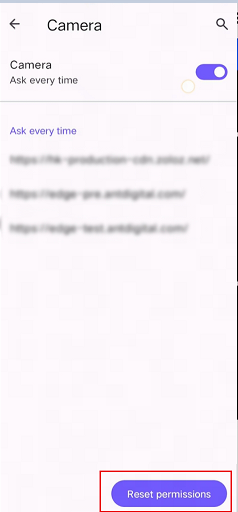
-
Return to the browser page and refresh to try again.
Safari
When the browser prompts you to grant camera access, please select "Allow".
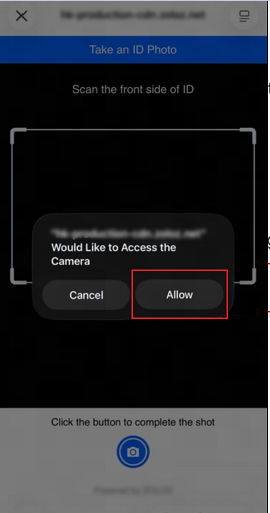
If camera access has been blocked, please follow the steps below to re-enable access.
-
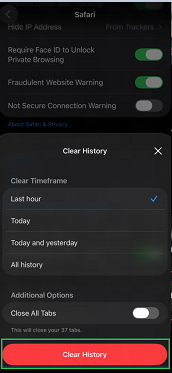
On your device, locate Settings.
-
Navigate to APPs > Safari > Camera > Clear History to reset permissions.
-
Return to the browser page and refresh to try again.
Other Recommendations
If the camera still cannot be enabled after completing all the above troubleshooting steps, please try the following methods to fix the issue.
-
Restart the device: Restarting can resolve temporary software or hardware conflicts.
-
Clear browser cache and cookies: This helps clear residual permission settings and abnormal cache, restoring normal loading and access.
Why am I unable to open/use the capture function when accessing the Web SDK via App?
This issue occurs on some device models/systems.
The Web SDK runs in the app's WebView container, whose kernel is bound to the device system. Some models/systems restrict the capture function in WebView.
Solutions:
-
Switch to a mobile browser before accessing.
-
Use the Native SDK integration mode to stably access the capture function in the App.
How do I hide the face guide page's title bar in Native SDK?
For Android SDK, the following solutions are supported:
-
Place the attachment ui.json in the project assets directory to hide the title bar.
UI.json
For iOS SDK, the following solutions are supported:
-
Add the "hiddenTitleBar" parameter to the URL of the face guide page and set the value of "hiddenTitleBar" to "true" (default is "false"). For example,
http://url-to-face-guide-page.html?hiddenTitleBar=true
Note: Hiding the title bar also hides the ZOLOZ back button. You must add a custom back button in your H5 page and implement the required event. Integration steps are in "Customize the selfie guidance page for Real ID".
What is the difference between SDK integration mode and pure API mode for ID Recognition?
SDK mode provides comprehensive services and better user experience for efficient integration. Pure API mode suits highly customized UIs or existing document-capture systems.
|
Comparison Item |
SDK Mode |
Pure API Mode |
|
Capture Page |
ZOLOZ provides a document capture page, allowing users to complete document capture guided by the page. Meanwhile, ZOLOZ continuously optimizes the capabilities and performance of the capture page to ensure user experience. |
You need to capture the image by yourself from your users before sending to ZOLOZ. |
|
Streamlined Service |
A complete, streamlined service is provided through the collaboration of ZOLOZ server, client, and algorithms. |
ZOLOZ focuses on verify the image recieved only, and does not control how you capture the image from users. |
|
API Response Time |
The API response time is relatively short, and the response speed is fast. The initialization and result retrieval stages do not involve time-consuming algorithm processing, which ensures a quick response. Interaction flow details: App SDK-mode integration. |
The API response time is relatively long and the response speed is slower. Each API call sends a request to the server over the network and waits for the server to process and return the response. In the pure API mode, the image to be verified needs to be passed to the server as a parameter. The server processes the image with algorithms, which is time-consuming, thus increasing the total response time of the API. |
|
Document Anti-counterfeiting Detection Security |
Verification capabilities across multiple dimensions can be conducted using the additional data collected through the SDK integration mode, resulting in relatively higher security.
|
capture capabilities vary by device, with relatively lower security.
|
|
Network Environment Limitations |
Utilizes asynchronous calls, along with retry mechanisms, local caching, and state management techniques. These provide a more flexible solution in poor network conditions, making it easier for users to obtain results in various network environments. |
Utilizes synchronous calls, requiring the server response before proceeding to the next operation. In poor network conditions, this may lead to request timeouts, call failures, or long response times, affecting user experience. |
|
Other Aspects |
With the ability for real-time interaction between ZOLOZ algorithm and the user's behavior in the page, users can choose to retake photos as needed, which enhances the user experience to some extent and reduces customer costs. |
None |
Can I use Postman's debugging interface?
No, Postman is not currently supported.
To ensure data security, please use the access sample code for debugging instead. You can refer to ZOLOZ integration examples here.
Client and Server Timeouts
Client timeout
Android and iOS clients use the following default capture times. If capture exceeds the default time, the client shows a timeout message.
-
Document capture: 60 seconds
-
Face capture: 30 seconds
Note: The default capture times target general scenarios. Server and policy controls can change the actual capture time to fit different business needs. In practice, you should adjust the defaults based on your needs.
Server timeout
Server timeout starts when the user begins an operation. If the user does not finish within the timeout, the system ends the current flow.
-
Native SDK: The timer starts after the user calls the initialize API and initialization succeeds. Timeout is 30 minutes.
-
Web SDK: The timer starts when the user opens ZOLOZ Web SDK URL. Timeout is 30 minutes.
API Call Errors
|
Error |
Possible reasons |
Solution |
|
SIGNATURE_INVALID |
The extracted signature string does not match the to-be-validated content string. |
Check ZOLOZ's sample demo for correct configuration: Get API credentials ready for use. |
|
ACCESS_DENIED |
The account does not have access rights to this specific API at the present moment. |
Only access to the Real ID API is enabled by default. For other product APIs such as ID Recognize and Face Compare, you will have to request for additional access. Please contact ZOLOZ's technical support to enable access rights for other product APIs to be called. |
|
PRODUCT_QUOTA_LIMIT |
The test quota limit for API calls may have been reached. |
Please contact ZOLOZ technical staff to handle your case. You will need to provide sandbox environment information, such as the sg-sandbox environment, the clientID, as well as the email used. |
|
HIGH_RISK |
The risk control engine may have been triggered. |
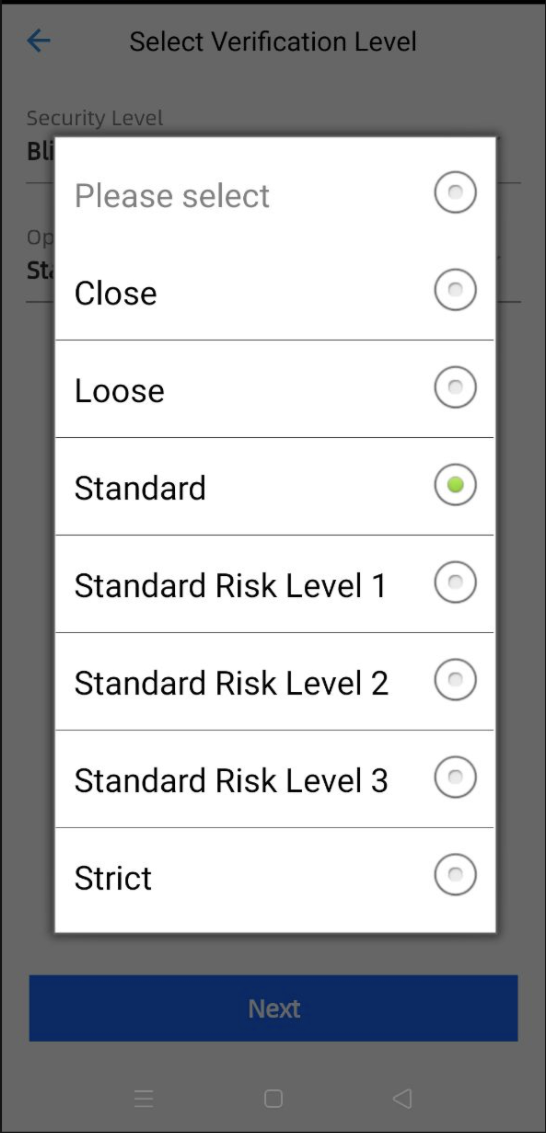
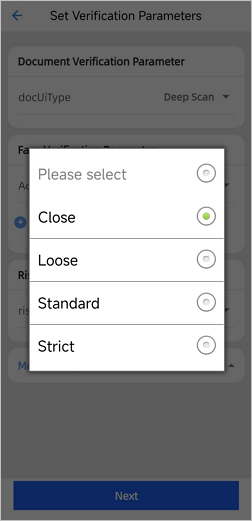
To prevent your test activities from being identified as high risk in the sandbox environment, you can flexibly adjust risk control strategies as needed. Here are two methods to achieve this: Method 1: Use the
Your demo app should look like this:
Method 2: Set the
Here are the definitions for IDN and Velocity:
|
|
MERCHANT_NOT_FOUND |
Error(s) may have occured regarding the clientID, endpoint/url, ZOLOZ public key, or merchant private key. |
Please check that each of the following configurations are correct:
** Note that the portal environment has to be consistent with the endpoint/url environment.
** Note that this misconfiguration would usually result in an INVALID_SIGNATURE error rather than a MERCHANT_NOT_FOUND error. |
|
PARAM_MISSING |
The required request parameters are missing. |
Please check that you are using the correct request parameter values according to the documentation. If an optional request parameter has been passed in, the parameter value cannot be empty. |
|
SYSTEM_ERROR |
Two possible reasons could have occured:
|
|
ZOLOZ Portal
What should I do if I encounter a login error and am unable to access my ZOLOZ Portal?
Use your browser's developer tools to identify the error. Send the error's request and response information to ZOLOZ technical support for investigation.
To access developer tools:
-
Open the ZOLOZ portal in your web browser and attempt a login.
-
A 'system error' pop-up should appear if there is a login error.
-
Open the developer tools panel. In most web browsers, you can access it by:
-
Right-clicking the page and clicking on 'Inspect' or 'Inspect Element' from the drop-down menu
-
Using keyboard shortcuts Ctrl + Shift + I (Windows) or Cmd + Opt + I (Mac)
-
Alternatively for Chrome users: you can also click the top right menu on the address bar > More Tools > Developer Tools
-
-
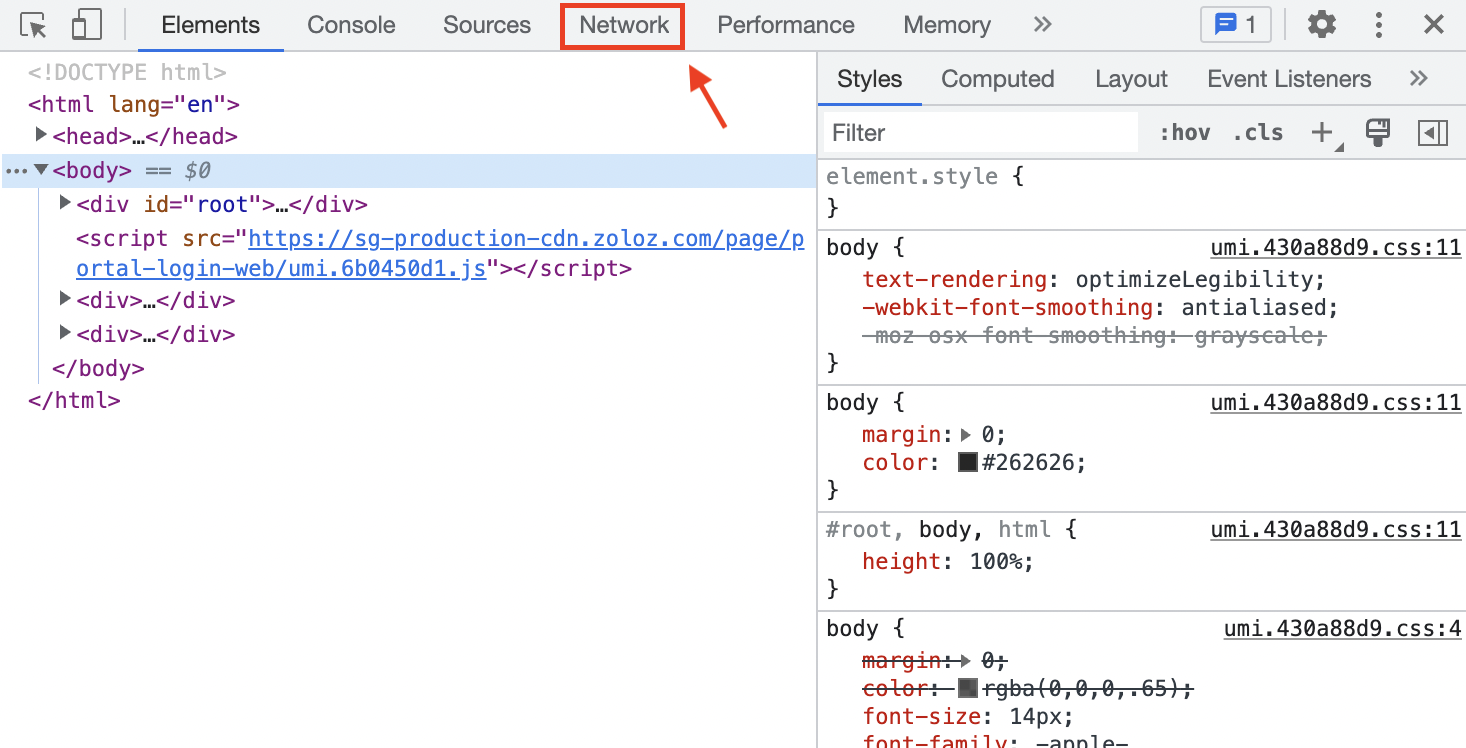
In the developer tools panel, click on the 'Network' tab. A list of network requests and responses that the webpage has made will be shown here.
-
Under the 'Name' table, find a request titled 'Login'. When you click on the 'Headers' tab, it'll be shown as a POST request.
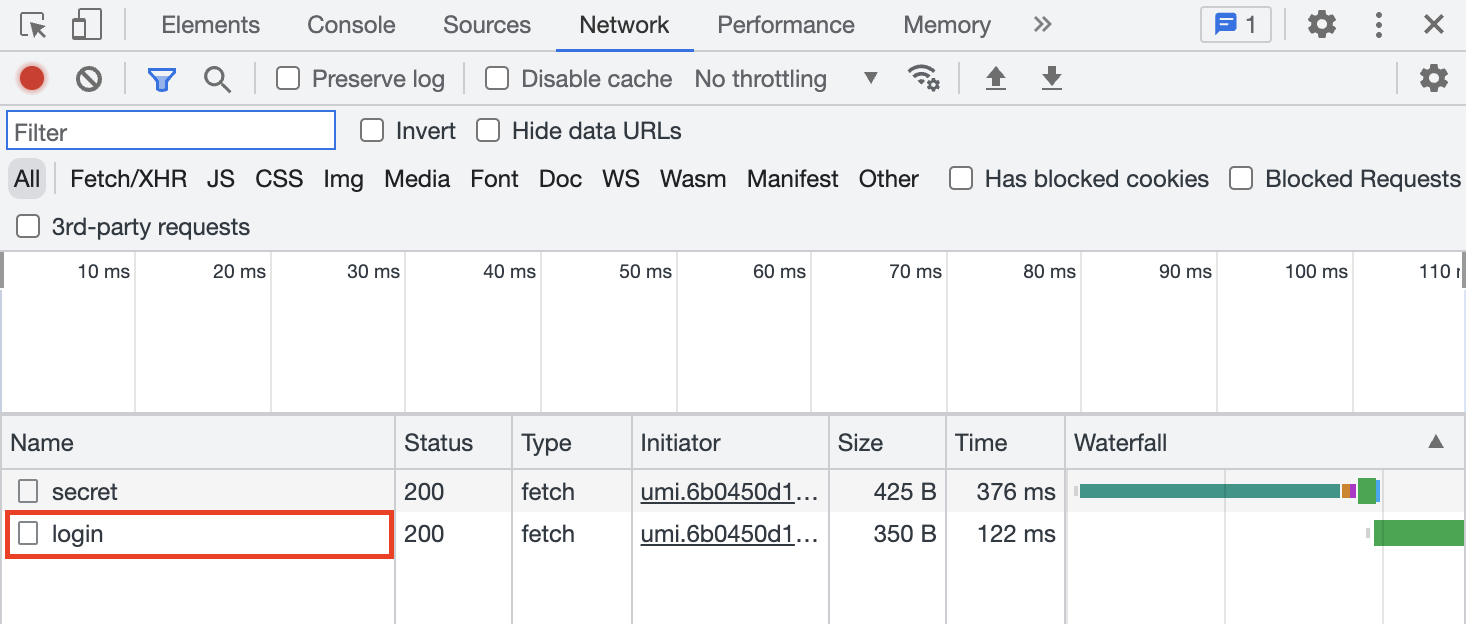
If you do not see a 'Login' request, please initiate the error by attempting another login.
-
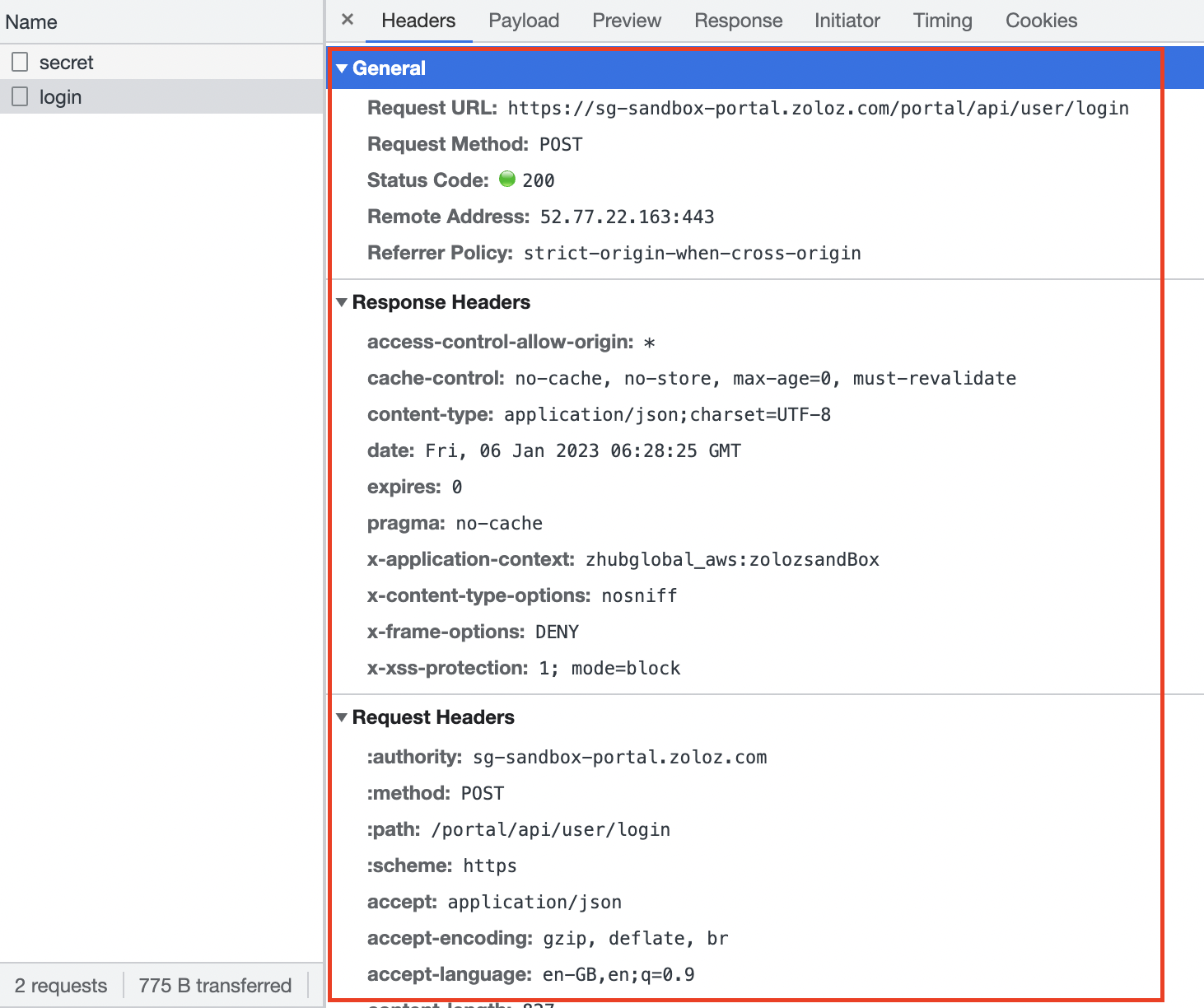
Please send the following information to ZOLOZ's technical support:
-
General
-
Response Headers
-
Request Headers
-
-
'Response' tab's code information

Client-side
Client integration prompt Z7011
Cause: The metaInfo passed to the initialize API is incorrect.
Please check that you're not using the sample metaInfo found in the documentation.
To obtain the correct metaInfo:
-
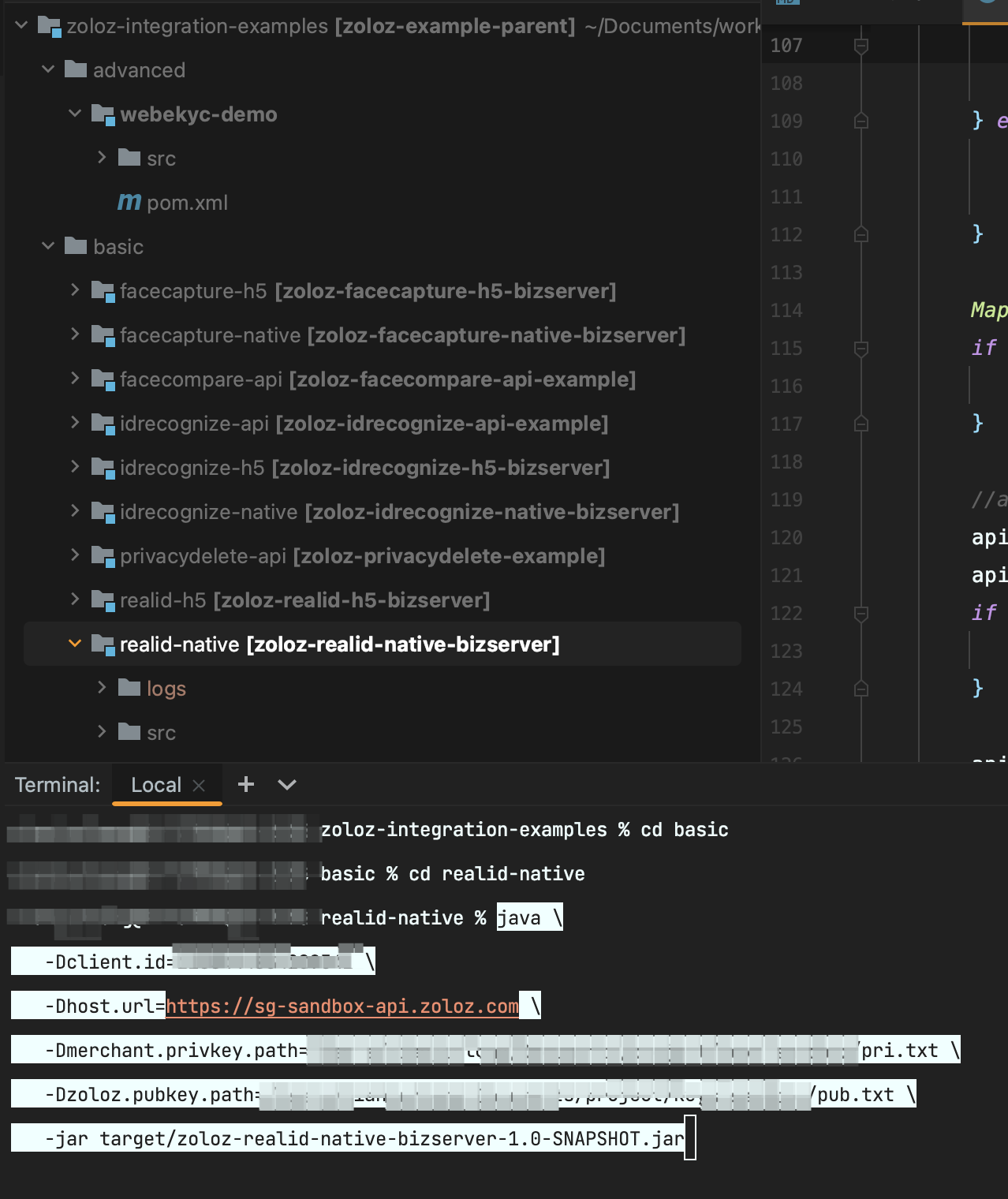
Run the Native Demo locally
-
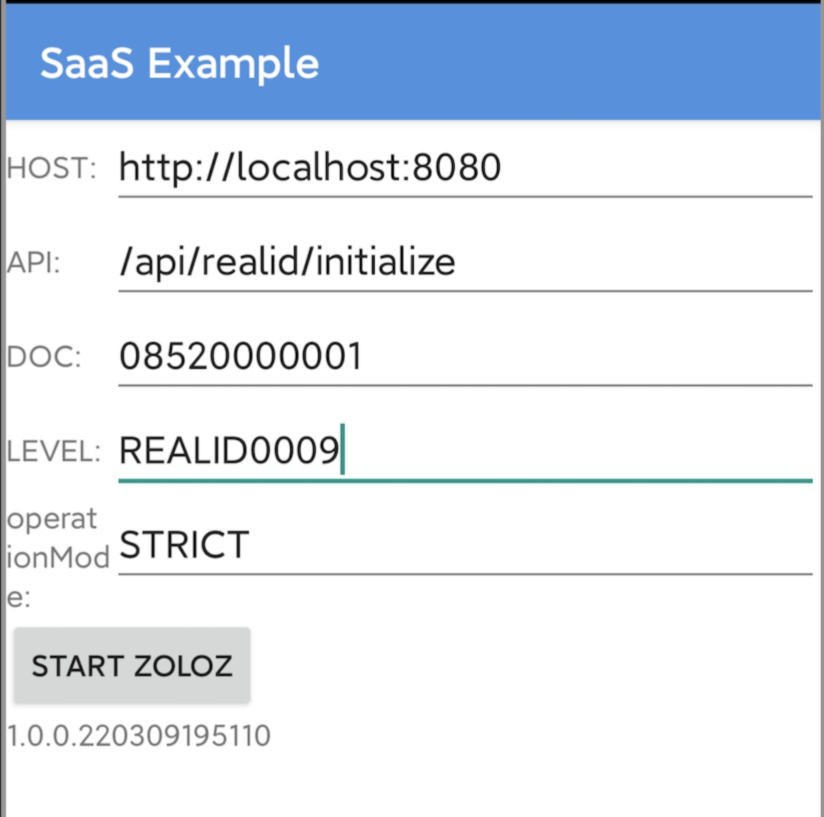
After the server has successfully started, configure it with the “ZOLOZ SaaS Example” tool
-
Once the configuration is complete, click 'START ZOLOZ' so that the server can receive the metaInfo content through the Request object
-
Call the initialize API again
Algorithm-related
What should I do if the document display is blurred?
A blur prompt appears if the document is:
-
Blurry
-
Reflective
-
Blocked by foreign objects;
-
or if the information on the document cannot be completely identified
If the capture is blurry, please recapture it under normal light conditions. During the recapture, please avoid any obstructions, reflections, and any other issues that could affect the identification and comparison process.
What should I do if tampering has been detected?
Tampering will be prompted when information or face tampering has been detected in the document.
Please initiate a manual review to determine whether fraud has occurred.
If your manual review still regards it as normal document, please contact ZOLOZ's technical support for further investigation.
What should I do if the material check fails?
Material check failure will be prompted when:
-
There are printing issues
-
Fake materials have been detected
First, please check if the failure has occurred due to printing or fake material detection.
If the algorithm has identified a printing error, please recapture the document under normal light conditions. If you still encounter repeated unsuccessful entries, please contact ZOLOZ's technical support.
What should I do when there is a face recognition failure?
Face recognition failure occurs when:
-
The lighting is too bright or too dark
-
The background is mottled or blurred
-
There are border-shaped objects in the background
When initiating face verification, please conduct it with a bright and clear background. If you still encounter repeated unsuccessful entries, please contact ZOLOZ's technical support.