You can use event rules to filter events and route the events to WeCom. This topic describes the prerequisites and procedure for routing custom events to WeCom. This topic also describes how to verify the result.
Prerequisites
EventBridge is activated and the required permissions are granted to a Resource Access Management (RAM) user. For more information, see Activate EventBridge and grant permissions to a RAM user.
A WeCom account is registered and a WeCom group is created.
A custom chatbot is added to the WeCom group and the Webhook URL is copied.
Step 1: Create a custom event source
Log on to the EventBridge console. In the left-side navigation pane, click Event Buses.
In the top navigation bar, select a region. On the Event Buses page, click the name of the custom event bus that you want to manage.
In the left-side navigation pane, click Event Sources and then click Add Event Source.
In the Add Custom Event Source panel, configure the Name and Description parameters, select Custom Application from the Event Provider drop-down list, and then click OK.
Step 2: Create an event rule
The event targets that you want to configure for an event rule must reside in the same region as the event rule.
Log on to the EventBridge console. In the left-side navigation pane, click Event Buses.
In the top navigation bar, select a region. On the Event Buses page, click the name of the event bus that you want to manage.
In the left-side navigation pane, click Event Rules. On the page that appears, click Create Rule.
In the Create Rule panel, perform the following steps and click Create.
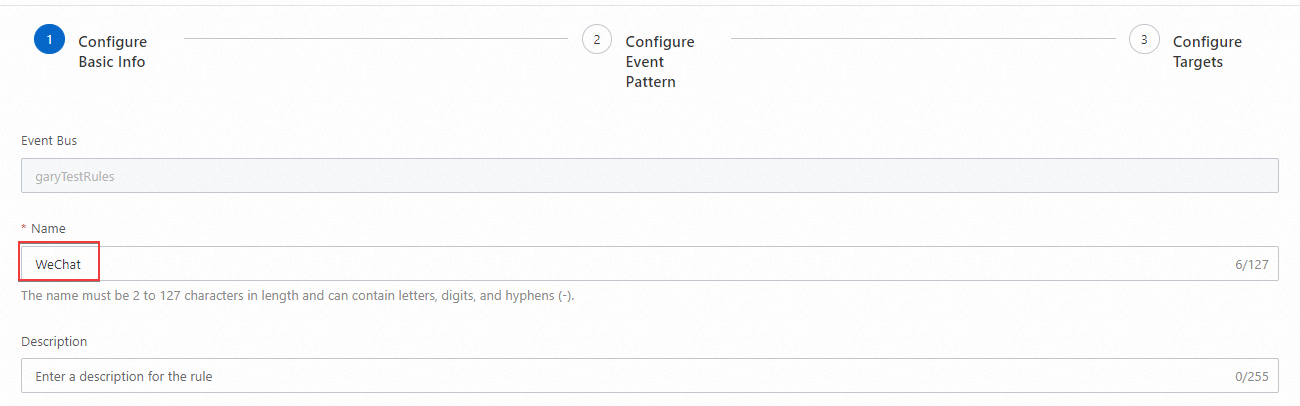
In the Configure Basic Info step, configure the Name and Description parameters and click Next Step.
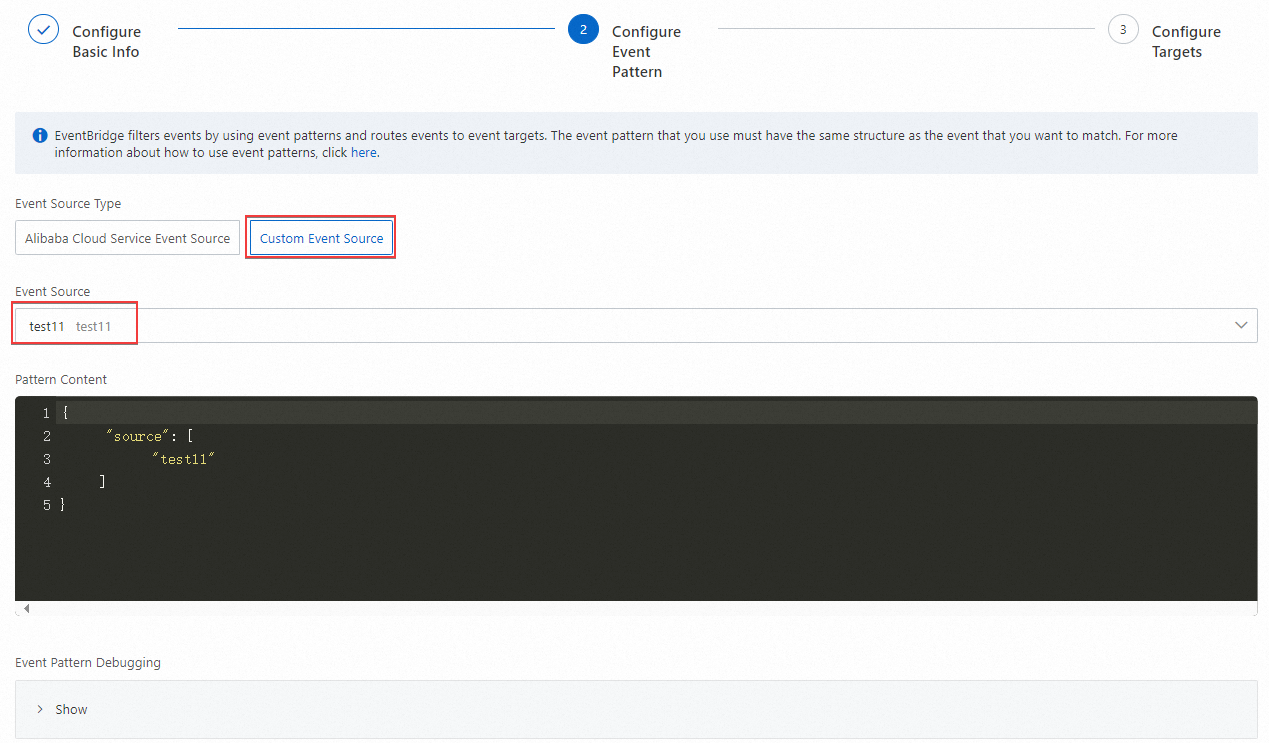
In the Configure Event Pattern step, set the Event Source Type parameter to Custom Event Source, select the created event source from the Event Source drop-down list, and then click Next Step.
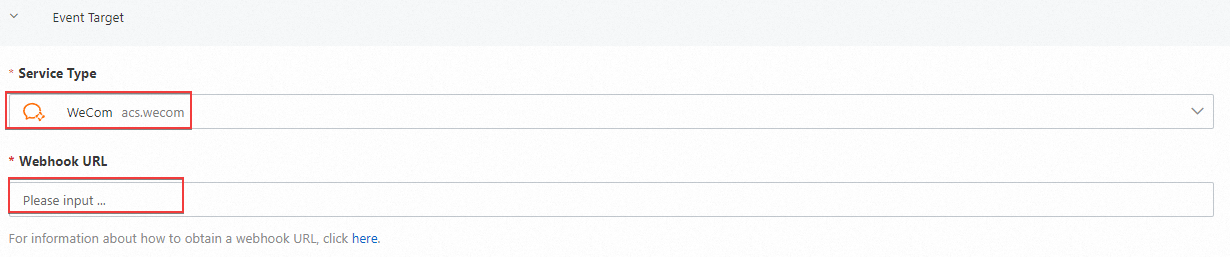
In the Configure Targets step, configure the parameters and click Create.
Set the Service Type parameter to WeCom and paste the webhook URL that you copied from WeCom to the Webhook URL field.
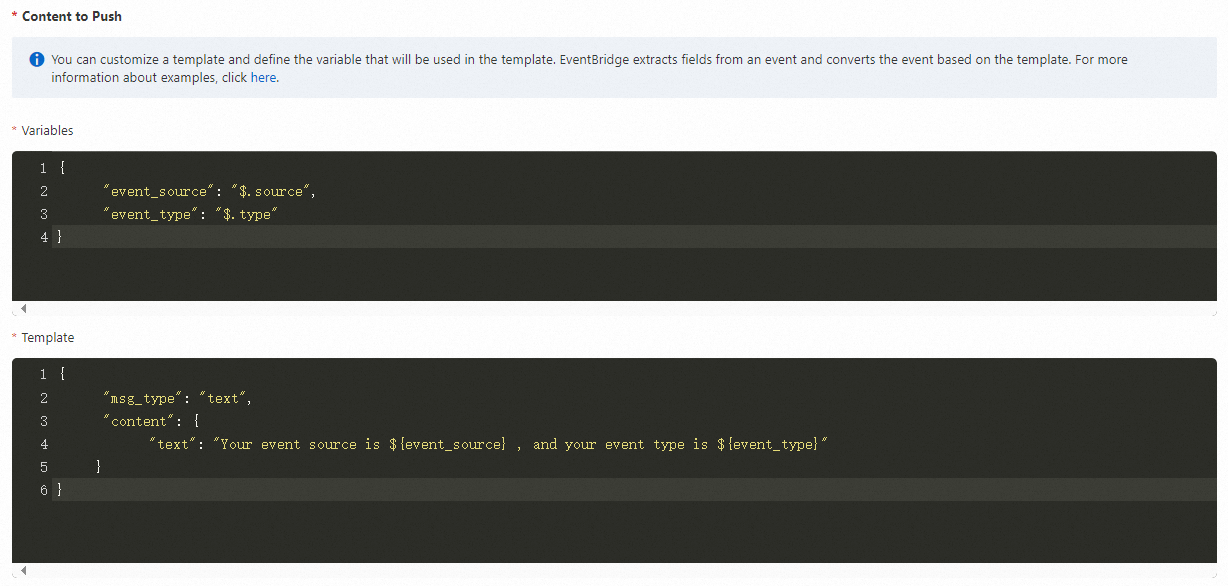
Specify the content that you want to push in the Variables and Template code editors.
 Note
NoteIn this example, sample content in the EventBridge console is pushed. In the production environment, you must configure the variables and template based on your business requirements. For more information, see Event transformation.
Step 3: Publish an event
Log on to the EventBridge console. In the left-side navigation pane, click Event Buses.
- In the top navigation bar, select a region.
- On the Event Buses page, find the event bus to which you want to publish an event and click Publish Event in the Operations column. Note You can publish events only to custom event buses in the EventBridge console.
- In the Publish Event to Custom Event Bus panel, select a custom event source from the Custom Event Source drop-down list, enter the event content in the Event Body code editor, and then click OK. For more information about the event parameters, see Overview.
Step 4: Verify the result
Enter the WeCom group to check whether the event is pushed by the chatbot.