This topic describes how to create an event stream whose event target is ApsaraMQ for RocketMQ in the EventBridge console.
Prerequisites
EventBridge is activated and the required permissions are granted to a Resource Access Management (RAM) user. For more information, see Activate EventBridge and grant permissions to a RAM user.
An ApsaraMQ for RocketMQ instance is purchased and deployed. Make sure that the instance is in the Running state. For more information, see Create an instance.
Create an event stream
Log on to the EventBridge console. In the left-side navigation pane, click Event Streams.
In the top navigation bar, select a region and click Create Event Stream.
On the Create Event Stream page, configure the Task Name and Description parameters and follow the on-screen instructions to configure other parameters. Then, click Save. The following section describes the parameters:
Task Creation
In the Source, Filtering, and Transformation steps, configure the event source, event filtering method, and event transformation rule. Then, click Next Step. For information about event transformation configurations, see Use Function Compute to perform message cleansing.
In the Sink step, set the Service Type parameter to Message Queue for Apache RocketMQ and follow the on-screen instructions to configure other parameters. The following table describes the parameters.
Parameter
Description
Example
Version
Select the version of the ApsaraMQ for RocketMQ instance.
RocketMQ 4.x
Instance ID
Select the ApsaraMQ for RocketMQ instance that you created.
test
Topic
Select the topic that you created on the ApsaraMQ for RocketMQ instance.
test
Message Body
EventBridge extracts data from an event by using JSONPath and routes the specified event content to the event target.
Partial Event
$.data.bodyCustom Property
Select Template. You can define the variables to specify a custom template. EventBridge allows you to extract fields from an event and transform the event based on the template.
NoteIf you want to deliver all message attributes from the event source, we recommend that you use the sample code in the Example column.
Parameters:
{ "userProperties":"$.data.userProperties", "msgId":"$.data.systemProperties.UNIQ_KEY" }Template:
{
  "EB_SYS_EMBED_OBJECT":"${userProperties}",
  "UNIQ_KEY":"${msgId}"
}
Message Key
EventBridge extracts data from an event by using JSONPath and routes the specified event content to the event target.
Partial Event
$.data.systemProperties.KEYSMessage Tag
EventBridge extracts data from an event by using JSONPath and routes the specified event content to the event target.
Partial Event
$.data.systemProperties.TAGS
Task Property
Configure the retry policy and dead-letter queue for the event stream. For more information, see Retry policies and dead-letter queues.
Go back to the Event Streams page and find the event stream that you created. Then, click Enable in the Actions column.
Enabling an event stream requires 30 to 60 seconds to complete. You can view the progress in the Status column of the event stream on the Event Streams page.
Verify the result
Log on to the ApsaraMQ for RocketMQ console. In the top navigation bar, select the region where your ApsaraMQ for RocketMQ instance resides.
In the left-side navigation pane, click Instances.
On the Instances page, find the instance that you want to manage and click Details in the Actions column.
In the left-side navigation pane, click Topics. On the page that appears, click the name of the topic that you want to manage.
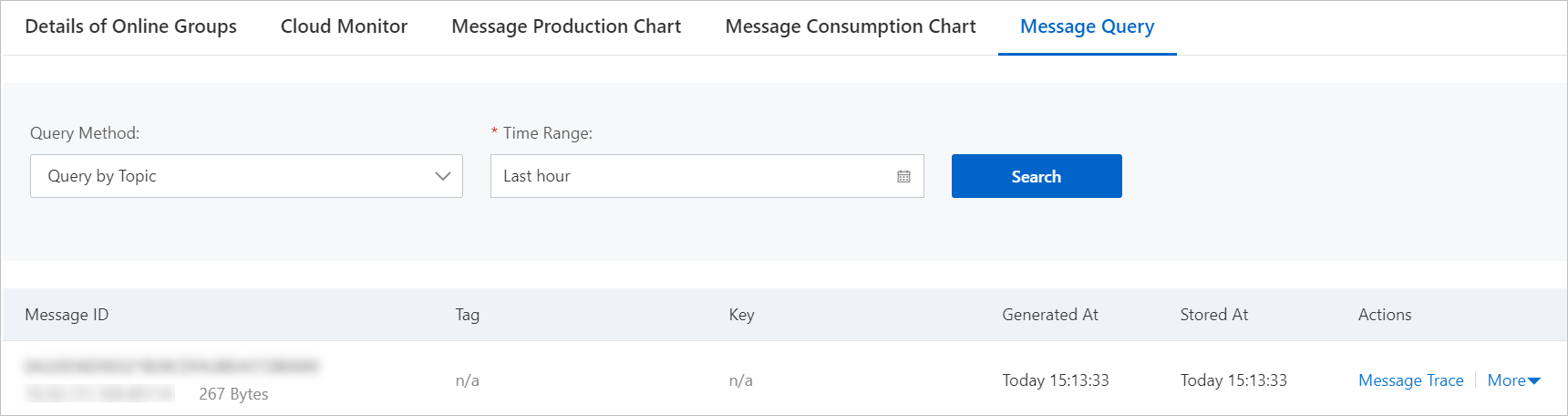
On the Topic Details page, click the Message Query tab, configure the Query Method and Time Range parameters, and then click Search.