EventBridge event streams continuously capture events from a source, apply optional filtering and transformation, and deliver results to a target. This topic walks you through creating an event stream that routes events to an ApsaraMQ for RabbitMQ instance.
Events are delivered to either a queue or an exchange on your RabbitMQ instance. EventBridge uses JSONPath expressions to extract specific fields from each event and map them to the RabbitMQ message body, routing key, MessageId, and custom properties.
Prerequisites
Before you begin, make sure that you have:
An activated EventBridge service with the required Resource Access Management (RAM) permissions. For details, see Activate EventBridge and grant permissions to a RAM user
An ApsaraMQ for RabbitMQ instance in the Running state. For details, see Step 1: Create resources
Create an event stream
Log on to the EventBridge console.
In the left-side navigation pane, click Event Streams.
In the top navigation bar, select a region, then click Create Event Stream.
Enter a Task Name and Description for the event stream.
Configure the event source, filtering rules, and transformation logic:
In the Source, Filtering, and Transformation steps, specify the event source, define filtering conditions, and set up any transformation rules. Then click Next Step. To transform event data with Function Compute, see Use Function Compute to perform message cleansing.
Configure ApsaraMQ for RabbitMQ as the event target:
In the Sink step, set Service Type to Message Queue for RabbitMQ.
Configure the sink parameters described in the following table.
Click Save.
Sink parameters
| Parameter | Description | Example |
|---|---|---|
| Instance ID | The ApsaraMQ for RabbitMQ instance to receive events. | amqp-cn-zvp2pny6**** |
| vhost | The virtual host on the selected instance. | test |
| Destination Type | How events are delivered. Exchange: routes messages through an exchange, which distributes them to one or more bound queues based on routing rules. Queue: sends messages directly to a specific queue. | Queue |
| Exchange | The exchange to route events to. Required only when Destination Type is set to Exchange. | exchange |
| Queue | The queue to route events to. Required only when Destination Type is set to Queue. | queue |
| Message Routing Key | A JSONPath expression that extracts the routing key from the event. Required only when Destination Type is set to Exchange. | $.data.key |
| Message Body | A JSONPath expression that extracts the message payload from the event. | $.data.body |
| MessageId | A JSONPath expression that extracts the message identifier from the event. | $.data.props.messageId |
| Custom Property | A JSONPath expression that extracts custom AMQP message properties from the event. | $.data.props |
All JSONPath parameters use Partial Event extraction -- EventBridge evaluates the expression against the incoming event and sends only the matching content to RabbitMQ.
Retry policy and dead-letter queue
In the Task Property section, configure the retry policy and dead-letter queue for the event stream. These settings control how EventBridge handles delivery failures.
For details, see Retry policies and dead-letter queues.
Enable the event stream
A newly created event stream is inactive by default. To start routing events:
Go back to the Event Streams page.
Find the event stream and click Enable in the Actions column.
Activation takes 30 to 60 seconds. Track the progress in the Status column.
Verify event delivery
Confirm that messages are arriving in your RabbitMQ instance:
Log on to the ApsaraMQ for RabbitMQ console.
In the Resource Distribution section of the Overview page, select the region where your instance resides.
On the Instances page, click the name of the target instance.
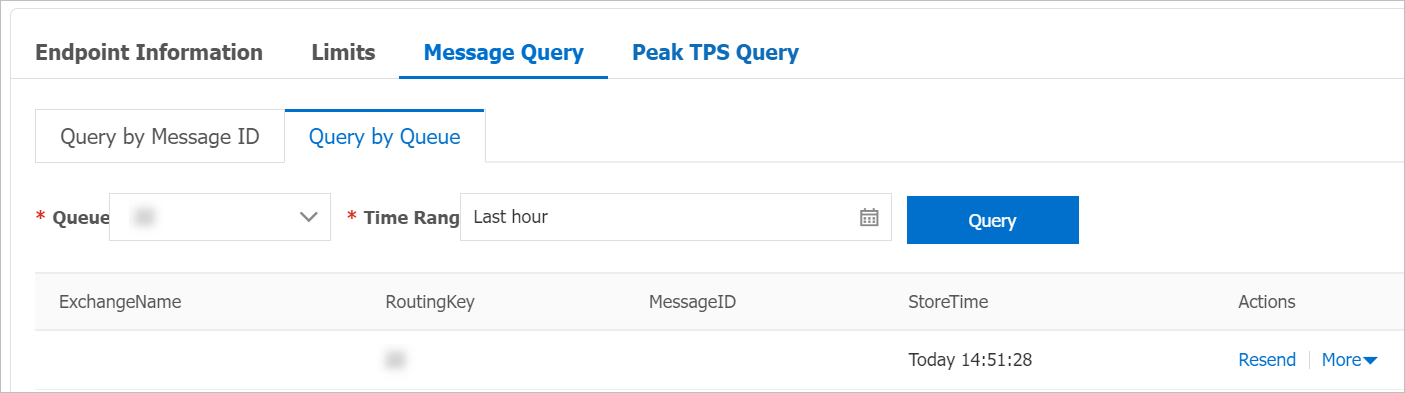
In the Basic Information section of the Instance Details page, click the Message Query tab.
Select Query by Queue, specify the target queue and a Time Range, then click Query. Messages routed from EventBridge appear in the query results.