Organizations with multiple Alibaba Cloud accounts often need to process events in a single place -- for auditing, monitoring, or automated responses. EventBridge cross-account event routing forwards events from one or more sender accounts to a receiver account's event bus, so you can consolidate event processing without duplicating infrastructure.
The setup follows two main parts:
Receiver side (Account B): Create a Resource Access Management (RAM) role that trusts the sender account, and grant it permission to publish events.
Sender side (Account A): Create an event rule that routes events to the receiver account's event bus.
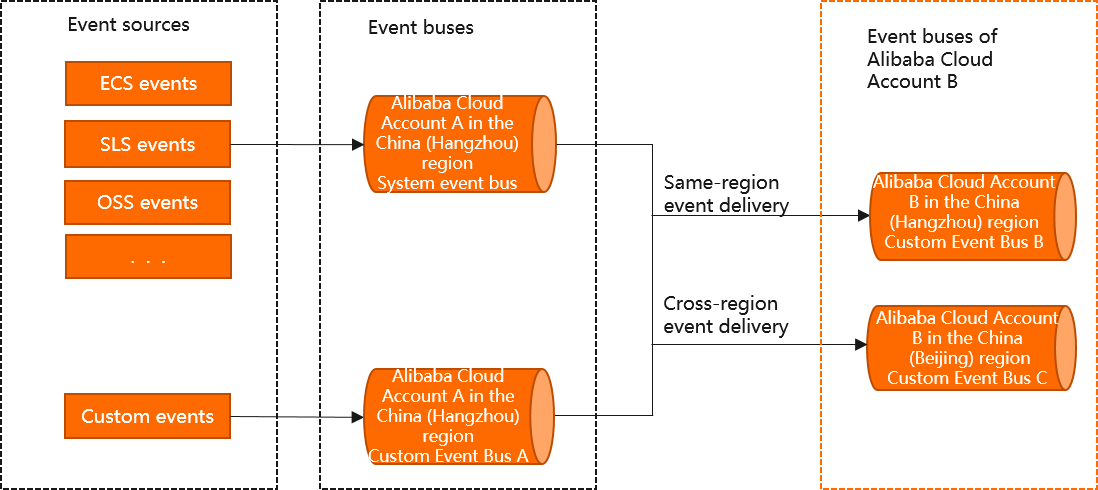
Constraints
Both accounts must be in the same region. Cross-region event routing is not supported.
Event bus types must match: system event bus events can only route to a system event bus, and custom event bus events can only route to a custom event bus.
Each event rule supports up to five event targets.
You can attach up to five policies to a RAM user at a time.
Prerequisites
Before you begin, make sure that you have:
Two Alibaba Cloud accounts: a sender account (Account A) and a receiver account (Account B)
Administrator access to the RAM console on Account B
Administrator access to the EventBridge console on Account A
The Account ID of Account A (the sender)
Set up the receiver account (Account B)
Steps 1 through 3 are all performed on Account B. You create a RAM role, grant it the EventBridge publish permission, then update the trust policy so Account A's EventBridge service can assume the role.
Step 1: Create a RAM role
Log on to the RAM console with Account B.
In the left-side navigation pane, choose Identities > Roles.
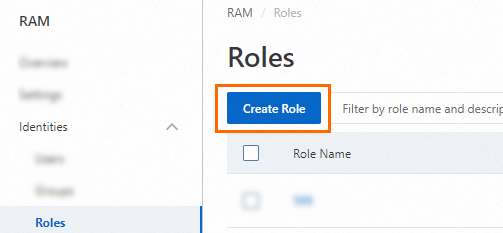
On the Roles page, click Create Role.
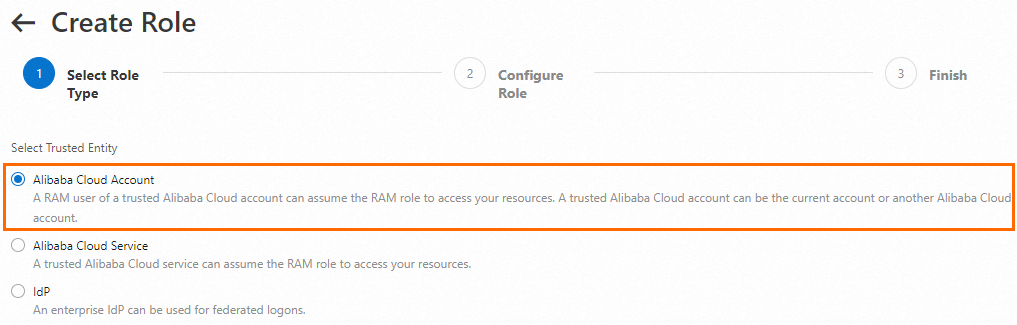
Select Alibaba Cloud Account as the role type and click Next.
Configure the RAM role:
Enter a name in the RAM Role Name field.
(Optional) Enter a description in the Note field.
Set the trusted account to Other Alibaba Cloud Account and enter the Account ID of Account A.
Click OK.
Step 2: Grant the RAM role permission to publish events
Attach the AliyunEventBridgePutEventsPolicy policy to the RAM role you created. This grants permission to publish events to Account B's event bus.
In the left-side navigation pane, choose Identities > Roles.
Find the RAM role you created in Step 1 and click Grant Permission in the Actions column. You can also select multiple RAM roles and click Grant Permission in the lower part of the RAM role list to grant permissions to multiple RAM roles at a time.

In the Grant Permission panel, configure the following settings:
Set the authorization scope:
Account: Grants permissions across the entire Alibaba Cloud account.
ResourceGroup: Grants permissions within a specific resource group. The target cloud service must support resource groups. For more information, see Services that work with Resource Group.
Verify that the principal is set to the RAM role you created.
In the Policy section, search for and select AliyunEventBridgePutEventsPolicy.
Click Grant permissions.
You can attach up to five policies to a RAM user at a time. To attach more, repeat this step.
For fine-grained access control over specific event buses, create a custom policy instead of using the built-in policy. For more information, see Create custom policies.
Step 3: Update the trust policy
Update the RAM role's trust policy so that Account A's EventBridge service -- not just the account itself -- can assume the role.
In the left-side navigation pane, choose Identities > Roles.
Click the name of the RAM role you created in Step 1.
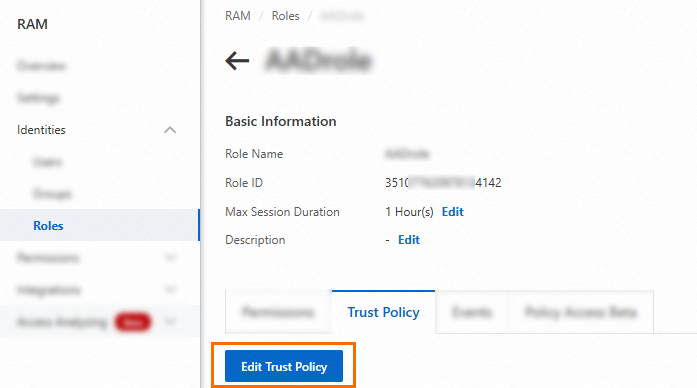
On the Trust Policy tab, click Edit Trust Policy.
Replace the trust policy with the following content, then click Save trust policy document. Replace
<Account-A-ID>with the actual Account ID of Account A. After you save the trust policy, EventBridge on Account A can assume this RAM role to publish events to Account B.{ "Statement": [ { "Action": "sts:AssumeRole", "Effect": "Allow", "Principal": { "Service": [ "<Account-A-ID>@eventbridge.aliyuncs.com" ] } } ], "Version": "1" }
Create an event rule on the sender account (Account A)
On Account A, create an event rule that routes specific events to Account B's default event bus.
Log on to the EventBridge console with Account A.
In the left-side navigation pane, click Event Buses.
In the top navigation bar, select the region where you want to route events.
On the Event Buses page, click default to open the default event bus.
In the left-side navigation pane, click Event Rules, then click Create Rule.
Complete the Create Rule wizard:
Configure Basic Info: Enter a rule name in the Name field and an optional description in the Description field. Click Next Step.
Configure Event Pattern: Set Event Source Type to Alibaba Cloud Service Event Source. Select the event source and event type from the Event Source and Event Type drop-down lists. Specify an event pattern in the Event Pattern Content editor. Click Next Step.
Configure Targets: Set the following parameters, then click Create.
Parameter
Value
Service Type
EventBridge
Destination Account Type
Another Alibaba Cloud Account (auto-populated)
Account ID
The Account ID of Account B (receiver)
Event Bus Name
defaultEvent
Complete Event (auto-populated). Routes the full CloudEvents 1.0 data structure without transformation.
Verify the result
Confirm that events are flowing from Account A to Account B.
Log on to the EventBridge console with Account B.
Query events on the default event bus. For detailed instructions, see Query events.
Each cross-account event includes the aliyunoriginalaccountid extension field, which identifies the sender account. Add this field to your event patterns to filter events by source account. Without this filter, any rule on Account B that matches the event pattern will trigger on cross-account events from all authorized senders -- which may cause unintended rule matches.
Route events from multiple accounts
Multiple sender accounts can route events to the same event bus on the receiver account. For each additional sender account:
On Account B, add the sender's Account ID to the RAM role's trust policy by adding an entry to the
Servicearray:{ "Statement": [ { "Action": "sts:AssumeRole", "Effect": "Allow", "Principal": { "Service": [ "<Account-A-ID>@eventbridge.aliyuncs.com", "<Account-C-ID>@eventbridge.aliyuncs.com" ] } } ], "Version": "1" }On the new sender account, create an event rule that targets Account B's event bus (follow the same steps in Create an event rule on the sender account).
When routing events from multiple accounts, use the aliyunoriginalaccountid field in your event patterns on Account B to distinguish events by sender. This prevents a single rule from inadvertently processing events from all senders.