This topic describes how to use an HTTP event source to integrate Shopify with EventBridge.
Shopify is a Software as a Service (SaaS) e-commerce platform that provides tools for building online stores and managing marketing, sales, payments, and logistics across channels. EventBridge supports fast integration with Shopify to manage events and alerts in a centralized manner.
Prerequisites
Before you begin, make sure that you have:
A Shopify account. If you do not have one, sign up on the Shopify website
Step 1: Create an HTTP event source in EventBridge
Create an event source that receives webhook requests from Shopify.
Log on to the EventBridge console.
Create a custom event source of the HTTP/HTTPS Events type with the following settings. For detailed instructions, see Create a custom event source of the HTTP/HTTPS Events type.
Parameter Value Request Type HTTP & HTTPS Request Method POST Security Configuration Optional After the event source is created, find it in the event source list and click Details.
Copy the Internet request URL. This URL serves as the webhook endpoint that Shopify sends events to.

Step 2: Configure a webhook in Shopify
Connect Shopify to EventBridge by adding a webhook that points to the event source URL.
Log on to the Shopify console.
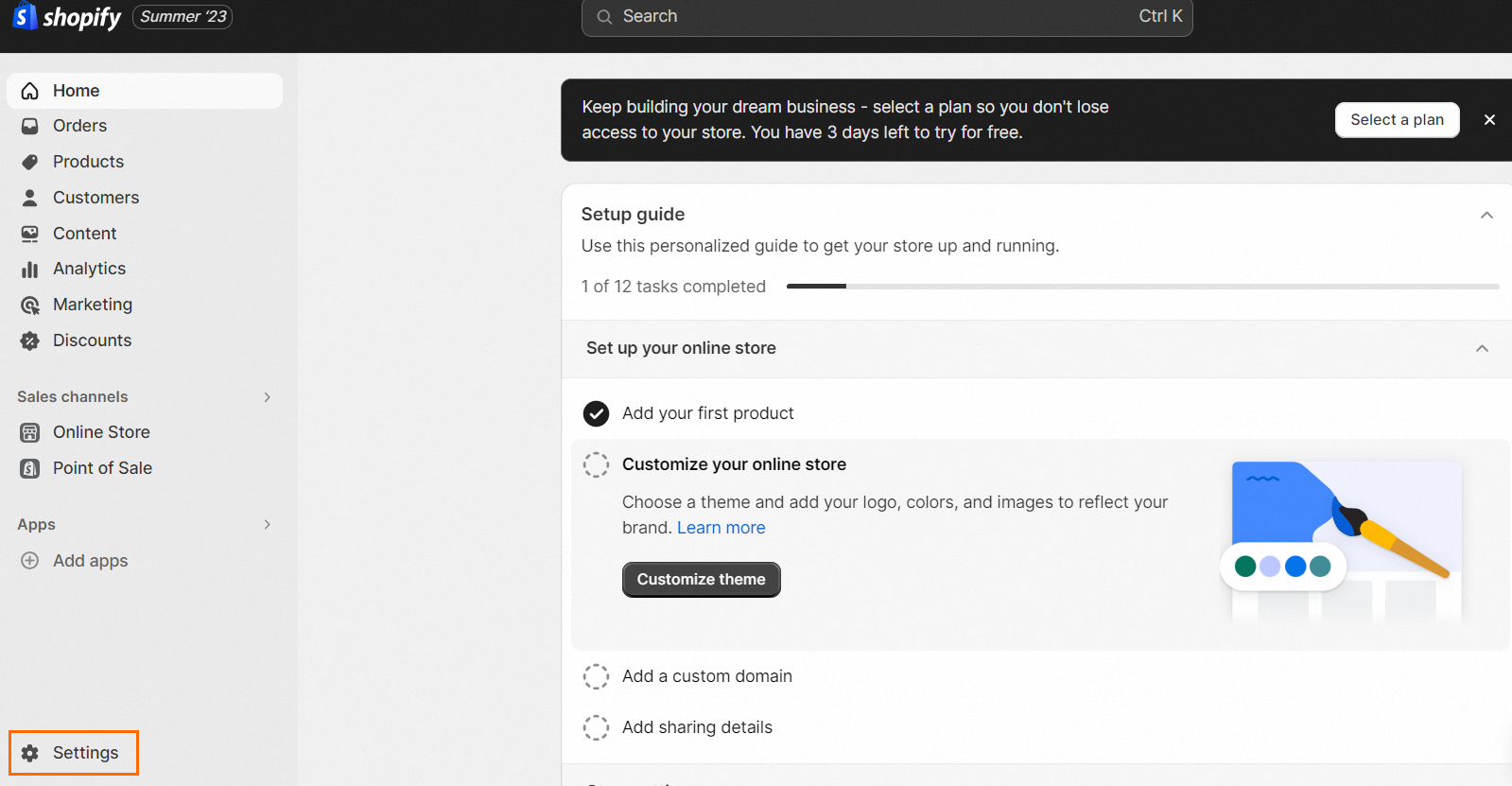
In the lower-left corner of the store homepage, click Settings.
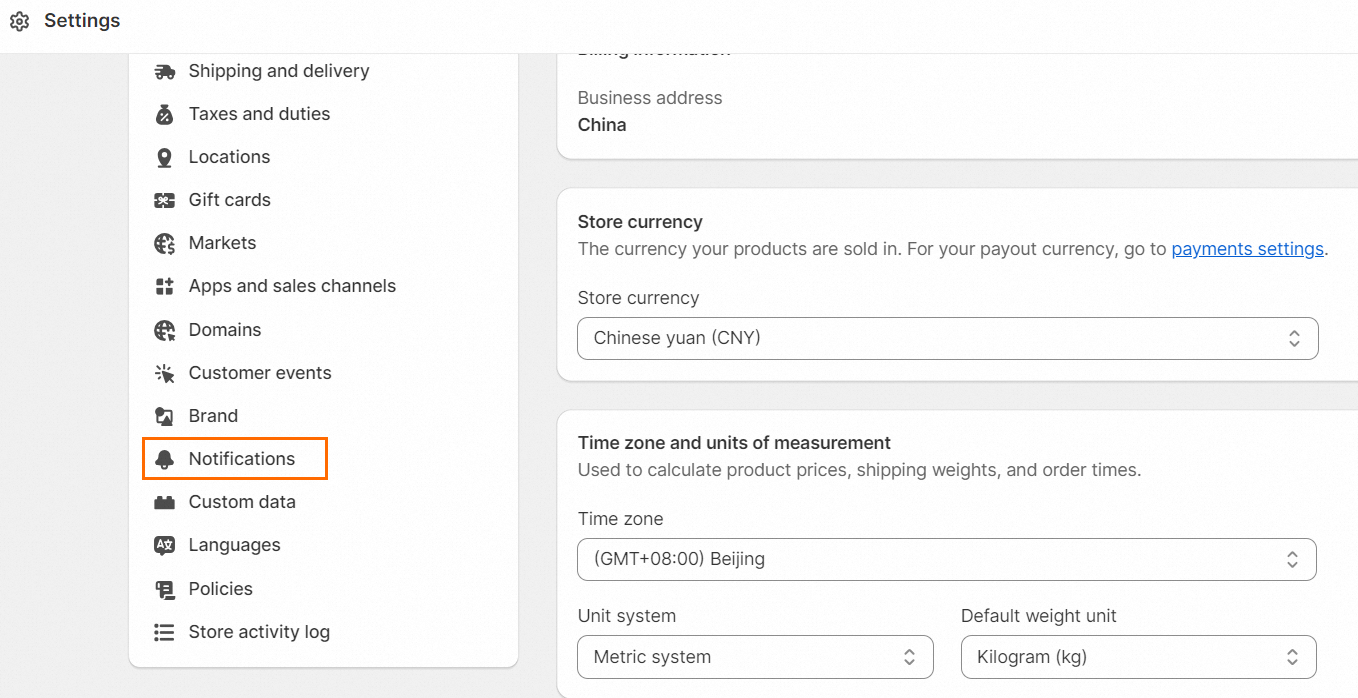
In the left-side navigation pane, click Notifications.
Scroll to the Webhooks section and click Create webhook.

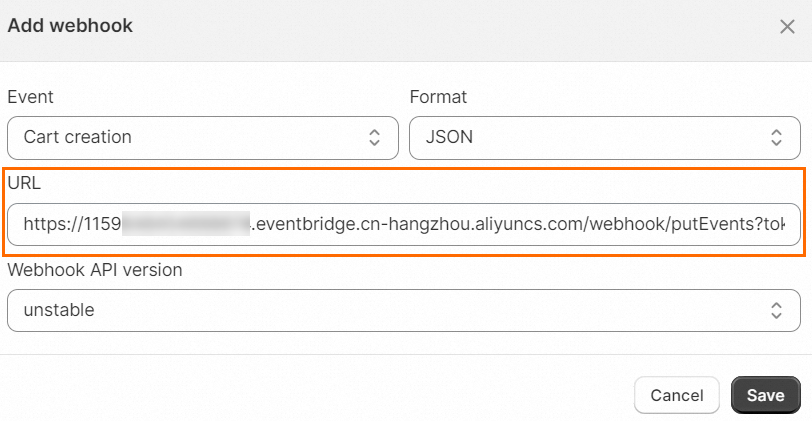
In the Add webhook dialog box, configure the following parameters and click Save.
Event: Select the event type that triggers the webhook. For example, select Product creation to send an event to EventBridge each time a product is created in your store.
URL: Paste the Internet request URL copied in Step 1.
Step 3: Trigger an event
Go back to the Shopify store homepage and perform the action that matches the trigger you configured. For example, if you selected Product creation in Step 2, create a new product.
Verify the result
Confirm that EventBridge received the event from Shopify.
Log on to the EventBridge console.
In the top navigation bar, select the region where your custom event bus is deployed.
In the left-side navigation pane, click Event Buses.
In the left-side navigation pane, click Event Tracking to view incoming events and verify that the Shopify event appears.