After you attach a new disk to an ENS instance, you cannot use it to store data until you initialize it. To initialize a disk, you create a partition and mount a file system.
Before you begin
Initializing a disk is a high-risk operation. Proceed with caution.
Initialize only new data disks. If a data disk already contains data, create a snapshot of it first to prevent data loss.
You only need to initialize data disks. System disks do not require initialization. Forcibly initializing a system disk with a third-party tool can cause system crashes, data loss, or other unexpected issues. After you expand a system disk, you can extend an existing partition or create a new one. For more information, see Resize a disk (Linux).
Scenarios
If the system disk capacity that you specified when creating an ENS instance is equal to the system disk image size, the system automatically partitions the disk and mounts a file system. In this case, you do not need to initialize the system disk.
If the system disk capacity that you specified when creating an ENS instance is greater than the system disk image size, you must initialize the extra space on the system disk.
Data disks created with an instance: These are automatically attached. You can initialize them immediately.
Separately purchased data disk: You must attach the disk to an ENS instance before initialization.
If you plan to use an entire disk as a single partition (for example, /dev/vdb) and do not need to create smaller logical partitions (such as /dev/vdb1 or /dev/vdb2), you can skip partitioning and directly create a file system on the raw device.
Examples
Initialize a Linux data disk
This example uses CentOS 7.9.
Log in and check the data disk
Remotely connect to the ENS instance.
Run the following command to get the device name of the data disk.
sudo fdisk -luThe output shows three disks are attached to the ENS instance:
/dev/vdais the system disk. A system disk created with an instance is initialized by default and does not need to be initialized again./dev/vdband/dev/vdcare new data disks.

Create a GPT partition on the data disk
Run the following command to install the Parted utility.
sudo yum install -y partedUse Parted to partition the data disk.
Run the following command to start partitioning. This example uses the data disk
/dev/vdb.sudo parted /dev/vdbReplace
/dev/vdbwith the actual device name of your data disk.At the Parted interactive prompt, run the following command to set the partition table type to GPT.
mklabel gptRun the following command to create a partition and specify its start and end positions.
mkpart <partition_name> <start_position> <end_position>ImportantTo ensure the partition is 4 KiB aligned and prevent performance degradation, use binary units such as MiB or GiB for the start and end positions. After creation, the partition will be 4 KiB aligned.
Replace <partition_name>, <start_position>, and <end_position> with your desired values.
Single-partition example: To create one primary partition named
primarythat starts at 1 MiB and uses 100% of the disk capacity, run the following command.mkpart primary 1MiB 100%Multi-partition example: To create a 20 GiB partition named
primaryand a second partition namedsecondarythat uses the remaining capacity, run the following commands.mkpart primary 1MiB 20GiB mkpart secondary 20GiB 100%
Run the following command to check if the partition is aligned.
In this command,
1is the partition number. We recommend aligning partitions for optimal disk performance.align-check optimal 1If the partition is aligned, the output is:
1 alignedRun the following command to view the partition table.
print(Optional) If you made a mistake during partitioning, run
rm <partition_number>to delete the incorrect partition, and then repeat steps c through e.ImportantBefore you delete a partition, make sure that it contains no data or that you have backed up the data.
Run the following command to exit the Parted utility.
quit
Run the following command to force the kernel to reread the partition table.
partprobeRun the following command to verify the new partition. This example uses the data disk
/dev/vdb.sudo fdisk -lu /dev/vdbReplace
/dev/vdbwith the actual device name of your data disk.If the value for
Disk label typein the output isgpt, the new partition is created.
Create and mount a file system
Before you can use a disk, partitioned or not, you must create and mount a file system. Different file systems support different partition sizes, so choose one that fits your requirements.
Run the following command to install the e2fsprogs utility.
sudo yum install -y e2fsprogsNoteThe
yumcommand in this step applies to Linux distributions such as CentOS. For other distributions, use the appropriate command for your package manager. For example, on Debian or Ubuntu, useapt-get install <package_name>.Run a command to create a file system. The following examples show how to create an ext4 and an xfs file system.
Ext4 file system
To create an ext4 file system on the partition
/dev/vdb1, run the following command.sudo mkfs -t ext4 /dev/vdb1Replace
/dev/vdb1with the name of your data disk partition.To create an ext4 file system on the raw device
/dev/vdc, run the following command.sudo mkfs -t ext4 /dev/vdcReplace
/dev/vdcwith the name of your raw device.
Xfs file system
To create an xfs file system on the partition
/dev/vdb1, run the following command.sudo mkfs -t xfs /dev/vdb1Replace
/dev/vdb1with the name of your data disk partition.To create an xfs file system on the raw device
/dev/vdc, run the following command.sudo mkfs -t xfs /dev/vdcReplace
/dev/vdcwith the name of your raw device.
Mount the file system.
To mount the partition
/dev/vdb1to the /mnt directory, run the following command.sudo mount /dev/vdb1 /mnt/dev/vdb1is the data disk partition name. Replace it with your actual partition name./mntis the mount point. The mount point can be an existing, empty directory, or you can create a new directory by running a command such assudo mkdir -p <new_directory>, for example,sudo mkdir -p /data.To mount the raw device
/dev/vdcto the /tmp directory, run the following command.sudo mount /dev/vdc /tmp/dev/vdcis the raw device name. Replace it with your actual device name./tmpis the mount point. The mount point can be an existing, empty directory, or you can create a new directory by running a command such assudo mkdir -p <new_directory>, for example,sudo mkdir -p /data.
Check the mount results.
df -Th
Configure automatic mounting on boot
To ensure the disk partition mounts automatically every time the instance starts, add its information to the /etc/fstab file.
Run the following command to back up the
/etc/fstabfile.sudo cp /etc/fstab /etc/fstab.bakAdd the new partition information to the
/etc/fstabfile.sudo sh -c "echo `blkid /dev/vdb1 | awk '{print \$2}' | sed 's/\"//g'` /mnt ext4 defaults 0 0 >> /etc/fstab"Where:
/dev/vdb1: The name of the data disk partition. Replace this with your actual partition name, which you can find by running thedf -Thcommand./mnt: The mount point of the partition. Replace this with your configured mount point, which you can find by running thedf -Thcommand.ext4: The file system type of the partition. Replace this with the file system you created, which you can find by running thedf -Thcommand.defaults: The mount options for the file system. You can specify different mount options based on your needs. For more information, see the fstab documentation.
Run the following command to view the new partition information in
/etc/fstab.cat /etc/fstabIf the output shows the new partition information, the entry was added successfully.
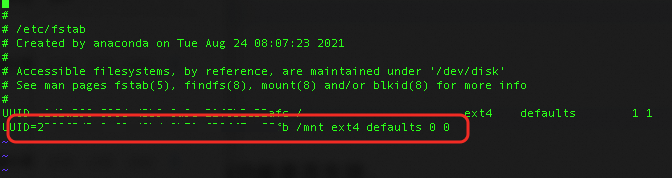
Run the following commands to verify that the auto-mount feature works.
sudo umount /dev/vdb1
sudo mount -a
mount | grep /mnt
Initialize a Windows data disk
Procedure
Remotely connect to the ENS instance.
Bring the disk online.
On the Windows Server desktop, right-click the Start icon
 and select Disk Management.
On the Disk Management page, find the target data disk in the offline state.
If the Initialize Disk dialog box appears, the cloud disk is already online.
If the data disk is already online and its partition status is Healthy, no further action is required. You can use the disk immediately.
Right-click the target disk and select online.
If the disk status changes to online and the partition status is Healthy, the cloud disk is ready to use.
If the disk status is Not Initialized and the partition is Unallocated, you must initialize it.
On the Disk Management page, find the target data disk in the offline state.
If the Initialize Disk dialog box appears, the cloud disk is already online.
If the data disk is already online and its partition status is Healthy, no further action is required. You can use the disk immediately.
Find the data disk that you want to initialize. In this example, Disk 1 is used. The disk is in the Offline state.
Right-click the unallocated space of Disk 1, and in the shortcut menu, select Initialize Disk.
In the Initialize Disk dialog box, select the target disk, choose a partition style, and click OK.
ImportantThe MBR partition style does not support disks larger than 2 TiB. If your disk is larger than 2 TiB, or if you plan to expand it beyond 2 TiB in the future, you must use the GPT partition style.
Right-click the Unallocated space on Disk 1 and select New Simple Volume.
Follow the steps in the New Simple Volume Wizard to complete the initialization.
On the Specify Volume Size page, set the Simple volume size and click Next.
If you need only one primary partition, you can use the default value. You can also set a custom volume size to divide Disk 1 into multiple partitions.
On the Assign Drive Letter or Path page, select Assign the following drive letter, choose a drive letter (for example, D), and click Next.
On the Format Partition page, select Format this volume with the following settings, configure the format options, and click Next.
ImportantChoose the allocation unit size carefully, as this setting cannot be changed after the volume is formatted. For more information about NTFS volume size limits, see NTFS overview.
If you plan to expand the disk to a size between 16 TiB and 32 TiB (inclusive), select 8192.
If you plan to expand the disk to a size between 32 TiB and 64 TiB (inclusive), select 16K.
Otherwise, keep the default value.
Review the settings and click Finish to close the New Simple Volume Wizard.