This topic describes how to configure an information extraction template in AI Doc.
Configure an information extraction template
Step 1: Go to the Extraction Template page
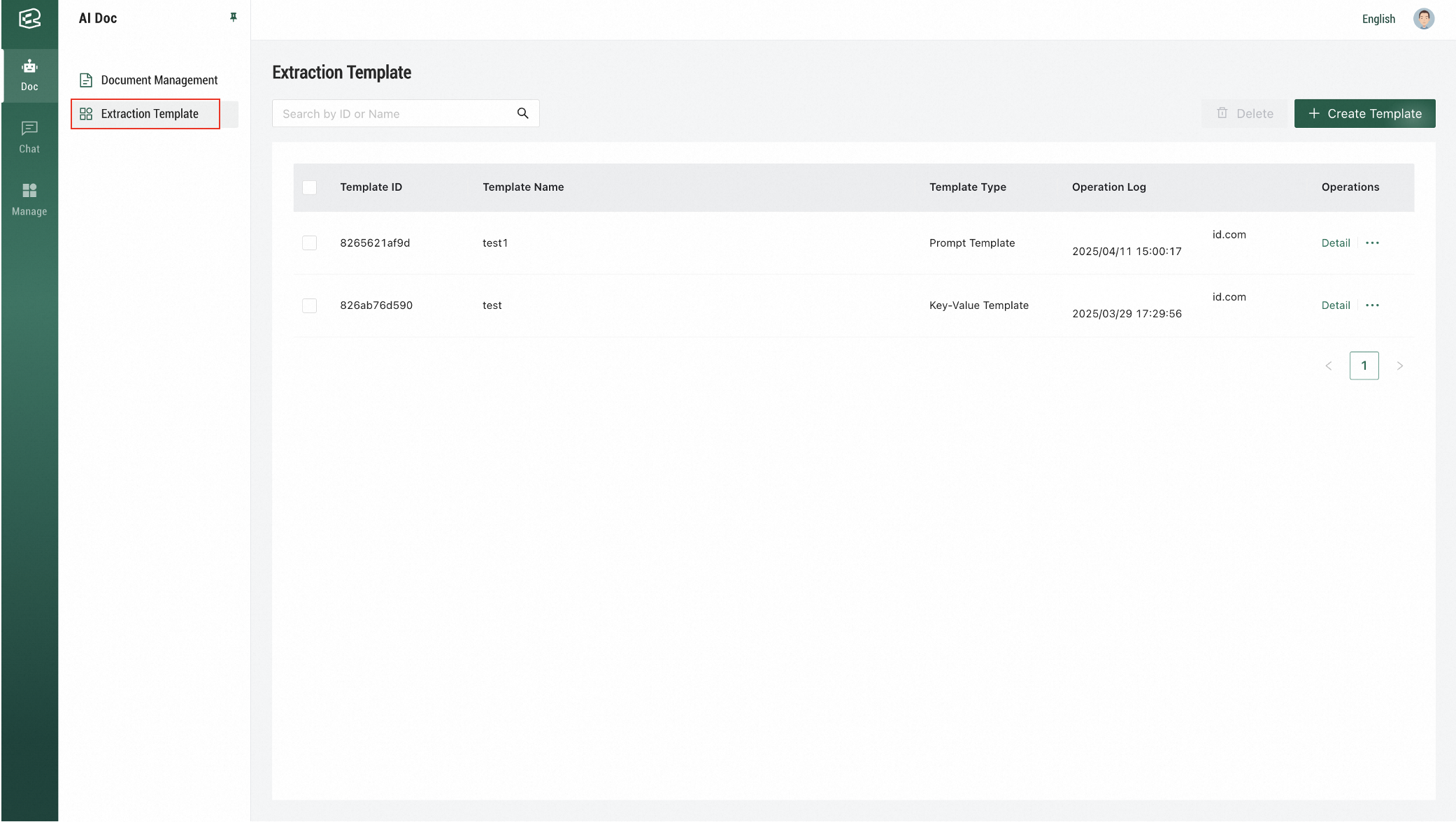
Log on to the AI Doc console. Choose Doc > Extraction Template.
Step 2: Create an information extraction template
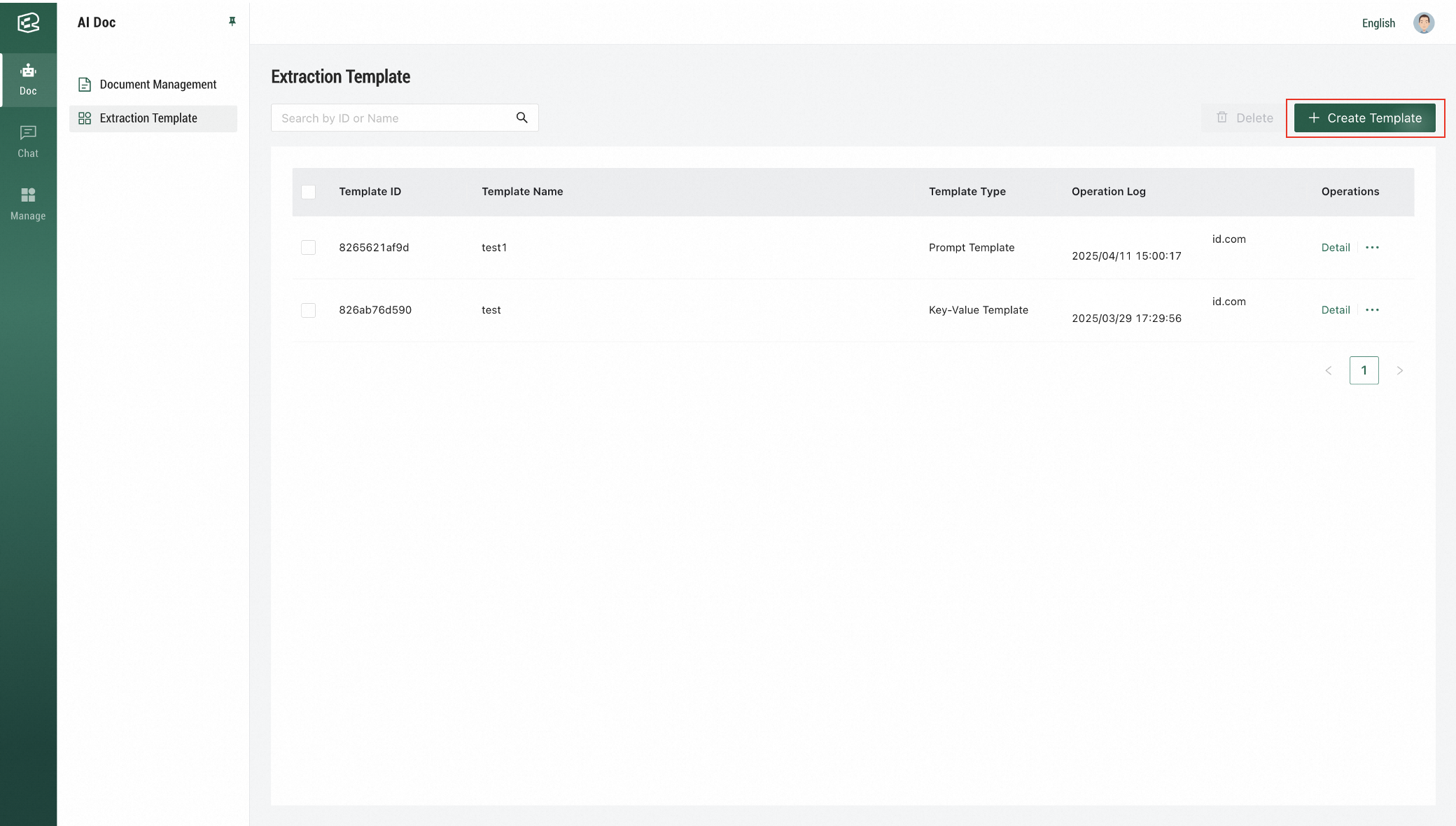
On the Extraction Template page, click Create Template in the upper-right corner.
Step 3: Select a template type
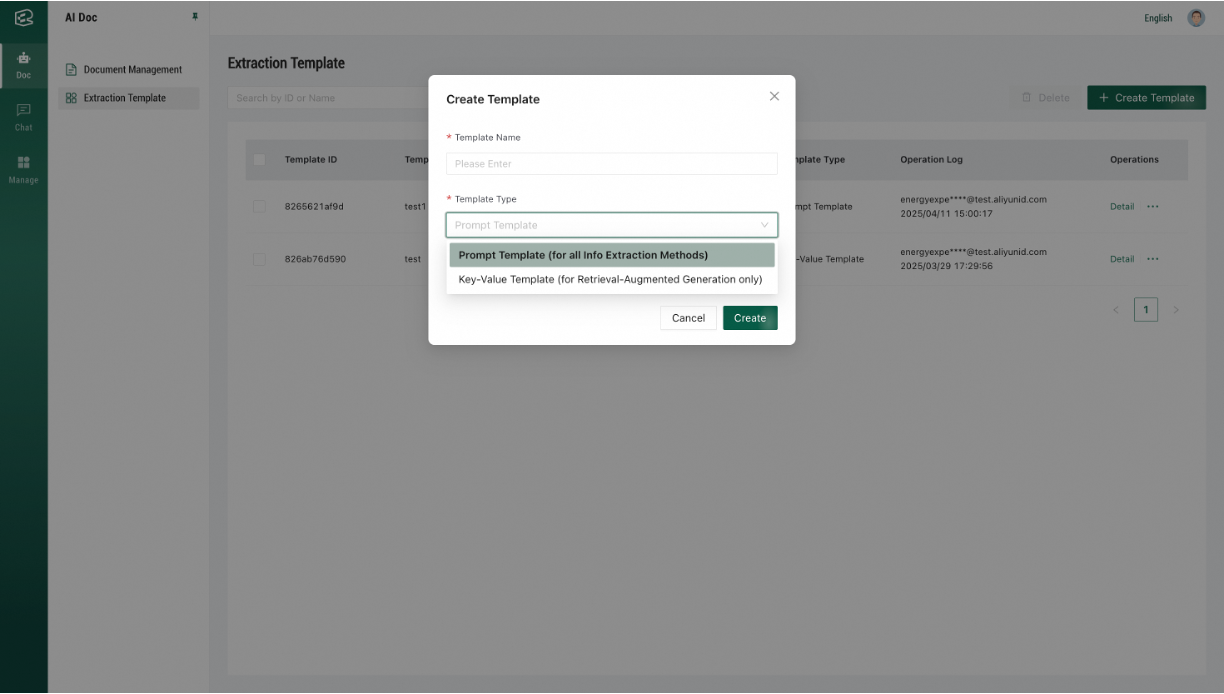
Select a template type based on your document characteristics and expected information extraction method.
Template type | Scenarios | Core features |
Prompt template | Suitable for extraction jobs for various types of documents. Suitable for extraction jobs with complex rules, such as extraction and summarization of multi-dimensional comprehensive information. In such cases, prompt templates can better describe job details.
| Natural language instruction writing with high flexibility and easy-to-understand configurations. Support for all extraction methods: Retrieval-Augmented Generation, Image Processing, and Long Text Understanding. Support for concurrent extraction of multiple jobs. Multiple prompts can be configured in a prompt template.
|
Key-value template | Suitable for extracting various structured information from long documents. Suitable for scenarios where extraction fields must be specified and standardized answers must be provided. For example, you can select this template type if you need to check "whether worker protection content is included" in an ESG report and require standardized options such as "Yes" or "No".
| The tabular template configurations provide more standardized configuration process and output results but lower flexibility. Extraction items are displayed in tabular format, which is more intuitive. Support for only the Retrieval-Augmented Generation extraction method. Support for parallel extraction of multiple key values.
|
Step 4: Configure template details
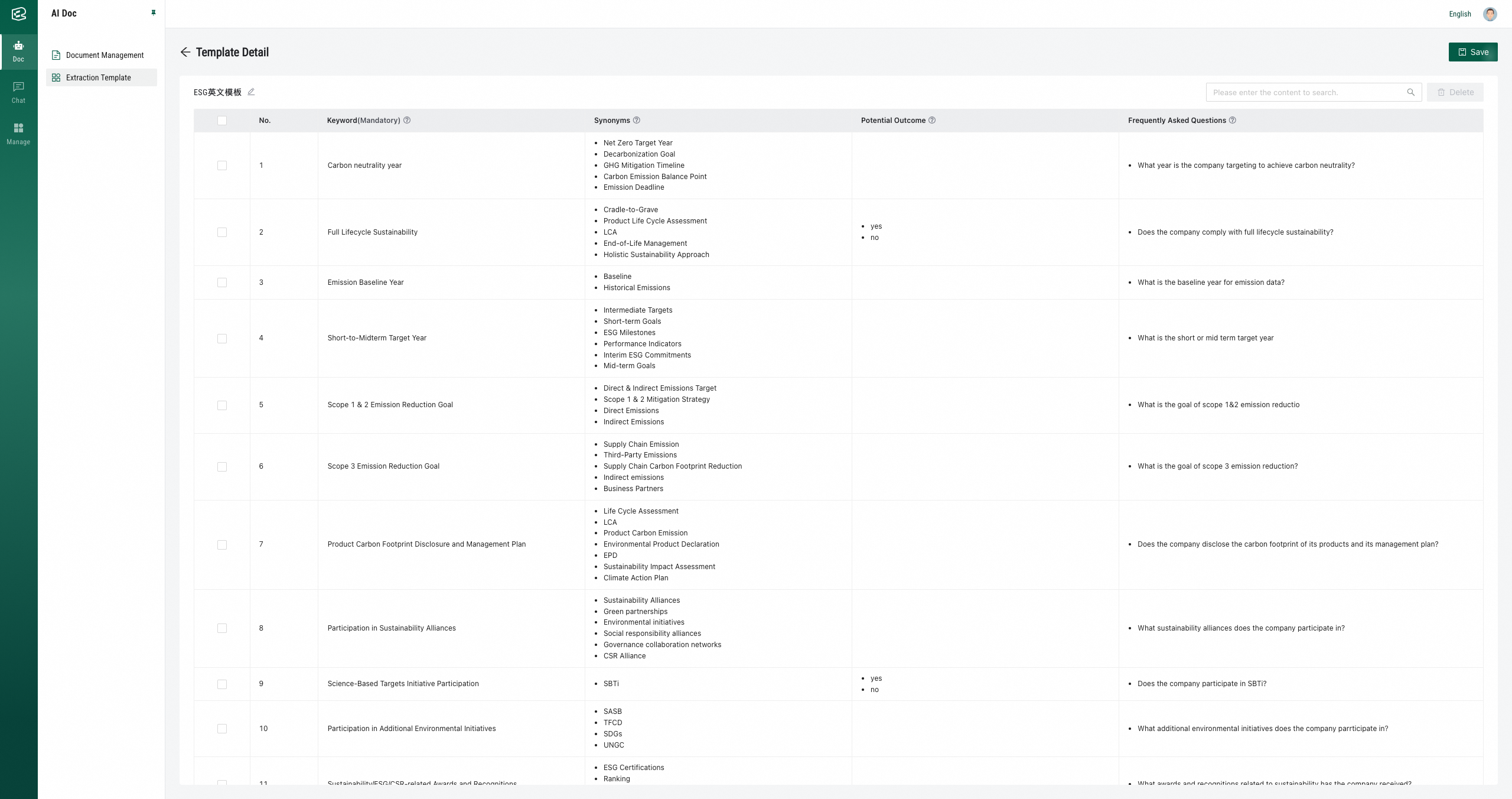
Key-value template:
Enter the keys you want to extract and their synonyms (optional) in the key-value table. In the Keyword column, enter the result range you want to set (optional). In the Frequently Asked Questions column (optional), enter the user prompts that may trigger the related keys.
Prompt template:
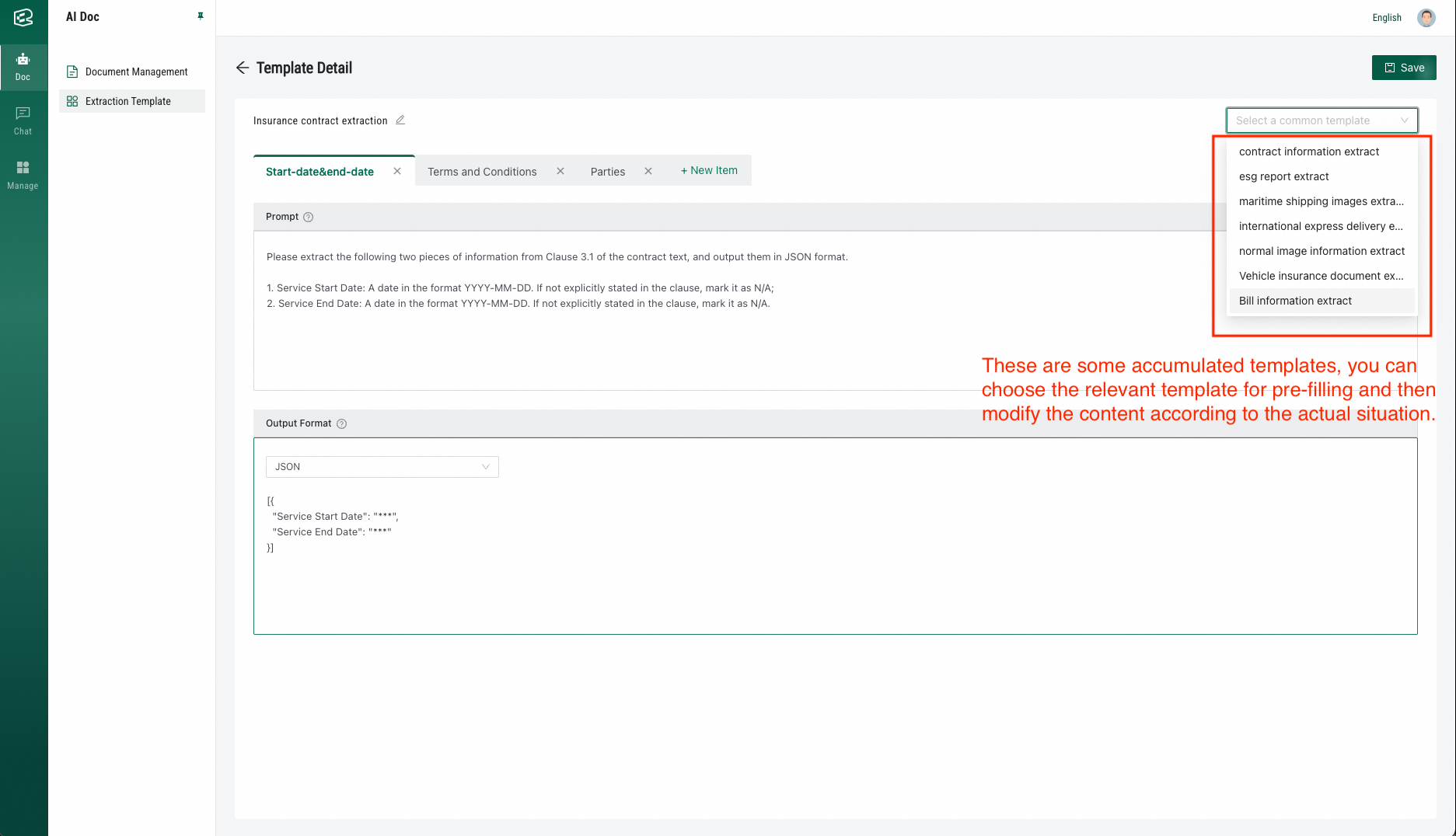
In a single prompt template, configure prompts of different categories based on your business requirements. The information extraction takes effect on all these categories simultaneously.
Select the text or JSON format as the output format.