After you create a workflow, you can manage its workflow runs and workflow node runs. This topic shows you how to view workflow runs, check node logs, and perform other operations.
Prerequisites
You must have created and run a workflow. For more information, see Manage workflows.
View workflow runs
-
Go to the Workflows page.
-
Log on to the E-MapReduce console.
-
In the left-side navigation pane, choose EMR Serverless > Spark.
-
On the Spark page, click the name of your target workspace.
-
On the EMR Serverless Spark page, click Workflows in the left-side navigation pane.
-
-
On the Workflows page, click the name of your target workflow.
The Workflow Runs page appears.
-
You can view the duration and running status for each workflow run.
-
Click a Workflow Run ID in the Workflow Runs list or click the Workflow Runs Diagram tab to view the corresponding graph. The color of each workflow node run indicates its running status. For more information, see View running status.
-
View workflow node runs
-
Go to the Workflows page.
-
Log on to the E-MapReduce console.
-
In the left-side navigation pane, choose EMR Serverless > Spark.
-
On the Spark page, click the name of your target workspace.
-
On the EMR Serverless Spark page, click Workflows in the left-side navigation pane.
-
-
On the Workflows page, click the name of your target workflow.
-
Click the Workflow Runs Diagram tab.
-
Click a workflow node run. In the node details dialog box, you can view information and perform actions.
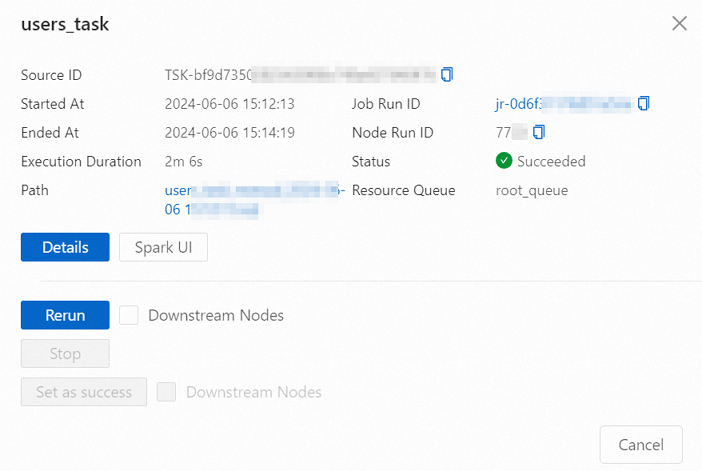
Actions
Description
Click Details.
Displays the following information:
-
Job Run Information: View details about the current workflow node run, such as the job ID, node start time, and job run ID.
-
Execution Code: View the code for the job associated with the current workflow node run.
-
Log: View the logs for the current workflow node run.
Click Spark UI.
Opens the Spark Jobs page, where you can view real-time job details, including status, task progress, and resource usage.
Click Rerun.
Reruns the current job.
If you select Downstream Nodes and click Rerun, the system re-executes all related jobs, including the selected downstream nodes, in the logical order defined by the workflow.
Click Stop.
Stops the running node and sets its status to Failed.
Click Set as success.
Changes the status of a failed node to Successful.
If you select Downstream Nodes and then click Set as success, the system sets the selected nodes that are in a failed state to successful, following the logical order defined in the workflow.
Click the link next to Job Run ID.
Opens the job's overview page in the job history, which displays its basic information and configuration.
-
Related documents
-
For definitions of workflow-related terms, see Terms.
-
To learn how to create and run a workflow, see Manage workflows.