Create and manage DuckDB sessions for interactive SQL-based data analysis in EMR Serverless Spark.
What is DuckDB?
DuckDB is a lightweight, high-performance embedded analytical database engine optimized for Online Analytical Processing (OLAP) use cases.
-
Features
-
Embedded architecture: Runs as an in-process library (like SQLite) with in-memory and on-disk modes. No separate server required.
-
Columnar storage: Stores data by column to optimize aggregate queries and scans.
-
Vectorized execution: Processes data in batches with SIMD instructions to reduce CPU overhead.
-
Standard SQL: Supports SQL-92 and SQL:2011, including CTEs, window functions, JOINs (such as ASOF JOIN), and subqueries.
-
Multi-format reads: Query CSV, Parquet, and JSON files directly without importing.
-
Zero-copy integration: Converts data to and from Pandas and Arrow without migration overhead.
-
Federated queries: Access remote files on S3 via the
httpfsextension, or query external databases like PostgreSQL.
-
-
Use cases
-
Interactive analysis: Process GB- to TB-scale datasets as an alternative to Pandas or Excel.
-
Edge computing: Deploy on edge devices for local data analysis.
-
Data science: Integrates with Python and R ecosystems as a preprocessing engine for ML.
-
Real-time OLAP: Handles workloads requiring frequent updates and complex queries.
-
Limitations
-
DuckDB sessions are supported only on engine versions esr-4.8.0 or later and esr-3.7.0 or later.
Create a DuckDB session
-
Log on to the EMR Console.
-
In the left-side navigation pane, choose EMR Serverless > Spark.
-
On the Spark page, click the name of the target workspace.
-
On the EMR Serverless Spark page, in the left-side navigation pane, click Session Management.
-
On the Session Management page, click the DuckDB Session tab.
-
-
On the DuckDB session list page, click Create DuckDB Session.
-
In the Create DuckDB Session dialog box, set the following parameters.
ImportantSet the maximum concurrency of the deployment queue to at least the resource size required by the DuckDB session. The required value is displayed on the console.
Parameter
Description
Name
The session name. Must be 1 to 64 characters, consisting of Chinese characters, letters, digits, underscores (_), or hyphens (-). Must be unique within the workspace.
Deployment Queue
The resource queue for the DuckDB session. Only queues in the ready state are available. To create a queue, go to the Resource Queue Management page.
Engine Version
The engine version for the DuckDB session. Supported versions are listed in the release notes.
Auto Stop
The idle duration before the session stops automatically. Enabled by default with a 45-minute timeout.
Network Connection
Required if your DuckDB job accesses data sources or services in a VPC. Select an existing network connection from the drop-down list.
Cores
The number of CPU cores. Default: 2.
Memory
The memory size. Default: 8 GB.
MemoryOverhead
The overhead memory size. Default:
max(384 MB, 10% × memory).Spark Configurations
Spark configuration entries, separated by spaces. Example:
spark.sql.catalog.paimon.metastore dlf. -
Click Create.
The session appears on the DuckDB session list. When the status changes to Running, you can start DuckDB SQL development.
View run records
-
After a job completes, view its run records on the Session Management page.
-
On the session list page, click the session name.
-
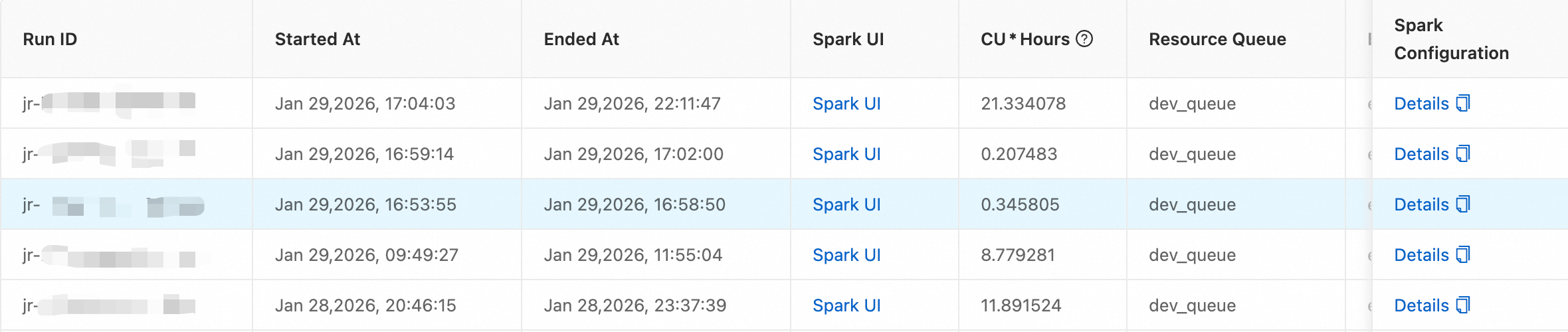
Click the Run Records tab.
This page shows run details such as the run ID, start time, and Spark UI.