EMR Serverless Spark allows you to manage custom domain name mappings for a workspace, resolving DNS issues so that jobs can access external services and resources in cloud environments.
Limitations
-
Only IPv4 is supported.
-
You can add a domain name only when the workspace is in the Running state.
-
Each workspace supports a maximum of 200 IP address-to-domain name mappings.
Important notes
After you add, modify, or delete a domain name mapping, you must restart the affected jobs for the changes to take effect. Otherwise, the changes do not take effect and may cause connection failures or service disruptions.
Add domain name
-
Navigate to the domain name management settings.
-
Log on to the E-MapReduce console.
-
In the left navigation pane, choose .
-
For the target workspace, in the Actions column, choose
 > Manage Domain Names.
-
-
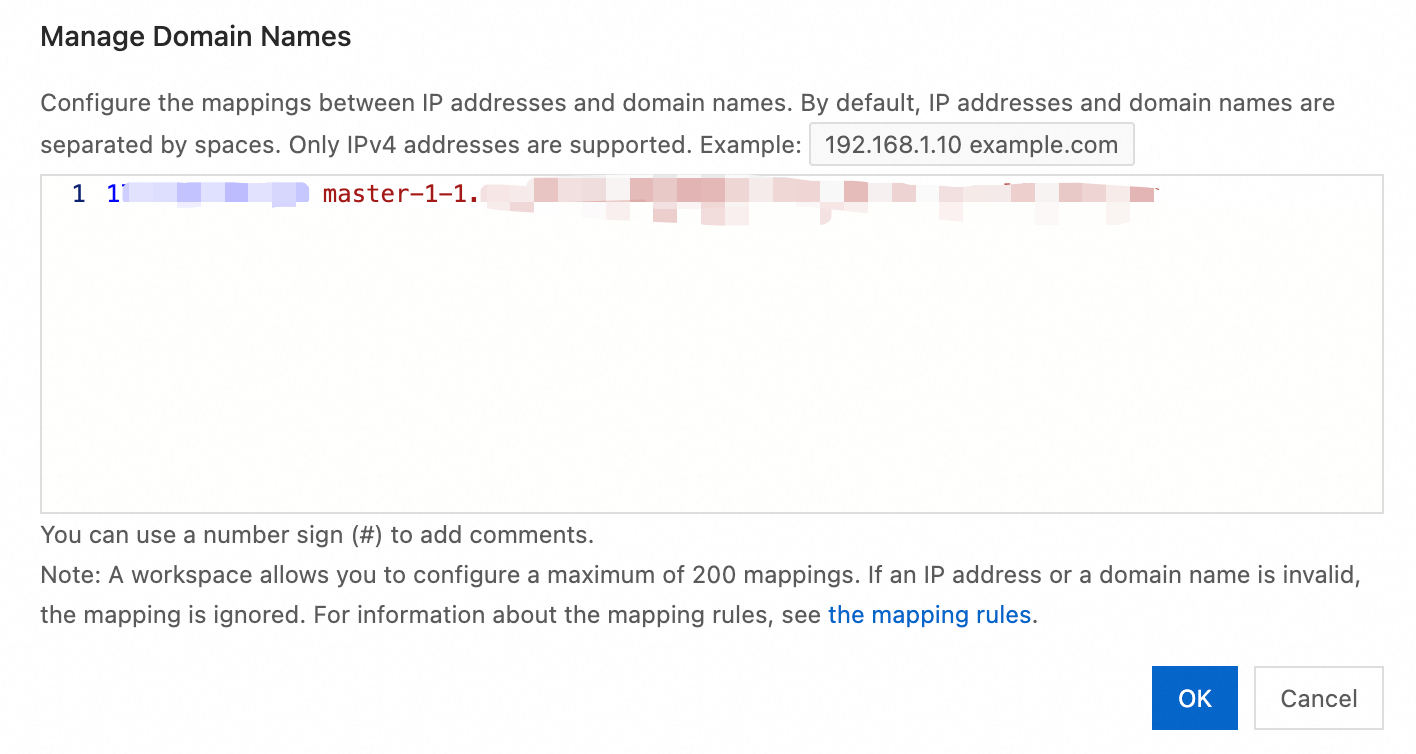
In the Manage Domain Names dialog box, add a new IP address-to-domain name mapping.
Ensure the domain name and IP address are valid.
-
Click OK.
Modify domain name
-
In the Manage Domain Names dialog box, edit the IP address or domain name for the desired mapping.
Ensure the new values are valid.
-
Click OK.
Delete domain name
-
In the Manage Domain Names dialog box, delete the desired IP address-to-domain name mapping.
-
Click OK.
Example
The following example shows how to connect to a Hive Metastore service in a VPC by using a domain name.
-
Add a domain name mapping.
In the Manage Domain Names dialog box, add a mapping between the Hive Metastore domain name and its IP address.
-
Add a catalog.
-
On the Catalogs page, click Add Catalog.
-
In the Add Catalog dialog box, click External Hive Metastore, configure the required settings, and then click OK.
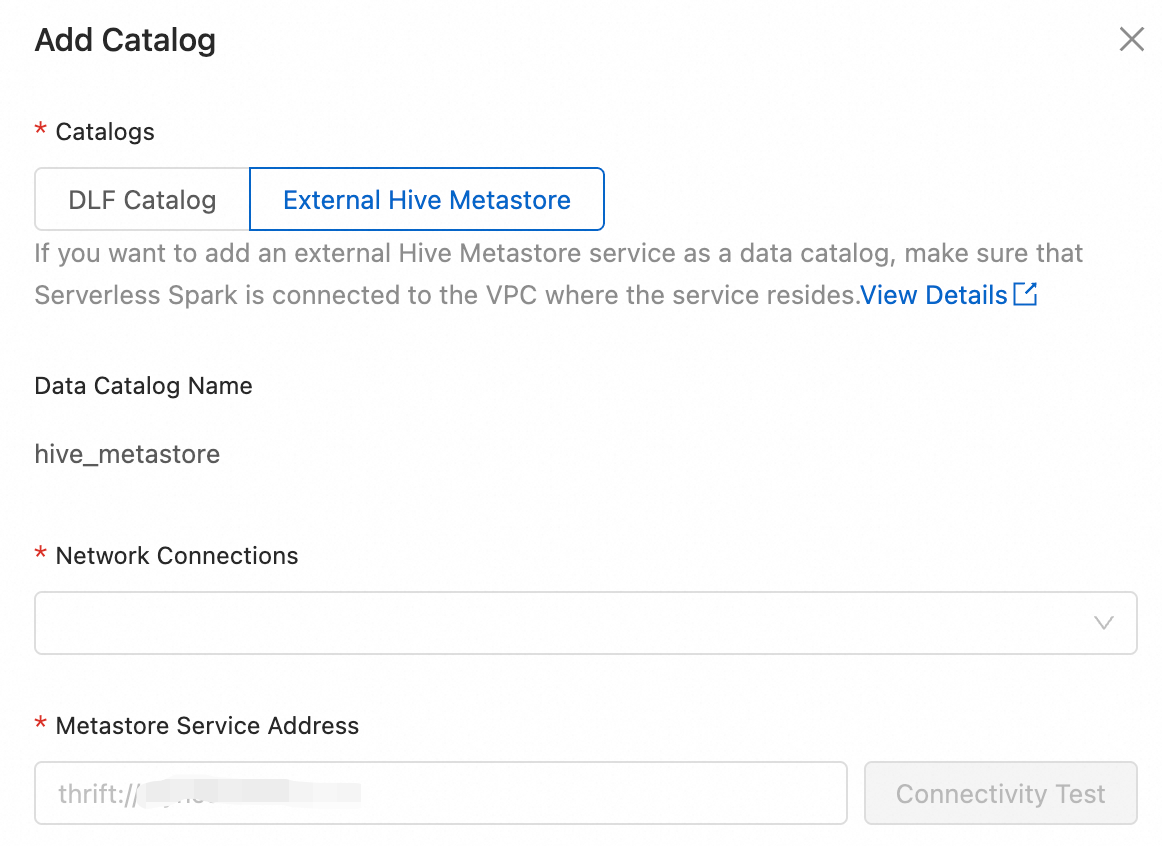
For more information, see Connect to an external Hive Metastore service.
-
You can then use the newly added catalog in Data Development.