The JindoFS Namespace Service supports various storage backends. You can configure Tablestore as the metadata storage backend for the Namespace Service.
Prerequisites
-
You have created an EMR cluster.
For more information, see Create a cluster.
-
You have created a Tablestore instance. A high-performance instance is recommended.
For more information, see Activate Tablestore and create an instance.
NoteThe transaction feature must be enabled.
Background information
When Tablestore is used as the backend, JindoFS automatically creates a dedicated table in your Tablestore instance for each namespace to store its metadata.
The following figure shows the Namespace Service architecture in high availability (HA) mode.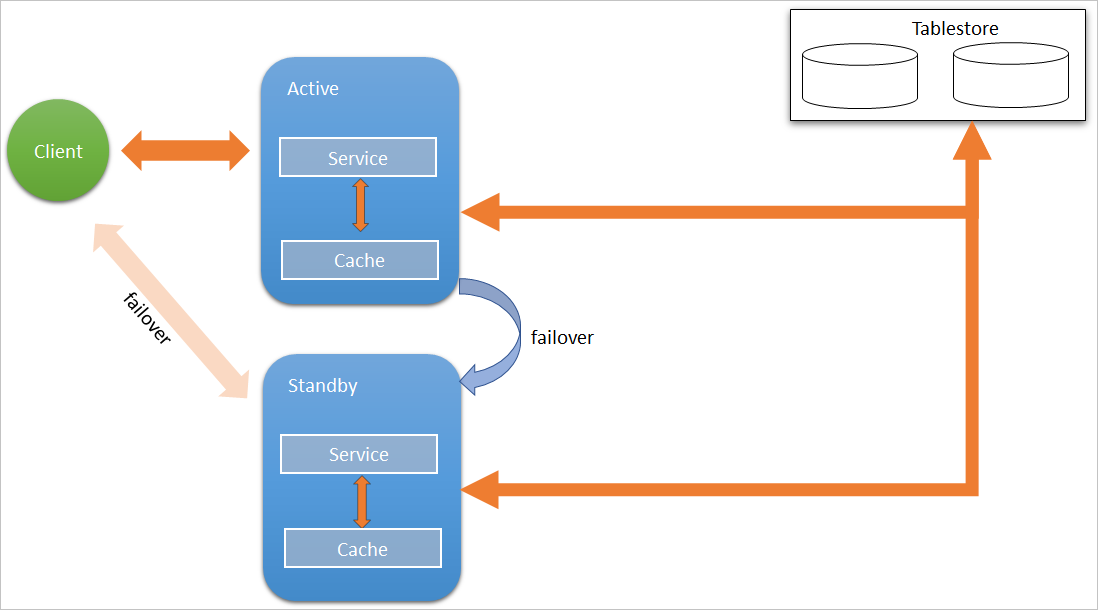
Configure Tablestore
Bind a Tablestore instance to the JindoFS Namespace Service.
- Go to the SmartData service.
- Log on to the EMR console.
- In the top navigation bar, select a region and a resource group as needed.
- Click the Clusters tab.
- On the Clusters page, find your cluster and click Details in the Actions column.
- In the navigation pane on the left, choose .
- Log on to the EMR console.
- Go to the bigboot service configuration page.
- Click the Configure tab.
- Click bigboot .
-
Configure the following parameters.
For example, assume that you created a Tablestore instance named emr-jfs in the China (Hangzhou) region, the EMR cluster uses a VPC network, the AccessKey ID is kkkkkk, and the AccessKey secret is XXXXXX.
Parameter
Description
Required
Example
namespace.backend.type
The storage backend type for the Namespace Service. Valid values:
-
rocksdb -
ots -
raft
Default value:
rocksdb.Yes
otsnamespace.ots.instance
The name of the Tablestore instance.
Yes
emr-jfs
namespace.ots.accessKey
The AccessKey ID for the Tablestore instance.
No
kkkkkk
namespace.ots.accessSecret
The AccessKey secret for the Tablestore instance.
No
XXXXXX
namespace.ots.endpoint
The endpoint of the Tablestore instance. For standard EMR clusters, use a VPC endpoint.
Yes
http://emr-jfs.cn-hangzhou.vpc.tablestore.aliyuncs.com
-
-
Save the configuration.
-
In the upper-right corner, click Save.
-
In the Confirm dialog box, enter a reason for the change and turn on Auto-update Configuration.
-
Click OK.
-
-
In the upper-right corner, click .
Configure Tablestore (HA mode)
For EMR clusters in HA mode, you can also enable high availability for the Namespace Service.
The Namespace Service HA mode uses an active-standby architecture with automatic failover. If the active node fails, clients automatically switch to the new active node.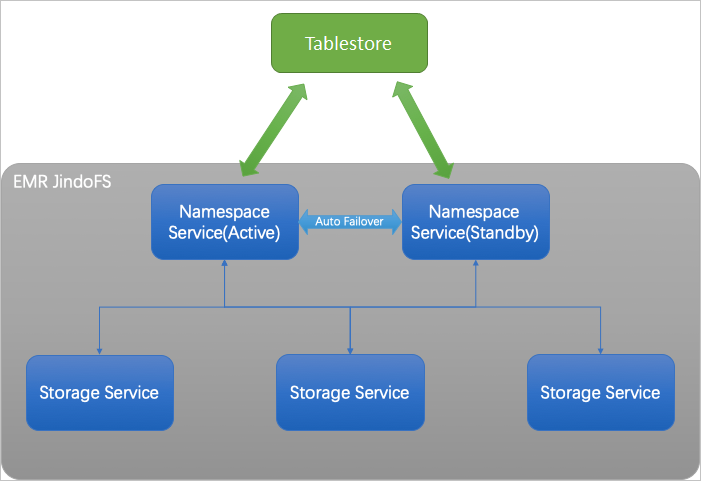
-
In the bigboot service configuration of SmartData, configure the following parameters.
-
Change the value of jfs.namespace.server.rpc-address to emr-header-1:8101,emr-header-2:8101.
-
In the upper-right corner, click Custom Configuration, add the namespace.backend.ots.ha parameter, and set its value to true.
-
Click OK.
-
Save the configuration.
-
In the upper-right corner, click Save.
-
In the Confirm dialog box, enter a reason for the change and turn on Auto-update Configuration.
-
Click OK.
-
-
-
In the upper-right corner, click .
-
In the upper-right corner, click .