Block mode stores data as blocks on Object Storage Service (OSS) with local caching for accelerated reads and writes. A local Namespace service maintains metadata for high-performance access.
Background information
JindoFS Block mode has the following features:Unlimited storage capacity: Storage scales independently from cluster size. Scale your EMR cluster in or out without affecting stored data.
Local read acceleration: JindoFS caches block data on local cluster disks to improve read throughput. This is particularly effective for Write Once Read Many (WORM) workloads.
High-performance metadata: Namespace Service handles metadata with efficiency similar to HDFS, avoiding the slowdowns from frequent OSS API calls that affect OssFileSystem.
Data locality: JindoFS schedules jobs on nodes that hold local block copies, reducing network traffic and improving read performance.
How to use
- Go to the SmartData service.
- Log on to the EMR console.
- In the top navigation bar, select a region and a resource group as needed.
- Click the Clusters tab.
- On the Clusters page, find your cluster and click Details in the Actions column.
- In the navigation pane on the left, choose .
- Log on to the EMR console.
- Go to the namespace service configuration.
- Click the Configure tab.
- Click namespace.
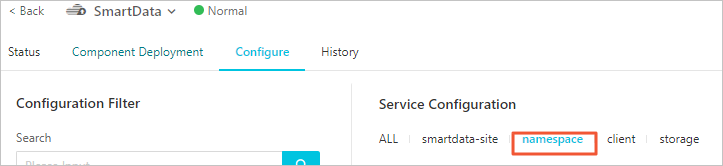
- Configure the following parameters.
JindoFS supports multiple namespaces. This topic uses
testas an example namespace.- Set jfs.namespaces to test.
test is an example namespace name. To configure multiple namespaces, separate their names with commas (,).
- Click Custom Configuration. In the Add Configuration Item dialog box, add the following parameters and click OK.
Parameter Description Example jfs.namespaces.test.oss.uri The OSS storage backend for the testnamespace.oss://<oss_bucket>/<oss_dir>/ Note We recommend you specify a directory within an OSS bucket. JindoFS stores the data blocks for the namespace in this directory.jfs.namespaces.test.mode The storage mode for the testnamespace.block jfs.namespaces.test.oss.access.key The AccessKey ID for the OSS storage backend. xxxx Note For optimal performance and stability, we recommend using an OSS bucket in the same account and region as your E-MapReduce cluster. In this case, the E-MapReduce cluster can access OSS without credentials, and you do not need to configure the AccessKey ID and AccessKey Secret.jfs.namespaces.test.oss.access.secret The AccessKey Secret for the OSS storage backend. - Click OK.
- Set jfs.namespaces to test.
- In the upper-right corner, click Save.
- In the upper-right corner, choose .
After the service restarts, you can access files in JindoFS using the path
jfs://test/<path_of_file>.
Disk Space Threshold Control
JindoFS uses OSS as its storage backend, which provides vast storage capacity. However, the local disk space on your cluster is finite. To manage this space, JindoFS automatically evicts cold data from the local cache. You can control this eviction behavior with the storage.watermark.high.ratio and storage.watermark.low.ratio parameters. These parameters accept decimal values between 0 and 1 that represent the ratio of disk space used.
- Modify the disk watermark configuration.
On the storage tab in the Service Configuration section, modify the following parameters.
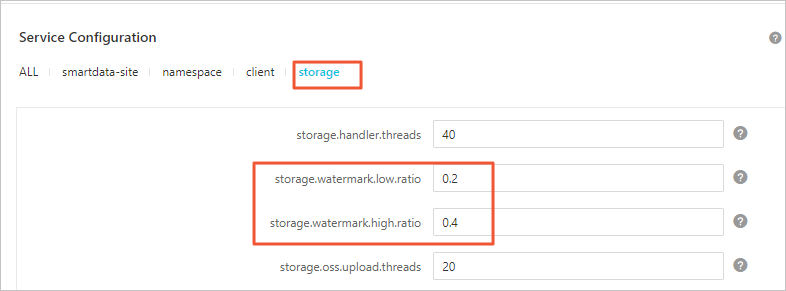
Parameter Description storage.watermark.high.ratio The upper threshold for disk usage. When disk space used by the JindoFS data directory on a data disk reaches this ratio, cleanup is triggered. Default value: 0.4. storage.watermark.low.ratio The lower threshold for disk usage. After cleanup is triggered, cold data is automatically removed until JindoFS data directory usage drops to this ratio. Default value: 0.2. Note The high watermark controls how much disk space JindoFS can use. The low watermark must be lower than the high watermark. - Save the configuration.
- In the upper-right corner, click Save.
- In the Confirm dialog box, enter a reason for the modification and enable Auto-update Configuration.
- Click OK.
- Restart Jindo Storage Service to apply the configuration.
- In the upper-right corner, choose .
- In the Execute Cluster Operation dialog box, set the parameters.
- Click OK.
- In the Confirm dialog box, click OK.