JindoFS block storage mode uses OSS as the persistent storage backend and caches data on local cluster disks to accelerate reads. Namespace Service manages metadata to deliver query performance similar to HDFS. This topic describes how to configure JindoFS in block storage mode and manage local disk cache space.
How block storage mode works
In block storage mode, JindoFS stores data as blocks in OSS. Because OSS is the storage backend, cluster storage capacity scales independently from the cluster itself — you can scale the cluster in or out without affecting stored data.
Key characteristics:
Local cache for reads: JindoFS caches a portion of data on local cluster disks. This improves read throughput even with limited local storage, and is especially effective for Write Once Read Many (WORM) workloads.
Metadata performance similar to HDFS: JindoFS handles metadata queries with performance similar to HDFS. Compared to OssFileSystem, it significantly reduces metadata query latency and avoids instability under high concurrent data and metadata access.
Data locality: When jobs run on the EMR cluster, JindoFS maximizes data locality to reduce network transmission and improve read performance.
Prerequisites
Before you begin, ensure that you have:
An EMR cluster with the SmartData service installed
An OSS bucket to use as the storage backend
(Optional) An AccessKey ID and AccessKey secret — only required if the OSS bucket is in a different region or under a different account than your EMR cluster
If the OSS bucket is in the same region and under the same account as your EMR cluster, OSS allows password-free access from the cluster. In that case, skip the AccessKey parameters.
Configure block storage mode
Log on to the Alibaba Cloud EMR console.
In the top navigation bar, select the region where your cluster resides. Select a resource group if needed.
Click the Cluster Management tab.
Find your cluster and click Details in the Actions column.
In the left navigation pane, click Cluster Service, then click SmartData.
Click the Configure tab.
In the Service Configuration section, click the namespace tab.
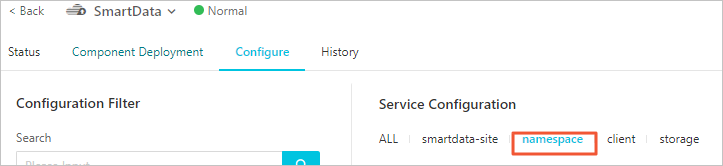
Set
jfs.namespacesto your namespace name. This example usestest. To configure multiple namespaces, separate their names with commas.In the upper-right corner of the Service Configuration section, click Custom Configuration. In the Add Configuration Item dialog box, add the following parameters:
Parameter Description Example jfs.namespaces.test.oss.uriStorage backend for the testnamespace. Set this to a directory in your OSS bucket — JindoFS stores blocks in this directory.oss://<oss_bucket>/<oss_dir>/jfs.namespaces.test.modeStorage mode. Set to blockto enable block storage mode.blockjfs.namespaces.test.oss.access.keyAccessKey ID for the OSS bucket. Omit if the bucket is in the same region and account as the cluster. <your-access-key-id>jfs.namespaces.test.oss.access.secretAccessKey secret for the OSS bucket. Omit if the bucket is in the same region and account as the cluster. <your-access-key-secret>Click OK.
In the upper-right corner of the Service Configuration section, click Save.
In the upper-right corner, click the Actions drop-down list and select Restart Jindo Namespace Service.
After the Namespace Service restarts, access files in JindoFS using the path format jfs://test/<path_of_file>.
Control disk space usage
JindoFS stores data in OSS, so storage capacity is effectively unlimited. However, local disk space is finite. JindoFS automatically evicts cold data from local disks using two watermark parameters that control the target disk usage range.
Set both parameters to decimal values between 0 and 1. The high watermark must be greater than the low watermark.
| Parameter | Description | Default |
|---|---|---|
storage.watermark.high.ratio | Upper disk usage limit. When JindoFS data exceeds this ratio of disk capacity, automatic eviction starts. Raise this value to keep more data cached locally and improve read performance. | 0.4 |
storage.watermark.low.ratio | Lower disk usage limit. Eviction continues until disk usage drops to this ratio. | 0.2 |
To update the disk usage configuration:
In the Service Configuration section for the SmartData service, click the storage tab.
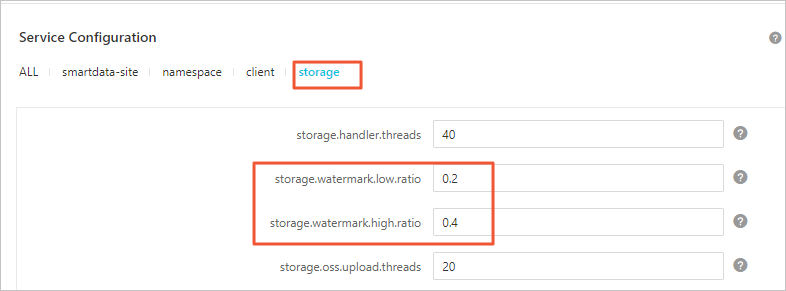
Update
storage.watermark.high.ratioandstorage.watermark.low.ratioto the desired values.In the upper-right corner of the Service Configuration section, click Save.
In the Confirm Changes dialog box, enter a description and turn on Auto-update Configuration. Click OK.
In the upper-right corner, choose Actions > Restart Jindo Storage Service.
In the Cluster Activities dialog box, configure the required parameters and click OK.
In the confirmation message, click OK.
What's next
Monitor local disk usage after enabling block storage mode. Tune
storage.watermark.high.ratioupward if read performance is insufficient, and downward if local disks are under pressure.For namespace management and advanced configuration options, refer to the SmartData service documentation.