By attaching a custom ECS application role to an EMR cluster, the cluster's nodes can access other cloud resources — such as Object Storage Service (OSS) and Simple Log Service (SLS) — in your Alibaba Cloud account without storing credentials. The role's attached policies define exactly which resources and operations the cluster can access, giving you fine-grained control.
If you are creating a cluster running EMR V5.x or later, a minor version later than EMR V4.5, or a minor version later than EMR V3.32, the trust policy update in Step 2 is not required. For earlier versions, you must change the trusted service from ECS to EMR — see Step 2, sub-step 4.
Prerequisites
Before you begin, ensure that you have:
-
A cluster created — see Create a cluster
-
Roles assigned to your Alibaba Cloud account — see Assign roles to an Alibaba Cloud account
-
An OSS bucket in the same region where you plan to create the EMR cluster — see Create buckets
Overview
The setup involves three steps:
-
Create a policy — define which resources the cluster can access and what operations it can perform.
-
Create a RAM role — create a role that ECS can assume and attach the policy from step 1.
-
Create a cluster and verify access — associate the RAM role when creating the cluster, then confirm access works.
Step 1: Create a policy
-
Log on to the RAM console with your Alibaba Cloud account.
-
In the left-side navigation pane, choose Permissions > Policies, then click Create Policy.
-
On the Create Policy page, click the JSON tab and enter a policy document in the editor. The following example grants read-only access to a specific OSS bucket:
{
    "Version": "1",
    "Statement": [
        {
            "Action": [
                "oss:GetObject",
                "oss:ListObjects"
            ],
            "Resource": [
                "acs:oss:*:*:examplebucket",
                "acs:oss:*:*:examplebucket/*"
            ],
            "Effect": "Allow"
        }
    ]
}
Replace
examplebucketwith your actual OSS bucket name. TheResourcefield requires two entries: one for the bucket itself (examplebucket) and one for all objects within it (examplebucket/*). TheActionfield grants read-only access —oss:GetObjectto download objects andoss:ListObjectsto list them. For details on policy syntax and available actions, see Policy elements. -
Click OK, then set the Name field in the Basic information section. In this example, the name is
test-emr. -
Click OK.
Step 2: Create a RAM role
-
In the left-side navigation pane of the RAM console, choose Identities > Roles, then click Create Role.
-
In the Select Role Type step, set Select Trusted Entity to Alibaba Cloud Service and click Next.
-
In the Configure Role step, set the following parameters: Click OK.
Parameter Value RAM Role Name Enter a name for the role. In this example: test-emrSelect Trusted Service Select Elastic Compute Service -
(Optional) Update the trust policy. For earlier versions, the trusted service must be changed from ECS to EMR. Without this change, cluster creation fails with a NoPermission error.
ImportantSkip this step if you are creating a cluster running EMR V5.x or later, a minor version later than EMR V4.5, or a minor version later than EMR V3.32. These versions do not require this change.
-
On the Roles page, click the name of the RAM role you created.
-
Click the Trust Policy tab, then click Edit Trust Policy.
-
Change
ecs.aliyuncs.comtoemr.aliyuncs.com.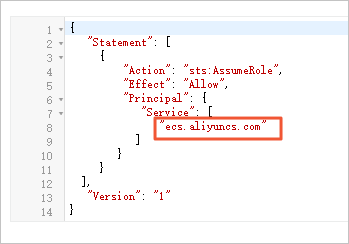
-
Click Save trust policy document.
-
-
Grant the required permissions to the role:
-
On the Roles page, find the role you created and click Grant Permission in the Actions column.
-
In the Grant Permission panel, select Custom Policy from the drop-down list in the Policy section, then select the policy you created in Step 1.
-
Click Grant permissions, then click Close.
-
Step 3: Create a cluster and verify access
-
Log on to the EMR console. In the left-side navigation pane, click EMR on ECS.
-
In the top navigation bar, select the region where your cluster will reside and select a resource group.
-
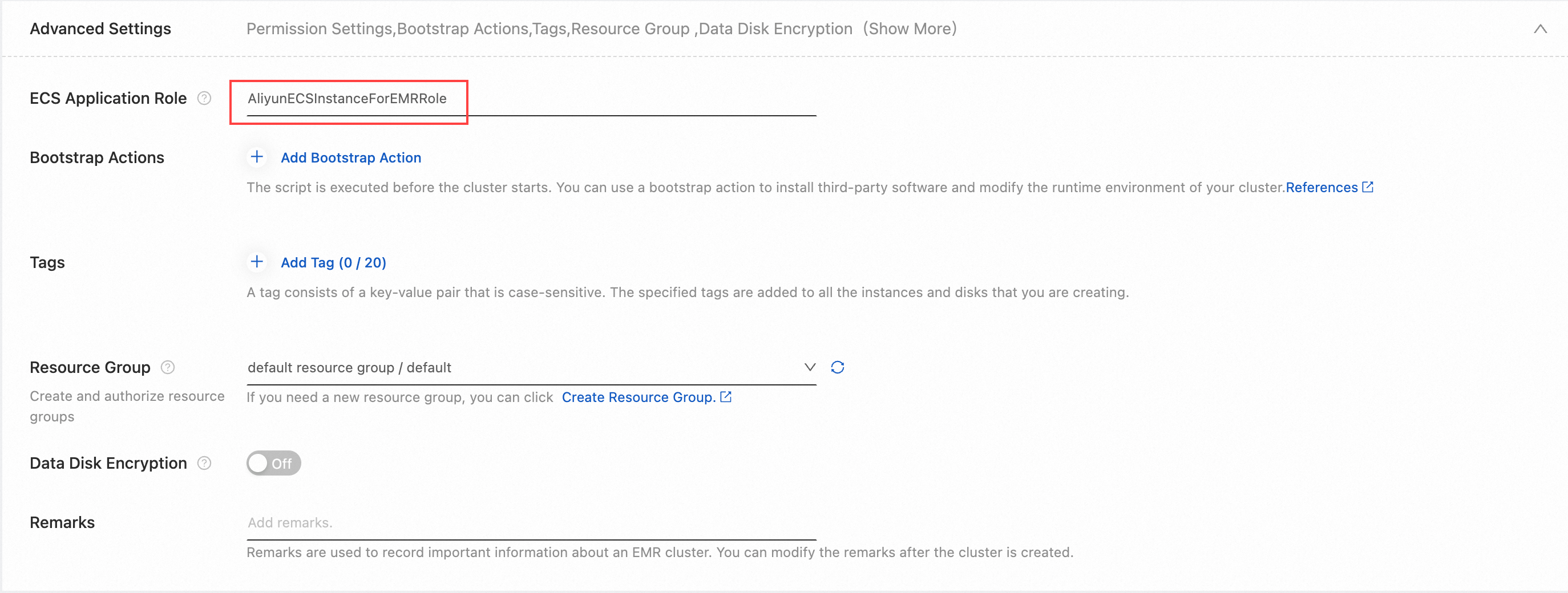
Click Create Cluster. In the Advanced Settings section of the Basic Configuration step, enter the name of the RAM role you created in Step 2. For other cluster configuration options, see Create a cluster.
-
After the cluster is created, log on to the cluster using SSH. See Log on to a cluster.
-
Run the following command to verify that the cluster can access the OSS bucket specified in the policy:
hdfs dfs -ls oss://<yourBucketName>/Replace
<yourBucketName>with your actual OSS bucket name.-
If the bucket contents are listed, access is working correctly.
-
If access is denied, the cluster does not have permission to access the bucket — see the FAQ below.
-
FAQ
Why does a NoPermission error appear when I create a cluster?
Check the following in order:
-
The RAM user creating the cluster must have
AliyunEMRFullAccess. If the user hasAliyunEMRDevelopAccess, change it toAliyunEMRFullAccess. -
Check that the ECS application role name you specified is valid and matches the RAM role you created.
-
If you are using an EMR version that requires updating the trust policy (earlier than EMR V5.x, EMR V4.5, or EMR V3.32), confirm that
ecs.aliyuncs.comhas been changed toemr.aliyuncs.comin the trust policy.
Why can't I access an OSS bucket from Hadoop Distributed File System (HDFS)?
Check the following in order:
-
The OSS bucket must be in the same region as the EMR cluster. If they are in different regions, add the bucket's endpoint to the connection strings.
-
The bucket must be listed as a resource in the policy. If it is not, update the
Resourcefield in the policy to include it. -
If bucket-level permissions are configured directly in the OSS console, those settings may conflict with the policy. Remove the OSS console permissions and manage access exclusively through the
Actionfield in the RAM policy.