Tags are used to label clusters. You can use tags to identify and manage your cluster resources. You can add tags when you create a cluster. You can also add tags on the Cluster Overview page of a created cluster. You can add up to 20 tags to a single cluster. This topic describes how to add, remove, and view tags and how to use tags to search for clusters.
Background information
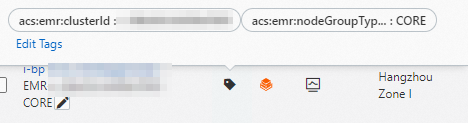
- acs:emr:clusterId=c-59efc7546480****
- acs:emr:nodeGroupType=CORE
Precautions
- If you update the tags of an EMR cluster, the tags of the ECS instances in the cluster are also updated in the ECS console.
- If you update the tags of ECS instances in the ECS console, the tags of the EMR cluster to which the ECS instances belong are not updated. To make sure that the tags of ECS instances are consistent with the tags of the EMR cluster, we recommend that you do not update the tags of ECS instances in the ECS console. If the number of tags of an ECS instance in a cluster reaches the upper limit, you can no longer create tags for the cluster.
- Tag information is not shared across regions.
For example, tags that are created in the China (Hangzhou) region are invisible in the China (Shanghai) region.
- You can add up to 20 tags to a cluster. If the number of tags that are added to a cluster exceeds the upper limit, you must remove some of the tags before you add new tags.
Create or attach tags during cluster creation
You can create new tags or attach existing tags when you create a cluster.
-
Log on to the E-MapReduce console.
-
In the top navigation bar, select a region and resource group.
-
Click CREATE_CLUSTER. On the Basic Configuration page, in the Advanced Settings section, click Add Tag in the Tags row.
For more information about how to create a cluster, see Create a cluster.
-
Select an existing tag key and tag value, or enter a new tag key and tag value.
Selecting an existing tag key and tag value attaches a tag. Entering a new tag key and tag value creates a tag.
Note Each tag consists of a key-value pair. Tag keys and tag values have the following limits:- A tag key cannot be empty and can be up to 128 characters in length. A tag value can be empty and can be up to 128 characters in length.
- Tag keys and tag values cannot start with aliyun or acs: and cannot contain http:// or https://.
- A tag key must be unique in a cluster. For example, the city/shanghai tag is added to a cluster. If the city/newyork tag is then added to the cluster, the city/shanghai tag is automatically removed.
Manage tags for an existing cluster
You can create, attach, and detach tags for an existing cluster.
-
On the EMR on ECS page, find the target cluster and click
 > Edit Tag in its row.
 -
In the Edit Tag dialog box, manage the tags for the cluster.
-
Create a new tag
-
Click Add New Tag.
-
Enter a Key: and a Value:, and then click OK.
-
Click OK.
-
-
Attach an existing tag
-
Click Add Existing Tag.
-
Select an existing Tag Key and Tag Value.
-
Click OK.
-
-
Detach a tag
Click the
 icon next to a tag to detach it. Note
When you detach a tag, it is automatically removed from the list of active tags if no other resources are using it. You can still find and reattach these historical tags.
-
Search for clusters by tag
On the cluster management page, you can search for clusters by tag key and tag value.
-
Log on to the E-MapReduce console.
-
From the Search by tag drop-down list, select a tag key and a tag value.
The cluster list updates to show only matching clusters.
NoteIf you select a tag key but no tag value, the system displays all clusters with that tag key.