Enable the Apache Ranger plugin for Hadoop Distributed File System (HDFS) to apply policy-based access control on HDFS paths in your E-MapReduce (EMR) cluster.
How it works
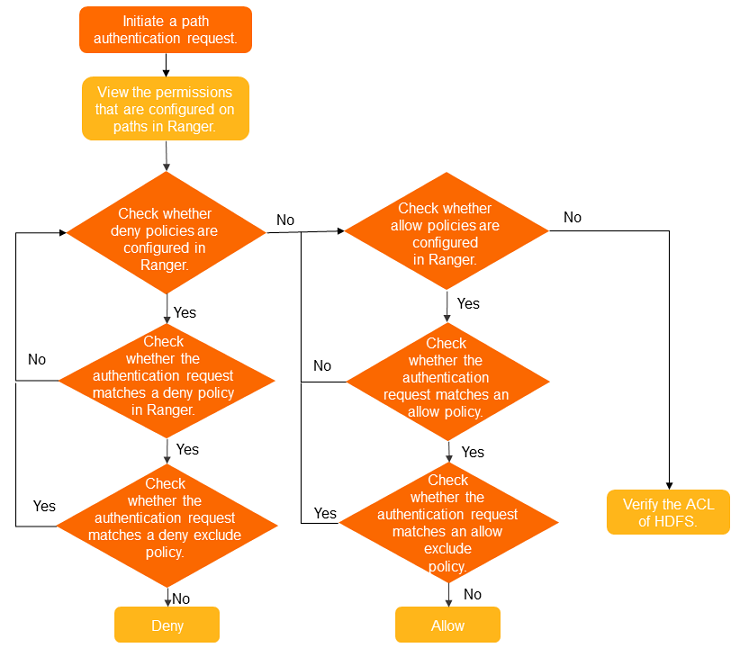
Ranger HDFS permissions and HDFS access control list (ACL)-based permissions are enforced simultaneously. Every access request must pass both layers before it is allowed.
Prerequisites
Before you begin, ensure that you have:
-
A cluster running a version earlier than EMR V5.11.0 or EMR V3.45.0, with Apache Ranger selected as a component at cluster creation time. For more information, see Create a cluster.
For clusters running EMR V5.11.0 or later, or EMR V3.45.0 or later, RangerUserSync automatically connects to an LDAP server when OpenLDAP is installed. To check the user sync source (UNIX or LDAP), search for the ranger.usersync.sync.source configuration item on the Configure tab of the Ranger service page.
Enable HDFS in Ranger
-
Log on to the EMR console.
-
In the top navigation bar, select the region where your cluster resides and select a resource group.
-
On the EMR on ECS page, find the target cluster and click Services in the Actions column.
-
On the Services tab, click Status in the Ranger-plugin section.
-
In the Service Overview section, turn on enableHDFS.
-
In the confirmation dialog box, click OK.
Restart HDFS
After enabling the plugin, restart the NameNode to apply the change.
-
On the Services tab, click the
 icon and select HDFS.
 -
In the Components section, find NameNode and click Restart in the Actions column.
-
In the dialog box, fill in the Execution Reason field and click OK.
-
In the confirmation dialog box, click OK.
Grant permissions on an HDFS path
The emr-hdfs service is added to Ranger automatically when you enable the plugin. Use the following steps to grant a user permissions on a specific HDFS directory.
The example below grants the Write and Execute permissions on the /user/foo directory to the test user.
-
Open the Ranger web UI.
-
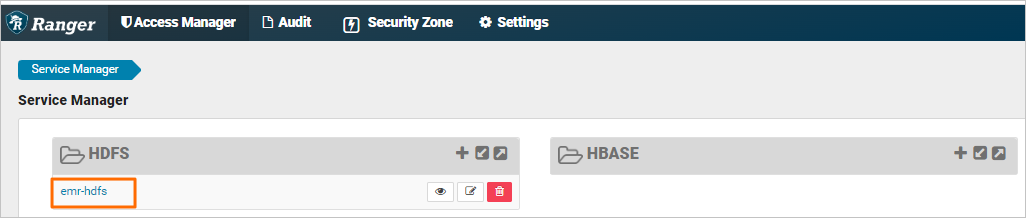
Click emr-hdfs.
-
Click Add New Policy in the upper-right corner.
-
Configure the policy parameters.
Parameter Description Policy Name A name for the policy. Resource Path The HDFS path to control access for. Example: /user/foo.recursive Whether permissions apply to subdirectories and files under the path. Select Group The user group to attach the policy to. Select User The user to attach the policy to. Example: test.Permissions The permissions to grant. Example: Write and Execute. -
Click Add.
After the policy is saved, the test user has Write and Execute permissions on /user/foo.
Policy changes (add, remove, or modify) take about 1 minute to take effect.