This topic describes how to use IntelliJ IDEA to build a debugging environment for Spark on an on-premises machine.
Background information
In this topic, the following tools are used:
Maven 3.8.6
Java 8
IntelliJ IDEA
Prepare the environment
In IntelliJ IDEA, choose and create a Maven project.
Add Spark-related dependencies to the pom.xml file. In this topic, Spark 3.3.0 is used.
<properties>
    <maven.compiler.source>8</maven.compiler.source>
    <maven.compiler.target>8</maven.compiler.target>
    <spark.version>3.3.0</spark.version>
</properties>

<dependencies>
    <!-- spark -->
    <dependency>
        <groupId>org.apache.spark</groupId>
        <artifactId>spark-core_2.12</artifactId>
        <version>${spark.version}</version>
    </dependency>

    <dependency>
        <groupId>org.apache.spark</groupId>
        <artifactId>spark-sql_2.12</artifactId>
        <version>${spark.version}</version>
    </dependency>

    <dependency>
        <groupId>org.apache.spark</groupId>
        <artifactId>spark-hive_2.12</artifactId>
        <version>${spark.version}</version>
    </dependency>
</dependencies>
Examples
This section provides examples on how to build a debugging environment for Spark on an on-premises machine.
Example 1: Use Spark to calculate a rough value of Pi
This example shows how to use Spark to calculate a rough value of Pi.
Create a test case named
SparkPi.scala.import org.apache.spark.sql.SparkSession import scala.math.random object SparkPi { def main(args: Array[String]): Unit = { val spark = SparkSession.builder .appName("Spark Pi") .master("local[4]") .getOrCreate() val slices = if (args.length > 0) args(0).toInt else 2 val n = math.min(100000L * slices, Int.MaxValue).toInt // avoid overflow val count = spark.sparkContext.parallelize(1 until n, slices).map { i => val x = random * 2 - 1 val y = random * 2 - 1 if (x * x + y * y <= 1) 1 else 0 }.reduce(_ + _) println(s"Pi is roughly ${4.0 * count / (n - 1)}") spark.stop() } }Run the main command. After the command is successfully run, the following output is returned:
Pi is roughly 3.1476957384786926
Example 2: Use Spark to access OSS
This example shows how to use Spark to access Object Storage Service (OSS). We recommend that you use Alibaba Cloud JindoSDK to access OSS.
JindoSDK does not support the Windows operating system or Mac M1 series. If you want to perform a test on an on-premises machine that runs a Windows operating system or Mac M1, you can use hadoop-aliyun by referring to the following steps.
Add the following dependencies that are related to
hadoop-aliyunto the pom.xml file:<!-- oss --> <dependency> <groupId>org.apache.hadoop</groupId> <artifactId>hadoop-common</artifactId> <version>3.3.2</version> </dependency> <dependency> <groupId>org.apache.hadoop</groupId> <artifactId>hadoop-aliyun</artifactId> <version>3.3.2</version> </dependency> <dependency> <groupId>com.aliyun.oss</groupId> <artifactId>aliyun-sdk-oss</artifactId> <version>3.15.2</version> </dependency>Create a test case named
SparkOSS.scala.import org.apache.spark.sql.SparkSession object SparkOSS { def main(args: Array[String]): Unit = { val sparkMaster = "local[4]" val ossAccessKeyId = System.getenv("ALIBABA_CLOUD_ACCESS_KEY_ID") val ossAccessKeySecret = System.getenv("ALIBABA_CLOUD_ACCESS_KEY_SECRET") val ossEndpoint = "xxx" val inputPath = "oss://xxx" val outputPath = "oss://xxx" val spark = SparkSession.builder .appName("Spark OSS Word Count") .master(sparkMaster) .config("spark.hadoop.fs.oss.accessKeyId", ossAccessKeyId) .config("spark.hadoop.fs.oss.accessKeySecret", ossAccessKeySecret) .config("spark.hadoop.fs.oss.endpoint", ossEndpoint) .config("spark.hadoop.fs.oss.impl", "org.apache.hadoop.fs.aliyun.oss.AliyunOSSFileSystem") .getOrCreate() val input = spark.sparkContext.textFile(inputPath, 2) input.flatMap(_.split(" ")) .map(x => (x, 1)) .reduceByKey(_ + _) .saveAsTextFile(outputPath) spark.stop() } }NoteYou must configure environment variables before you can run the sample code. For more information about how to configure environment variables, see the Configure environment variables section in this topic.
You must configure the following parameters:
sparkMaster: If you want to run the test case on an on-premises machine, set this parameter tolocal[4]. If you want to run the test case in an E-MapReduce (EMR) cluster, set this parameter toyarn-clientoryarn-cluster.ossAccessKeyId: The AccessKey ID that you want to use to access OSS.ossAccessKeySecret: The AccessKey secret that you want to use to access OSS.ossEndpoint: The endpoint that you want to use to access OSS.inputPath: The path where the wordCount input file is stored.outputPath: The path where the wordCount output file is stored.
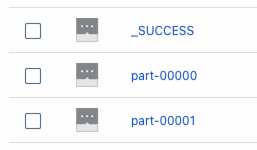
Run the main command. After the command is successfully run, check whether a file is stored in the path that is specified by the outputPath parameter in the OSS console.
Example 3: Use Spark to access DLF
This example shows how to use Spark to access Alibaba Cloud Data Lake Formation (DLF) and read data from or write data to a table in a database.
Add the following dependency that is related to
metastore-clientto the pom.xml file:<!-- dlf --> <dependency> <groupId>com.aliyun.datalake</groupId> <artifactId>metastore-client-hive2</artifactId> <version>0.2.14</version> </dependency>Add the JAR packages that are related to Hive.
Download the JAR packages that are related to Hive from the following directories in your cluster:
$SPARK_HOME/jars/hive-common-x.x.x.jar
$SPARK_HOME/jars/hive-exec-x.x.x-core.jar
In IntelliJ IDEA, choose and import the JAR packages that you downloaded.

Create a test case named
SparkDLF.scala.import org.apache.spark.sql.SparkSession object SparkDLF { def main(args: Array[String]): Unit = { val sparkMaster = "local[4]" val dlfCatalogAccessKeyId = System.getenv("ALIBABA_CLOUD_ACCESS_KEY_ID") val dlfCatalogAccessKeySecret = System.getenv("ALIBABA_CLOUD_ACCESS_KEY_SECRET") val dlfCatalogEndpoint = "xxx" val dlfCatalogId = "xxx" val warehouseDir = "/tmp/warehouse" val spark = SparkSession.builder() .appName("Spark DLF Example") .master(sparkMaster) .config("spark.hadoop.hive.imetastoreclient.factory.class", "com.aliyun.datalake.metastore.hive2.DlfMetaStoreClientFactory") .config("spark.hadoop.dlf.catalog.accessKeyId", dlfCatalogAccessKeyId) .config("spark.hadoop.dlf.catalog.accessKeySecret", dlfCatalogAccessKeySecret) .config("spark.hadoop.dlf.catalog.endpoint", dlfCatalogEndpoint) .config("spark.hadoop.dlf.catalog.id", dlfCatalogId) .config("spark.hadoop.hive.metastore.warehouse.dir", warehouseDir) .enableHiveSupport() .getOrCreate() import spark.sql // create database sql("create database if not exists test_db") // create table sql("create table test_db.test_tbl (key int, value string)") // insert sql("insert into test_db.test_tbl values (0, 'a')") // select sql("select * from test_db.test_tbl").show() // drop table sql("drop table test_db.test_tbl") // drop database sql("drop database test_db") spark.stop() } }You must configure the following parameters:
sparkMaster: If you want to run the test case on an on-premises machine, set this parameter tolocal[4]. If you want to run the test case in an EMR cluster, set this parameter toyarn-clientoryarn-cluster.dlfCatalogAccessKeyId: The AccessKey ID that you want to use to access DLF.dlfCatalogAccessKeySecret: The AccessKey secret that you want to use to access DLF.dlfCatalogEndpoint: The endpoint that you want to use to access DLF.dlfCatalogId: The ID of a specific DLF catalog.warehouseDir: The address of the test database. The following addresses are supported:On-premises machine: For example,
/tmp/warehouse.EMR HDFS: For example,
hdfs://${clusterIP}:9000/xxx. If you use an address in this format, you must use the SSL-VPN mode to connect to the virtual private cloud (VPC) of the specified EMR cluster. This way, you can connect to HDFS in the EMR cluster. For more information, see Connect a client to a VPC.OSS: For example,
oss://. For more information, see Example 2: Use Spark to access OSS.
Run the main command. After the command is successfully run, the following output is returned:
+---+-----+
|key|value|
+---+-----+
|  0|    a|
+---+-----+