Bootstrap actions let you install required third-party software or modify the runtime environment of a cluster. This topic shows you how to add them and provides examples.
Background information
Bootstrap actions automatically run specified scripts on newly added nodes when you create, scale-out, or enable auto scaling for a cluster. You can also manually select and run specified scripts in batches on existing nodes to meet custom requirements. For more information about running scripts manually, see Manually execute scripts.
Similar to manual execution, you can use bootstrap actions during or after cluster creation to perform operations that are not natively supported by EMR, such as:
-
Install available software using Yum.
-
Download public software from the internet.
-
Read your data from OSS.
-
Install and run a component, such as Flink or Impala.
Limits
-
You can add a maximum of 10 bootstrap actions. They are executed in the order you specify.
-
By default, EMR runs the script as the root user. You can also run the
su - hadoopcommand in the script to switch to the hadoop user.
Add a bootstrap action
You can add a bootstrap action in one of the following two ways.
During creation
-
Go to the cluster management page.
-
Log on to the E-MapReduce console.
-
In the top navigation bar, select a region and a resource group.
-
-
On the EMR on ECS page, click CREATE_CLUSTER.
-
In the Advanced Settings section of the Basic Configuration step, click Add Bootstrap Action in the Bootstrap Actions row.
-
Configure the following parameters.
Parameter
Description
Operation Name
The name of the bootstrap action.
Script Path
The OSS path where the script is stored.
The script path must be in the oss://**/*.sh format.
Parameter
Arguments for the bootstrap action script. Specify the values for variables referenced in the script.
Execution Time
-
Before Component Installation: The script runs before the components are installed.
-
Before Component Startup: The script runs after the components are installed but before they are started.
-
After Component Startup: The script runs after the components are started.
Execution Failure Policy
-
Proceed: If the script fails, the system continues to run the next script. This does not affect the cluster creation or scale-out process.
-
Stop: If the script fails, the system immediately stops running the current script and fails the cluster creation or scale-out process.
Execution Scope
The valid values are:
-
Cluster: The bootstrap action applies to the entire cluster.
-
Node Group Type: The bootstrap action applies only to the selected node group type.
For examples of bootstrap actions, see Examples.
NoteIf you select the Proceed policy, a bootstrap action failure does not affect the cluster creation process.
For more information about how to create a cluster, see Create a cluster. After the cluster is created, you can go to the Script Operation page of the cluster to check for errors. If an error occurs, see View script execution logs.
-
After creation
-
Go to the Script operation page.
-
Log on to the E-MapReduce console.
-
In the top navigation bar, select a region and a resource group.
-
Click Services for the target cluster.
-
Click the Script Operation tab.
-
-
On the Bootstrap Actions page, click Add Bootstrap Action.
-
In the Add Bootstrap Action dialog box, configure the parameters.
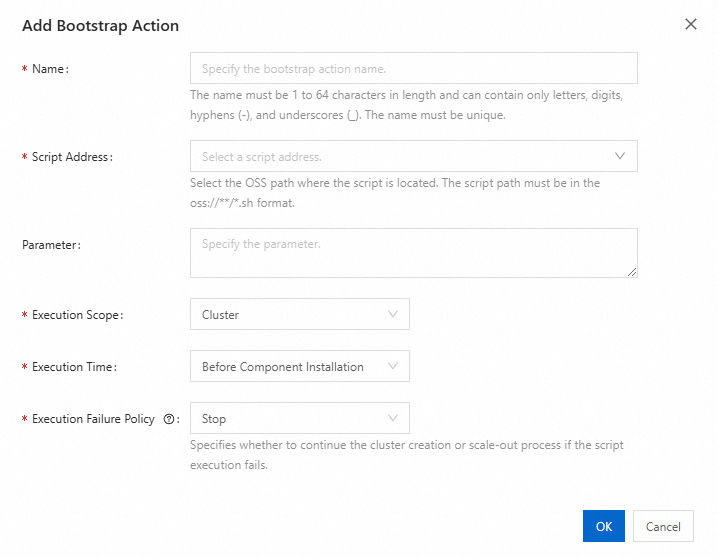
Parameter
Description
Name
The name of the bootstrap action.
Script Address
The OSS path where the script is stored.
The script path must be in the oss://**/*.sh format.
Parameter
Arguments for the bootstrap action script. Specify the values for variables referenced in the script.
Execution Scope
The valid values are:
-
Cluster: The bootstrap action applies to the entire cluster.
-
Node Group Type: The bootstrap action applies only to the selected node group type.
-
Node Group: The bootstrap action applies only to the selected node group.
Execution Time
-
Before Component Installation: The script runs before the components are installed.
-
Before Component Startup: The script runs after the components are installed but before they are started.
-
After Component Startup: The script runs after the components are started.
Execution Failure Policy
-
Proceed: If the script fails, the system continues to run the next script. This does not affect the cluster creation or scale-out process.
-
Stop: If the script fails, the system immediately stops running the current script and fails the cluster creation or scale-out process.
-
-
Click OK.
For examples of bootstrap actions, see Examples.
You can perform the following operations on existing bootstrap actions:
-
Edit a bootstrap action: Click Edit in the row for the target bootstrap action.
-
Clone a bootstrap action: Click Clone in the row for the target bootstrap action.
-
Delete a bootstrap action: Click Delete in the row for the target bootstrap action.
-
Script execution logs
We recommend adding logging logic at key locations in your script. This helps you troubleshoot execution issues by reviewing the run logs.
You can view the execution logs of bootstrap action scripts in the operation history. Follow these steps:
-
Go to the Cluster Services page.
-
Log on to the EMR console.
-
In the left-side navigation pane, click EMR on ECS.
-
In the top navigation bar, select a region and a resource group.
-
On the EMR on ECS page, click Services for the target cluster.
-
-
Click the Script operation tab, and then click View Execution Result to the right of the script that you want to check.
-
In the Operation History panel, find the corresponding operation record and view its details.
-
For DataLake, Dataflow, OLAP, DataServing, and custom clusters: In the operation record for creating a cluster (create) or scaling out a cluster (increaseNodeGroup), click
 to view task details. Tasks that run bootstrap actions are prefixed with
 RUN_BOOTSTRAP_CLUSTER_SCRIPT_<bootstrap action name>_<bootstrap action ID>. You can view the Stdout and Stderr logs. -
For Hadoop, Data Science, and EMR Studio clusters: In the operation record for creating a cluster (CREATE_CLUSTER) or scaling out a cluster (RESIZE_CLUSTER), click
to view task details. Under pollDeployTaskStatusActivity, tasks that run bootstrap actions are prefixed with RUN_SCRIPT_HOST_**. You can view the Stdout and Stderr logs.
-
Examples
When you configure a bootstrap action, you must specify its name and the location of its script in OSS. You can also specify script arguments as needed. When a bootstrap action runs, each node downloads the specified OSS script and runs it directly or with the specified optional arguments. The following sections provide examples:
-
Example 1
You can specify the files to be downloaded from OSS in the script. For example, the following script downloads the oss://<yourBucket>/<myFile>.tar.gz file and decompresses it into the /<yourDir> directory.
ImportantOSS provides internal endpoints, public endpoints, and VPC endpoints. If you use a classic network, you must specify an internal endpoint. For example, the internal endpoint for the China (Hangzhou) region is oss-cn-hangzhou-internal.aliyuncs.com. If you use a VPC, you must specify a VPC-accessible domain name. For example, the VPC endpoint for the China (Hangzhou) region is vpc100-oss-cn-hangzhou.aliyuncs.com.
-
DataLake, Dataflow, OLAP, DataServing, and custom clusters
#!/bin/bash ossutil64 cp oss://<yourBucket>/<myFile>.tar.gz ./ -e oss-cn-hangzhou-internal.aliyuncs.com -i <yourAccessKeyId> -k <yourAccessKeySecret> mkdir -p /<yourDir> tar -zxvf <myFile>.tar.gz -C /<yourDir> -
Legacy DataLake (Hadoop) clusters
#!/bin/bash
osscmd --id=<yourAccessKeyId> --key=<yourAccessKeySecret> --host=oss-cn-hangzhou-internal.aliyuncs.com get oss://<yourBucket>/<myFile>.tar.gz ./
mkdir -p /<yourDir>
tar -zxvf <myFile>.tar.gz -C /<yourDir>
-
-
Example 2
You can use Yum to install additional packages, such as ld-linux.so.2.
#!/bin/bash
yum install -y ld-linux.so.2