The JindoFileSystem (JindoFS) web UI lets you monitor your cluster's running mode, namespaces, storage services, and startup status.
Prerequisites
Before you begin, ensure that you have:
-
An SSH tunnel to the cluster. The JindoFS web UI is accessible only through an SSH tunnel. For setup instructions, see Create an SSH tunnel to access web UIs of open source components.
Access the web UI of JindoFS
After the SSH tunnel is established, open the JindoFS web UI in your browser. The web UI (JindoFS 3.1.X) has four sections: Overview, Namespace Info, StorageService, and Advanced.
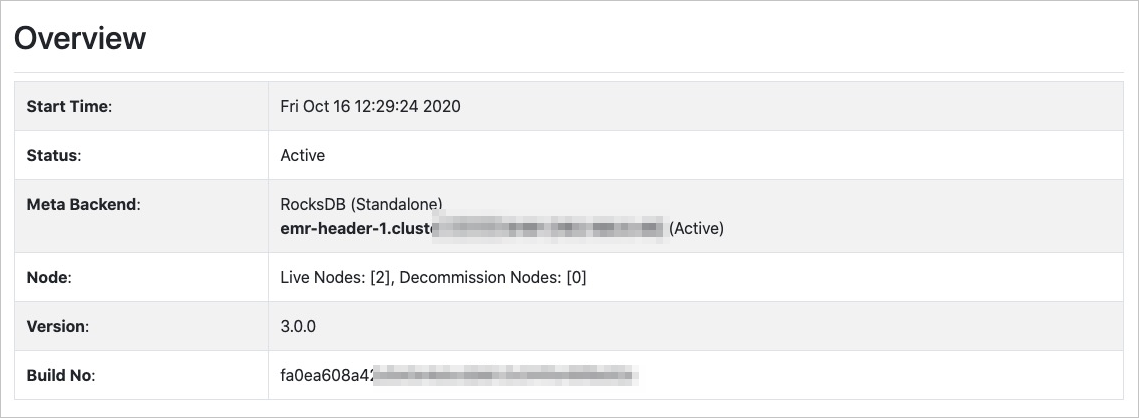
Overview
Displays cluster-level information: Start Time, Status, Meta Backend, Node, and Version.
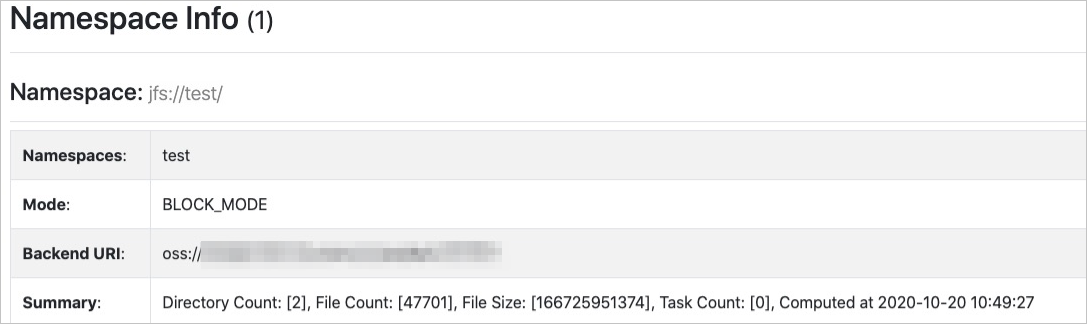
Namespace Info
Lists all namespaces and their details: Namespaces, Mode, Backend URI, and Summary. In block storage mode, the Summary column also shows the number of directories, the number of files, and total file size for each namespace.
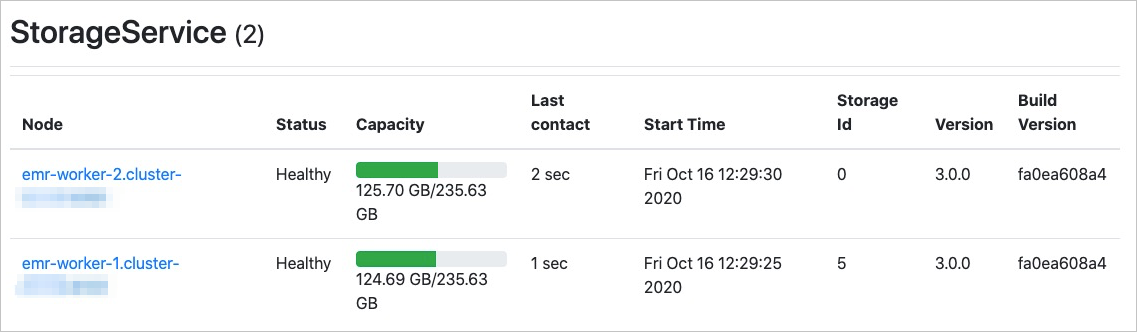
StorageService
Lists all storage services in the cluster. For each storage service, the following details are shown: Node, Status, Capacity, Last contact, Start Time, Storage Id, Version, and Build Version.
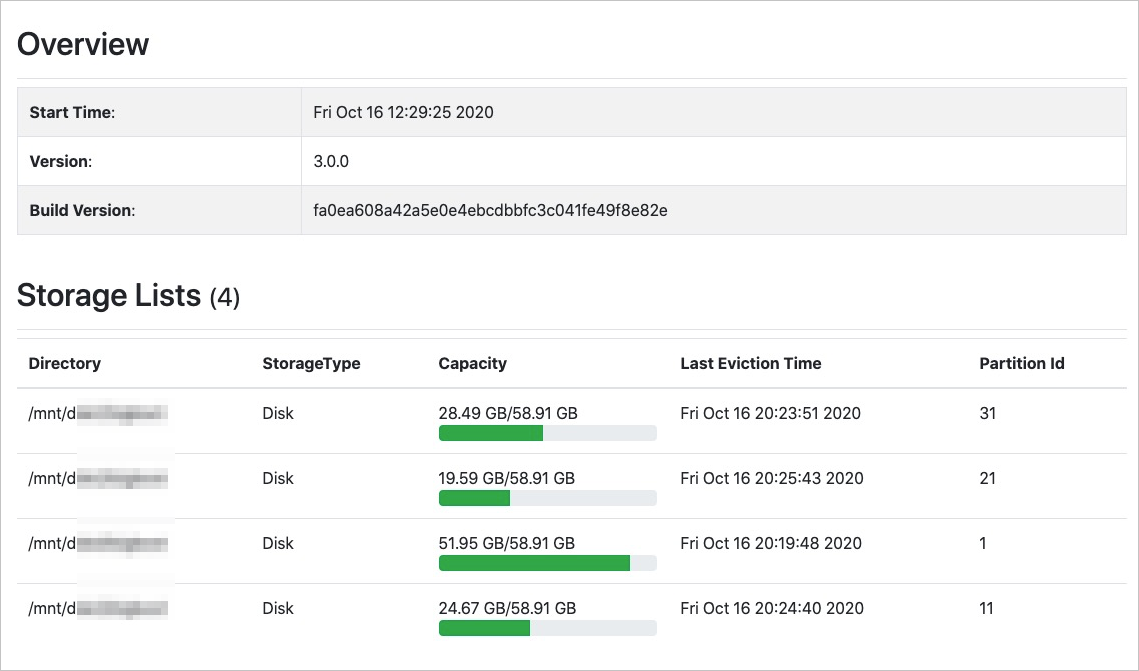
Click a value in the Node column to view the space usage of each disk on that node.
Advanced
Used for JindoFS developers to troubleshoot issues.