Connect your application to an E-MapReduce (EMR) ClickHouse cluster using Java Database Connectivity (JDBC) or Server Load Balancer (SLB). JDBC connects directly to individual cluster node IP addresses; SLB routes traffic through a load balancer endpoint, which simplifies connection management when nodes change.
Default ports:
| Protocol | Default port | Parameter name |
|---|---|---|
| TCP | 9000 | tcp_port |
| HTTP | 8123 | http_port |
To verify the actual port used by your cluster, go to the ClickHouse service page in the EMR console, click the Configure tab, and search for tcp_port or http_port.
How access works
JDBC access
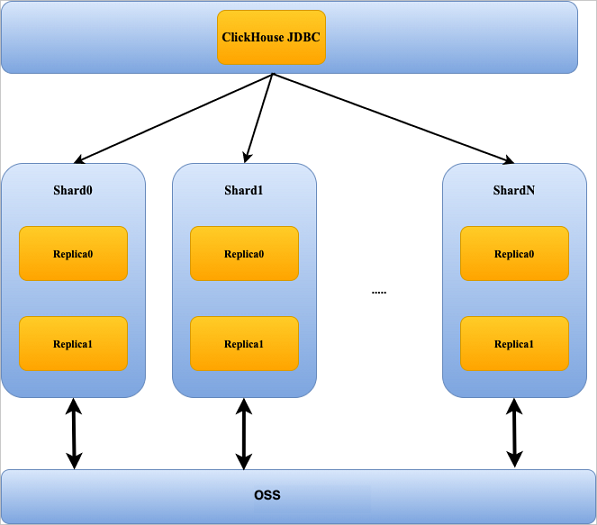
Get the IP addresses of the cluster nodes, then configure the ClickHouse JDBC driver to connect directly to those addresses.
SLB access
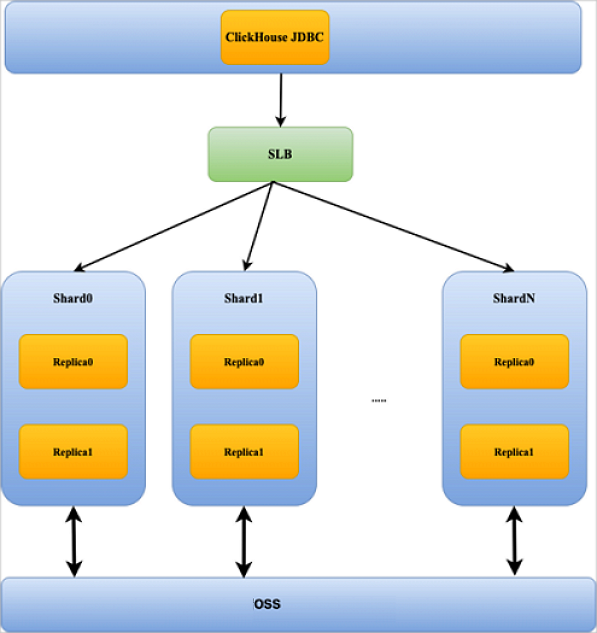
Route traffic through an SLB instance. Configure TCP and HTTP listeners on the SLB instance that forward to the cluster's backend ports, then use the SLB IP address as the connection endpoint.
Prerequisites
Before you begin, ensure that you have:
-
An EMR ClickHouse cluster. For more information, see Create a ClickHouse cluster
-
(For SLB access) An SLB instance. For more information, see Create and manage a CLB instance
If the SLB instance type is Intranet-facing, set its VPC to the virtual private cloud (VPC) in which the ClickHouse cluster is deployed.
Access a ClickHouse cluster using JDBC
Step 1: Get the cluster node IP addresses
-
Log on to the EMR console. In the left-side navigation pane, click EMR on ECS.
-
In the top navigation bar, select the region where your cluster resides and select a resource group.
-
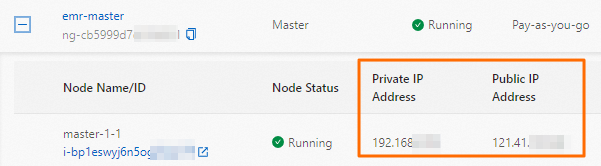
On the EMR on ECS page, find your cluster and click Nodes in the Actions column. Note the IP addresses of the nodes — you will use them in the JDBC URL.
Step 2: Configure the JDBC driver
Add the ClickHouse JDBC driver to your project. For the latest version and dependency configuration, see ClickHouse JDBC driver.
Access a ClickHouse cluster using SLB
Step 1: Configure the SLB instance
Configure the SLB instance to forward traffic to the ClickHouse cluster. For general configuration steps, see Configure a CLB instance.
In most cases, you must configure an HTTP listener and a TCP listener. You can also configure an HTTPS listener based on your business requirements.
Configure each listener's vServer group to use the corresponding backend port:
-
TCP listener: The backend servers must use the TCP port the cluster listens on (default:
9000). To find the actual port, go to the ClickHouse service page in the EMR console, click the Configure tab, and search fortcp_port. For setup, see Add a TCP listener. -
HTTP listener: The backend servers must use the HTTP port the cluster listens on (default:
8123). To find the actual port, go to the ClickHouse service page in the EMR console, click the Configure tab, and search forhttp_port. For setup, see Add an HTTP listener. -
HTTPS listener (optional): For setup, see Add an HTTPS listener.
Step 2: Get the SLB instance IP address
On the Instances page of the SLB console, note the IP address of your SLB instance.
Step 3: Configure the JDBC driver
Configure the JDBC driver as described in Step 2 of the JDBC access method, then use the SLB IP address as the connection endpoint.