To prevent service disruptions from IP address changes during cluster scaling or node failures, E-MapReduce (EMR) lets you access its services through node endpoints. You can use this method to access the cluster from within the same Virtual Private Cloud (VPC) or from a different VPC. This topic describes how to configure node endpoint access for your EMR cluster.
Prerequisites
-
You have created an E-MapReduce cluster and obtained the fully qualified node endpoint, for example,
master-1-1.<Cluster-ID>.<Region-ID>.emr.aliyuncs.com. -
You have deployed a requester, such as a Container Service for Kubernetes (ACK) cluster or an Elastic Compute Service (ECS) instance, and can log on to it.
-
You have configured the network and security group rules to allow the required traffic. We recommend allowing traffic over the ICMP protocol and the target service ports, such as port 80 or 8088.
Scenario 1: Access from the same VPC
When the requester and the EMR cluster are in the same VPC, Alibaba Cloud DNS PrivateZone automatically resolves the node endpoint. No extra configuration is needed. Follow these steps to verify the connection.
Step 1: Get the master node endpoint
-
Connect to the cluster over SSH. For more information, see Log on to a cluster.
-
Run the
hostname -fcommand to get the fully qualified node endpoint.[root@master-1-1(xxx) ~]# hostname -f master-1-1.xxx.cn-hangzhou.emr.aliyuncs.com
Step 2: Verify node endpoint access
-
Log on to the requester, for example, an ECS instance.
-
Run the
ping master-1-1.<Cluster-ID>.<Region-ID>.emr.aliyuncs.comcommand to test network connectivity.[root@xxx ~]# ping master-1-1.xxx.cn-hangzhou.emr.aliyuncs.com PING master-1-1.xxx.cn-hangzhou.emr.aliyuncs.com (xxx) 56(84) bytes of data. 64 bytes from master-1-1.xxx.cn-hangzhou.emr.aliyuncs.com (xxx): icmp_seq=1 ttl=64 time=0.237 ms 64 bytes from master-1-1.xxx.cn-hangzhou.emr.aliyuncs.com (xxx): icmp_seq=2 ttl=64 time=0.161 ms 64 bytes from master-1-1.xxx.cn-hangzhou.emr.aliyuncs.com (xxx): icmp_seq=3 ttl=64 time=0.144 ms 64 bytes from master-1-1.xxx.cn-hangzhou.emr.aliyuncs.com (xxx): icmp_seq=4 ttl=64 time=0.173 msThis response confirms successful node endpoint resolution and network connectivity between the requester's VPC and the EMR cluster's VPC.
-
If the resolution fails, check whether your security group rules allow ICMP traffic or traffic over the target service ports.
-
Make sure that the DNS configuration of the requester has not been changed. By default, it uses the DNS service provided by Alibaba Cloud VPC.
Scenario 2: Access from a different VPC
When the requester and the EMR cluster are in different VPCs, you must establish a VPC peering connection and configure DNS resolution using Alibaba Cloud DNS PrivateZone. The following sections describe the configuration and verification steps.
Step 1: Create a VPC peering connection
Log on to the VPC peering connection console. In the top navigation bar, select the region where the requester VPC is located, which is China (Beijing) in this example. In the left-side navigation pane, click VPC Peering Connection.
If you have not used VPC peering connection before, click Activate CDT on the VPC Peering Connection page, and then click OK in the dialog box.
NoteTo create a VPC peering connection across accounts, ensure that the accepter has enabled the Cloud Data Transfer (CDT) feature.
Go to the VPC Peering Connection page, click Create VPC Peering Connection, and set the parameters as follows:
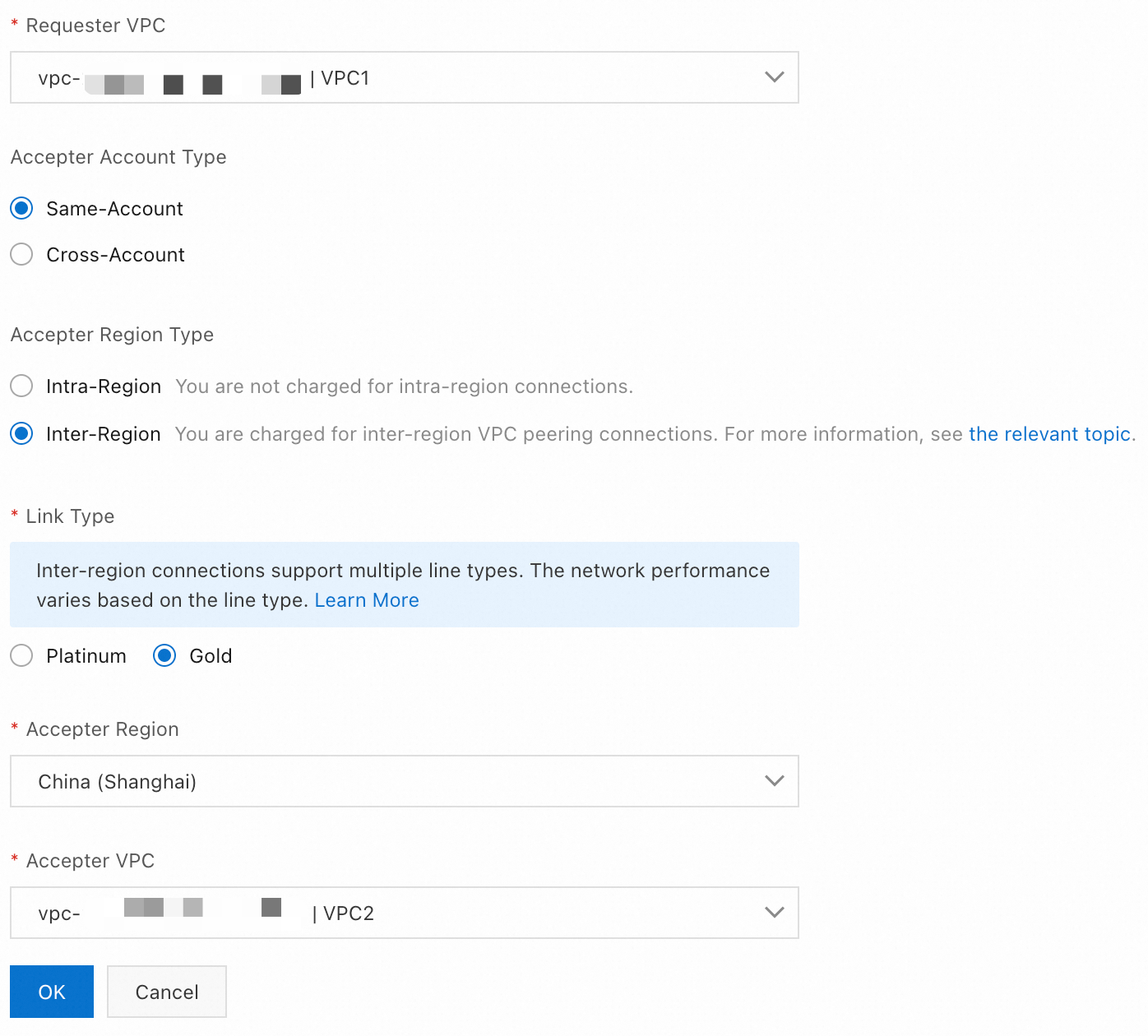
Inter-region scenarios allow you to select the Link Type based on business latency requirements.
Gold (default): Meet general requirements for latency and connection quality.
Platinum: Best suited for scenarios that require lower latency and more stable connections, such as securities trading and real-time gaming.
NoteYou can create four types of VPC peering connections: intra-region same-account, inter-region same-account, intra-region cross-account, and inter-region cross-account.
When the accepter account is Same-Account, the system automatically establishes the connection after the requester initiates the request. No action is required from the accepter.
When the accepter account is Cross-Account, the accepter needs to accept the peering request before the VPC peering connection can be created. The accepter may reject the request and terminate the VPC peering connection process. The steps that need to be taken by the accepter are as follows :
Log on to the VPC console with the accepter account. In the left-side navigation pane, click VPC Peering Connection.
Find the target VPC peering connection on the VPC Peering Connection page. Currently, the status of the connection is Accepting.
 Decide whether to accept the request:
Accept: The status changes from Accepting to Updating.
When the status changes to Activated, it indicates the connection is ready for use.
Reject: The status changes from Accepting to Rejected.
A Rejected VPC peering connection cannot be used. You can Delete it from either the requester or the accepter end.
If the accepter takes no action on a cross-account VPC peering connection request, the connection status changes to Expired after 7 days.
Step 2: Configure routes
After a VPC peering connection has been created and Activated, you need to add route entries that point to the peer VPC on both ends to enable the connection.
Find the VPC peering connection on the VPC Peering Connection page and click Configure Route in either the Requester VPC or Accepter VPC column.

Configure the IPv4 or IPv6 route entries for both the requester and accepter VPCs. Below is an example of configuring an IPv4 route entry.
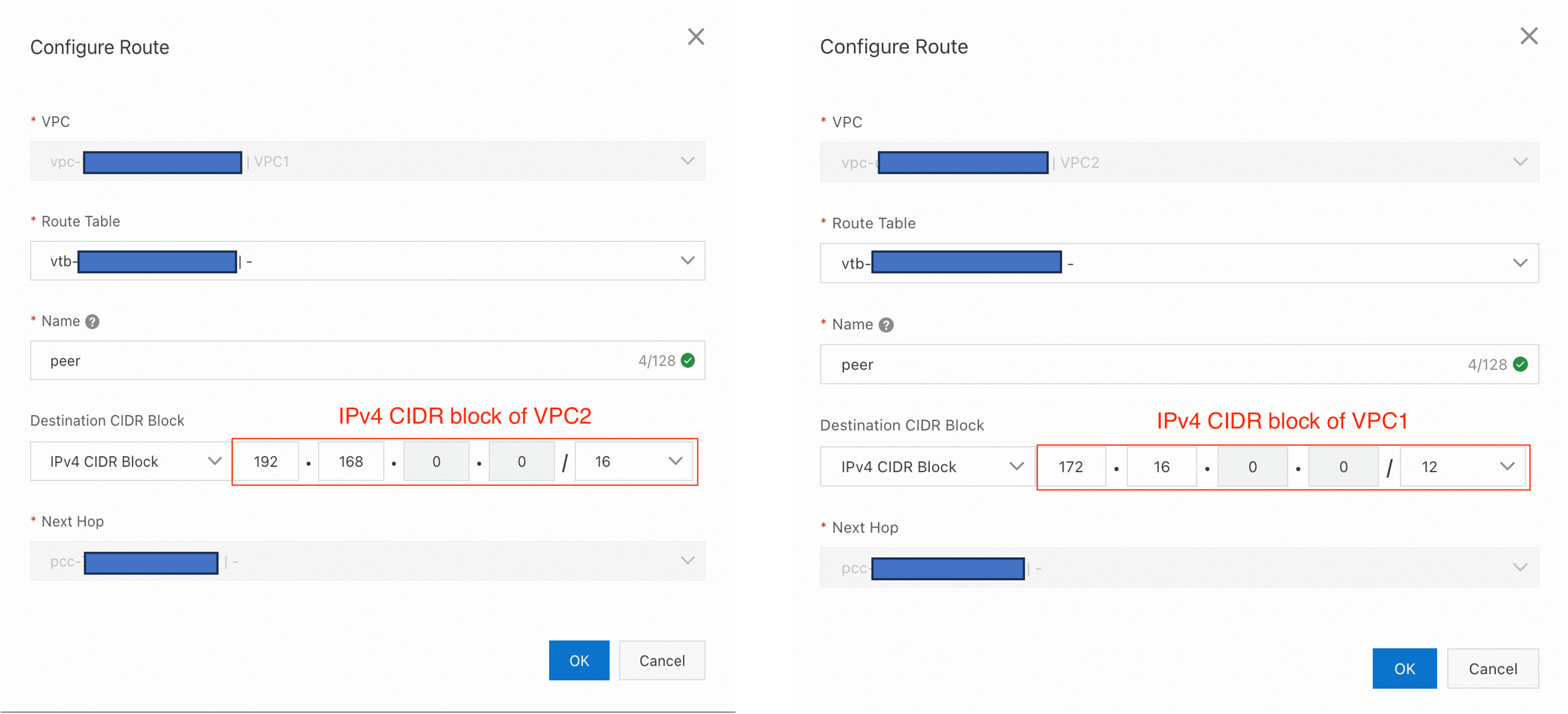
For cross-account peering connections, log on to the VPC consol with the accepter account. Enter the IPv4 or IPv6 CIDR block of the requester VPC to add a route for the accepter VPC.
Step 3: Associate the VPC with the EMR PrivateZone
EMR does not currently support self-service association. To associate the requester's VPC with the EMR cluster's PrivateZone, submit a ticket to EMR product support. After the association is complete, the DNS resolution capability of the EMR cluster's PrivateZone extends to the requester VPC.
Step 4: Verify node endpoint access
-
Log on to the requester, for example, an ECS instance.
-
Run the
ping master-1-1.<Cluster-ID>.<Region-ID>.emr.aliyuncs.comcommand to test network connectivity.This response confirms successful node endpoint resolution and network connectivity between the requester's VPC and the EMR cluster's VPC.
-
If the resolution fails, check whether your security group rules allow ICMP traffic or traffic over the target service ports.
-
Make sure that the DNS configuration of the requester has not been changed. By default, it uses the DNS service provided by Alibaba Cloud VPC.
FAQ
Node endpoint fails to resolve
-
Confirm that the requester uses the default Alibaba Cloud DNS servers. The addresses are
100.100.2.136and100.100.2.138. If not, modify the/etc/resolv.conffile.[root@master-1-1(xxx) ~]# cat /etc/resolv.conf # Generated by NetworkManager nameserver 100.100.2.136 nameserver 100.100.2.138 -
Log on to the Alibaba Cloud DNS PrivateZone console and confirm that the EMR cluster's PrivateZone is correctly associated with the requester VPC. If not, refer to Scenario 2: Access from a different VPC.
Network is unreachable
Use tracert or telnet to test network connectivity. Verify that the security group rules allow traffic to the target port. For more information about security group configurations, see Manage security groups.